
EPOMAKER bf5a986e-2dc9-4e40-8538-54db39c6757a
EPOMAKER x Feker Galaxy80 Wireless Mechanical Keyboard User Manual
Brand: EPOMAKER
Model: Galaxy80 (bf5a986e-2dc9-4e40-8538-54db39c6757a)
1. Introduction
The EPOMAKER x Feker Galaxy80 is a high-performance wireless mechanical keyboard designed for versatility and durability. Featuring an aluminum alloy gasket-mounted construction, it offers a premium typing experience with its hot-swappable switches and NKRO (N-Key Rollover) capability. This manual provides detailed instructions for setting up, operating, maintaining, and troubleshooting your Galaxy80 keyboard.

Figure 1: EPOMAKER x Feker Galaxy80 Wireless Mechanical Keyboard (Purple variant).
Key Features:
- Robust Elegance: Full Aluminum Alloy Shell for durability and premium feel.
- Tenkeyless Compact Layout: Efficient design without sacrificing essential keys.
- Innovative Gasket Structure: Ensures comfortable typing and consistent touch.
- 5 Layered Structure: Provides superior HiFi sound with crisp, clear keystrokes.
- Versatile Connectivity: Supports Bluetooth 5.0, 2.4GHz wireless, and wired USB-C options.
- Long-Lasting Battery: Equipped with a 4000mAh battery for extended use.
- South-facing LED & Dazzling RGB Backlight: 19 lighting effects with music rhythm sync.
- Hot-Swappable PCB: Compatible with 3/5-pin mechanical switches for customization.
2. Package Contents
Please ensure all items are present in your package:
- EPOMAKER x Feker Galaxy80 Wireless Mechanical Keyboard
- USB Cable (USB-C)
- Keycap Puller
- Switch Puller
- Extra Switches (2 pcs)
- 2.4G USB Dongle (stored magnetically on the keyboard)

Figure 2: Included accessories and keyboard in packaging.
3. Product Overview
The Galaxy80 keyboard features a robust aluminum alloy shell and a compact Tenkeyless (TKL) layout, providing a sturdy and space-efficient design. The keyboard's internal structure includes five layers of sound-dampening materials for an enhanced auditory experience.
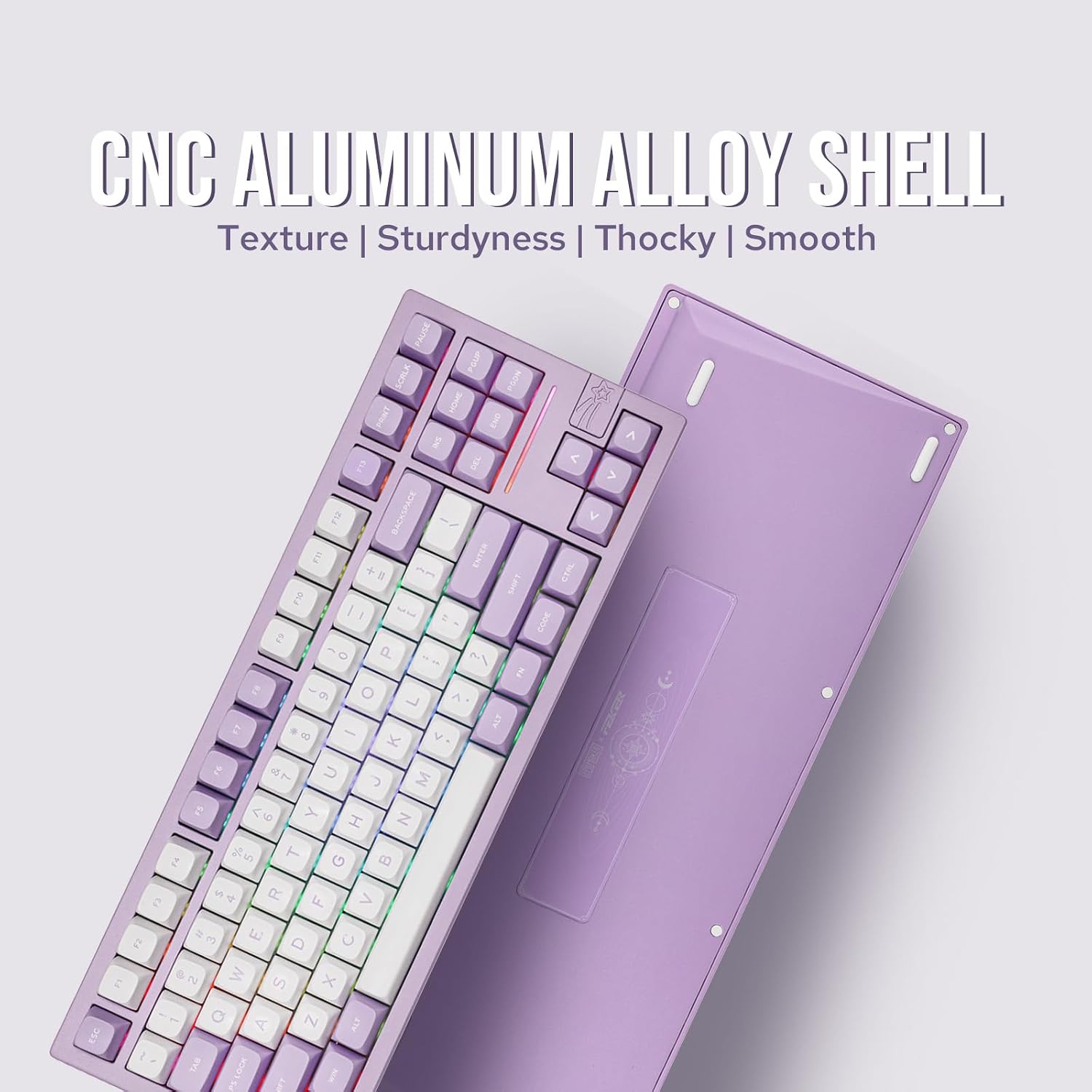
Figure 3: Detailed view of the CNC Aluminum Alloy Shell, highlighting its texture and sturdiness.

Figure 4: Exploded diagram illustrating the keyboard's 5-layered internal structure for superior sound.
Hot-Swappable Switches:
The Galaxy80 features a hot-swappable PCB, allowing users to easily change mechanical switches without soldering. This enables customization of typing feel and sound.

Figure 5: Demonstration of the hot-swappable PCB, compatible with 3/5-pin mechanical switches.
Video 1: A close-up demonstration of the Marble White Switches and their hot-swappable nature.
4. Setup
Connectivity Options:
The Galaxy80 keyboard supports three modes of connection: Bluetooth, 2.4GHz Wireless, and Wired USB-C.

Figure 6: Overview of the keyboard's tri-mode connectivity, compatible with various devices.
4.1. 2.4GHz Wireless Mode:
- Locate the 2.4G USB dongle, which is magnetically stored on the keyboard (usually near the arrow keys).
- Plug the 2.4G USB dongle into an available USB port on your computer.
- On the keyboard, switch the mode selector to 2.4G (often indicated by a yellow slow flash).
- The keyboard should automatically connect. The indicator light will become steady for 3 seconds and then turn off.
Video 2: Instructions on how to connect the keyboard in 2.4GHz wireless mode.
4.2. Bluetooth Mode:
- On the keyboard, switch the mode selector to Bluetooth (BT1, BT2, or BT3). The indicator light will flash blue, green, or red slowly depending on the selected channel.
- On your device (PC, laptop, tablet, phone), enable Bluetooth and search for new devices.
- Select "Galaxy80" from the list of available devices.
- The indicator light will become steady for 3 seconds and then turn off upon successful connection.
4.3. Wired USB-C Mode:
- Connect the provided USB-C cable to the keyboard's USB-C port.
- Connect the other end of the USB-C cable to an available USB port on your computer.
- The keyboard will automatically switch to wired mode and begin charging.
5. Operating Instructions
5.1. RGB Backlight Control:
The Galaxy80 features dazzling RGB backlighting with 19 stunning lighting effects and music rhythm sync.
- FN + Enter: Toggle backlight effect.
- FN + \|: Toggle backlight color.
- FN + T: Turn on/off backlight.

Figure 7: Keyboard layout highlighting RGB backlight control key combinations.
5.2. Battery Level Check:
Check the battery level in wireless mode using the FN + Space Bar combination.

Figure 8: Visual guide for checking the keyboard's battery level.
5.3. Programmable Software:
The Galaxy80 supports custom software for key remapping and lighting customization. Note: This custom software is only compatible with Windows operating systems, not Mac OS.

Figure 9: Interface of the dedicated software for customizing keyboard functions and RGB lighting.
6. Maintenance
To ensure the longevity and optimal performance of your EPOMAKER x Feker Galaxy80 keyboard, follow these maintenance guidelines:
- Cleaning: Regularly clean the keycaps and keyboard body with a soft, dry cloth. For deeper cleaning, use a keycap puller to remove keycaps and clean underneath with compressed air or a small brush.
- Avoid Liquids: Keep liquids away from the keyboard to prevent damage to internal components. In case of spills, immediately disconnect the keyboard and allow it to dry completely before reconnecting.
- Storage: When not in use for extended periods, store the keyboard in a dry, dust-free environment.
- Switch Care: If you frequently swap switches, handle them gently to avoid bending the pins. Ensure switches are aligned correctly before pressing them into the PCB.
7. Troubleshooting
If you encounter issues with your Galaxy80 keyboard, please refer to the following common troubleshooting steps:
| Problem | Possible Cause | Solution |
|---|---|---|
| Keyboard not responding (Wireless) | Low battery, incorrect mode, dongle not connected/paired. | Charge the keyboard. Ensure correct mode (BT/2.4G) is selected. Re-pair the dongle if necessary. |
| Keys not registering or double-typing | Loose switch, dust/debris under keycap, switch malfunction. | Press down on the keycap firmly. Remove keycap and clean. Replace the switch if faulty using the provided extra switches. |
| RGB backlight not working | Backlight turned off, software issue. | Press FN + T to toggle backlight. Check software settings (Windows only). |
| Bluetooth connection unstable | Interference, distance from device, low battery. | Move closer to the device. Ensure no strong interference sources. Charge the keyboard. Try re-pairing. |
If the issue persists after trying these steps, please contact EPOMAKER customer support for further assistance.
8. Specifications
| Feature | Detail |
|---|---|
| Model | Galaxy80 |
| Layout | Tenkeyless (TKL), 88 Keys |
| Connectivity | Bluetooth 5.0, 2.4GHz Wireless, USB-C Wired |
| Shell Material | Aluminum Alloy |
| Mounting Style | Gasket-Mounted |
| Switches | Hot-Swappable (3/5-pin compatible) |
| Keycaps | PBT keycaps in MDA Profile |
| Backlight | RGB (16 Million Colors, Music Rhythm Sync) |
| Battery Capacity | 4000mAh |
| Compatible OS | Windows 7/8/9/10/11, Mac, Linux, Android, iOS |
| Item Weight | 4.64 pounds (approx. 2.1 kg) |
| Dimensions | 16.3 x 7.56 x 2.52 inches |
9. Warranty and Support
EPOMAKER products typically come with a manufacturer's warranty. For specific warranty terms and conditions, please refer to the warranty card included in your product packaging or visit the official EPOMAKER website. If you require technical support, have questions about your product, or need to initiate a warranty claim, please contact EPOMAKER customer service directly through their official channels.
Contact Information: Refer to the EPOMAKER official website or the contact details provided in your product's documentation.
Related documentsbf5a986e-2dc9-4e40-8538-54db39c6757a


Ask a question about this manual
Ask about setup, troubleshooting, compatibility, parts, safety, or missing instructions. Manuals+ will review the question and use this page’s manual context to help answer it.