
Anker T2080
Anker Eufy Robot Vacuum Omni S1 Pro User Manual
Model: T2080
1. Introduction
The Anker Eufy Robot Vacuum Omni S1 Pro is an advanced robotic cleaning system designed to provide comprehensive floor care. It combines powerful vacuuming with intelligent mopping capabilities, featuring an automatic self-cleaning station for minimal user intervention. This manual will guide you through the setup, operation, and maintenance of your device to ensure optimal performance.
2. Product Overview
The Eufy Omni S1 Pro consists of the robot vacuum cleaner and a multi-functional self-cleaning station. Key features include:
- Rotating Pressurized Mop: Applies approximately 1kg of pressure for effective stain removal.
- Automatic Self-Empty Station: Collects dust and debris from the robot, requiring bag replacement only every two months (depending on usage).
- Mop Self-Cleaning & Drying: Washes and dries the mop pads automatically with ozone water and 55°C hot air.
- Automatic Detergent Dispensing: Ensures optimal cleaning solution application.
- Mop Lift Function: Automatically lifts the mop when detecting carpets to prevent wetting.
- AI Mapping & Obstacle Avoidance: Utilizes 3D MatrixEye and TrueCourse mapping with ToF LiDAR for precise navigation and efficient cleaning paths.
- Powerful Suction: Up to 8000Pa suction power for deep cleaning carpets and hard floors.

Figure 2.1: The Eufy Robot Vacuum Omni S1 Pro and its accompanying self-cleaning station.
3. Setup
3.1 Unpacking and Component Identification
Carefully remove all components from the packaging. Ensure all items listed in the package contents are present:
- Eufy Robot Vacuum Omni S1 Pro
- All-in-One Cleaning Station
- Power Cord
- Side Brushes (2 pairs)
- Floor Cleaner
- Replacement Rotating Mop
- Replacement Dust Bag
- Replacement Filter
- Cleaning Tool
- Quick Start Guide
- Safety Manual
3.2 Station Placement
Place the self-cleaning station on a hard, level surface against a wall. Ensure there is at least 0.5 meters (1.6 feet) of clear space on both sides and 1.5 meters (4.9 feet) in front of the station for optimal robot navigation.
3.3 Initial Charging
Connect the power cord to the station and plug it into a wall outlet. Place the robot onto the charging contacts of the station. The robot will begin charging automatically. Ensure the robot is fully charged before its first use.
3.4 App Connection and Initial Mapping
Download the Eufy Clean app from your device's app store. Follow the in-app instructions to connect your robot vacuum to your home Wi-Fi network. Once connected, initiate the first mapping run. The robot will explore your home to create a detailed map, which can then be customized within the app for specific cleaning zones and no-go areas.
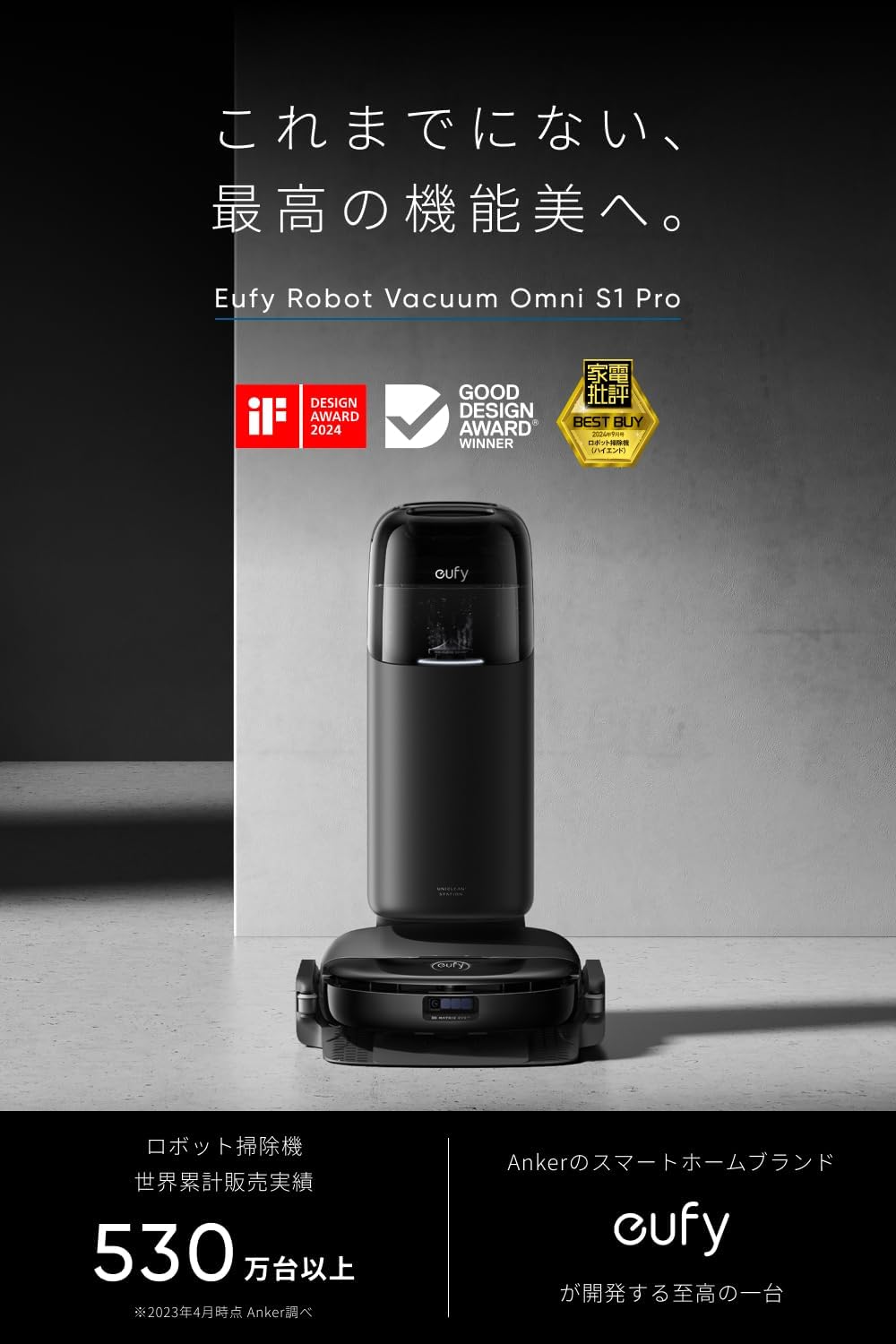
Figure 3.1: The Eufy Omni S1 Pro and its station, ready for setup.
4. Operating the Robot Vacuum
4.1 Starting and Stopping Cleaning
To start a cleaning cycle, press the 'Clean' button on the robot or use the Eufy Clean app. To pause or stop cleaning, press the 'Clean' button again or use the app. The robot will return to its station automatically when cleaning is complete or when its battery is low.
4.2 Cleaning Modes
The Eufy Omni S1 Pro supports various cleaning modes, selectable via the app:
- Vacuum Only: For dry debris collection.
- Mop Only: For wet mopping with water or floor cleaner.
- Vacuum & Mop: Simultaneous vacuuming and mopping for comprehensive cleaning.
- Zone Cleaning: Clean specific areas defined on the map.
- Spot Cleaning: Focus on a small, concentrated area.
4.3 Advanced Navigation and Cleaning
The robot utilizes 3D MatrixEye technology for superior obstacle avoidance, allowing it to navigate around furniture and other items with precision. TrueCourse mapping with ToF LiDAR ensures efficient and thorough cleaning coverage of your entire home. The robot's slim design (approx. 9.6 cm height) allows it to clean effectively under most furniture.
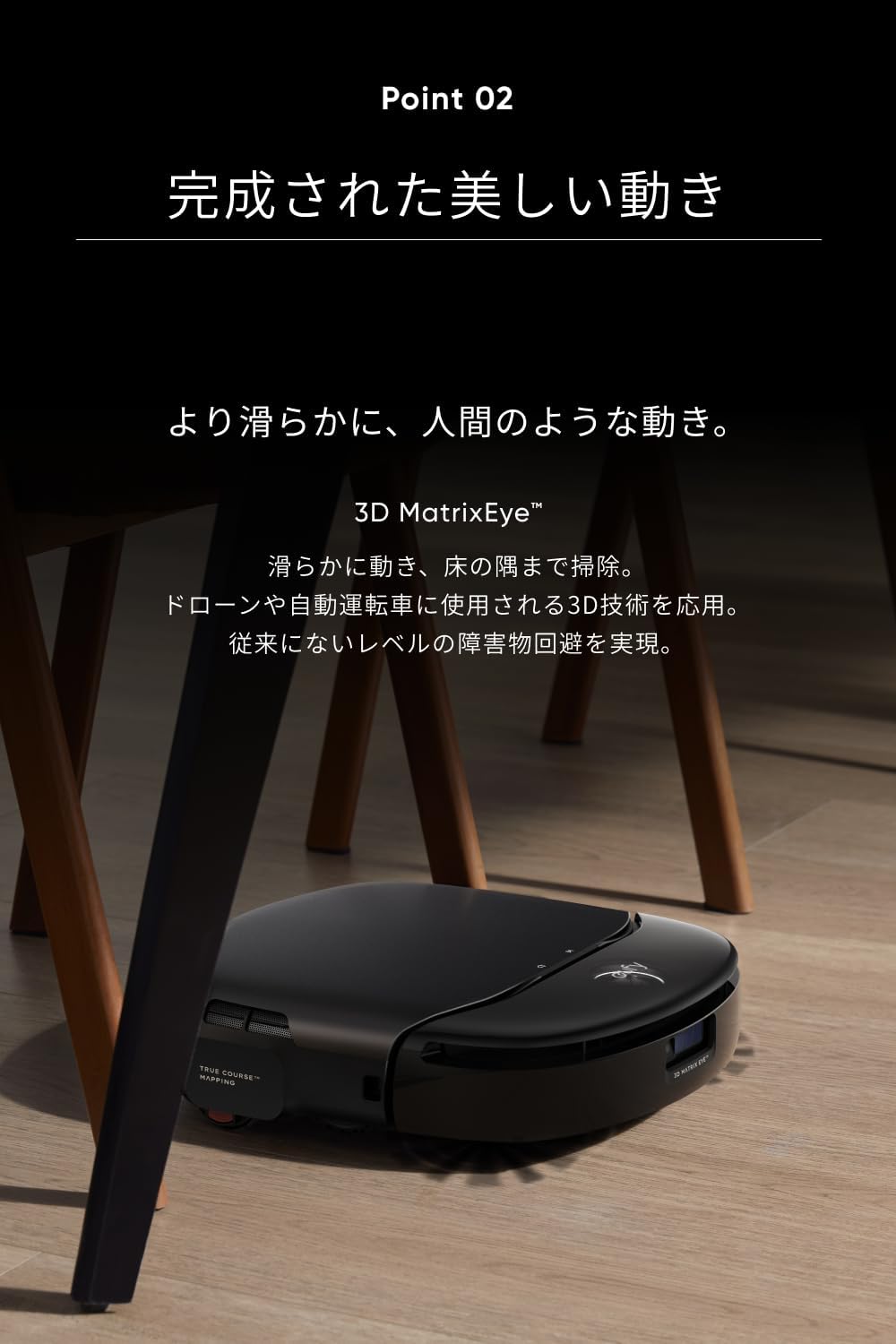
Figure 4.1: The robot vacuum cleaning under a chair, demonstrating its low profile.
With a maximum suction power of 8000Pa, the robot effectively removes dust, pet hair, and debris from various floor types. For mopping, the rotating mop applies approximately 1kg of downward pressure, ensuring stubborn stains are thoroughly cleaned. The automatic mop lift function detects carpets and raises the mop pads by about 12mm to prevent wetting.

Figure 4.2: The robot's powerful suction mechanism.
4.4 App Control and Customization
The Eufy Clean app provides comprehensive control over your robot vacuum. You can:
- View and edit cleaning maps.
- Set virtual walls and no-go zones.
- Adjust suction power and water flow levels.
- Schedule cleaning times.
- Monitor cleaning progress and battery status.
- Receive notifications and error alerts.

Figure 4.3: Customizing cleaning settings via the Eufy Clean app.
5. Maintenance
Regular maintenance ensures the longevity and optimal performance of your Eufy Omni S1 Pro. The self-cleaning station automates much of the routine maintenance.
5.1 Automatic Maintenance by Station
The all-in-one cleaning station performs the following tasks automatically:
- Automatic Dust Collection: The robot's dustbin is automatically emptied into a sealed dust bag in the station. This bag typically needs replacement every 2 months, depending on usage.
- Automatic Mop Washing: The station uses ozone water to thoroughly wash the mop pads during and after cleaning cycles, preventing the spread of dirt.
- Automatic Mop Drying: After washing, the mop pads are dried with 55°C hot air to prevent mildew and odors.
- Automatic Detergent Dispensing: The station automatically adds the correct amount of floor cleaner from its reservoir to the clean water tank.

Figure 5.1: Internal components of the self-cleaning station.
5.2 Manual Maintenance
While the station automates much of the cleaning, some manual checks are necessary:
- Clean/Dirty Water Tanks: Regularly check and refill the clean water tank and empty the dirty water tank. The transparent design of the clean water tank allows for easy visual inspection.
- Main Brush: Periodically remove and clean the main brush to remove tangled hair and debris.
- Side Brushes: Check side brushes for wear and tear, and replace if necessary.
- Filter: Clean or replace the filter as recommended by the app or every 2-3 months, depending on usage.
- Sensors: Wipe the robot's sensors with a clean, dry cloth to ensure accurate navigation.
6. Troubleshooting
If you encounter issues with your Eufy Omni S1 Pro, refer to the following common problems and solutions:
| Problem | Possible Cause | Solution |
|---|---|---|
| Robot does not start or respond. | Low battery; Power switch off; Robot stuck. | Charge the robot; Turn on the power switch; Clear any obstructions. |
| Poor cleaning performance. | Dustbin full; Brushes tangled; Filter clogged; Mop pads dirty. | Empty dustbin; Clean brushes; Clean/replace filter; Ensure mop pads are clean. |
| Robot cannot return to station. | Station obstructed; Station not powered on; Robot too far from station. | Ensure clear path to station; Check power connection; Manually place robot near station. |
| App connectivity issues. | Incorrect Wi-Fi password; Router issues; Robot out of Wi-Fi range. | Verify Wi-Fi password; Restart router; Move robot closer to router. |
| Mop pads not drying properly. | Drying vent blocked; Excessive humidity. | Clear any blockages around the drying vent; Ensure proper ventilation in the room. |
For specific error codes or persistent issues, consult the Eufy Clean app for detailed explanations and troubleshooting steps. If the problem persists, contact customer support.
7. Specifications
| Feature | Specification |
|---|---|
| Model Number | T2080 |
| Manufacturer | Anker |
| Color | Black |
| Package Dimensions | 76.4 x 53 x 44.9 cm |
| Package Weight | 20.27 kg |
| Suction Power | Max 8000 Pa |
| Mop Pressure | Approx. 1 kg |
| Battery Type | Lithium (Built-in) |
| Control Method | App Control |
| Special Features | Collision Prevention, Automatic Dust Collection, Mop Self-Cleaning & Drying, Mop Lift, Automatic Detergent Dispensing, AI Mapping, Obstacle Avoidance |
8. Warranty and Support
The Anker Eufy Robot Vacuum Omni S1 Pro comes with a maximum 24-month warranty from the date of purchase. This warranty covers manufacturing defects and issues arising from normal use.
For warranty claims, technical support, or any questions regarding your product, please contact Anker customer service through the Eufy Clean app or visit the official Eufy support website. Please have your product model number (T2080) and purchase information ready when contacting support.
Related Documents - T2080
 |
Aviso sobre la Ley de Datos de la UE para Aspiradoras Robot Anker Este aviso explica cómo Anker maneja los datos generados por sus aspiradoras robot conectadas, de acuerdo con la Ley de Datos de la UE (Reglamento (UE) 2023/2854), garantizando el acceso justo y el control del usuario sobre su información. |
 |
Anker RoboVac Omni E25 Quick Start Guide and Overview A concise guide to setting up, operating, and maintaining the Anker RoboVac Omni E25 robot vacuum cleaner, including package contents, charging, app connection, and support information. |
 |
Avviso Legge sui Dati UE: Diritti e Trasparenza per Prodotti Connessi Anker Scopri i tuoi diritti sui dati secondo il Regolamento UE Data Act per i prodotti connessi Anker. Informazioni su accesso, uso e protezione dei dati generati dal tuo robot aspirapolvere. Contatta Anker per esercitare i tuoi diritti. |
 |
Anker Robot Vacuum Cleaner: EU Data Act Notice and Data Handling Learn about Anker's commitment to data transparency and user rights under the EU Data Act for Robot Vacuum Cleaners. Details on data access, collection, and usage. |
 |
Eufy S1 Pro Robot Vacuum and Mop User Manual Comprehensive user guide for the Eufy S1 Pro robot vacuum and mop, covering setup, operation, maintenance, troubleshooting, and specifications. Learn how to get the most out of your smart cleaning device. |
 |
Eufy S1 Pro Quick Start Guide A quick start guide for the Eufy S1 Pro robot vacuum and mop, detailing setup, app connection, and basic operation. |
Ask a question about this manual
Ask about setup, troubleshooting, compatibility, parts, safety, or missing instructions. Manuals+ will review the question and use this page’s manual context to help answer it.