
Introduction
This manual provides comprehensive instructions for the Nulea M511 Pro Wired Ergonomic Trackball Mouse. Please read this manual thoroughly before using the product to ensure proper operation and longevity. This device is designed for enhanced precision and comfort, compatible with both Windows and Mac operating systems.
Package Contents
- Nulea M511 Pro Trackball Mouse (with integrated USB cable)
- User Manual

Image: The Nulea M511 Pro Trackball Mouse shown in its retail packaging.
Product Overview
Familiarize yourself with the components and key features of your Nulea M511 Pro Trackball Mouse.

Image: Top-down view of the Nulea M511 Pro Trackball Mouse, highlighting its central trackball and button layout.

Image: A diagram illustrating the two main buttons (Left Key, Right Key) and the 360-degree scroll wheel on the Nulea M511 Pro Trackball Mouse.

Image: A visual representation of the 44mm diameter trackball and how it can be removed for cleaning, emphasizing its size for enhanced precision.
Setup
- Connect the USB cable of the Nulea M511 Pro Trackball Mouse to an available USB port on your computer (Windows PC or Mac).
- The operating system will automatically detect and install the necessary drivers. This process may take a few moments.
- Once the drivers are installed, the trackball mouse is ready for use. No additional software installation is typically required.

Image: The Nulea M511 Pro Trackball Mouse connected via its wired USB cable to a computer setup, demonstrating its plug-and-play functionality.
Operating Instructions
Basic Operation
- Trackball Control: Use your fingers (typically index, middle, or ring finger) to roll the red trackball to move the cursor on the screen.
- Left Click: Press the left button (labeled '1' in product overview images) for primary selection and interaction.
- Right Click: Press the right button (labeled '2' in product overview images) for contextual menus and secondary functions.
- Scroll Wheel: Rotate the central scroll wheel (labeled '4' in product overview images) for 360-degree scrolling through documents and web pages.
Ergonomic Design
The Nulea M511 Pro features an ergonomic square shape and symmetric design, suitable for both right and left-handed users, designed to reduce stress and pain during extended use.
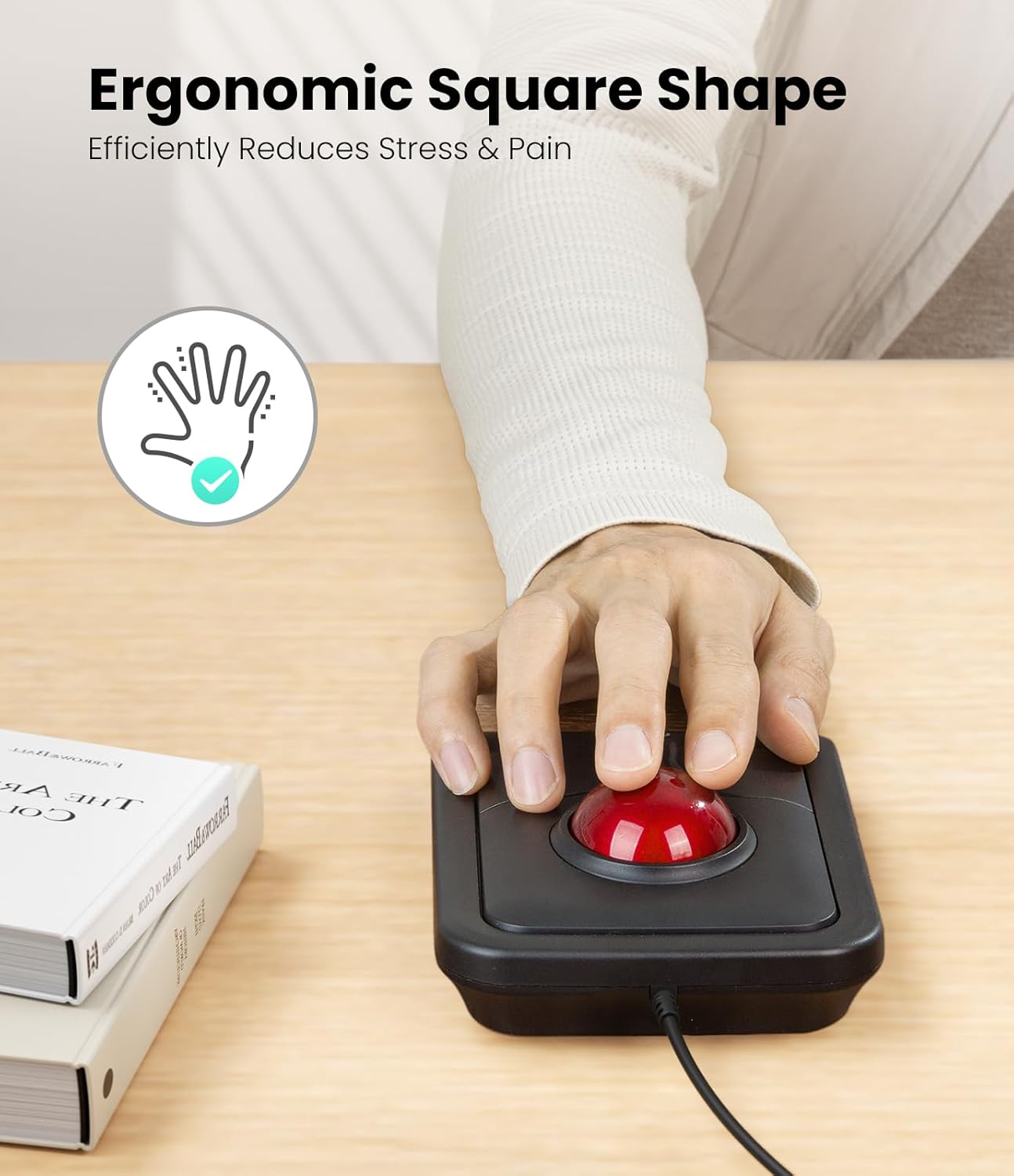
Image: A hand positioned on the Nulea M511 Pro Trackball Mouse, illustrating its ergonomic square shape designed to minimize hand strain.

Image: The Nulea M511 Pro Trackball Mouse positioned for use by a left-handed user, demonstrating its symmetric design.
Maintenance
To ensure optimal performance and longevity of your Nulea M511 Pro Trackball Mouse, regular cleaning is recommended.
Cleaning the Trackball
- Gently push the trackball from the bottom opening to remove it from its housing.
- Use a soft, lint-free cloth or a cotton swab to clean the surface of the trackball and the inside of the trackball cavity, paying attention to the three small support rollers.
- Reinsert the trackball into its housing until it clicks securely into place.
Image: A visual guide demonstrating how to remove the 44mm trackball from the mouse for cleaning, showing the trackball and its retaining ring.
Troubleshooting
- Cursor not moving or erratic movement:
- Ensure the USB cable is securely connected to your computer. Try a different USB port.
- Clean the trackball and its internal rollers as described in the "Maintenance" section. Dust or debris can interfere with tracking.
- Restart your computer.
- Buttons or scroll wheel not responding:
- Verify the USB connection.
- Test the mouse on another computer to determine if the issue is with the mouse or the computer's settings.
- Check your operating system's mouse settings for any unusual configurations.
Specifications
| Feature | Detail |
|---|---|
| Model Number | M511 Pro |
| Connectivity | Wired USB |
| Movement Detection | Trackball |
| DPI | 1200 |
| Cable Length | 1.8m |
| Weight | 258g |
| Dimensions (L×W×H) | 156 × 115 × 34 mm |
| Compatibility | Windows, Mac |
| Special Features | Ergonomic Design, Symmetric Design (Ambidextrous) |
Specifications sourced from product packaging.
Warranty and Support
For warranty information and technical support, please visit the official Nulea website or contact their customer service using the details below.
Website: www.nulea.com
Email Support: support@nulea.com
Manufacturer: DONGGUAN IONE ELECTRONIC CO.,LTD.
Manufacturer Address: Building 3 No.76, Huangjiang Yongjun 2nd Road, Huangjiang Town, Dongguan City, Guangdong Province, P.R.China
UK Representative: CET PRODUCT SERVICE LTD, Beacon House, Stokenchurch Business Park, Ibstone Road, Stokenchurch, High Wycombe HP14 3FE UK. Phone: +44 7429220265
EC Representative: EUREP GmbH, Unterlettenweg 1a, 85051 Ingolstadt, Germany. Phone: +49 8418859074


