
1. Introduction
This manual provides detailed instructions for the installation, operation, and maintenance of your XTRONS ACWIFIDVR02 2K Dash Cam. Please read this manual thoroughly before using the product to ensure proper functionality and safety. Keep this manual for future reference.
2. Product Overview
The XTRONS ACWIFIDVR02 is a high-definition dash camera designed to record your driving journey. Key features include:
- 2K Video Recording: Captures footage at 2560 x 1440 pixels, ensuring clear and detailed video evidence.
- Wide Dynamic Range (WDR): Enhances image quality in varying light conditions, from bright daylight to low-light environments.
- Built-in Wi-Fi: Allows direct connection to Android car stereos or smartphones via the 'Waycam' app for live preview, playback, and sharing.
- 140° Wide Angle Lens: Provides a broad field of view to capture more of the road.
- 90° Rotatable Lens: Offers flexibility to adjust the camera angle for optimal recording.
- Loop Recording: Automatically overwrites the oldest files when the storage card is full, ensuring continuous recording.
- Emergency Record (G-Sensor): Automatically locks and protects video footage during sudden impacts or collisions.
- Simultaneous Sound Recording: Built-in microphone records audio along with video.

Figure 1: XTRONS 2K Dash Cam highlighting 2K resolution and Wi-Fi connectivity.
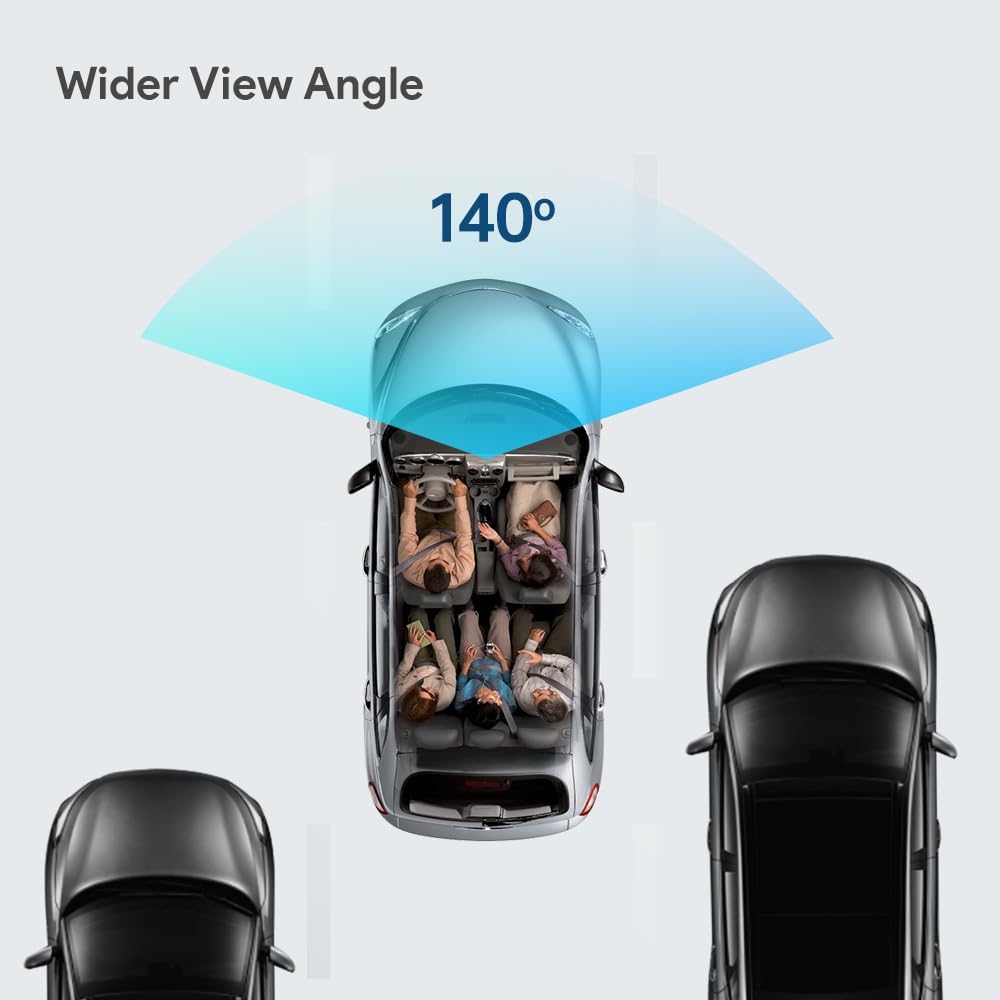
Figure 2: Illustration of the 140-degree wide-angle view provided by the dash cam.

Figure 3: The dash cam features a 90-degree rotatable lens for flexible positioning.
3. Package Contents
Verify that all items are present in the package:
- 1 x XTRONS ACWIFIDVR02 Dash Cam
- 1 x USB stick (for APK file ONLY)
- 1 x USB Cable (220mm)
- 1 x User Manual

Figure 4: Contents of the XTRONS ACWIFIDVR02 package.
4. Setup and Installation
4.1 Physical Installation
The dash cam features a compact and lightweight design with a 3M adhesive sticker for easy and secure mounting in your vehicle. No drilling or screws are required.
- Choose a suitable location on your windshield, typically behind the rearview mirror, ensuring it does not obstruct your view.
- Clean the chosen area on the windshield thoroughly.
- Peel off the protective film from the 3M adhesive on the dash cam.
- Firmly press the dash cam onto the cleaned area of the windshield for at least 30 seconds.
- Connect the provided USB cable to the dash cam and route it discreetly along the windshield trim and dashboard to your car's USB port or power source.
- Adjust the 90° rotatable lens to capture the desired field of view.
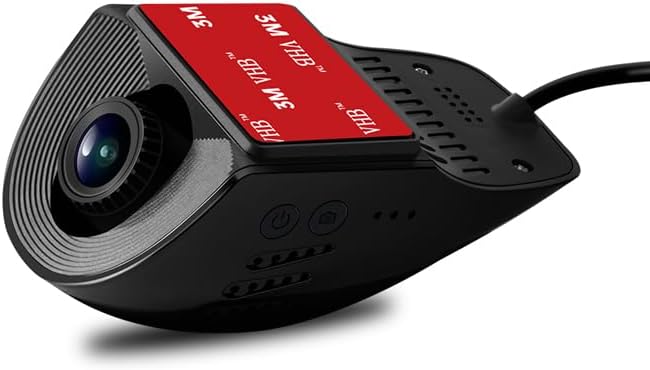
Figure 5: Dash cam with 3M adhesive for easy installation.
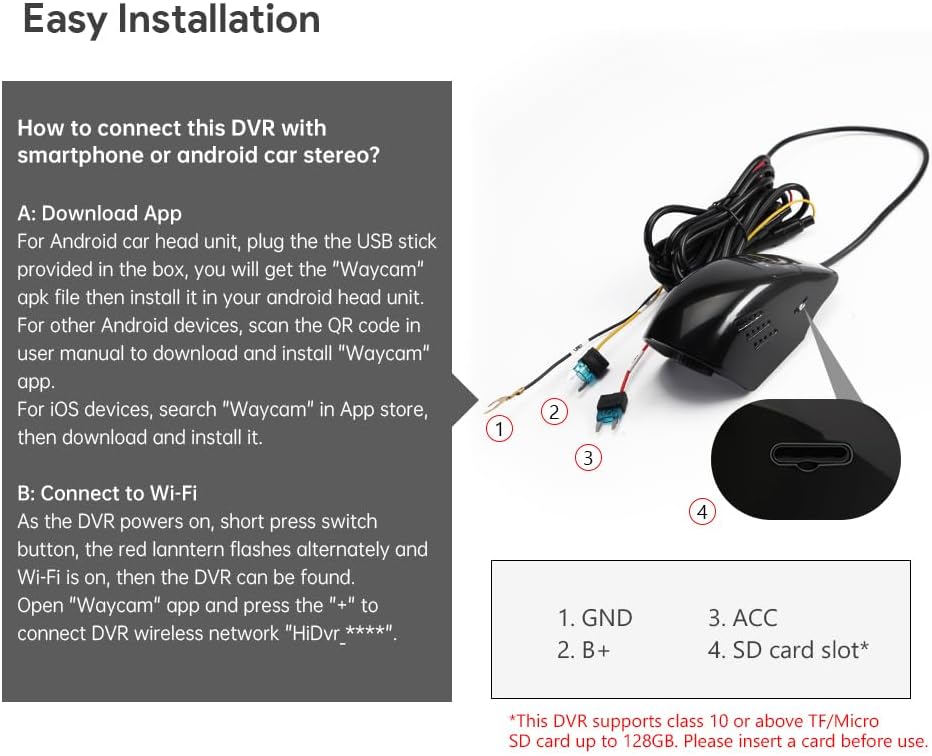
Figure 6: Easy installation steps and connection points for the dash cam.
4.2 App Installation ('Waycam')
The 'Waycam' app is required for Wi-Fi connectivity and advanced features.
- For Android Car Head Units: Plug the provided USB stick into your Android car head unit. Install the 'Waycam' APK file from the USB stick.
- For Other Android Devices: Scan the QR code provided in the manual (or on the product packaging) to download and install the 'Waycam' app.
- For iOS Devices: Search for 'Waycam' in the App Store, then download and install it.
5. Operating Instructions
5.1 Powering On/Off
The dash cam is designed to power on automatically when your vehicle starts and power off when the vehicle is turned off, provided it is connected to a switched power source.
5.2 Wi-Fi Connection
To connect your dash cam to your smartphone or Android car stereo:
- Ensure the DVR is powered on.
- Short press the switch button on the DVR; the red indicator light will flash alternately, indicating Wi-Fi is active.
- Open the 'Waycam' app on your iOS/Android device.
- Press the '+' button within the app to connect to the DVR's wireless network, typically named 'HiDvr_****'.

Figure 7: Wireless connection of the dash cam to various devices.
5.3 Recording Features
- Video Recording: The dash cam automatically begins recording when powered on.
- Taking Pictures: Use the dedicated button or app interface to capture still images.
- Loop Recording: Ensures continuous recording by overwriting the oldest unprotected files.
- Emergency Recording (G-Sensor): In the event of a collision, the built-in G-sensor detects the impact and automatically locks the current video segment to prevent it from being overwritten.
- Audio Recording: The integrated microphone records audio simultaneously with video. This feature can typically be toggled on or off in the settings.

Figure 8: Emergency recording and loop recording functionalities.
5.4 Playback and File Management
Access recorded videos and images through the 'Waycam' app. You can preview, playback, and share files directly from your connected device.
5.5 Settings
Adjust various settings via the 'Waycam' app or the car stereo interface:
- Resolution: Select recording resolution (e.g., 2K, FHD1080P).
- Video Duration: Set the length of individual video segments (e.g., 1, 3, or 5 minutes).
- Flip/Mirror: Adjust video orientation if needed based on mounting position.
- Recording (Audio): Toggle microphone recording on or off.
6. Maintenance
To ensure optimal performance and longevity of your dash cam:
- SD Card Management: Regularly format the Micro SD card (Class 10 or above, up to 128GB) to prevent data corruption and ensure smooth recording. It is recommended to format the card at least once a month.
- Cleaning: Use a soft, dry cloth to clean the camera lens and body. Avoid abrasive cleaners or solvents.
- Temperature: Avoid exposing the dash cam to extreme temperatures for extended periods.
7. Troubleshooting
If you encounter issues with your XTRONS ACWIFIDVR02, refer to the following common solutions:
- Dash Cam Not Powering On: Ensure the USB cable is securely connected to both the dash cam and a functional power source in your vehicle. Check the vehicle's power outlet for functionality.
- Recording Issues (e.g., freezing, corrupted files):
- Ensure you are using a Class 10 or higher Micro SD card.
- Format the Micro SD card regularly (monthly recommended).
- Try a different Micro SD card to rule out card malfunction.
- Wi-Fi Connection Problems:
- Ensure the dash cam's Wi-Fi is activated (red light flashing).
- Restart both the dash cam and your smartphone/car stereo.
- Verify the 'Waycam' app is up to date.
- Poor Video Quality:
- Clean the camera lens.
- Check the resolution settings in the 'Waycam' app; ensure it's set to 2K or FHD1080P.
- Ensure the lens is not obstructed by anything on the windshield.
8. Specifications
| Feature | Specification |
|---|---|
| Brand | XTRONS |
| Model Name | ACWIFIDVR02 |
| Product Dimensions | 4.5 x 2.5 x 2.5 inches |
| Color | Black |
| Connectivity Technology | Wireless (Built-in Wi-Fi) |
| Video Capture Resolution | 2160p (2K, 2560 x 1440 pixels) |
| Mounting Type | Dashboard Mount (3M sticker) |
| Control Method | App |
| Special Feature | Built-in Wi-Fi, WDR Technology, 140° Wide Angle, 90° Rotatable Lens, Loop Recording, G-Sensor |
9. Warranty and Support
XTRONS provides a 3-month warranty for this item. For technical support or warranty claims, please contact XTRONS customer service through their official channels. Ensure you retain your proof of purchase for warranty validation.


