
1. Introduction
Thank you for choosing the Darmoshark K3 Pro Mechanical Number Keyboard. This 19-key mini portable keyboard is designed for enhanced productivity and gaming, offering versatile connectivity options (2.4G wireless, Bluetooth 5.0, and USB-C wired) and customizable RGB backlighting. This manual provides detailed instructions to help you set up, operate, and maintain your new keyboard.
2. Product Features
- Three-Mode Connectivity: Seamlessly switch between 2.4G wireless, Bluetooth 5.0, and USB-C wired connections.
- 19-Key Mechanical Numeric Keypad: Compact design suitable for various applications, from data entry to gaming.
- Hot-Swappable Gateron Switches: Features stable, smooth, and comfortable Gateron switches, fully hot-swappable for easy customization and maintenance.
- Dynamic RGB Backlighting: Supports 12 backlight models with adjustable brightness and color, enhancing your setup.
- Ergonomic Design: Stepped keypad and spring-type ergonomic design reduce fatigue during extended use.
- Durable Construction: Guarantees 50 million keystrokes with high-quality double injection molded PBT keycaps.
- Programmable Macro Definition: Full key support for macro definition programming via USB Type-C interface.
- Dedicated Hotkeys: Includes hotkeys for functions like NumLock, ESC, Tab, Delete, and direct access to the computer calculator.
- Multi-functional Knob: Adjusts backlight brightness and volume.

Figure 2.1: Front view of the Darmoshark K3 Pro Mechanical Number Keyboard, showcasing its 19-key layout and multi-functional knob.

Figure 2.2: The compact 19-key mechanical numeric keypad, highlighting its utility for various tasks.
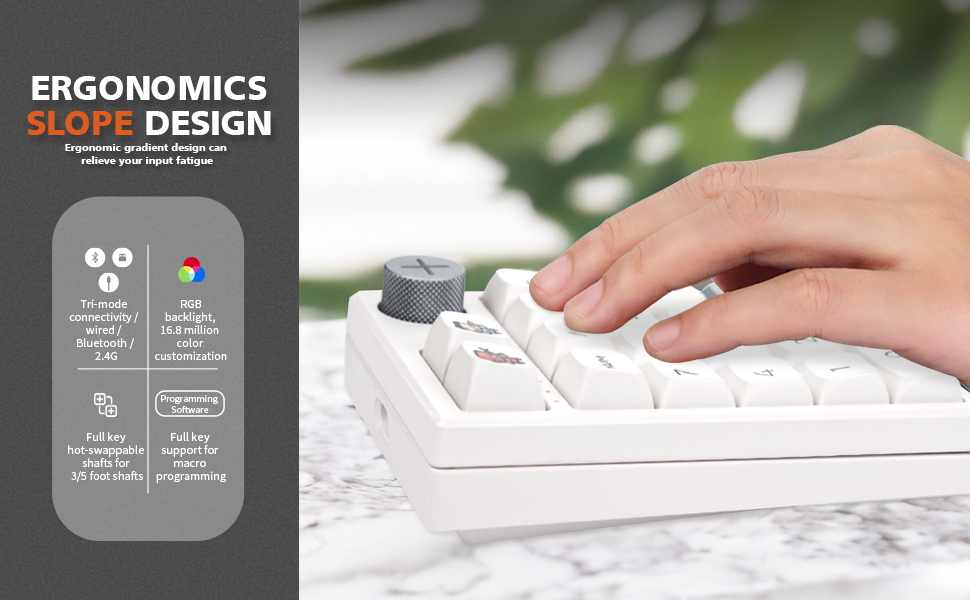
Figure 2.3: Illustration of the ergonomic slope design, crafted to alleviate input fatigue during prolonged use.
3. Package Contents
Please check the package for the following items:
- Darmoshark K3 Pro Mechanical Number Keyboard
- USB Cable (Type-C)
- 2.4G Wireless Receiver (located at the bottom of the keyboard)
- User Manual (this document)

Figure 3.1: The Darmoshark K3 Pro keyboard shown with its included USB wireless receiver.
4. Setup
4.1 Charging the Keyboard
Before first use, it is recommended to fully charge the keyboard. Connect the provided USB-C cable to the keyboard's USB-C port and the other end to a USB power source (e.g., computer USB port, wall adapter). The charging indicator light will show the charging status.
4.2 Connecting the Keyboard
The Darmoshark K3 Pro supports three connection modes:
4.2.1 2.4G Wireless Mode
- Locate the 2.4G wireless receiver stored in the compartment at the bottom of the keyboard.
- Plug the 2.4G receiver into an available USB port on your computer.
- Ensure the keyboard is powered on and set to 2.4G mode (refer to the switch on the keyboard, if available, or FN key combination for mode switching). The keyboard should automatically connect.
Video 4.1: Demonstrates the three-mode connection options, including the 2.4G wireless receiver located at the bottom of the keyboard, Bluetooth pairing, and wired USB-C connection.
4.2.2 Bluetooth 5.0 Mode
- Turn on the keyboard and switch to Bluetooth mode (if applicable, or use FN key combination).
- Activate Bluetooth on your device (PC, laptop, tablet, smartphone).
- On your device, search for Bluetooth devices and select "K3PRO 3.0" (or similar name) from the list to pair.
- The keyboard supports connecting to up to three Bluetooth devices. Use FN+7/8/9 to switch between paired devices.
4.2.3 USB-C Wired Mode
- Connect the provided USB-C cable to the keyboard's USB-C port.
- Connect the other end of the USB-C cable to an available USB port on your computer.
- The keyboard will automatically switch to wired mode and be ready for use.
5. Operating Instructions
5.1 Key Functions and FN Combinations
The Darmoshark K3 Pro features a multi-functional knob and FN key combinations for enhanced control:
- Knob Control:
- Press the knob to switch between backlight brightness adjustment and volume adjustment.
- Rotate the knob to adjust the selected setting (brightness or volume).
- FN + Backspace: Restores factory settings and resets Bluetooth pairing.
- FN + 7/8/9: Switches between three paired Bluetooth devices.
- FN + - (Minus Key): Initiates 2.4G pairing.
- FN + / (Slash Key): Cycles through 12 different backlight effect modes.
- FN + * (Asterisk Key): Changes the backlight color (supports individual modes).
- Dedicated Hotkeys: The keyboard includes dedicated keys for NumLock, ESC, Tab, Delete, and a hotkey to directly open the computer calculator. The NumLock function operates independently of any other connected keyboard.
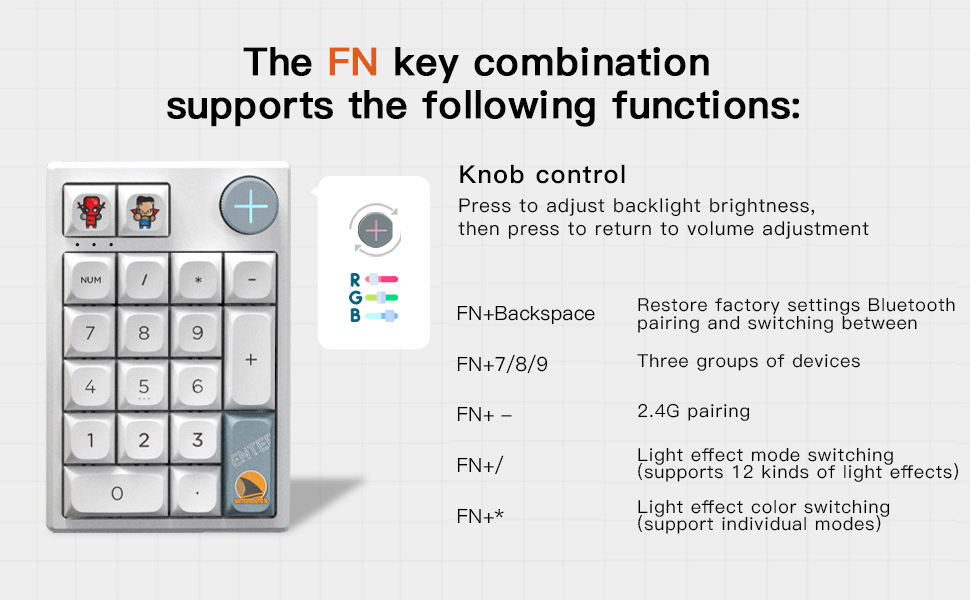
Figure 5.1: Diagram illustrating the various functions accessible via the FN key combinations and the multi-functional knob.
5.2 RGB Backlight Control
The K3 Pro offers extensive RGB customization:
- Use FN + / to cycle through the 12 available backlight modes.
- Use FN + * to change the color of the backlight in modes that support individual color selection.
- The knob can be used to adjust the brightness of the backlight. Press the knob to ensure it's in brightness adjustment mode.

Figure 5.2: Close-up view of the hot-swappable Huano switches and the vibrant RGB backlighting.
6. Maintenance
6.1 Cleaning
- Disconnect the keyboard from all power sources before cleaning.
- Use a soft, lint-free cloth slightly dampened with water or a mild cleaning solution to wipe the keycaps and casing.
- For dust and debris between keys, use compressed air.
- Avoid using harsh chemicals or abrasive materials.
6.2 Switch and Keycap Replacement
The Darmoshark K3 Pro features hot-swappable switches, allowing for easy replacement without soldering. You can also replace the keycaps with standard compatible keycaps.
- Gently pull the keycap upwards to remove it.
- Use a switch puller tool (not included) to carefully remove the switch.
- Align the pins of the new switch with the holes on the PCB and press down firmly until it clicks into place.
- Press the new keycap onto the switch stem.
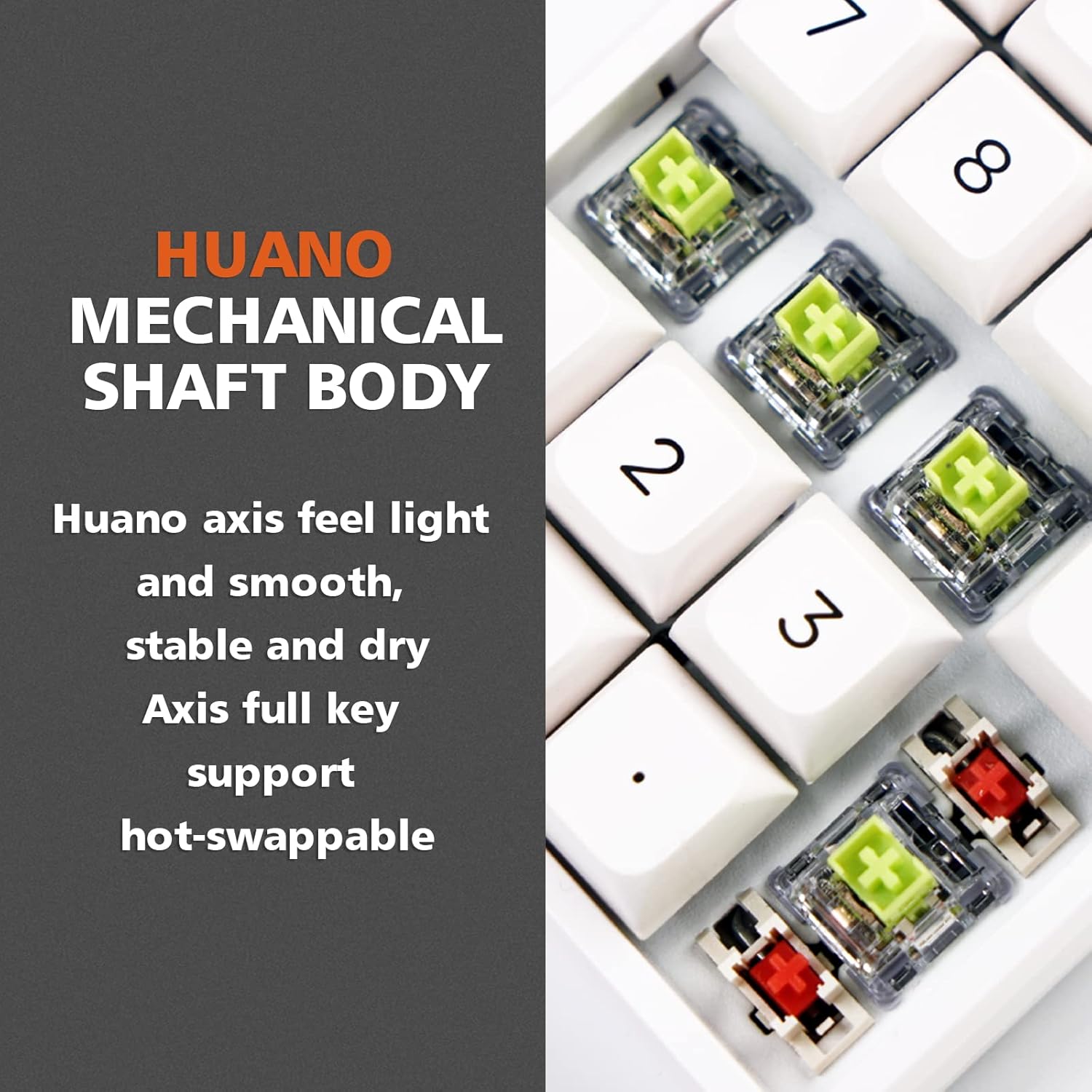
Figure 6.1: Detailed view of the Huano mechanical switches, highlighting their design and hot-swappable nature.
7. Troubleshooting
| Problem | Possible Cause | Solution |
|---|---|---|
| Keyboard not responding in wireless mode. | Low battery, incorrect mode, receiver not plugged in, pairing issue. | Charge the keyboard. Ensure correct mode (2.4G/BT). Re-insert 2.4G receiver or re-pair Bluetooth. |
| RGB backlight not working or stuck. | Backlight turned off, mode issue, software glitch. | Use FN+/ to cycle modes. Use FN+* to change color. Adjust brightness with the knob. Try factory reset (FN+Backspace). |
| Keys not registering or double-typing. | Loose switch, debris under keycap/switch, software issue. | Remove keycap and check switch. Clean with compressed air. If hot-swappable, try reseating or replacing the switch. Update keyboard firmware/drivers if available. |
| Bluetooth connection unstable. | Interference, distance, multiple devices. | Reduce distance to device. Remove other Bluetooth devices causing interference. Re-pair the keyboard. |
8. Specifications
| Feature | Detail |
|---|---|
| Model | K3PRO |
| Connectivity | 2.4G Wireless, Bluetooth 5.0, USB-C Wired |
| Number of Keys | 19 |
| Switch Type | Mechanical (Huano/Gateron, hot-swappable) |
| Keycap Material | PBT (Double Injection Molded) |
| Backlight | RGB (12 modes) |
| Battery | 1 Lithium Ion (included) |
| Dimensions (L x W x H) | Approx. 7.09 x 6.97 x 2.2 inches (180 x 177 x 56 mm) |
| Item Weight | 14 ounces (approx. 397 grams) |
| Compatibility | Windows 2000/XP/Vista/7/8/10, Android, Linux |
| Keystroke Lifespan | 50 million times |

Figure 8.1: Dimensions of the Darmoshark K3 Pro Mechanical Number Keyboard.
9. Warranty and Support
Darmoshark products are built with quality and reliability in mind. For warranty information, technical support, or any inquiries regarding your K3 Pro keyboard, please refer to the warranty card included with your purchase or visit the official Darmoshark website. Keep your proof of purchase for warranty claims.
For further assistance, you may also contact Darmoshark customer service through the platform where you purchased the product.


