
Dragon Touch Notepad K10
Dragon Touch Notepad K10 Tablet User Manual
Model: Notepad K10
1. Introduction
Welcome to the user manual for your new Dragon Touch Notepad K10 Tablet. This guide provides essential information to help you set up, operate, maintain, and troubleshoot your device. Please read this manual thoroughly to ensure proper and safe use of your tablet.
1.1 Package Contents
Before you begin, please verify that all items are present in your package:
- Dragon Touch Notepad K10 Tablet
- USB Cable
- Charger
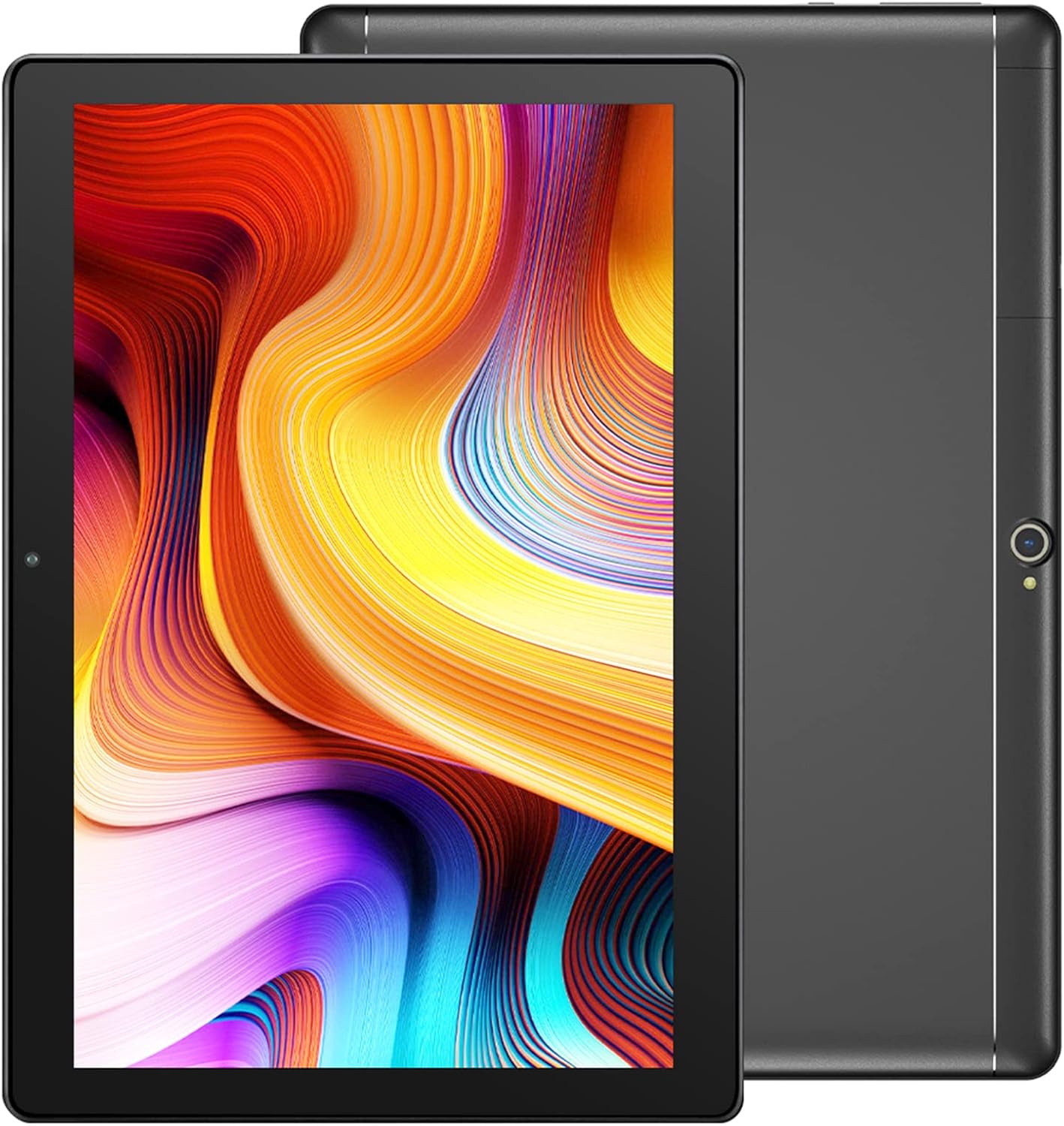
Image: The Dragon Touch Notepad K10 Tablet shown with its USB charging cable and power adapter.
2. Device Overview
Familiarize yourself with the physical features and components of your Notepad K10 Tablet.
2.1 Front and Rear View
The tablet features a 10.1-inch IPS HD display on the front, along with a front-facing camera for video calls and selfies. The rear of the tablet houses the 8MP main camera and dual speakers.

Image: A detailed view of the Notepad K10 tablet, illustrating its 10.1-inch display, Android 9.0 operating system, Quad-Core CPU, 2GB RAM, 32GB storage, dual cameras, and dual Wi-Fi capabilities.
2.2 Ports and Buttons
Locate the following ports and buttons on your tablet:
- Power Button: Used to turn the tablet on/off or put it to sleep/wake it up.
- Volume Buttons: Adjust the audio volume.
- Micro USB Port: For charging the tablet and connecting to a computer.
- Micro HDMI Port: Connects the tablet to an external display (e.g., TV, monitor).
- 3.5mm Headphone Jack: For connecting headphones or external speakers.
- Micro SD Card Slot: For expanding storage with a Micro SD card.
3. Setup
3.1 Initial Charging
Before first use, fully charge your tablet. Connect the included USB cable to the tablet's Micro USB port and the charger to a power outlet. The battery indicator will show charging status.
3.2 Powering On/Off
- To Power On: Press and hold the Power button until the Dragon Touch logo appears.
- To Power Off: Press and hold the Power button until a power-off menu appears, then select 'Power off'.
- Sleep/Wake: Briefly press the Power button to put the tablet to sleep or wake it up.
3.3 Initial Setup Wizard
Upon first power-on, the tablet will guide you through an initial setup wizard. Follow the on-screen prompts to:
- Select your language.
- Connect to a Wi-Fi network.
- Set up your Google account (recommended for app downloads and services).
- Configure date, time, and other basic settings.
3.4 Inserting a Micro SD Card
The Notepad K10 supports Micro SD cards up to 128GB for expanded storage. Locate the Micro SD card slot, gently insert the card with the gold contacts facing down until it clicks into place. The tablet will recognize the new storage.
4. Operating Instructions
4.1 Basic Navigation
The tablet uses a capacitive touchscreen. Common gestures include:
- Tap: To select an item or open an app.
- Tap & Hold: To access contextual menus or move icons.
- Swipe: To scroll through pages or lists.
- Pinch: To zoom in or out on images and web pages.
4.2 Connecting to Wi-Fi
To connect to the internet:
- Go to Settings > Network & internet > Wi-Fi.
- Toggle Wi-Fi On.
- Select your desired network from the list.
- Enter the password if prompted, then tap Connect.
The Notepad K10 supports dual-band Wi-Fi (2.4GHz and 5GHz) for faster and more stable connections.
4.3 Using the Cameras
The tablet is equipped with an 8MP rear camera for capturing photos and videos, and a front camera for video calls and selfies. Open the Camera app from the home screen or app drawer to start. You can switch between front and rear cameras within the app.

Image: The tablet's 8MP rear camera is shown in use, capturing a family moment, highlighting its ability to record wonderful memories.

Image: The tablet's front camera facilitates video calls, allowing users to stay connected with friends and family.
4.4 Connecting to a TV via Micro HDMI
The Notepad K10 features a Micro HDMI port, allowing you to connect it to a larger display like a TV or monitor for an enhanced viewing experience.
- Obtain a Micro HDMI to HDMI cable (not included).
- Connect the Micro HDMI end to your tablet and the HDMI end to your TV.
- Switch your TV's input source to the corresponding HDMI port.
- The tablet's screen content will be mirrored on the TV.

Image: The tablet connected to a television, demonstrating its capability to provide great entertainment enjoyment on a larger screen.
4.5 Managing Storage
The tablet comes with 32GB of internal storage. You can expand this by inserting a Micro SD card (up to 128GB). To check storage usage or manage files, go to Settings > Storage.
4.6 Battery Management
The Notepad K10 is equipped with a 5000mAh Lithium Polymer battery. Average battery life is approximately 5 hours for general use. To optimize battery life:
- Reduce screen brightness.
- Turn off Wi-Fi and Bluetooth when not in use.
- Close unused applications.
- Avoid extreme temperatures.

Image: An illustration of the tablet's 5000mAh battery, detailing its long-lasting performance for various activities like video playback, gaming, navigation, and music.
4.7 Eye-Care Mode
The tablet features an Eye-Care mode that automatically adjusts and optimizes the backlight to reduce eye strain, making it more comfortable for reading, especially at night. This setting can typically be found in the Display settings.
5. Maintenance
5.1 Cleaning the Tablet
To clean your tablet, use a soft, lint-free cloth. For stubborn smudges, slightly dampen the cloth with water. Avoid using harsh chemicals, abrasive cleaners, or aerosol sprays directly on the tablet.
5.2 Software Updates
Periodically check for system updates to ensure your tablet has the latest features and security patches. Go to Settings > System > System update.
5.3 Battery Care
To prolong the life of your tablet's battery:
- Avoid fully discharging the battery frequently.
- Do not leave the tablet in direct sunlight or extremely hot environments.
- If storing the tablet for a long period, charge it to about 50% before turning it off.
6. Troubleshooting
If you encounter issues with your tablet, refer to the following common problems and solutions:
6.1 Tablet Will Not Turn On
- Ensure the battery is sufficiently charged. Connect the charger and wait a few minutes before attempting to power on.
- Press and hold the Power button for 10-15 seconds to perform a forced restart.
6.2 Wi-Fi Connection Issues
- Check that Wi-Fi is enabled in Settings.
- Ensure you are within range of the Wi-Fi router.
- Restart your Wi-Fi router.
- Forget the network in tablet settings and reconnect.
6.3 Slow Performance
- Close unused applications running in the background.
- Clear cache data for apps in Settings > Apps & notifications.
- Restart the tablet.
- Ensure sufficient free storage space.
6.4 Screen Not Responding
- Perform a forced restart (press and hold Power button for 10-15 seconds).
- Ensure the screen is clean and free of moisture or debris.
6.5 HDMI Output Issues
- Verify that the Micro HDMI cable is securely connected to both the tablet and the TV.
- Ensure the TV input source is set to the correct HDMI port.
- Try a different Micro HDMI cable if available.
- Restart both the tablet and the TV.
7. Specifications
Detailed technical specifications for the Dragon Touch Notepad K10 Tablet:
| Feature | Detail |
|---|---|
| Model | Notepad K10 |
| Operating System | Android |
| Display Size | 10.1 Inches |
| Display Resolution | 1280 x 800 pixels IPS |
| Processor | Quad-Core, 1.3GHz MediaTek |
| RAM | 2GB |
| Internal Storage | 32GB |
| Expandable Storage | Up to 128GB via Micro SD card |
| Rear Camera | 8MP |
| Front Camera | Yes (for video calls) |
| Wi-Fi | 2.4GHz & 5GHz Dual-Band |
| Bluetooth | Yes |
| Ports | Micro USB, Micro HDMI, 3.5mm Headphone Jack, Micro SD Card Slot |
| Battery | 5000mAh Lithium Polymer |
| Dimensions (LxWxH) | 9.4 x 0.4 x 6.7 inches |
| Weight | 1.88 pounds |
8. Warranty and Support
8.1 Warranty Information
For detailed warranty information regarding your Dragon Touch Notepad K10 Tablet, please refer to the warranty card or documentation included with your original purchase. You may also find the most up-to-date warranty terms on the official Dragon Touch website.
8.2 Customer Support
If you have any questions, require technical assistance, or encounter issues that cannot be resolved using this manual, please contact Dragon Touch customer support:
- Visit the official Dragon Touch Store on Amazon for product information and support resources.
- Refer to the Dragon Touch official website for contact details, FAQs, and additional support.
Related documentsNotepad K10


Ask a question about this manual
Ask about setup, troubleshooting, compatibility, parts, safety, or missing instructions. Manuals+ will review the question and use this page’s manual context to help answer it.