
1. Product Overview
The FOXWELL NT614 Elite is an advanced OBD2 scanner designed for comprehensive vehicle diagnostics across four main systems: Engine, Anti-lock Braking System (ABS), Supplemental Restraint System (SRS/Airbag), and Transmission. It also includes five commonly used reset functions: ABS Bleeding, Oil Reset, Steering Angle Sensor (SAS) Calibration, Electronic Parking Brake (EPB) Reset, and Throttle Reset. This device is paired with the FOXWELL BT100 Pro, a 12V automotive battery tester capable of analyzing battery health for various battery types, including regular flooded, AGM flat plate, AGM spiral, and GEL batteries, with a CCA range of 100-1100.
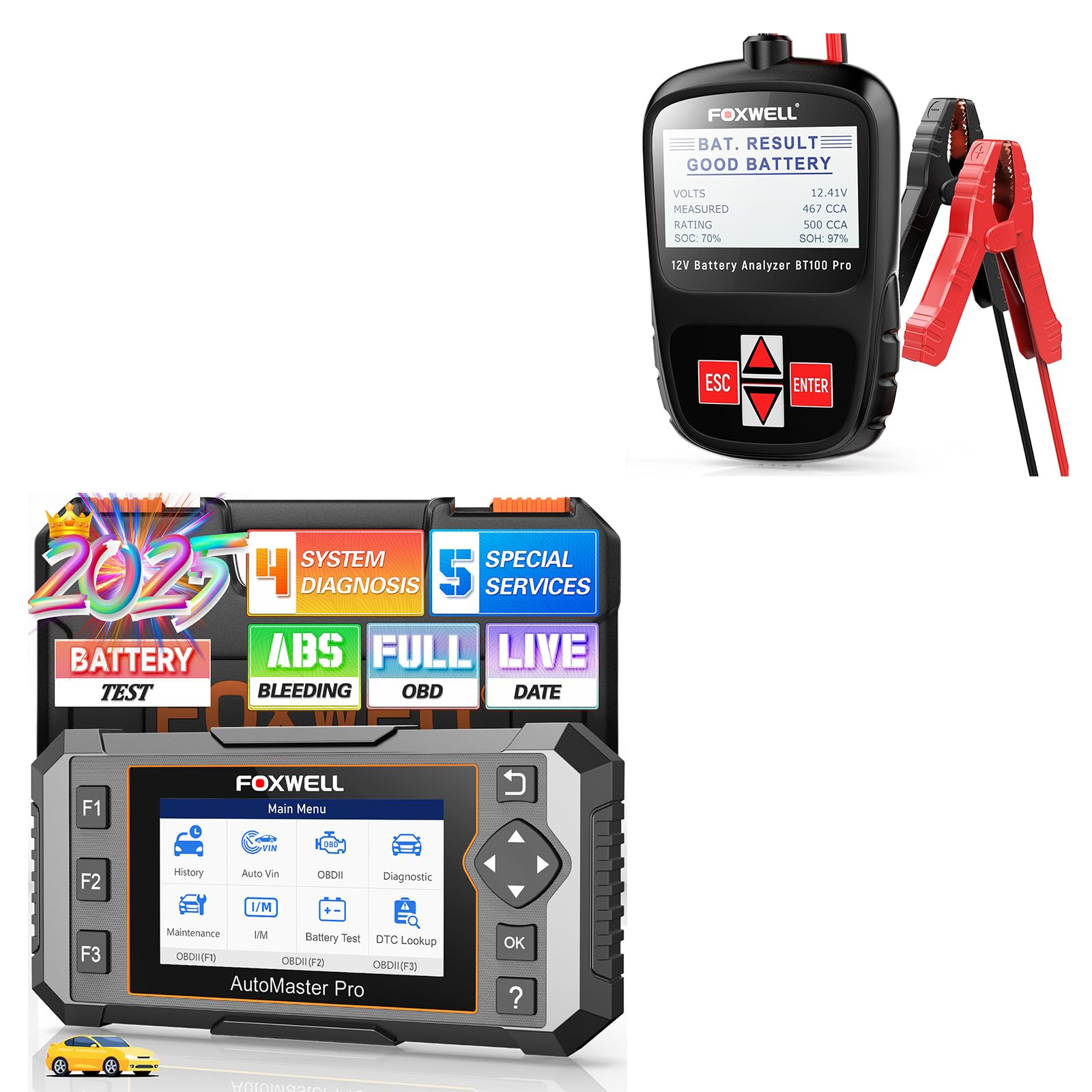
Image 1.1: FOXWELL NT614 Elite OBD2 Scanner and BT100 Pro Battery Tester. This image displays both devices, highlighting their compact design and user interface.
The NT614 Elite offers full OBDII functionality, allowing users to read and clear diagnostic trouble codes (DTCs), view live data, perform I/M readiness tests, and access other essential diagnostic information. The BT100 Pro provides quick and accurate battery analysis, including internal resistance, CCA and AH capacity, health status, voltage, and charge status, helping users monitor battery conditions effectively.
2. Setup and Initial Use
2.1 NT614 Elite OBD2 Scanner Setup
- Power On: Connect the NT614 Elite to your vehicle's 16-pin OBDII port. The device will power on automatically.
- Language and Unit Settings: Navigate to "Settings" on the main menu to select your preferred language and measurement units (e.g., Metric/Imperial).
- Software Update: It is recommended to update the software to the latest version for optimal performance and access to all features. Connect the device to a computer with internet access and use the FOXWELL update tool.

Image 2.1: The main menu of the NT614 Elite, showing options like History, Auto VIN, OBDII, Diagnostic, Maintenance, Settings, Data Manager, and Update. This image also illustrates various OBDII functions such as Read Codes, Clear Codes, Freeze Frame, I/M Readiness, Live Data, On-Board Monitor Test, Component Test, Modules Present, and Retrieve Vehicle Info.
2.2 BT100 Pro Battery Tester Setup
- Connect Clamps: Connect the red clamp to the positive (+) terminal of the 12V battery and the black clamp to the negative (-) terminal. Ensure a secure connection.
- Power On: The BT100 Pro will power on automatically once connected to the battery.
- Select Battery Type: Use the device's navigation buttons to select the correct battery type (e.g., Regular Flooded, AGM Flat Plate, AGM Spiral, GEL) and CCA rating for accurate testing.

Image 2.2: The BT100 Pro battery tester connected to a car battery, demonstrating both in-vehicle and out-of-vehicle testing scenarios. The image highlights the ease of connecting the clamps to the battery terminals.
3. Operating Instructions
3.1 NT614 Elite OBD2 Scanner Operation
After connecting the NT614 Elite to the vehicle's OBDII port, navigate through the main menu using the directional buttons and the OK button.
3.1.1 4-System Diagnostics (Engine, ABS, SRS, Transmission)
- From the main menu, select "Diagnostic".
- Choose the vehicle make and model.
- Select the system you wish to diagnose (e.g., Engine, ABS, SRS, Transmission).
- The scanner will read DTCs, display live data streams, and provide other diagnostic information specific to the selected system.
- To clear codes, follow the on-screen prompts after reviewing the diagnostic information.

Image 3.1: Visual representation of the NT614 Elite's capability to diagnose four key vehicle systems: Engine, SRS (Airbag), ABS, and Transmission. Each system is depicted with a relevant automotive component.
3.1.2 Full OBDII Functions
Access standard OBDII functions by selecting "OBDII" from the main menu. This allows you to:
- Read Codes: Retrieve current, pending, and permanent Diagnostic Trouble Codes (DTCs).
- Clear Codes: Erase DTCs from the vehicle's computer and turn off the Check Engine Light (MIL).
- I/M Readiness: Check the status of emission-related monitors to ensure the vehicle is ready for an emissions test.
- Live Data: View real-time operational parameters of the vehicle in text or graph format.
- Freeze Frame: View a snapshot of vehicle operating conditions at the time an emission-related fault occurred.
- On-Board Monitor Test: Retrieve results for emission-related powertrain components and systems.
- Component Test: Allow bi-directional control of certain components for testing.
- Modules Present: Identify communication modules in the vehicle.
- Retrieve Vehicle Info: Display vehicle identification number (VIN), calibration ID (CALID), and calibration verification number (CVN).
3.1.3 Special Reset Functions
From the main menu, select "Maintenance" to access the following reset functions:
- ABS Bleeding: Perform various bi-directional tests to check the operating conditions of the Anti-lock Braking System.
- Oil Reset: Reset the oil service light and calculate the optimal oil life change interval.
- SAS Calibration: Calibrate the Steering Angle Sensor after replacement or alignment.
- EPB Reset: Reset the Electronic Parking Brake system after brake pad replacement.
- Throttle Reset: Relearn the throttle body position after cleaning or replacement.

Image 3.2: Illustration of the five maintenance services offered by the NT614 Elite: ABS Bleeding, SAS Calibration, Throttle Reset, Oil Reset, and EPB Reset. Each service is accompanied by a relevant automotive image.
3.2 BT100 Pro Battery Tester Operation
Once the BT100 Pro is connected to the 12V battery, the device will display the main testing options.
- Select Test Type: Choose between "In-Vehicle Test" or "Out-of-Vehicle Test" if prompted.
- Battery Type and Standard: Confirm the battery type (e.g., Regular Flooded, AGM, GEL) and input the Cold Cranking Amps (CCA) rating as specified on the battery label.
- Perform Test: The BT100 Pro will initiate the test and display results such as:
- Internal Resistance Test
- CCA & AH Capacity Test
- Status of Health Display
- Voltage Test
- Status of Charge Display
- Interpret Results: The device will indicate the battery's condition (e.g., Good Battery, Replace Battery, Charge & Retest).

Image 3.3: The BT100 Pro displaying various battery status indicators, including Internal Resistance Test, CCA & AH Capacity Test, Status of Health Display, Voltage Test, and Status of Charge Display. A user is shown operating the device.
The BT100 Pro incorporates safety features such as polarity wrongly-connected protection, over-voltage protection, and automatic temperature compensation to ensure reliable and safe operation.
4. Maintenance
- Software Updates: Regularly check for and install software updates for the NT614 Elite. Updates often include new vehicle models, bug fixes, and improved functionality. Visit the FOXWELL official website for the latest software.
- Cleaning: Clean the devices with a soft, damp cloth. Do not use abrasive cleaners or solvents. Ensure the devices are dry before storage.
- Storage: Store the NT614 Elite and BT100 Pro in a dry, cool environment, away from direct sunlight and extreme temperatures. Keep them in their original case or a protective pouch to prevent damage.
- Cable Inspection: Periodically inspect the OBDII cable and battery clamps for any signs of wear, damage, or corrosion. Replace damaged cables immediately to ensure safe operation.
5. Troubleshooting
| Problem | Possible Cause | Solution |
|---|---|---|
| NT614 Elite does not power on. | Loose OBDII connection; vehicle's OBDII port not supplying power. | Ensure the OBDII cable is securely connected. Check the vehicle's fuse for the OBDII port. Try on another vehicle if possible. |
| BT100 Pro does not power on. | Loose battery clamp connection; battery voltage too low. | Ensure clamps are securely attached to the correct battery terminals. Check battery voltage with a multimeter; if too low, charge the battery. |
| Scanner fails to link with vehicle. | Incorrect vehicle protocol; faulty OBDII port; ignition not on. | Verify the ignition is in the ON position. Check for vehicle compatibility. Inspect the OBDII port for damage. |
| Inaccurate battery test results from BT100 Pro. | Incorrect battery type or CCA input; poor clamp connection. | Double-check the battery type and CCA rating entered. Ensure clamps are clean and have good contact with battery terminals. |
| Device freezes or responds slowly. | Software glitch; low internal battery (if applicable); excessive data processing. | Restart the device. Perform a software update. If the issue persists, contact FOXWELL support. |
6. Specifications
6.1 NT614 Elite OBD2 Scanner
- Brand: FOXWELL
- Model: NT614 Elite
- Diagnostic Systems: Engine, ABS, SRS, Transmission
- Reset Functions: ABS Bleeding, Oil Reset, SAS Calibration, EPB Reset, Throttle Reset
- OBDII Functions: Read Codes, Clear Codes, I/M Readiness, Live Data, Freeze Frame, On-Board Monitor Test, Component Test, Modules Present, Retrieve Vehicle Info
- Power Source: Vehicle OBDII port
- Operating System: (Internal, not user-facing)
- Compatibility: Supports 90+ car brands and 10000+ models.

Image 6.1: The NT614 Elite displaying its broad compatibility with over 90 car brands and 10,000+ models, illustrated with various car models.
6.2 BT100 Pro Battery Tester
- Brand: FOXWELL
- Model: BT100 Pro
- Battery Voltage: 12V
- CCA Range: 100-1100 CCA
- Supported Battery Types: Regular Flooded, AGM Flat Plate, AGM Spiral, GEL
- Test Functions: Internal Resistance, CCA & AH Capacity, Health Status, Voltage, Charge Status
- Safety Features: Polarity wrongly-connected protection, over-voltage protection, automatic temperature compensation

Image 6.2: The BT100 Pro battery tester, indicating its compatibility with 12V batteries ranging from 100-1100 CCA, and showing various supported battery types like Regular Flooded, AGM Flat Plate, AGM Spiral, and GEL.
7. Warranty and Support
For warranty information, technical support, or service inquiries, please refer to the warranty card included with your product or visit the official FOXWELL website. You can typically find FAQs, software downloads, and contact information for customer service there.
FOXWELL Official Website: www.foxwelltech.com


