
Introduction
The EPOMAKER x LEOBOG Hi75 is a wired mechanical keyboard crafted from aluminum alloy, featuring a 75% layout with 81 essential keys. It incorporates a gasket-mounted structure for enhanced typing feel and reduced sound. Designed for both work and gaming, it includes a programmable mode-switching knob, hot-swappable switches, NKRO (N-Key Rollover), and customizable RGB lighting. This manual provides detailed instructions for setting up, operating, maintaining, and troubleshooting your keyboard.
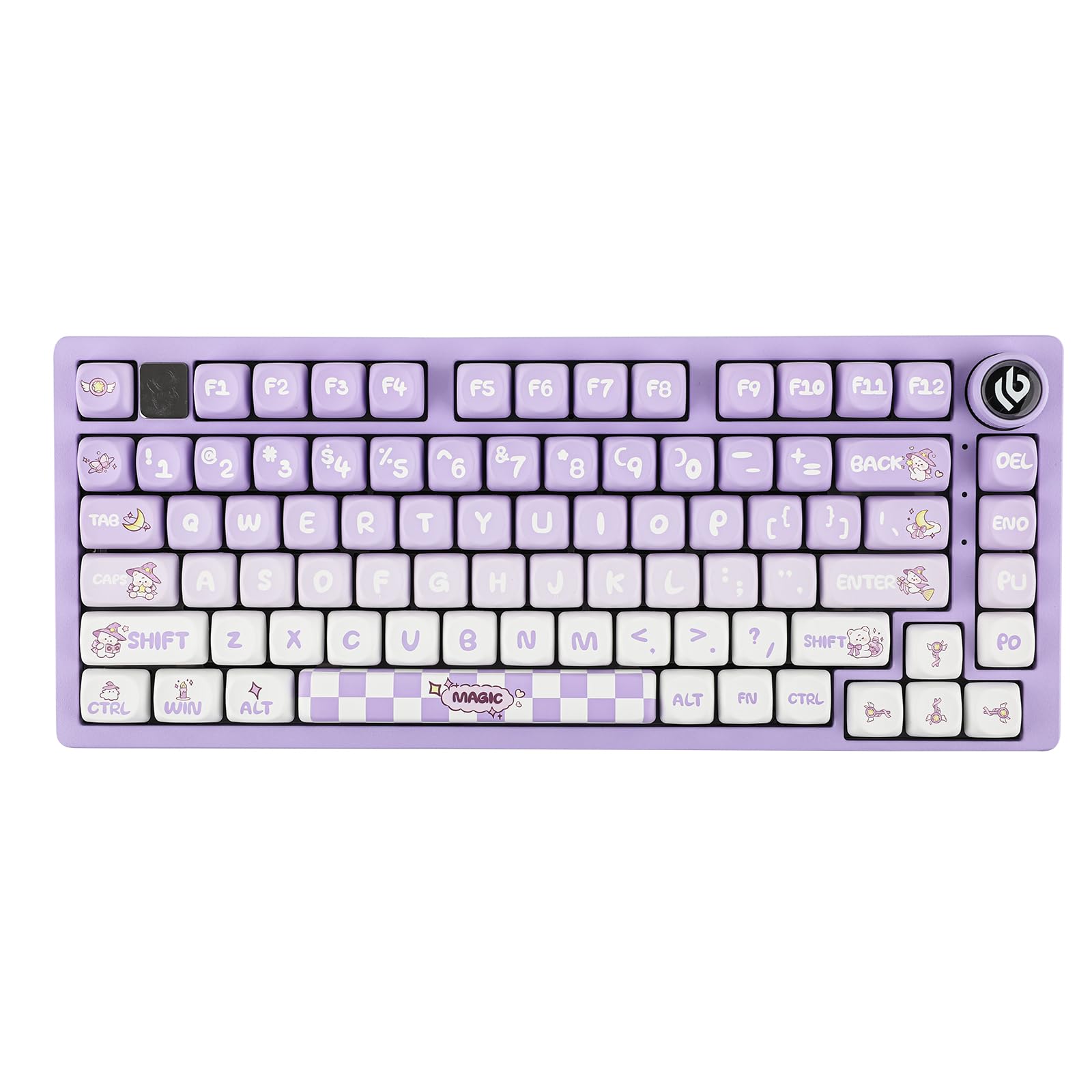
Image: The EPOMAKER x LEOBOG Hi75 keyboard, showcasing its compact 75% layout and aluminum alloy construction.
What's in the Box
Upon unboxing your EPOMAKER x LEOBOG Hi75 keyboard, please ensure all the following items are present:
- EPOMAKER x LEOBOG Hi75 Mechanical Keyboard
- Keycap Puller
- USB Cable (Type-C to USB-A, extendable spring data cable)
- User Manual (this document)
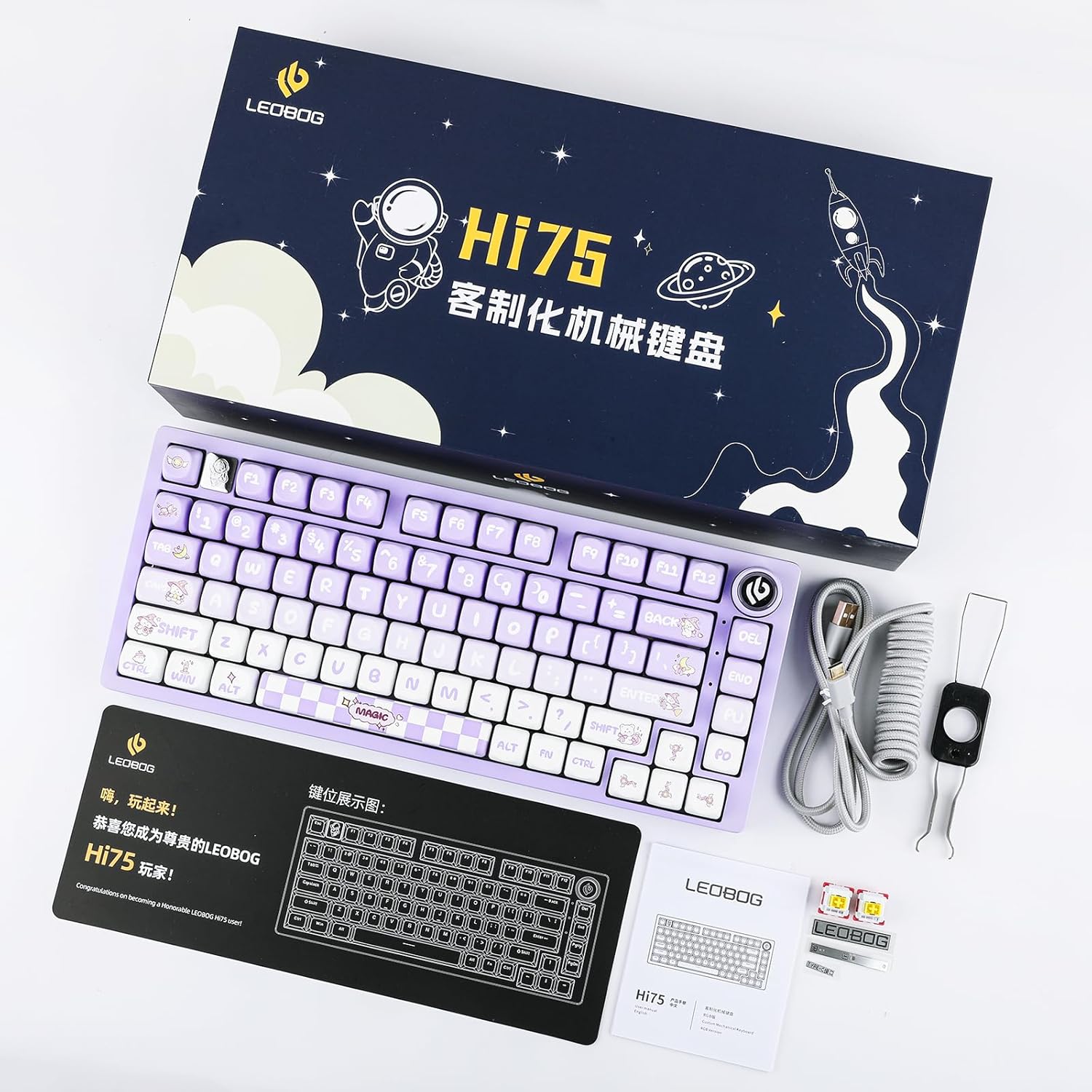
Image: All items included in the EPOMAKER x LEOBOG Hi75 keyboard package, including the keyboard, USB cable, and keycap puller.
Product Features
- Revolutionary Mode-Switching Knob: An intuitive knob allows seamless transitions between work and gaming modes, offering constant RGB glow for work and dynamic RGB flashing for gaming. It also provides refined control over volume and lighting.
- Sleek 75% Layout, Gasket-Mounted Structure: Features an 81-key layout, balancing minimalism and functionality. The GASKET design with PORON gaskets minimizes cavity sound for a satisfying, low-noise typing experience.
- Solid Aluminum Alloy Build: Crafted from top-tier aluminum alloy with an exquisite spray process for durability and a sophisticated aesthetic.
- Advanced Gaming-Grade Chip: Ensures rapid and responsive keystroke registration with customizable delay settings for optimal gaming performance.
- Full Key Hot-Swap Capability: Every key is hot-swappable, allowing for easy modification of switch types. Compatible with most 3/5-pin switches for personalized feel and sound.
- Seamless Connectivity: Features a hassle-free Type-C interface with an extendable spring data cable (1.8 to 2 meters) for immediate plug-and-play functionality.

Image: An exploded diagram illustrating the keyboard's gasket structure and five layers of sound-dampening foams for improved acoustics.

Image: The keyboard demonstrating N-Key Rollover (NKRO), allowing multiple simultaneous key presses to be registered accurately.
Setup
1. Initial Connection
Connect the keyboard to your computer using the provided USB Type-C cable. The keyboard is plug-and-play, requiring no additional drivers for basic functionality.

Image: The keyboard connected via its USB-C port, highlighting the wired connection.
2. Operating System (OS) Switching
The Hi75 keyboard supports multiple operating systems. Use the following key combinations to switch between modes:
- Short press FN+Q to switch to Android mode.
- Short press FN+W to switch to Windows mode.
- Short press FN+E to switch to MAC mode.
- Short press FN+R to switch to iOS mode.
Note: If the WIN key or Alt key stops working properly, use the shortcuts above to switch to the correct OS mode.
Video: Demonstration of how to switch between different operating system modes on the Hi75 keyboard using FN key combinations.
3. Hot-Swapping Switches
The Hi75 features hot-swappable sockets, allowing you to change mechanical switches without soldering. Use the provided switch puller to carefully remove existing switches and insert new 3-pin or 5-pin compatible switches.

Image: A close-up view of the hot-swappable switch sockets, demonstrating how to remove and insert switches.
Operating Instructions
1. Mode-Switching Knob
The multi-functional knob located on the top right of the keyboard provides quick control over various settings:
- Mode Switching: Rotate the knob to switch between work mode (constant RGB glow) and gaming mode (dynamic RGB flashing).
- Volume Control: Press the knob to mute/unmute, and rotate to adjust the system volume.
- Lighting Control: The knob can also be used to cycle through RGB lighting effects or adjust brightness, depending on the current mode.

Image: A close-up of the mode-switching knob, illuminated with RGB lighting, indicating its functionality.
2. NKRO (N-Key Rollover)
The Hi75 supports full N-Key Rollover, meaning every key press is registered independently, regardless of how many keys are pressed simultaneously. This prevents ghosting and ensures accuracy, especially during fast-paced typing or gaming.
3. RGB Lighting
The keyboard features customizable RGB backlighting. Specific key combinations (often involving the FN key and arrow keys or other function keys) can be used to change lighting effects, colors, and brightness. Refer to the quick start guide or software (if available) for detailed RGB customization options.
Video: A demonstration of the EPOMAKER x LEOBOG Hi75 keyboard's RGB lighting effects and overall aesthetic.
Maintenance
- Cleaning: Regularly clean your keyboard to prevent dust and debris buildup. Use a soft brush or compressed air to remove particles from between keycaps. For keycap cleaning, remove them using the keycap puller and wipe with a damp cloth.
- Switch Care: If you frequently hot-swap switches, ensure proper alignment to avoid bending pins. Store unused switches in a clean, dry place.
- Cable Management: Avoid sharp bends or excessive tension on the USB-C cable to prolong its lifespan.
Troubleshooting
- Keyboard Not Responding:
- Ensure the USB-C cable is securely connected to both the keyboard and your computer.
- Try connecting the keyboard to a different USB port on your computer.
- Test the keyboard on another computer to rule out system-specific issues.
- Incorrect Key Function (e.g., WIN/ALT keys swapped):
- This often indicates the keyboard is in the wrong operating system mode. Refer to the "Operating System (OS) Switching" section and use the appropriate FN key combination (e.g., FN+W for Windows, FN+E for Mac) to correct the mode.
- RGB Lighting Not Working/Incorrect:
- Check the keyboard's current mode using the mode-switching knob. Some modes may have specific lighting behaviors.
- Ensure the keyboard is properly connected and receiving sufficient power.
- Consult the quick start guide or software for specific RGB control shortcuts.
Specifications
| Feature | Detail |
|---|---|
| Product Dimensions | 12.99 x 5.31 x 1.77 inches |
| Item Weight | 2.86 pounds |
| Model Number | Hi75 |
| Connectivity Technology | USB-C |
| Keyboard Description | Gaming |
| Special Features | Backlit, Customizable Display Keys, Ergonomic, Hot-Swappable, Wired |
| Keyboard Backlighting Color Support | RGB |
| Compatible Devices | Laptop (and other devices supporting USB-C keyboards) |
Warranty and Support
EPOMAKER products typically come with a standard manufacturer's warranty. For specific warranty details, technical support, or service inquiries, please visit the official EPOMAKER website or contact their customer support directly. Keep your purchase receipt as proof of purchase for warranty claims.
Official EPOMAKER Store: EPOMAKER Amazon Store


