
1. Introduction
The COLBOR CL120R is a 120W RGB continuous video light designed for professional studio and film applications. It offers full-color lighting options with adjustable saturation and hue, allowing for a unique color palette. Key features include an adjustable color temperature range from 2700K to 6500K, a high CRI/TLCI rating of 96+ for precise color rendering, and a standard Bowens mount for compatibility with various light modifiers. This manual provides essential information for the safe and effective setup, operation, and maintenance of your CL120R video light.
2. What's in the Box
Carefully unpack your COLBOR CL120R and verify that all components are present. If any items are missing or damaged, please contact customer support.
- COLBOR CL120R Video Light x1
- Power Adapter (with Wire Lanyard) x1
- COB Cover x1
- 3m Plum Tail Cable x1
- Warranty Card x1
- NB3.58 (Optional) x1

Image: The COLBOR CL120R video light and its included accessories: power adapter, COB cover, 3m plum tail cable, and warranty card.
3. Product Overview and Features
The COLBOR CL120R is engineered for performance and versatility, offering a range of features to enhance your lighting control.
Key Features:
- 120W RGB Output: Provides full-color lighting with adjustable saturation and hue.
- Wide Color Temperature Range: Adjustable from 2700K to 6500K.
- High Color Accuracy: CRI/TLCI rating of 96+ ensures precise color rendering.
- M/G Balance Function: Allows for delicate white balance and color correction, crucial for accurate skin tones and product colors.
- Unique Color-Pick Function: When combined with the COLBOR Studio APP, enables matching real-life colors and direct color setting via HSI mode or color palette.
- 13 Built-in Light Effects: Includes Fire, Spark, CCT Chase, Pulsing, Beacon, TV, Party, Explosion, Faulty Bulb, Welding, Strobe, Lightning, and SOS for creative cinematic looks.
- Lightweight Aluminum Alloy Construction: Weighs only 1.6kg, offering durability, efficient heat dissipation, and portability.
- Flexible Control System: Supports control via COLBOR Studio APP (Mesh Network, 2.4GHz channel), optional remote control, and manual on-device controls.
- Bowens Mount: Standard mount for attaching a wide range of light modifiers.
- NATO Groove Design: For versatile accessory utilization, including motorized sliders and gimbal stabilizers.
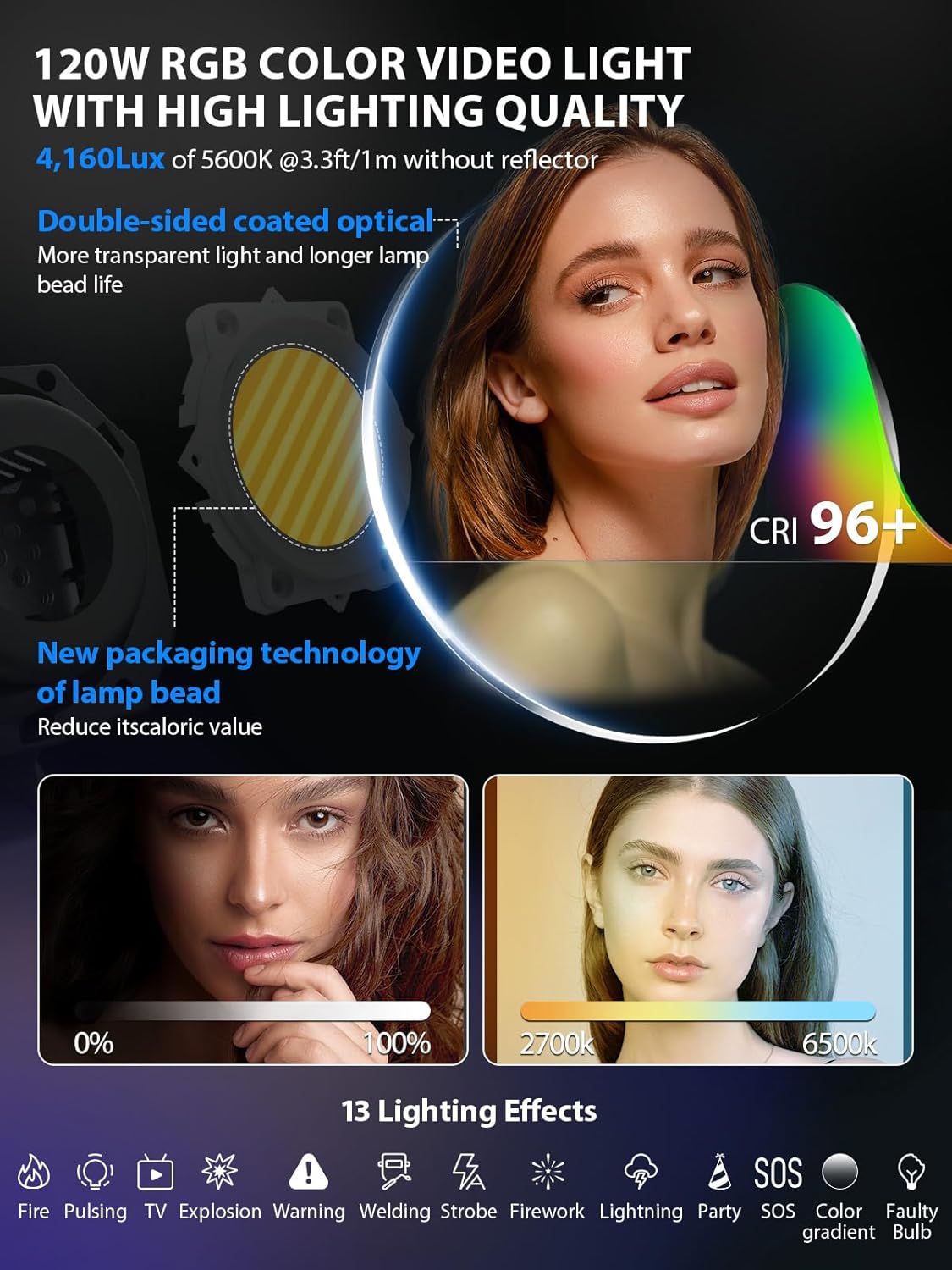
Image: Overview of the CL120R's lighting capabilities, including RGB color, high CRI, and various effects.

Image: Demonstrates the M/G Balance feature for precise color correction.
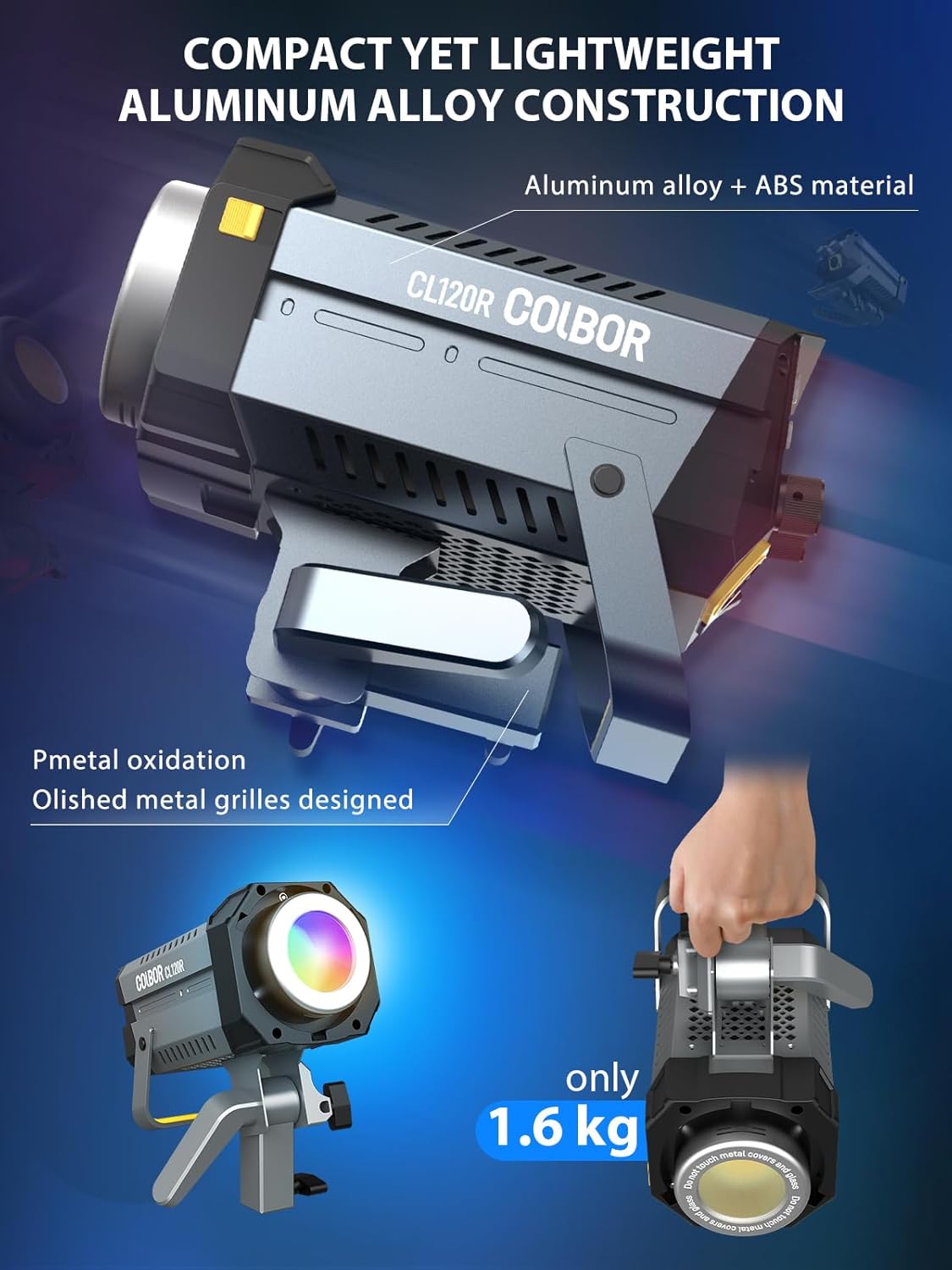
Image: The CL120R's durable and lightweight aluminum alloy construction.
4. Setup
4.1 Mounting the Light
- Attach the COLBOR CL120R to a compatible light stand using its integrated mounting bracket. Ensure the bracket is securely tightened.
- If using Bowens mount accessories (e.g., softbox, reflector), align the accessory with the Bowens mount on the front of the light and twist until it locks into place.
- For NATO groove accessories, slide the accessory onto the NATO rail and secure it.
4.2 Power Connection
The CL120R supports multiple power options:
- AC Power: Connect the provided power adapter to the light's power input port and then plug it into a standard AC outlet.
- V-Mount Battery: For portable operation, attach a compatible V-mount battery to the V-mount plate on the light. Ensure the battery is fully charged.

Image: Illustrates the power options for the CL120R, including AC adapter and V-mount battery.

Image: Details of the NATO groove and Bowens mount for accessory attachment.
5. Operating Instructions
5.1 Power On/Off
Press the power button located on the unit to turn the light on or off.
5.2 Control Methods
The CL120R offers three primary control methods:
- Manual Control: Use the physical dials and buttons on the light's control panel to adjust settings. The display screen will show current parameters.
- COLBOR Studio APP Control: Download the COLBOR Studio APP to your smartphone or tablet. Connect to the light via the Mesh Network or 2.4GHz channel for remote control. The app allows for multi-scene setup and faster adjustments.
- Remote Control (Optional): An optional CTRL1 remote control can be purchased separately for wireless operation.

Image: Overview of the CL120R's control options: App, Manual, and Remote.
5.3 Adjusting Color Temperature (CCT Mode)
In CCT mode, use the designated dial to adjust the color temperature from 2700K (warm) to 6500K (cool). The display will show the current CCT value.
5.4 Adjusting RGB and HSI (Color Mode)
Switch to Color mode to access RGB and HSI (Hue, Saturation, Intensity) adjustments. Use the dials or the COLBOR Studio APP to fine-tune your desired color. The app's color palette provides direct color setting options.
5.5 M/G Balance Function
The M/G (Magenta/Green) balance function allows for precise color correction. Adjust the M/G balance to compensate for color shifts, ensuring accurate white balance and true-to-life colors, especially for skin tones and product photography.
5.6 Color-Pick Function (via APP)
Using the COLBOR Studio APP, activate the Color-Pick function. Point your device's camera at a real-life color, and the light will attempt to match it, providing a creative and efficient lighting solution.

Image: The COLBOR Studio app interface showing color pick and adjustment features.
5.7 Special Light Effects
The CL120R includes 13 preset lighting effects. Navigate through the effects menu using the controls on the light or the app to select and customize effects such as Fire, Strobe, Lightning, and more.
6. Maintenance
6.1 Cleaning
To maintain optimal performance, regularly clean the light. Use a soft, dry cloth to wipe the exterior. For the COB (Chip-on-Board) light source, use a clean, lint-free cloth and avoid harsh chemicals or abrasive materials. Ensure the light is powered off and disconnected from any power source before cleaning.
6.2 Storage
When not in use, store the COLBOR CL120R in a cool, dry place, away from direct sunlight and excessive humidity. Use the provided carry bag for protection during transport and storage.
6.3 Heat Dissipation
The CL120R features an aerospace-grade anodized aluminum finish for efficient heat dissipation. Ensure proper ventilation around the unit during operation to prevent overheating. Do not block the ventilation grilles.
7. Troubleshooting
If you encounter issues with your COLBOR CL120R, refer to the following common problems and solutions:
| Problem | Possible Cause | Solution |
|---|---|---|
| Light does not power on. | No power supply; loose connection; faulty power adapter/battery. | Check power cable connections. Ensure AC adapter is plugged in or V-mount battery is charged and properly attached. Try a different power source if available. |
| Light output dwindles or unit shuts down. | Overheating; fan mode not optimized. | Ensure ventilation grilles are not blocked. Operate in a well-ventilated area. Check fan settings; ensure 'Smart Fan' mode is active or manually increase fan speed if available. Allow the unit to cool down before restarting. |
| COLBOR Studio APP cannot connect to the light. | Bluetooth/Wi-Fi issue; app not updated; light not in pairing mode. | Ensure Bluetooth/Wi-Fi is enabled on your device. Restart the app and the light. Check for app updates. Follow in-app instructions for pairing. |
| Inaccurate color rendering. | Incorrect CCT or M/G balance settings. | Adjust CCT to match ambient light or desired effect. Utilize the M/G balance function for fine-tuning color accuracy. |
If the problem persists after attempting these solutions, please contact COLBOR customer support.
8. Specifications
| Feature | Specification |
|---|---|
| Model | CL120R |
| Power Output | 120W |
| Color Temperature Range | 2700K ~ 6500K |
| CRI/TLCI | 96+ |
| Light Effects | 13 (Fire, Spark, CCT Chase, Pulsing, Beacon, TV, Party, Explosion, Faulty Bulb, Welding, Strobe, Lightning, SOS) |
| Control Methods | Manual, COLBOR Studio APP, Optional Remote |
| Mount Type | Bowens Mount |
| Construction Material | Aluminum Alloy |
| Item Weight | 1.6 kg (approximately 3.5 lbs) |
| Product Dimensions | 9.45 x 5.04 x 8.62 inches |
| Batteries | 1 Lithium Ion battery required (included) |
9. Warranty and Support
9.1 Warranty Information
Your COLBOR CL120R comes with a warranty. Please refer to the included Warranty Card for detailed terms and conditions, including the warranty period and coverage.
9.2 Customer Support
For technical assistance, troubleshooting, or any inquiries regarding your product, please contact COLBOR customer support. Our local language service team aims to reply within 24 hours on working days and provide solutions until you are satisfied.
For the most up-to-date contact information, please visit the official COLBOR website or refer to the contact details provided on your Warranty Card.


