
Introduction
Thank you for choosing the KIVI 43U750NB 43-inch UHD 4K Smart TV. This television combines advanced display technology with the versatility of Android 11, offering a superior entertainment experience. This manual provides essential information for setting up, operating, and maintaining your new TV. Please read it thoroughly before use and keep it for future reference.
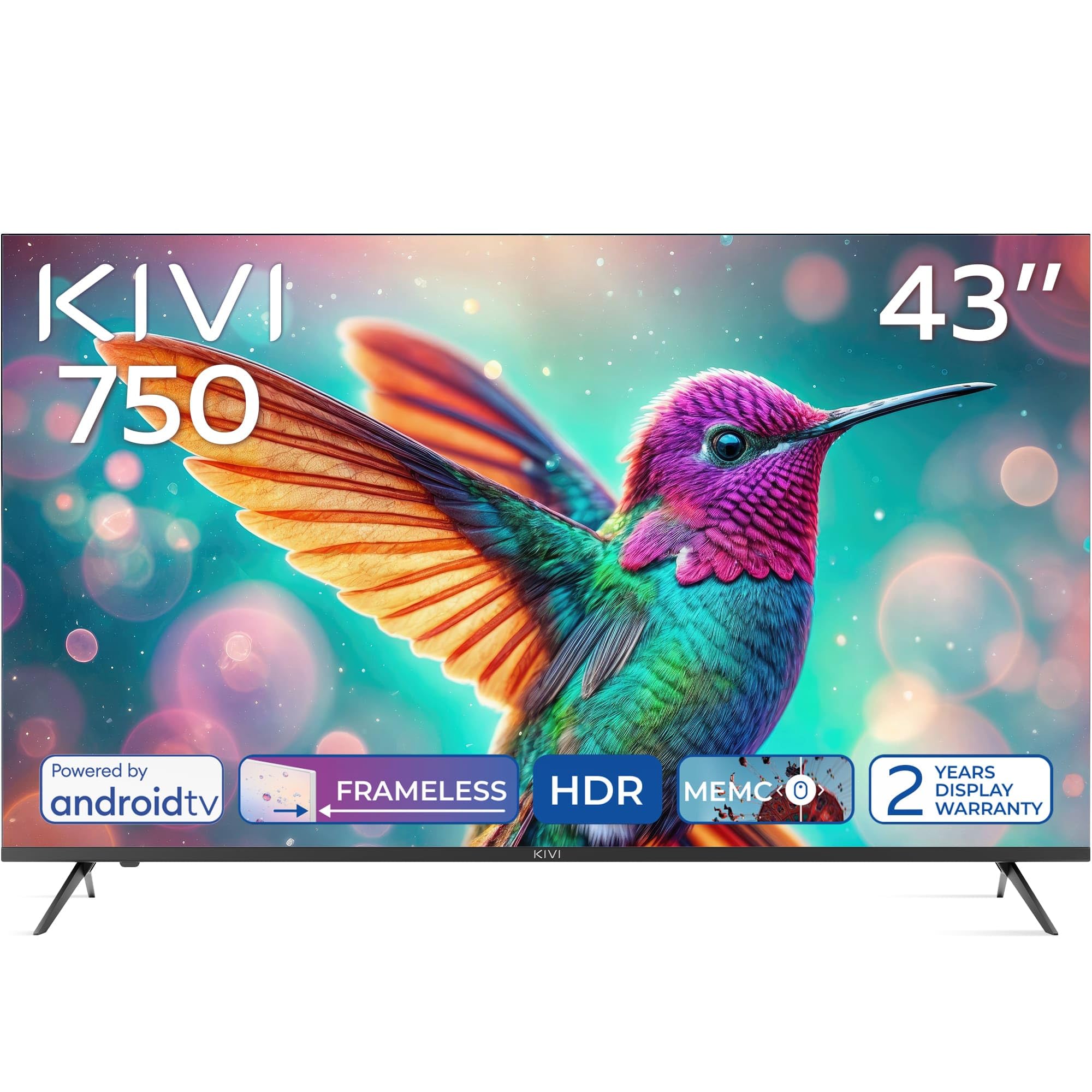
Front view of the KIVI 43U750NB 43-inch UHD 4K Smart TV.
Safety Information
To ensure safe operation and prevent damage, please observe the following safety precautions:
- Do not expose the TV to rain or moisture.
- Do not open the TV casing; refer all servicing to qualified personnel.
- Ensure proper ventilation around the TV.
- Avoid placing the TV near heat sources or in direct sunlight.
- Use only the power cord supplied with the TV.
- Keep batteries out of reach of children.
- Disconnect the power plug during lightning storms or when unused for long periods.
Package Contents
Verify that all items are present in the package:
- KIVI 43U750NB 43-inch UHD 4K Smart TV
- Remote Control
- 2 x AAA Batteries (for remote control)
- Power Cord
- User Manual (this document)
- TV Stands (if included for tabletop setup)
- Screws for TV Stands
Setup
1. Installing the TV Stands
If you are placing the TV on a flat surface, attach the included stands to the bottom of the TV using the provided screws. Ensure the stands are securely fastened before placing the TV upright.
2. Wall Mounting
For wall mounting, use a VESA-compatible wall mount (not included) that supports a 200 x 200 mm pattern. Follow the instructions provided with your wall mount. Ensure the wall can support the weight of the TV.
3. Connecting External Devices
Connect your external devices such as Blu-ray players, game consoles, or sound systems to the TV's ports.
- HDMI Ports (x3): For high-definition audio and video. Supports HDMI (eARC) for enhanced audio return channel.
- USB 2.0 Ports (x2): For connecting USB storage devices to play media or for service.
- Ethernet Port: For a wired internet connection.
- Antenna (75Ω) Input: For connecting a terrestrial or cable antenna.
- Optical Audio Output: For connecting to an external audio receiver or soundbar.
- Headphone Jack: For connecting headphones.
- Mini RCA: For connecting older analog devices.

Rear view of the KIVI 43U750NB TV, illustrating the various connection ports including HDMI, USB, Ethernet, and audio outputs.
4. Power Connection
After all connections are made, plug the power cord into the TV and then into a wall outlet (220 VAC, 50 Hz).
Operating Instructions
1. Remote Control
Insert the two AAA batteries into the remote control. The remote uses Bluetooth technology for enhanced control.

The KIVI Smart TV remote control, powered by two AAA batteries.
2. Initial Setup (Android TV 11)
Upon first power-on, the TV will guide you through the initial setup process.
- Language Selection: Choose your preferred language.
- Network Connection: Connect to your Wi-Fi network or use the Ethernet cable.
- Google Account Sign-in: Sign in with your Google account to access Android TV features, apps, and voice control.
- Channel Scan: Scan for available TV channels (DVB-T2 tuner).
- Privacy Settings: Configure your privacy preferences.

The Android TV 11 interface, providing access to a wide range of applications and services.
3. Smart TV Features
- Applications: Access popular streaming services like Netflix and HBO directly from the Android TV home screen. Download more apps from the Google Play Store.
- Voice Control: Use the built-in voice control feature (via the remote) to search for content, control playback, and manage TV settings.
- Google Cast: Wirelessly cast content from your compatible smartphone, tablet, or computer to the TV screen.
4. Picture Settings
Adjust picture settings to optimize your viewing experience.
- HDR10 & HLG: The TV supports HDR10 and HLG for enhanced contrast and color reproduction with compatible content.
- MEMC: Motion Estimation, Motion Compensation technology reduces motion blur in fast-moving scenes.
- Picture Modes: Select from various preset picture modes (e.g., Standard, Vivid, Movie, Game) or customize your own.

Visual representation of KIVI TV's picture quality features, including Max Vivid, Super Contrast Control, Ultra Clear, and ALLM & Game Mode.
5. Sound Settings
Customize audio output for optimal sound quality.
- Dolby Audio: The TV features Dolby Audio for clear and powerful sound.
- Sound Modes: Choose from preset sound modes (e.g., Standard, Music, Movie, Speech) or adjust equalizer settings.
- Audio Output: Select between TV speakers, optical output, or Bluetooth audio devices.
Maintenance
Regular maintenance helps prolong the life of your TV.
- Cleaning the Screen: Gently wipe the screen with a soft, lint-free cloth. For stubborn marks, use a screen-cleaning solution specifically designed for TVs, applied to the cloth, not directly to the screen.
- Cleaning the Casing: Use a soft, dry cloth to wipe the TV casing. Do not use abrasive cleaners or solvents.
- Ventilation: Ensure the ventilation openings on the back of the TV are not blocked to prevent overheating.
Troubleshooting
If you encounter issues with your TV, refer to the following common problems and solutions:
| Problem | Possible Cause / Solution |
|---|---|
| No Power | Check if the power cord is securely plugged into the TV and the wall outlet. Ensure the wall outlet is functioning. |
| No Picture, but Sound is Present | Check the input source. Ensure the connected device is powered on and functioning correctly. Try a different HDMI cable. |
| No Sound, but Picture is Present | Check the volume level. Ensure the TV is not muted. Verify audio output settings (TV speakers, optical, etc.). |
| Remote Control Not Working | Replace the AAA batteries. Ensure there are no obstructions between the remote and the TV. Re-pair the Bluetooth remote if necessary. |
| Cannot Connect to Wi-Fi | Ensure your Wi-Fi router is on and working. Re-enter the Wi-Fi password. Try restarting the TV and your router. |
| Apps Not Loading / Slow Performance | Check your internet connection speed. Clear app cache or data. Restart the TV. Ensure sufficient storage space. |
Specifications
| Feature | Detail |
|---|---|
| Model Number | 43U750NB |
| Screen Size | 43 Inches |
| Resolution | UHD 4K (3840 x 2160) |
| Display Technology | LED (Direct LED backlight, VA-panel) |
| Refresh Rate | 60 Hz |
| HDR Support | HDR10, HLG |
| Operating System | Android 11.0 |
| Audio Technology | Dolby Audio (2.0 channels) |
| HDMI Ports | 3 (including eARC) |
| USB Ports | 2 (USB 2.0) |
| Connectivity | Wi-Fi, Bluetooth 5.1, Ethernet |
| Special Features | Voice Control, Google Cast, MEMC |
| Power Consumption | 53 Watt |
| Power Supply | 220 VAC 50 Hz |
| Product Dimensions (DxWxH) | 6.4 x 96 x 55.6 cm |
| Product Weight | 9.7 kg |
| VESA Mounting Standard | 200 x 200 mm |

Energy label for KIVI 43U750NB, indicating energy efficiency class G and power consumption.
For detailed energy information, visit: https://eprel.ec.europa.eu/qr/1326921
Warranty and Support
Your KIVI 43U750NB Smart TV comes with a limited warranty. KIVI offers a 3-year display warranty. Please retain your proof of purchase for warranty claims.
For technical support, troubleshooting assistance, or warranty inquiries, please contact KIVI customer service through their official website or the contact information provided with your purchase.


