
LAUNCH LAUNCH X431 CREADER EILTE FGC
LAUNCH X431 Creader Elite 2.0 FGC OBD2 Scanner User Manual
Model: LAUNCH X431 CREADER EILTE FGC
Introduction
This manual provides comprehensive instructions for the operation, maintenance, and troubleshooting of your LAUNCH X431 Creader Elite 2.0 FGC OBD2 Scanner. Please read this manual thoroughly before using the device to ensure proper function and to prevent damage.
The LAUNCH X431 Creader Elite 2.0 FGC is a powerful bi-directional scan tool designed for Ford, GM, and Chrysler series vehicles. It offers advanced features such as ECU coding, active tests, all-system diagnostics, and over 30 special functions, along with full OBD2 capabilities. This device is equipped with a 4-Core 1.3GHz processor, Android 8.1 operating system, and 2GB RAM + 16GB ROM for efficient performance.
Product Overview

Figure 1: LAUNCH X431 Creader Elite 2.0 FGC OBD2 Scanner. This image shows the main unit with its display and rugged casing, highlighting its compact design and key features like "Lifetime Updates Included" and "ECU Coding, Active Tests, 30+ Services, All System Scan".

Figure 2: Feature comparison of the Creader Elite FGC 2.0. This table illustrates the improved specifications and capabilities, such as Android 8.1 OS, 2G+16G RAM/ROM, 4-Core 1.3GHz CPU, 2.4GHz Wi-Fi connection, and support for Active Test and ECU Coding, compared to previous models.
Setup
- Unboxing and Initial Inspection: Carefully remove all components from the packaging. Verify that all items listed in the packing list are present and undamaged.
- Charging the Device: Connect the scanner to a power source using the provided USB cable. The device features a 3000mAh battery. Ensure it is fully charged before first use.
- Powering On: Press and hold the power button until the LAUNCH logo appears on the screen.
- Initial Setup: Follow the on-screen prompts to select your language, time zone, and connect to a Wi-Fi network. A stable internet connection is required for software updates and online features.
- Software Registration and Update:
- Register your device using the serial number found on the back of the unit.
- Access the "Upgrade" or "Update" section on the main menu to download and install the latest software for your specific vehicle brands (Ford, GM, Chrysler series). Lifetime free updates are included for these built-in brands.
- If you wish to add more car software beyond the built-in brands, you can go to the "MALL" section on the device to make in-app purchases.
- Connecting to Vehicle:
- Locate the vehicle's OBD2 port, typically under the dashboard on the driver's side.
- Connect the provided OBD2 cable from the scanner to the vehicle's OBD2 port.
- Turn the vehicle's ignition to the "ON" position (engine off).
Operating Instructions
Diagnostic Functions
The LAUNCH X431 Creader Elite 2.0 FGC provides comprehensive diagnostic capabilities. From the main menu, select "Diagnose" to begin.

Figure 3: OE-level All System Diagnostics. This image illustrates the scanner's ability to access and diagnose all electronic control units (ECUs) within the vehicle, including ABS, ECM, CEM, TPMS, TCM, DIM, BBS, SWM, and AUD systems, covering 90% of main car brands' repair needs.

Figure 4: AutoVIN and Full OBD2 Tests. This image demonstrates the automatic VIN recognition feature for most 2006+ cars and the various OBD2 functions available, such as reading/clearing DTCs, live data stream, I/M readiness, freeze frame, and O2 sensor tests.
- AutoVIN: For most vehicles manufactured after 2006, the scanner can automatically read the VIN (Vehicle Identification Number), saving manual input.
- Read/Clear Codes: Retrieve Diagnostic Trouble Codes (DTCs) from all accessible systems and clear them after repairs.
- Live Data Stream: View real-time data parameters from various sensors and components in text or graph format.
- I/M Readiness: Check the status of emission-related monitors to determine if the vehicle is ready for an inspection.
- Freeze Frame Data: View a snapshot of vehicle conditions at the time a fault code was set.
- O2 Sensor Test: Retrieve O2 sensor monitor test results.
- On-Board Monitor Test (Mode $8): Retrieve results for on-board diagnostic monitoring tests of specific components/systems.
Advanced Functions
The Creader Elite 2.0 FGC offers advanced functionalities for specific vehicle series (Ford, GM, Chrysler).

Figure 5: Advanced ECU Coding. This image highlights the ability to modify original car settings, personalize features, unlock hidden functions (e.g., disable auto engine start-stop, flash headlights when alarm, change dashboard brightness), and perform component matching for compatible vehicles (Jeep, Dodge, Ford, Chrysler, GM).

Figure 6: Bi-directional Active Tests. This image demonstrates the scanner's capability to send commands to vehicle components (e.g., lights, fuel pump, A/C clutch, window wipers) to verify their functionality and pinpoint faulty areas in minutes without disassembling the vehicle.
- ECU Coding: Allows modification of original car settings, personalization, flashing hidden functions (e.g., auto start-stop disable, headlight flash on alarm, dashboard brightness adjustment), and component matching.
- Active Test (Bi-directional Control): Send commands to vehicle systems to test specific components (e.g., activate relays, injectors, coils, solenoid valves, actuators) to diagnose issues.
Special Functions (30+)
The device includes over 30 common special functions tailored for various car brands, including Ford, GM, and Chrysler.
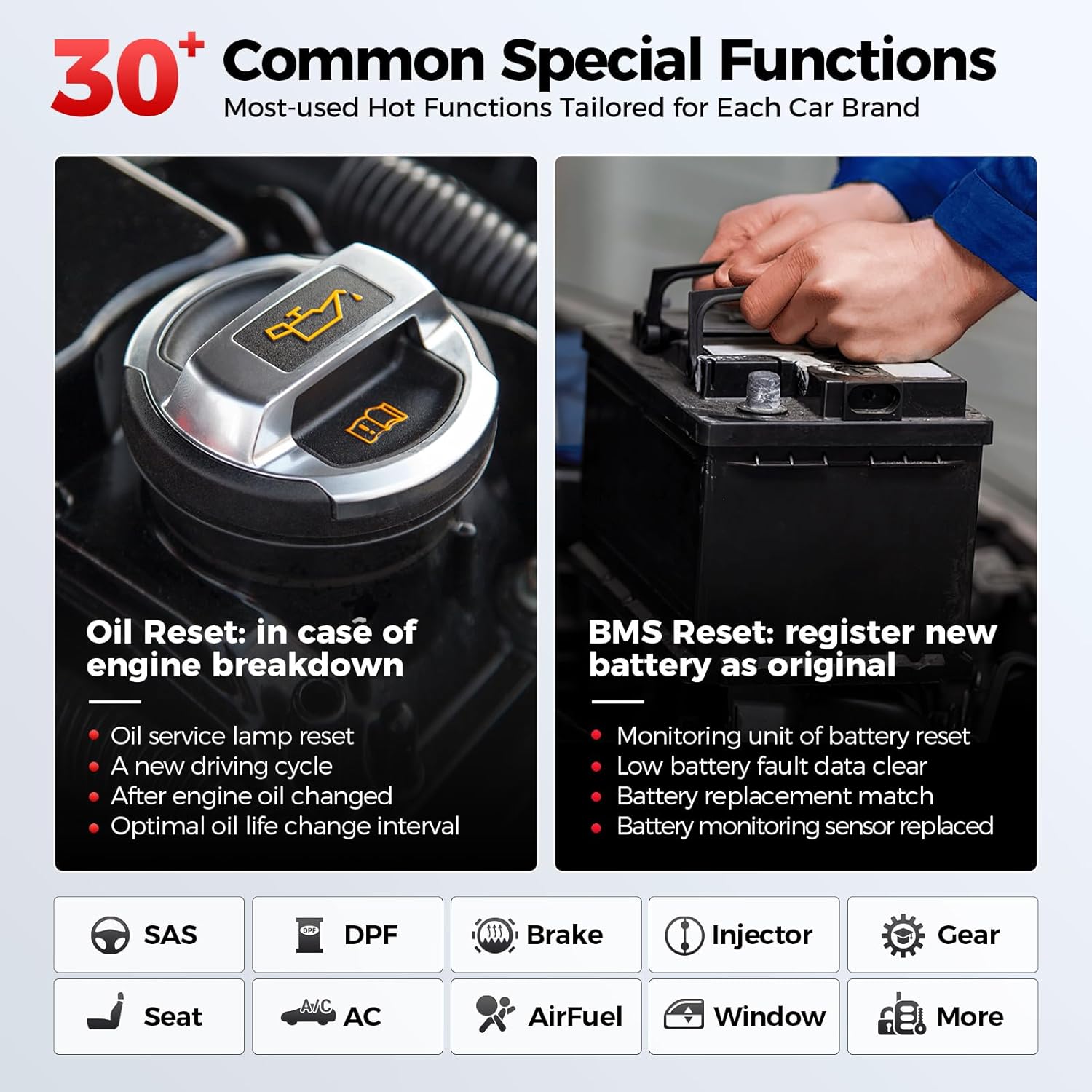
Figure 7: 30+ Common Special Functions. This image highlights key service functions such as Oil Reset (resetting service lamp, new driving cycle, optimal oil life change interval) and BMS Reset (registering new battery, clearing low battery fault data, battery replacement match). Other functions include SAS, DPF, Brake, Injector, Gear, Seat, AC, AirFuel, Window, and more.
- Oil Reset: Reset the engine oil life system after an oil change.
- BMS Reset: Register a new battery and clear battery fault information.
- Ford Specific Functions: PMI, Power balance, and over 100 hot functions.
- GM Specific Functions: Engine oil life reset, Cylinder power balance, Compression test, and 30 more programming functions.
- Chrysler Specific Functions: Reset Enhanced Automatic Oil Change Indicator, Cylinder Balance Test, Initialize ABS System, and 30 more.
- Other common functions include Idle Speed, DPF Regen, Ride Height Adjustment, Auto Start-Stop, Transmission Relearn, Delete Transport Mode, etc.
Maintenance
- Software Updates: Regularly check for and install software updates via Wi-Fi to ensure optimal performance and compatibility with new vehicle models. Built-in software for Ford, GM, and Chrysler series receives lifetime free updates. Additional car software can be purchased via the "MALL" function.
- Cleaning: Use a soft, dry cloth to clean the device. Avoid using abrasive cleaners or solvents that could damage the screen or casing.
- Storage: Store the scanner in a cool, dry place away from direct sunlight and extreme temperatures. When not in use for extended periods, ensure the battery is partially charged (around 50%) to prolong its lifespan.
- Cable Care: Inspect the OBD2 cable regularly for any signs of wear or damage. Replace if necessary to ensure reliable connection.
Troubleshooting
| Problem | Possible Cause | Solution |
|---|---|---|
| Device does not power on. | Low battery; Power button not pressed long enough; Device malfunction. | Charge the device fully. Press and hold the power button for at least 3 seconds. Contact support if issue persists. |
| Communication error with vehicle ECU. | OBD2 diagnostic connector not correctly connected; Vehicle ignition not ON. | Ensure diagnostic connector is correctly connected. Verify ignition switch is ON. If all checks are normal, send vehicle year, make, model, and VIN number to LAUNCH support using the Feedback feature. |
| Software update fails or registration fails. | Poor Wi-Fi connection; Incorrect serial number/registration code; Insufficient storage; Server issue. | Ensure stable Wi-Fi connection. Verify the serial number and registration code are correctly filled. Check available storage (16GB internal memory). Try updating/registering again later. If issues persist, provide the serial number to support. |
| Slow performance. | Too many applications running; Low storage space. | Close unnecessary applications. Clear cache or delete old files to free up storage. |
For further assistance, please refer to the "Feedback" feature within the device software or contact LAUNCH customer support.
Specifications
- Model: LAUNCH X431 CREADER EILTE FGC
- Operating System: Android 8.1
- CPU: 4-Core 1.3GHz
- RAM + ROM: 2GB + 16GB
- Display: (Information not explicitly provided in product specifications, but typically a compact screen for handheld scanners)
- Battery: 3000mAh
- Connectivity: 2.4GHz Wi-Fi
- Item Weight: 1.76 pounds
- Package Dimensions: 10.04 x 7.48 x 3.19 inches
- Supported Protocols: OBD2/EOBD/KOBD&CAN
- Vehicle Compatibility: Ford, GM, Chrysler series (Buick, Cadillac, Chevrolet, Dodge, Jeep), also compatible with GMC, Alpheon, Ravon, Pontiac, Saturn, Hummer, Oldsmobile, Holden, Daewoo, Workhorse. Supports Diesel (12v only), 12V Passenger car, Hybrid car, Pickup, Light-duty Truck, SUV, Gasoline, Minivans, Caravan, Van from 1996-2025.
- Manufacturer Part Number: FGC 2.0
- UPC: 850052860103
Warranty and Support
Warranty Information
The LAUNCH X431 Creader Elite 2.0 FGC comes with a manufacturer's warranty. Please refer to the warranty card included in your product packaging for specific terms and conditions, including warranty period and coverage details. Lifetime free software updates are provided for the built-in Ford/GM/Chrysler series software.
Customer Support
For technical assistance, product inquiries, or troubleshooting not covered in this manual, please contact LAUNCH customer support. You can often find contact information on the official LAUNCH website or through the "Feedback" feature within the device's software.
Common FAQs from LAUNCH:
- What should I do if the registration fails? Ensure the serial number and registration code are correctly filled and the network is working. If issues persist, provide the serial number (found on the back of the unit) to support.
- Communication error with vehicle ECU? Verify the diagnostic connector is correctly connected and the ignition switch is ON. If all checks are normal, send vehicle year, make, model, and VIN number to LAUNCH support using the Feedback feature.
Related documentsLAUNCH X431 CREADER EILTE FGC


Ask a question about this manual
Ask about setup, troubleshooting, compatibility, parts, safety, or missing instructions. Manuals+ will review the question and use this page’s manual context to help answer it.