
Introduction
The BoxWave DirectSync PD Cable is a high-performance USB-C to USB-C cable designed for efficient power delivery and data transfer. This 10-foot braided nylon cable supports up to 100W Power Delivery (PD) for fast charging a wide range of devices, including laptops, and offers high-speed data transfers at 5 Gigabits Per Second. Its durable construction with reinforced strain relief ensures longevity and reliable performance.

Image: The BoxWave DirectSync PD Cable, coiled, showcasing its braided design and two USB-C connectors.
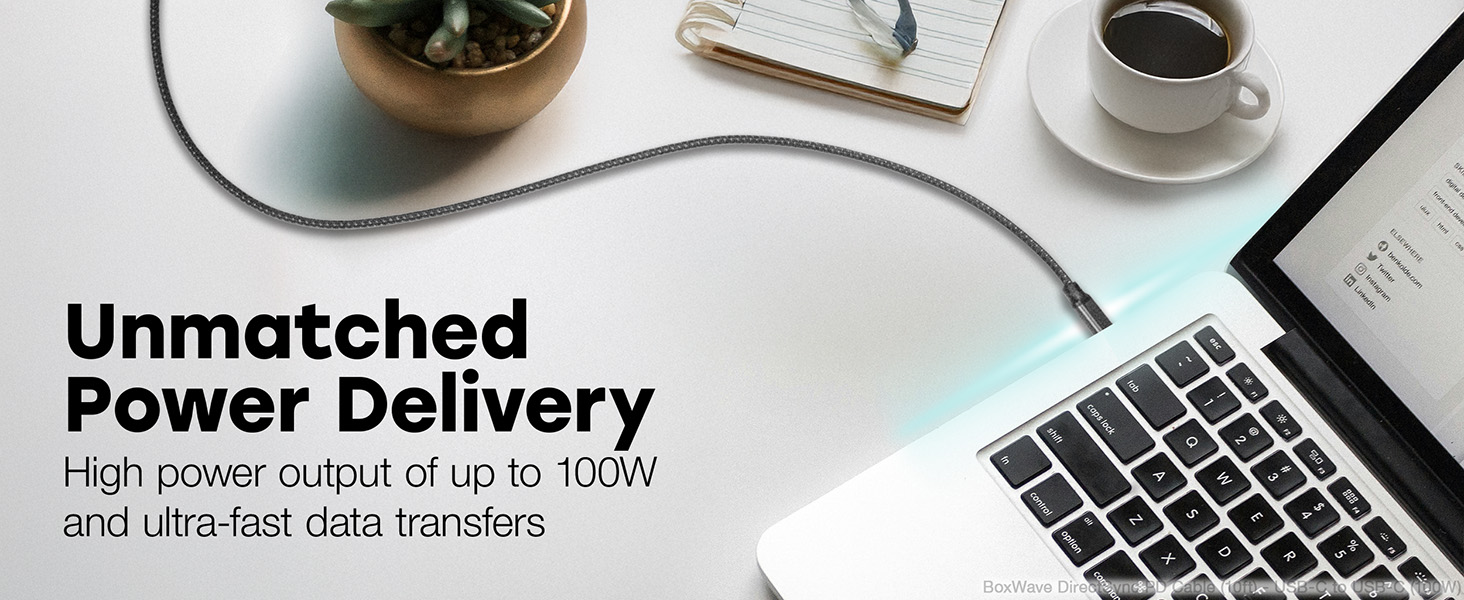
Image: A living room setting demonstrating the 10-foot cable's length, allowing a laptop to be used comfortably away from a wall outlet.
Setup
Setting up your DirectSync PD Cable is straightforward.
- Identify Ports: Ensure your charging adapter and device both have USB Type-C ports.
- Connect to Charger: Plug one end of the USB Type-C connector into a compatible wall charger or power adapter. For optimal performance, use a charger that supports Power Delivery (PD) up to 100W.
- Connect to Device: Plug the other end of the USB Type-C connector into your device (e.g., laptop, smartphone, tablet).
- Verify Connection: Confirm that your device indicates it is charging or connected for data transfer.

Image: A laptop connected to a smartphone with the DirectSync PD Cable, illustrating simultaneous charging and data synchronization.
Operating Instructions
The DirectSync PD Cable offers dual functionality for both charging and data transfer.
Charging Your Device
- High-Speed Charging: When connected to a compatible Power Delivery (PD) charger, the cable can deliver up to 100 Watts of power, enabling rapid charging for laptops, tablets, and smartphones.
- Optimal Performance: For best charging speeds, ensure both your charger and device support USB Power Delivery.
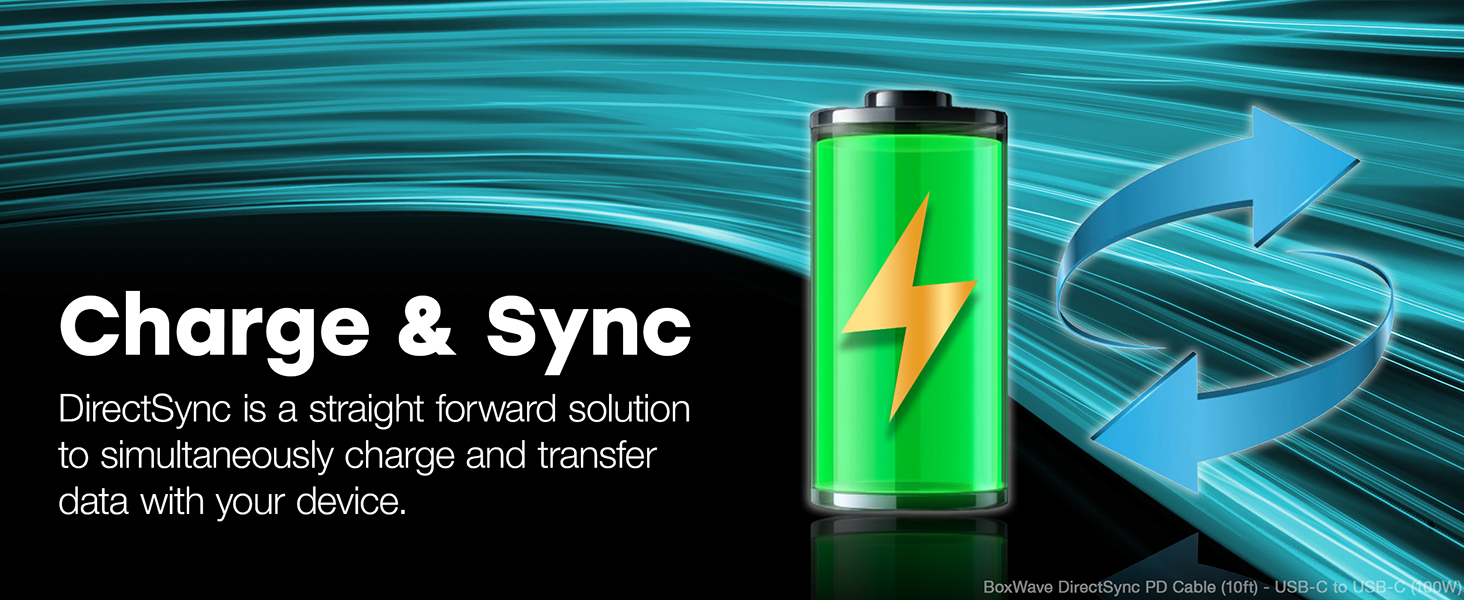
Image: A laptop receiving power through the DirectSync PD Cable, highlighting its 100W Power Delivery capability.
Data Transfer
- Fast Data Sync: Connect the cable between your device and a computer to perform data transfers at speeds up to 5 Gigabits Per Second (USB 3.0 standard).
- Simultaneous Functionality: Data transfer can occur simultaneously while your device is charging, streamlining your workflow.

Image: A visual representation of the cable's dual functionality, enabling both power delivery and data synchronization.
Maintenance
To ensure the longevity and optimal performance of your BoxWave DirectSync PD Cable, follow these maintenance guidelines:
- Handle with Care: Avoid excessive bending or sharp angles, especially near the connectors. The cable features reinforced strain relief, but proper handling further extends its life.
- Clean Gently: If the cable becomes dirty, wipe it with a soft, dry cloth. Do not use harsh chemicals or abrasive cleaners.
- Storage: When not in use, coil the cable loosely. Avoid tightly wrapping it around objects or kinking it, which can damage the internal wires.
- Inspect Regularly: Periodically check the cable and connectors for any signs of wear, fraying, or damage. Discontinue use if damage is observed.

Image: A close-up view of the cable's durable braided nylon exterior, designed to resist tangles and fraying.

Image: A detailed view of the reinforced rubberized grommet strain relief at the connector, designed to prevent fraying and kinking.
Troubleshooting
If you encounter issues with your DirectSync PD Cable, consider the following troubleshooting steps:
- Device Not Charging:
- Ensure both ends of the cable are securely plugged into the charger and the device.
- Verify that the wall outlet or power source is active.
- Test the cable with a different compatible charger and device to isolate the issue.
- Confirm your charger supports Power Delivery (PD) and provides sufficient wattage for your device.
- Slow Charging:
- Ensure your charger is a Power Delivery (PD) compatible charger with adequate wattage (up to 100W).
- Close unnecessary applications on your device that might be consuming significant power.
- Data Transfer Issues:
- Confirm the cable is properly connected to both the device and the computer.
- Check your device's settings to ensure data transfer mode is enabled (e.g., "File Transfer" or "MTP").
- Try connecting to a different USB-C port on your computer.
- Physical Damage: Inspect the cable for any visible damage, such as cuts, kinks, or bent connectors. If damaged, discontinue use and replace the cable.
Specifications
| Feature | Detail |
|---|---|
| Brand | BoxWave |
| Model Name | DirectSync PD Cable |
| Connector Type | USB Type C (Male-to-Male) |
| Cable Length | 10 feet (approximately 3 meters) |
| Power Delivery (PD) | Up to 100 Watts |
| Data Transfer Rate | 5 Gigabits Per Second (USB 3.0 Standard) |
| Cable Material | Braided Nylon |
| Color | Jet Black |
| Strain Relief | Rubberized Grommet on both connectors |
| Compatible Devices | Devices with USB-C ports, including PCs, laptops, smartphones, and tablets (e.g., DODOSOUL M800) |
| Usage Environment | Indoor, Outdoor |
| Item Weight | 6 Ounces |
Warranty and Support
For information regarding warranty coverage, technical support, or customer service for your BoxWave DirectSync PD Cable, please refer to the official BoxWave website or contact their customer support directly.
Online Support: Visit www.boxwave.com for FAQs, product registration, and contact information.