
Dragon Touch Notepad K10
Dragon Touch Notepad K10 Android Tablet User Manual
Model: Notepad K10 | Brand: Dragon Touch
Introduction
This user manual provides comprehensive instructions for the Dragon Touch Notepad K10 Android Tablet. It covers essential information regarding product features, setup, operation, maintenance, and troubleshooting to ensure optimal performance and user experience. Please read this manual thoroughly before using your device.
Package Contents
Upon unboxing, please verify that all items listed below are present and in good condition:
- 1 x 10.1 Inch Android Tablet
- 1 x USB Cable
- 1 x 5V 2A Charger
- 1 x User Manual (this document)

Image: The Dragon Touch Notepad K10 Android Tablet, front and back view.
Product Overview
The Dragon Touch Notepad K10 is a versatile 10.1-inch Android tablet designed for various uses, from entertainment to productivity. It features a robust quad-core processor and the Android 12 operating system for smooth performance.
Key Features:
- Powerful Performance: Equipped with a 64-bit quad-core processor up to 1.3GHz and 2GB RAM for efficient multitasking and smooth app launches.
- Latest Android 12 OS: GMS certified, providing full access to Google Play and a smarter, faster user experience.
- Vibrant Display: A 10.1-inch 800x1280 IPS HD display offers clear visuals and rich colors from all viewing angles. Includes an Eye-Care mode for comfortable night reading.
- Enhanced Entertainment: Dual speakers deliver a robust audio experience. Dual-band Wi-Fi (2.4GHz and 5GHz) ensures high-speed network connections for streaming and browsing.
- Ample Storage: Built-in 32GB storage, expandable up to 256GB via a micro SD card, allowing for extensive media and app storage.
- Dual Cameras: Features an 8MP rear camera and a 2MP front camera for capturing photos and video calls.

Image: Overview of the tablet highlighting its 10.1-inch HD IPS display, Android 12, Quad-Core CPU, 2.4GHz+5.0GHz WiFi, 2GB RAM, 32GB Storage, and Dual Camera.
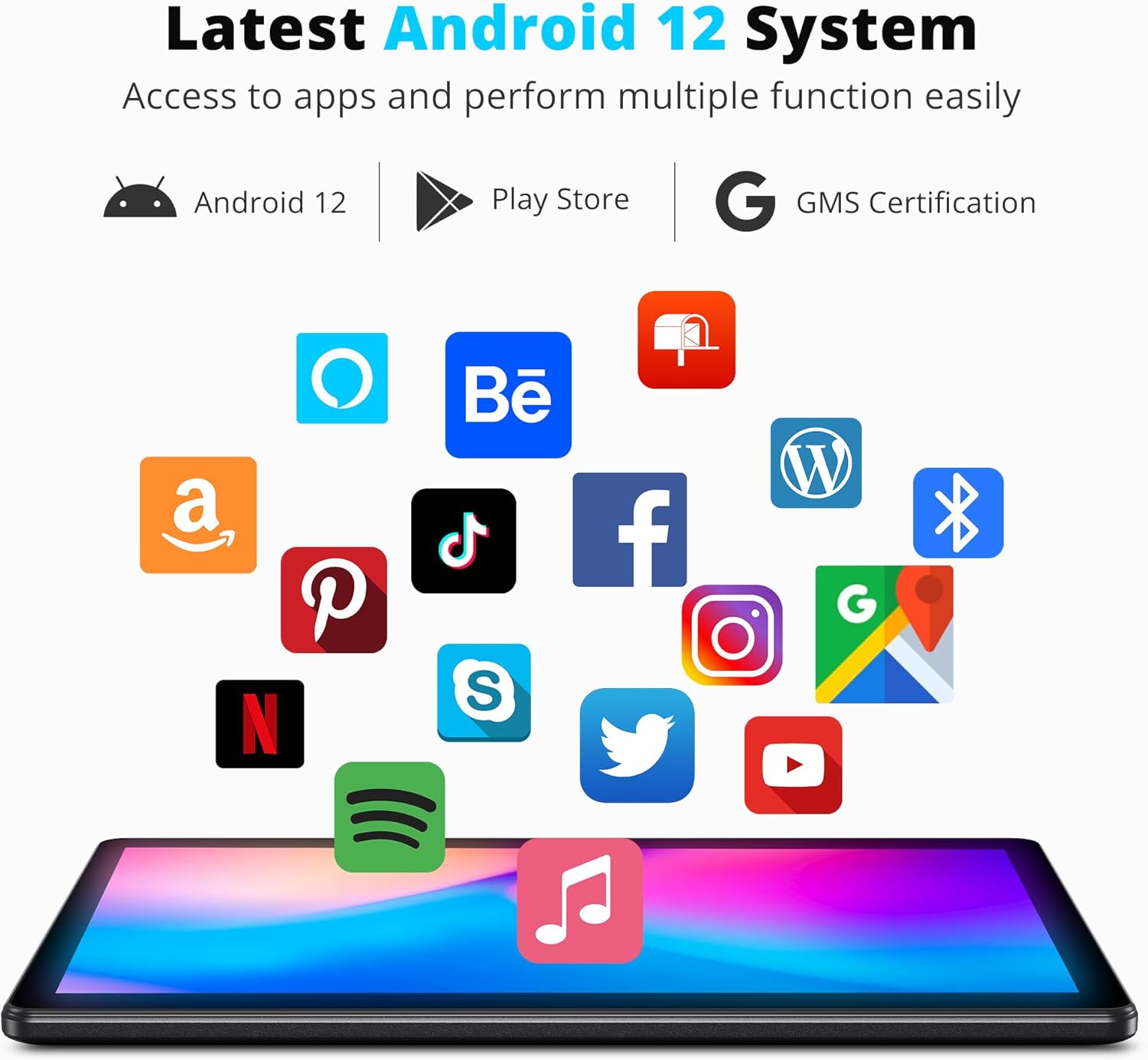
Image: The tablet displaying the Android 12 system interface with various popular application icons, indicating access to the Google Play Store.

Image: The tablet screen illustrating its 32GB internal storage capacity and the ability to expand storage up to 256GB using a microSD card.
Setup
1. Initial Charging
Before first use, fully charge the tablet using the provided USB cable and 5V 2A charger. The charging indicator will typically show progress on the screen.
2. Power On/Off
- To Power On: Press and hold the Power button located on the side of the tablet until the screen lights up.
- To Power Off: Press and hold the Power button until a power-off menu appears. Select "Power off" to shut down the device.
3. Initial Setup Wizard
Upon first power-on, the tablet will guide you through an initial setup process. This includes selecting your language, connecting to a Wi-Fi network, setting up your Google account, and configuring basic device settings. Follow the on-screen prompts to complete the setup.
Operating Instructions
1. Basic Navigation
- Touch Gestures: Tap to select, swipe to scroll, pinch to zoom.
- Home Screen: Access your apps, widgets, and notifications.
- Navigation Bar: Use the Back, Home, and Recent Apps buttons at the bottom of the screen.
2. Connecting to Wi-Fi
- Go to Settings > Network & internet > Wi-Fi.
- Turn on Wi-Fi. The tablet will scan for available networks.
- Select your desired network and enter the password if prompted.
The tablet supports both 2.4GHz and 5GHz Wi-Fi bands for optimal connectivity.
3. Installing and Managing Apps
Apps can be downloaded from the Google Play Store. Ensure you are signed in with your Google account.
- Install: Open the Play Store app, search for your desired app, and tap "Install".
- Uninstall: Go to Settings > Apps > See all apps, select the app, and tap "Uninstall".
4. Using the Cameras
The tablet features an 8MP rear camera and a 2MP front camera.
- Open the Camera app.
- Switch between front and rear cameras using the icon on the screen.
- Tap the shutter button to take a photo or start/stop video recording.

Image: The tablet displaying a clear image captured by its HD Dual Camera, featuring a child and a dog.
5. Display Settings and Eye-Care Mode
Adjust brightness, font size, and enable Eye-Care mode for reduced eye strain.
- Go to Settings > Display.
- Adjust brightness using the slider.
- Locate and enable Eye-Care mode for optimized backlight during night reading.

Image: The tablet showcasing its 10.1-inch HD IPS display with vibrant colors, featuring a group of people enjoying a scenic view.
Maintenance
1. Cleaning the Tablet
Use a soft, lint-free cloth to clean the screen and body of the tablet. Avoid using harsh chemicals or abrasive materials that could damage the surface.
2. Battery Care
- Avoid extreme temperatures, as they can affect battery life.
- Do not let the battery completely drain frequently.
- Use only the provided charger or a compatible 5V 2A charger.

Image: The tablet screen displaying a charging animation with a large '5000mAh' text, indicating its long-lasting battery capacity.
3. Software Updates
Regularly check for and install system updates to ensure your tablet has the latest features, security patches, and performance improvements.
- Go to Settings > System > System update.
- Follow the on-screen instructions to check for and install updates.
Troubleshooting
This section addresses common issues you might encounter with your Dragon Touch Notepad K10 tablet.
| Problem | Possible Cause | Solution |
|---|---|---|
| Tablet does not power on. | Low battery; system crash. | Charge the tablet for at least 30 minutes. If still unresponsive, press and hold the Power button for 10-15 seconds to force a restart. |
| Apps crash frequently. | Insufficient RAM; app incompatibility; corrupted app data. | Close background apps. Clear the app's cache (Settings > Apps > [App Name] > Storage > Clear cache). Reinstall the app. Ensure the tablet's software is up to date. |
| Wi-Fi connection issues. | Incorrect password; router issue; tablet Wi-Fi module issue. | Verify Wi-Fi password. Restart your Wi-Fi router. Forget the network on the tablet and reconnect. |
| Slow performance. | Too many apps running; low storage; outdated software. | Close unused apps. Clear cache and unnecessary files. Uninstall rarely used apps. Perform a system update. |
| Battery drains quickly. | High screen brightness; background apps; old battery. | Reduce screen brightness. Close power-intensive apps. Limit background data usage. If the issue persists, contact support. |
Specifications
Detailed technical specifications for the Dragon Touch Notepad K10 Android Tablet:
- Model Name: Notepad K10
- Operating System: Android 12
- Processor: Quad-Core, 1.3GHz
- RAM: 2GB
- Internal Storage: 32GB
- Expandable Storage: Up to 256GB via Micro SD card
- Screen Size: 10.1 Inches
- Display Resolution: 1280 x 800 pixels IPS HD
- Rear Camera: 8 MP
- Front Camera: 2 MP
- Wireless Connectivity: 802.11ac (2.4GHz & 5GHz Wi-Fi)
- Battery: 5000mAh Lithium Polymer (Average Battery Life: 5 Hours)
- Dimensions (LxWxH): 9.4 x 0.4 x 6.7 inches
- Item Weight: 2.31 pounds
- Color: Black
Warranty and Support
Dragon Touch products come with a standard warranty. For specific warranty terms and conditions, please refer to the warranty card included in your product packaging or visit the official Dragon Touch website. For technical support, troubleshooting assistance beyond this manual, or warranty claims, please contact Dragon Touch customer service through their official support channels.
You can often find support contact information on the manufacturer's website or within the tablet's settings under "About tablet" or "Support".
Related documentsNotepad K10


Ask a question about this manual
Ask about setup, troubleshooting, compatibility, parts, safety, or missing instructions. Manuals+ will review the question and use this page’s manual context to help answer it.