
Maxcom FW55 Aurum Pro
Maxcom FW55 Aurum Pro Smartwatch User Manual
Model: FW55 Aurum Pro
Introduction
The Maxcom FW55 Aurum Pro Smartwatch is designed to enhance your daily life with its comprehensive health monitoring, communication, and fitness tracking capabilities. This manual provides detailed instructions on how to set up, operate, and maintain your smartwatch to ensure optimal performance and longevity.
Key features include:
- Integrated health monitor for sleep, blood pressure, heart rate, and oxygen levels.
- Ability to answer calls directly from the watch.
- Lightweight design for comfortable wear.
- Extensive fitness tracking for various activities like fitness, hiking, running, badminton, cycling, and football.
- Music control functionality.
- Customizable watch faces and interchangeable straps.
- Notifications for SMS, applications, emails, social media, and news.
- IP67 water resistance.

Image: Front view of the Maxcom FW55 Aurum Pro Smartwatch, displaying the watch face with time, step count, and heart rate. The watch features a silver casing and a blue silicone strap.
Setup Guide
1. Initial Charging
Before first use, fully charge your Maxcom FW55 Aurum Pro Smartwatch. Connect the provided charging cable to the charging points on the back of the watch and to a USB power source. A full charge typically takes approximately 2 hours. The battery indicator on the watch screen will show charging progress.

Image: Rear view of the Maxcom FW55 Aurum Pro Smartwatch, highlighting the two metallic charging pins and the optical sensors for health monitoring.
2. App Installation and Pairing
To unlock the full potential of your smartwatch, download the companion application on your smartphone. Search for the official Maxcom app in your device's app store (Google Play Store for Android or Apple App Store for iOS). Once installed:
- Open the Maxcom app on your smartphone.
- Ensure Bluetooth is enabled on both your smartphone and smartwatch.
- Follow the on-screen instructions in the app to search for and connect to your FW55 Aurum Pro Smartwatch.
- Confirm the pairing request on both devices if prompted.
Successful pairing will synchronize data and enable notifications and call functions.
3. Changing the Watch Strap
Your Maxcom FW55 Aurum Pro Smartwatch comes with two interchangeable straps, allowing for personalization. To change the strap:
- Locate the quick-release pins on the underside of the strap where it connects to the watch body.
- Gently slide the pin inwards to detach the strap from the watch lug.
- Repeat for the other side of the strap.
- To attach a new strap, align one end of the pin with the hole in the watch lug, then slide the pin inwards and guide the other end into the corresponding hole. Release the pin to secure the strap.
- Ensure both ends of the strap are securely fastened before wearing.

Image: Angled view of the Maxcom FW55 Aurum Pro Smartwatch fitted with a silver mesh strap, demonstrating an alternative strap option.
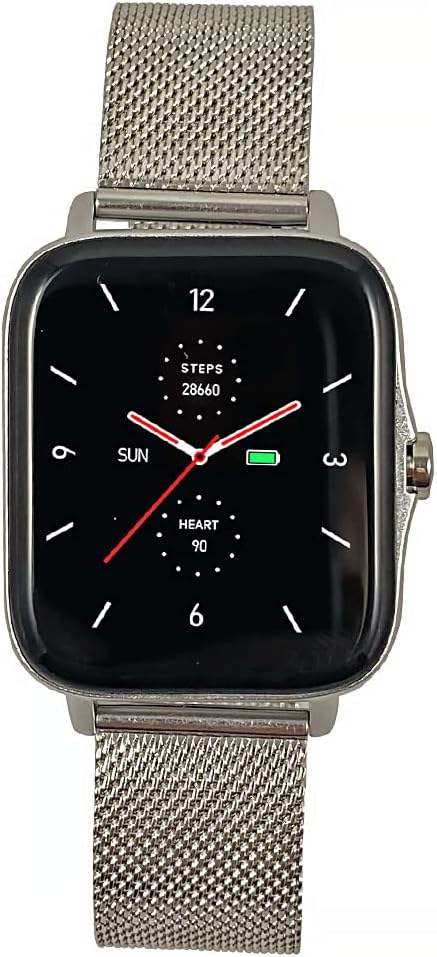
Image: Front view of the Maxcom FW55 Aurum Pro Smartwatch with a silver mesh strap, showing the watch face with time, steps, and heart rate.
Operating Instructions
1. Basic Navigation
The Maxcom FW55 Aurum Pro Smartwatch features a responsive touchscreen and a side button for navigation:
- Swipe Up/Down: Scroll through menus and notifications.
- Swipe Left/Right: Access quick functions or different widgets (e.g., heart rate, weather).
- Tap: Select an item or confirm an action.
- Side Button: Press to return to the home screen or wake the device. Long press for power options.
2. Calls and Notifications
Once paired with your smartphone, the smartwatch allows you to manage calls and receive notifications:
- Answering Calls: When an incoming call is received, the watch will display the caller ID. Tap the green phone icon on the screen to answer the call directly from your watch.
- Making Calls: Access the call menu on your watch to view recent calls or dial a number.
- Notifications: Messages from SMS, various applications, emails, social media platforms, and news alerts will appear on your watch screen. Swipe down from the top of the watch face to view your notification history.
3. Health Monitoring
The FW55 Aurum Pro Smartwatch provides continuous health monitoring:
- Heart Rate: Access the heart rate monitor from the main menu or by swiping to the heart rate widget. The watch will measure and display your current heart rate.
- Blood Pressure & Oxygen: Similar to heart rate, dedicated sections in the health menu allow for on-demand measurements of blood pressure and blood oxygen saturation (SpO2).
- Sleep Tracking: Wear the watch to bed to automatically track your sleep patterns, including deep sleep, light sleep, and awake times. Data is synchronized with the app for detailed analysis.
4. Fitness Tracking
Track your physical activity with precision:
- Activity Modes: Select from over 100 sports modes including fitness, hiking, running, badminton, cycling, and football. The watch will record relevant metrics for each activity.
- Daily Metrics: Automatically tracks steps taken, calories burned, and distance covered (mileage) throughout the day.
- Data Synchronization: All fitness data is synchronized with the companion app, allowing you to review your progress, set goals, and optimize your training sessions.
5. Music Control
Control music playback on your connected smartphone directly from your smartwatch. Access the music control feature to play, pause, skip tracks, and adjust volume without needing to take out your phone.
6. Customization
Personalize your smartwatch experience:
- Watch Faces: Choose from over 100 dial models available through the watch or the companion app to match your style or mood.
- Menu Layout: Customize the menu layout and arrangement of applications to suit your preferences for quick access.
Maintenance
1. Cleaning Your Smartwatch
To maintain the appearance and functionality of your smartwatch:
- Wipe the screen and watch body with a soft, lint-free cloth.
- For stubborn smudges, slightly dampen the cloth with water. Avoid using harsh chemicals or abrasive materials.
- Clean the charging contacts and sensors on the back of the watch regularly to ensure proper charging and accurate readings.
2. Water Resistance (IP67)
The Maxcom FW55 Aurum Pro Smartwatch is rated IP67, meaning it is fully waterproof up to a depth of 1 meter. This makes it suitable for daily use, including hand washing and exposure to rain. However, it is not recommended for swimming, diving, or prolonged submersion in water, especially hot water or steam, as this can compromise the seals over time.
3. Battery Care
To maximize battery life and longevity:
- Charge the watch fully before first use.
- Avoid completely draining the battery frequently.
- Store the watch in a cool, dry place when not in use for extended periods.
- Typical battery life is 6-10 days with intensive use.
Troubleshooting
If you encounter issues with your Maxcom FW55 Aurum Pro Smartwatch, please refer to the following common solutions:
- Watch not turning on: Ensure the watch is fully charged. Connect it to the charger and wait a few minutes before attempting to power it on again.
- Cannot pair with smartphone:
- Ensure Bluetooth is enabled on both devices.
- Make sure the watch is within the Bluetooth range of your phone.
- Restart both the watch and the smartphone.
- Forget the device in your phone's Bluetooth settings and try pairing again through the Maxcom app.
- Inaccurate health/fitness data:
- Ensure the watch is worn snugly on your wrist, but not too tight.
- Clean the sensors on the back of the watch.
- Ensure your personal information (height, weight, age) is accurately entered in the companion app.
- Notifications not appearing:
- Check notification permissions for the Maxcom app on your smartphone.
- Ensure the watch is connected via Bluetooth.
- Verify that "Do Not Disturb" mode is not active on either device.
If the issue persists, please contact Maxcom customer support for further assistance.
Specifications
| Feature | Detail |
|---|---|
| Brand | Maxcom |
| Model Number | FW55 |
| Color | Silver (with silverl strap option) |
| Screen Size | 1.5 Inches |
| Case Dimensions | 44 x 38 x 10 mm |
| Strap Size | 255 x 20 mm |
| Weight | 46g |
| Wireless Communication | Bluetooth |
| Battery Life (Intensive Use) | 6-10 days |
| Water Resistance | IP67 (fully waterproof up to 1 meter) |
| Manufacturer | Maxcom |
| Country of Origin | Portugal |

Image: Diagram illustrating the dimensions of the Maxcom FW55 Aurum Pro Smartwatch, indicating a height of 44mm and a width of 38mm for the watch case.
Warranty and Support
Maxcom products are designed for reliability and performance. For information regarding warranty coverage, please refer to the warranty card included with your product or visit the official Maxcom website.
For technical support, troubleshooting assistance beyond this manual, or service inquiries, please contact Maxcom customer support through their official channels. Contact information can typically be found on the Maxcom website or in the product packaging.
Manufacturer: Maxcom
Related documentsFW55 Aurum Pro


Ask a question about this manual
Ask about setup, troubleshooting, compatibility, parts, safety, or missing instructions. Manuals+ will review the question and use this page’s manual context to help answer it.