
1. Introduction
Welcome to the user manual for your Azpen Blaze 10 G1082 4G LTE Android 13 Tablet. This guide provides detailed instructions on how to set up, operate, maintain, and troubleshoot your device. The Azpen Blaze 10 G1082 features a 10.1-inch HD IPS display, 3GB RAM, 32GB storage, and runs on Android 13, offering a responsive experience for browsing, streaming, and gaming. It includes 4G LTE connectivity for internet access on the go, a 5MP front camera, and an 8MP rear camera.
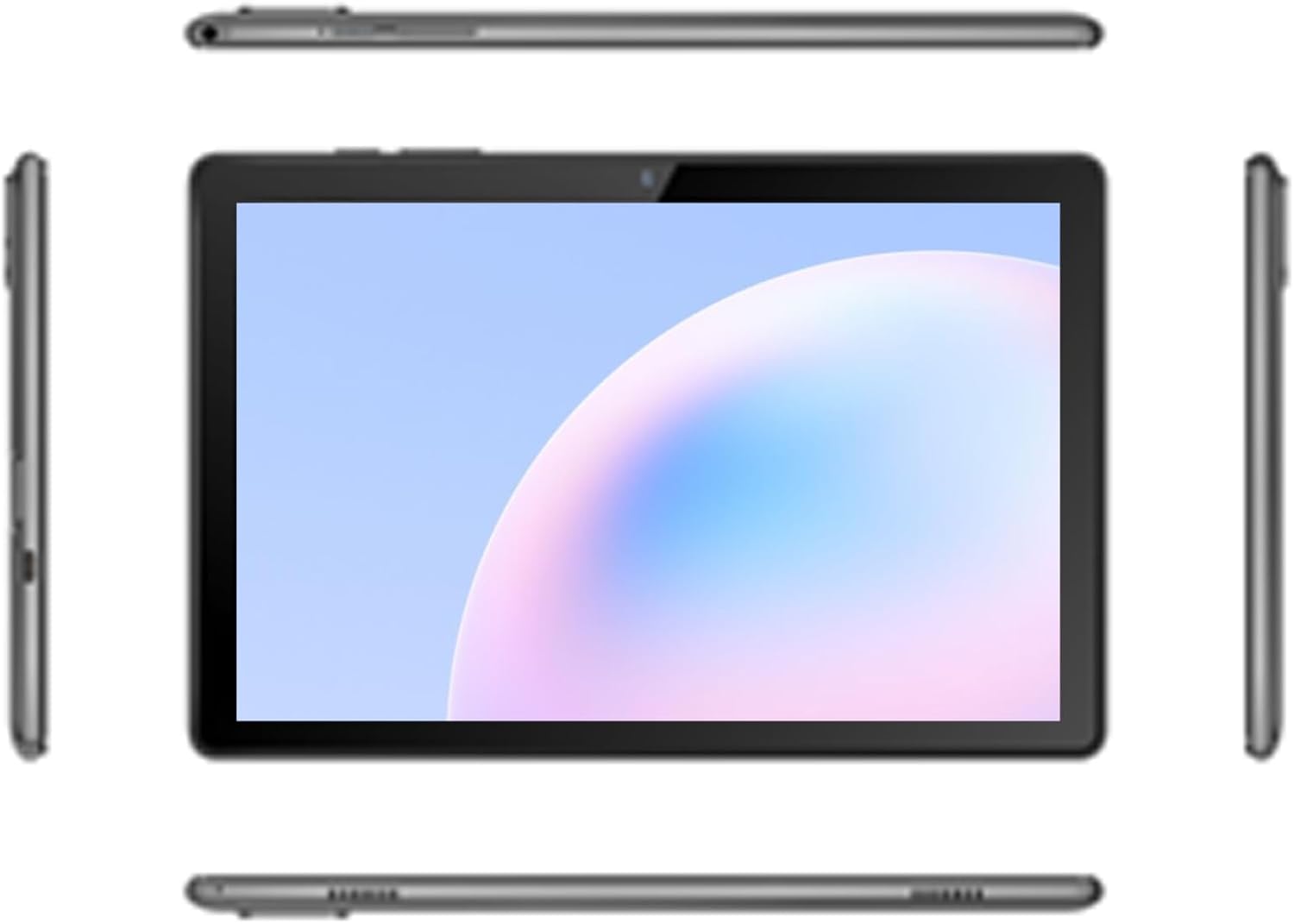
Figure 1.1: Front view of the Azpen Blaze 10 G1082 tablet, showcasing its 10.1-inch display.
2. Package Contents
Please check the box for the following items:
- Azpen Blaze 10 G1082 Tablet
- USB Charging Cable
- Power Adapter
- Quick Start Guide
If any items are missing or damaged, please contact Azpen customer support.
3. Device Layout
Familiarize yourself with the physical features of your Azpen Blaze 10 G1082 tablet.

Figure 3.1: Various angles of the Azpen Blaze 10 G1082 tablet, illustrating its sides, top, and bottom, including button and port placements.

Figure 3.2: Rear view of the Azpen Blaze 10 G1082 tablet, showing the Azpen logo and the rear camera module.
- Power Button: Located on the side, used to turn the tablet on/off or put it to sleep.
- Volume Buttons: Located near the power button, used to adjust audio volume.
- USB-C Port: For charging and data transfer.
- Headphone Jack: For connecting wired headphones.
- SIM/MicroSD Card Slot: For inserting a 4G LTE SIM card and a MicroSD card for expandable storage.
- Front Camera: Located above the screen, for video calls and selfies.
- Rear Camera: Located on the back, for taking photos and videos.
- Speakers: For audio output.
4. Setup
4.1 Powering On/Off
- To Power On: Press and hold the Power button until the Azpen logo appears.
- To Power Off: Press and hold the Power button until the power options appear on the screen, then select 'Power off'.
- To Restart: Press and hold the Power button until the power options appear, then select 'Restart'.
4.2 Charging the Battery
Before first use, fully charge the tablet. Connect the USB charging cable to the tablet's USB-C port and the power adapter, then plug the adapter into a wall outlet. The battery indicator on the screen will show charging status.
4.3 Inserting SIM and MicroSD Cards
The tablet supports a 4G LTE SIM card for mobile data and a MicroSD card for additional storage (up to 128GB).
- Locate the SIM/MicroSD card slot on the side of the tablet.
- Use the provided SIM ejector tool (if included) or a small paperclip to gently press into the small hole next to the tray to eject it.
- Place the Nano-SIM card and/or MicroSD card into the tray with the gold contacts facing down, ensuring they are correctly oriented.
- Carefully push the tray back into the slot until it clicks into place.
5. Operating
5.1 Android 13 Overview
Your Azpen Blaze 10 G1082 runs on Android 13, offering an intuitive and customizable user experience. Key features include enhanced privacy controls, improved notification management, and a personalized interface.

Figure 5.1: The Azpen Blaze 10 G1082 tablet displaying the Android 13 logo on its screen, indicating the operating system version.
5.2 Basic Navigation
- Home Screen: Swipe left or right to access different home screens.
- App Drawer: Swipe up from the bottom of the screen to view all installed applications.
- Notifications & Quick Settings: Swipe down from the top of the screen to access notifications and quick settings toggles (Wi-Fi, Bluetooth, etc.).
- Multitasking: Swipe up from the bottom and hold to see recently used apps.
5.3 Network Connections
Wi-Fi:
- Go to Settings > Network & internet > Internet.
- Toggle Wi-Fi On.
- Select your desired Wi-Fi network and enter the password if prompted.
4G LTE Mobile Data:
- Ensure a valid 4G LTE SIM card is inserted (refer to Section 4.3).
- Go to Settings > Network & internet > Mobile network.
- Ensure 'Mobile data' is toggled On.
- The tablet supports LTE Bands: B2/B4/B5/B12/B17/B41/B66/B71, compatible with AT&T and T-Mobile Networks.
5.4 Using the Cameras
The tablet features a 5MP front camera and an 8MP rear camera.
- Open the Camera application from the home screen or app drawer.
- Tap the camera icon to switch between front and rear cameras.
- Tap the shutter button to take a photo or start/stop video recording.
- Access settings within the camera app to adjust modes, filters, and other options.
5.5 Managing Storage
The tablet comes with 32GB of internal storage, expandable up to 128GB via a MicroSD card.
- To check storage usage: Go to Settings > Storage.
- To free up space: Uninstall unused apps, delete old photos/videos, or move files to a MicroSD card or cloud storage.
6. Maintenance
6.1 Cleaning the Tablet
Use a soft, lint-free cloth to clean the screen and body of the tablet. Avoid using harsh chemicals or abrasive materials, which can damage the screen or finish.
6.2 Software Updates
Regularly check for and install software updates to ensure your tablet has the latest features, security patches, and performance improvements.
- Go to Settings > System > System update.
- Follow the on-screen instructions to check for and install any available updates.
6.3 Battery Optimization
To maximize battery life:
- Reduce screen brightness.
- Turn off Wi-Fi, Bluetooth, and 4G LTE when not in use.
- Close background applications.
- Enable battery saver mode in settings.
7. Troubleshooting
This section addresses common issues you might encounter with your tablet.
- Tablet won't turn on: Ensure the battery is charged. Connect the tablet to its charger and wait a few minutes before attempting to power it on again.
- Tablet is unresponsive: Press and hold the Power button for about 10-15 seconds to force a restart.
- No Wi-Fi connection: Check if Wi-Fi is enabled in settings. Restart your Wi-Fi router. Forget the network and reconnect.
- No 4G LTE connection: Ensure a valid SIM card is inserted and mobile data is enabled. Check your data plan with your carrier. Verify that the tablet supports your carrier's LTE bands.
- Slow performance: Close unused apps, clear cache, and check for available storage space. Restarting the tablet can also help.
- Apps crashing: Ensure apps are updated to their latest versions. Clear the app's cache and data in Settings > Apps.
8. Specifications
Detailed technical specifications for the Azpen Blaze 10 G1082 tablet:
| Feature | Specification |
|---|---|
| Model Name | Blaze 10 |
| Operating System | Android 13 |
| Screen Size | 10.1 Inches |
| Screen Resolution | 1280 x 800 Pixels (HD IPS) |
| Processor | MediaTek Quad-Core (up to 2 GHz) |
| RAM | 3 GB |
| Internal Storage | 32 GB |
| Expandable Storage | MicroSD up to 128 GB |
| Rear Camera | 8 MP |
| Front Camera | 5 MP |
| Connectivity | 4G LTE (B2/B4/B5/B12/B17/B41/B66/B71), Wi-Fi, Bluetooth |
| Battery Life | Approximately 7 Hours (average use) |
| Dimensions (LxWxH) | 9.7 x 0.38 x 6.4 inches |
| Item Weight | 1.4 pounds |
| Color | Black |
9. Warranty and Support
Your Azpen Blaze 10 G1082 tablet comes with a limited manufacturer's warranty. Please refer to the warranty card included in your package for specific terms and conditions, including the warranty period and coverage details.
For technical support, warranty claims, or further assistance, please visit the official Azpen website or contact their customer service department. You can also find more information and products on the Azpen Store on Amazon.


