
Redragon K632 Pro
Redragon K632 Pro Wireless Low-Profile Gaming Keyboard User Manual
Model: K632 Pro
1. Introduction
The Redragon K632 Pro is a high-quality, ultra-low-profile 60% mechanical keyboard designed for agility and precision, particularly suited for gaming. It offers versatile connectivity options including Bluetooth 5.0/3.0, 2.4 GHz wireless via USB dongle, and a wired USB-C connection. This manual provides detailed instructions for setting up, operating, and maintaining your K632 Pro keyboard.
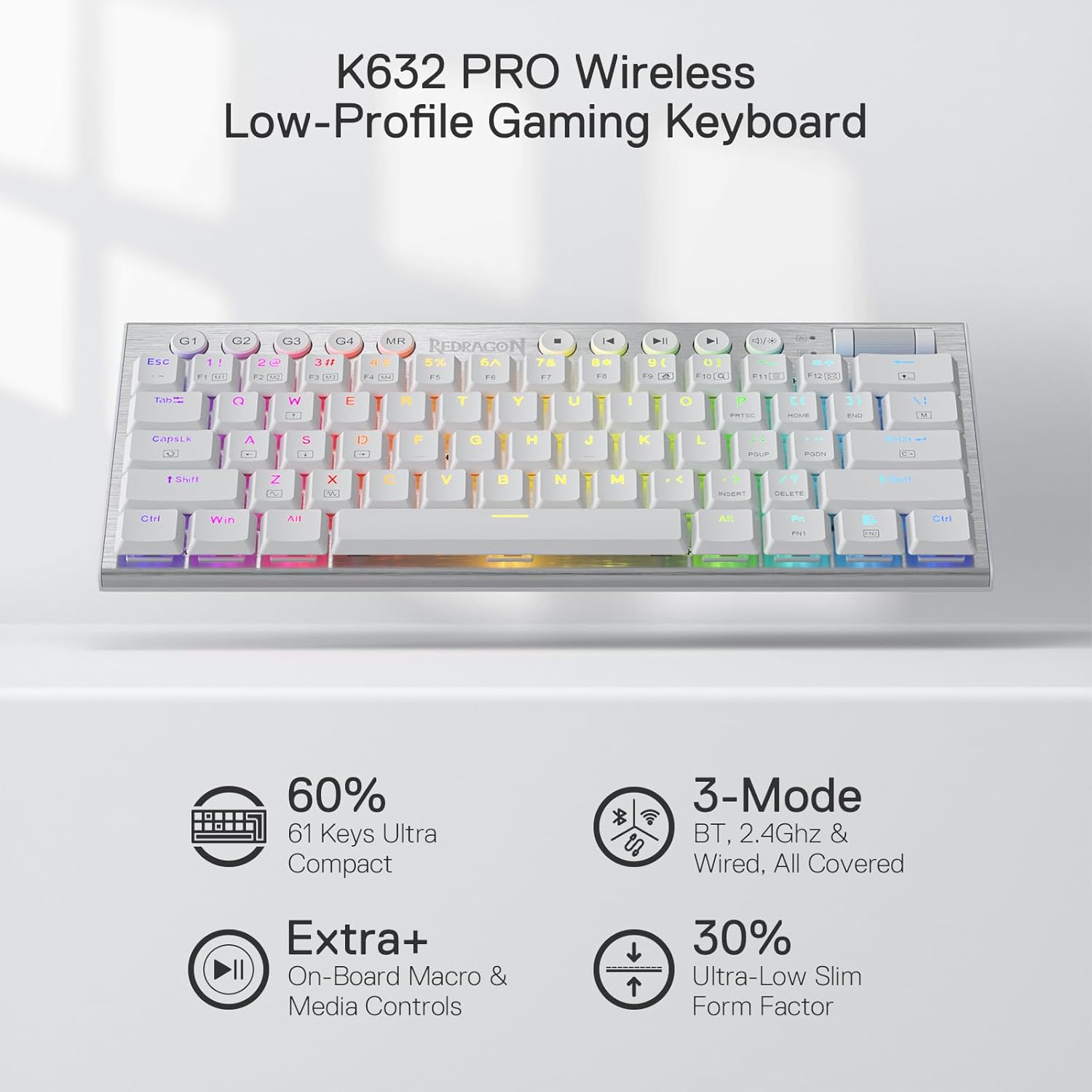
Image: Overview of the Redragon K632 Pro keyboard highlighting its 60% compact size, 3-mode connectivity, on-board macro & media controls, and ultra-low slim form factor.
2. Package Contents
Please verify that all items are present in the package:
- Redragon K632 Pro Mechanical Keyboard
- USB Type-C to USB-A Cable (detachable)
- 2.4GHz Nano USB Dongle
- Keycap Puller
- Switch Puller
- 8 x Spare Redragon Red Ultra Low Profile Mechanical Switches
- User Manual (this document)
- Redragon Sticker
3. Setup and Connection
The K632 Pro supports three connection modes: Wired (USB-C), 2.4GHz Wireless, and Bluetooth.

Image: Close-up of the Redragon K632 Pro keyboard showing the USB-C port, 2.4Ghz dongle, and a smartphone with a Bluetooth icon, illustrating the tri-mode connection capability.
3.1. Wired Connection
- Connect the USB Type-C end of the provided cable to the keyboard's USB-C port.
- Connect the USB-A end of the cable to an available USB port on your computer.
- The keyboard will be automatically recognized and ready for use.
3.2. 2.4GHz Wireless Connection
- Locate the 2.4GHz USB dongle, usually stored in a compartment on the keyboard.
- Plug the USB dongle into an available USB port on your computer.
- Ensure the keyboard's mode switch (located on the side or back) is set to 2.4G wireless mode.
- The keyboard should automatically connect. If not, press Fn + 4 to activate 2.4G pairing mode.
3.3. Bluetooth Connection
The K632 Pro supports up to three Bluetooth devices.
- Ensure the keyboard's mode switch is set to Bluetooth mode.
- To enter pairing mode for a specific Bluetooth channel, press and hold Fn + 1, Fn + 2, or Fn + 3 for 3-5 seconds until the indicator light flashes rapidly.
- On your device (computer, smartphone, tablet), open Bluetooth settings and search for new devices.
- Select "Redragon K632 Pro" (or similar name) from the list of available devices to pair.
- Once paired, the indicator light will stop flashing and remain solid.
- To switch between paired Bluetooth devices, simply press Fn + 1, Fn + 2, or Fn + 3.
3.4. Charging the Keyboard
The keyboard is powered by a rechargeable lithium battery. Connect the USB-C cable to the keyboard and a USB power source (computer USB port or wall adapter) to charge. The indicator light will show charging status.
4. Operating Instructions
4.1. Basic Functions
- Fn Key Combinations: Many functions are accessed by holding the Fn key and pressing another key. Refer to the keycaps for secondary functions (e.g., F1-F12, multimedia controls).
- Windows Key Lock: Press Fn + Win to lock/unlock the Windows key, preventing accidental presses during gaming.
- Anti-Ghosting & N-Key Rollover: The K632 Pro features 100% Anti-Ghosting with Full Key Rollover, ensuring every keypress is registered accurately, even during rapid, simultaneous inputs.
4.2. Macro Keys and Media Controls
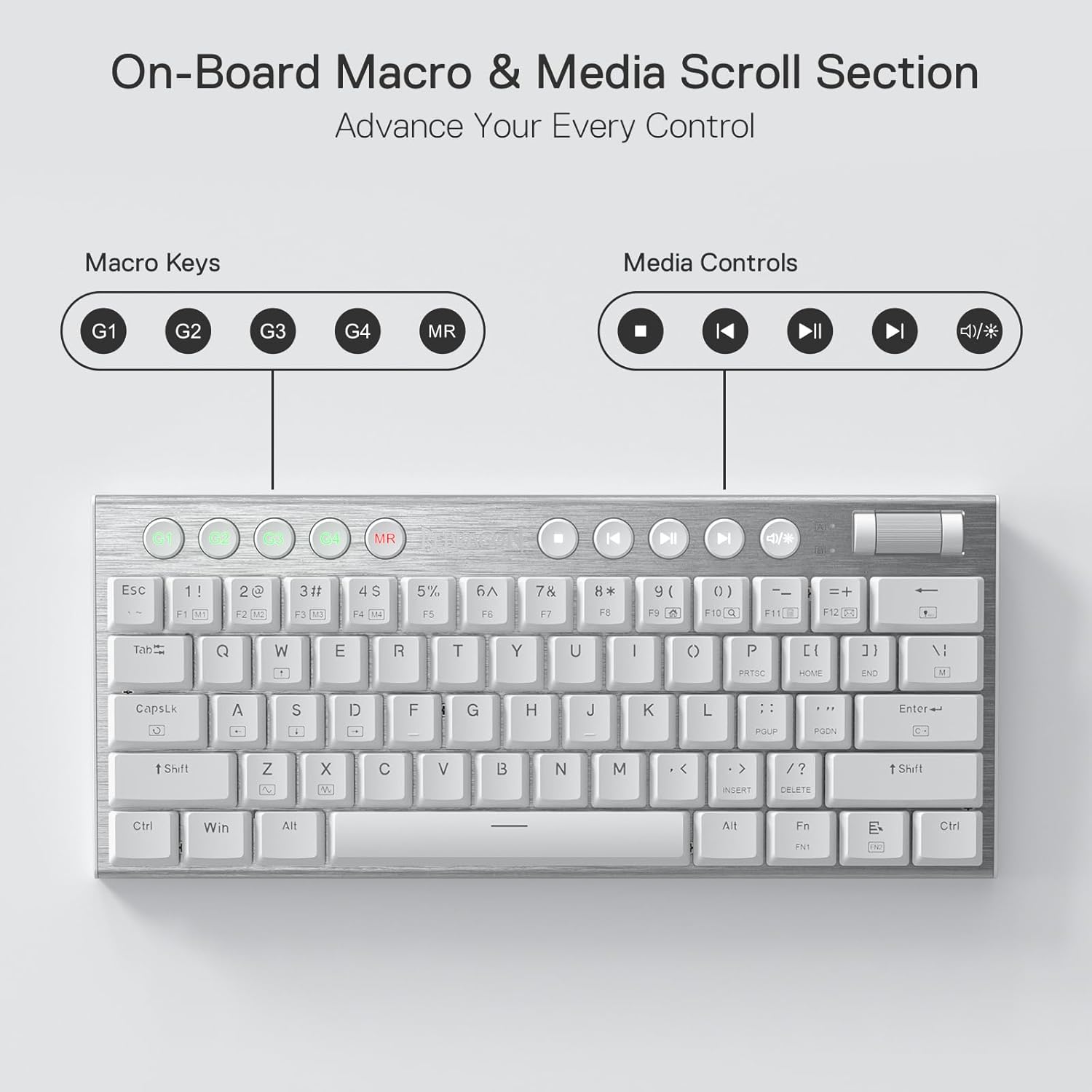
Image: Diagram of the Redragon K632 Pro keyboard highlighting the dedicated macro keys (G1-G4, MR) and media control buttons (play/pause, skip, volume wheel).
- Dedicated Macro Keys (G1-G4): The keyboard includes 4 dedicated keys for profile switching and direct macro recording.
- Macro Recording (MR): Use the MR key to record macros on the fly without software. Consult the full software manual for detailed macro programming.
- Multimedia Keys: The keyboard features 5 dedicated multimedia keys for convenient control of playback.
- Volume Wheel: An aluminum textured volume wheel provides easy and precise volume adjustment.
4.3. RGB Lighting Customization

Image: Screenshots of the Redragon NOCTIS software interface on computer monitors, showing options for customizing keyboard lighting effects and key assignments.
The K632 Pro features RGB Chroma backlighting with a wide variety of dynamic effects. You can customize the lighting directly from the keyboard or through the dedicated software.
- On-the-fly Customization: Use Fn + [key] combinations (refer to the manual or keycaps for specific functions) to change lighting modes, brightness, speed, and color.
- Software Customization: For advanced customization, download and install the Redragon dedicated software. The software allows for detailed control over lighting effects, colors, and per-key customization.
5. Maintenance
5.1. Cleaning the Keyboard
- Disconnect the keyboard from all power sources before cleaning.
- Use a soft, lint-free cloth slightly dampened with water or a mild cleaning solution to wipe down the keycaps and chassis.
- For dust and debris between keycaps, use compressed air.
- Avoid spraying liquids directly onto the keyboard.
5.2. Keycap and Switch Replacement (Hot-Swap)

Image: Comparison of Redragon K632 Pro's double-shot low-profile keycaps (4mm height) versus standard keycaps (11mm height), emphasizing their thinness and durability.
The K632 Pro features hot-swappable Redragon Red Ultra Low Profile switches, allowing for easy replacement without soldering.
- Removing Keycaps: Use the provided keycap puller to gently pull keycaps straight up.
- Removing Switches: Use the provided switch puller to grasp the top and bottom clips of the switch and pull it straight out.
- Installing Switches: Align the pins of the new switch with the holes on the PCB. Gently push the switch down until it clicks into place. Ensure the pins are not bent.
- Installing Keycaps: Align the keycap with the switch stem and press down firmly until it is seated.
6. Troubleshooting
- Keyboard not responding: Ensure the cable is securely connected in wired mode, or that the dongle is properly inserted and the keyboard is in the correct wireless mode (2.4G/BT). Check battery level.
- Wireless connection issues: Try re-pairing the keyboard (Fn + 4 for 2.4G, Fn + 1/2/3 for Bluetooth). Ensure no strong interference sources are nearby.
- Keys not working: Check if the keycap or switch is properly seated. If a specific switch is faulty, use the provided switch puller and spare switches to replace it.
- RGB lighting not working: Ensure the keyboard is powered on. Try cycling through lighting modes using Fn key combinations. If using software, ensure it's running and configured correctly.
- Lag or input delay in wireless mode: Ensure the keyboard is fully charged. For 2.4G, try moving the dongle closer to the keyboard or using a USB extension cable. For Bluetooth, ensure your device's Bluetooth drivers are up to date.
7. Specifications
| Model Number | K632 |
| Keyboard Type | Mechanical |
| Switch Type | Redragon Red Ultra Low Profile (Linear, 45g actuation force) |
| Connectivity | USB Type-C (detachable), 2.4GHz Wireless (nano USB dongle), Bluetooth 5.0/3.0 |
| Layout Size | 60% Compact |
| Number of Keys | 61 |
| Anti-Ghosting | 100% Anti-Ghosting with Full Key Rollover |
| Backlighting | RGB Chroma (Customizable) |
| Dedicated Macro Keys | Yes (4 keys) |
| Dedicated Multimedia Keys | Yes (5 keys + Volume Wheel) |
| Construction | Reinforced ABS Plastic and Anodized Aluminum Plate |
| Keycaps | Double-shot injection molded, laser-engraved |
| Spill-Resistant | Yes |
| Battery Type | Lithium Polymer (1 cell, 7 Watt-hour, 28g) |
| Dimensions (L x W x H) | 29.6 x 12.7 x 2.4 cm (11.6 x 4.88 x 0.94 inches) |
| Weight | 0.419 kg (14.78 oz) |
| Compatible Devices | PC, Smartphone, Game Console |
| Software Support | Yes |

Image: Diagram illustrating the compact 60% layout of the Redragon K632 Pro keyboard with dimensions of 11.6 inches in length and 4.88 inches in width.
8. Warranty and Support
For warranty information and technical support, please refer to the official Redragon website or contact their customer service. Keep your purchase receipt for warranty claims.
Official Redragon Website: www.redragonusa.com
Related Documents - K632 Pro
 |
Redragon K632 RGB PRO Noctis Pro Mechanical Gaming Keyboard User Manual User manual for the Redragon K632 RGB PRO Noctis Pro mechanical gaming keyboard, covering wired, 2.4G wireless, and Bluetooth connections, function introductions, multimedia controls, backlighting settings, and FAQ. |
 |
Redragon Horus K618 Keyboard User Manual and Guide Comprehensive guide to the Redragon Horus K618 mechanical gaming keyboard, covering wired, 2.4Ghz, and Bluetooth connections, macro recording, multimedia functions, and troubleshooting. |
 |
Redragon Kitava Wired Mechanical Gaming Keyboard Operating Instructions Comprehensive operating instructions for the Redragon Kitava wired mechanical gaming keyboard, detailing OS support, key function mappings, backlight customization, gaming modes, recording features, and frequently asked questions. |
 |
Redragon Kitava Lite K636LGR-R/8735 Mechanical Keyboard Operating Instructions Official operating instructions for the Redragon Kitava Lite K636LGR-R/8735 94-key wired mechanical keyboard, covering setup, lighting, functions, and FAQ. |
 |
Redragon Ryze 68 Key Wired Mechanical Gaming Keyboard - Operating Instructions Get detailed operating instructions for the Redragon Ryze 68 Key Wired Mechanical Gaming Keyboard. Learn about key functions, backlight settings, plug-in, and troubleshooting. |
 |
Redragon Azure K652GG-RGB-PRO 75% Low Profile Wireless Mechanical Keyboard User Manual User manual for the Redragon Azure K652GG-RGB-PRO, a 75% low-profile wireless mechanical keyboard. Includes setup, connectivity, key combinations, troubleshooting, FAQ, safety guidelines, and FCC compliance information. |