
Introduction
This manual provides essential information for setting up, operating, maintaining, and troubleshooting your Apple iPhone 15 (Renewed). Please read this guide thoroughly to ensure proper use and to maximize your device's capabilities.
As a renewed product, your iPhone 15 has been inspected and tested to function like new. Minor cosmetic imperfections may be present, which do not affect functionality. Refer to the 'Amazon Renewed conditions' section for details.

Image: Front and back view of the Apple iPhone 15 in blue.
1. Setup
1.1 What's in the Box
- Apple iPhone 15 (Renewed)
- USB-C Cable
1.2 Initial Power On
- Press and hold the Side button until the Apple logo appears.
- Follow the on-screen instructions to select your language and region.
1.3 eSIM Activation
The iPhone 15 uses an eSIM. Contact your wireless carrier to activate your service. You may be able to transfer your existing physical SIM to an eSIM during setup or by scanning a QR code provided by your carrier.
1.4 Data Transfer
If you are upgrading from another iPhone, you can transfer your data wirelessly using Quick Start or by restoring from an iCloud or computer backup. For Android devices, use the 'Move to iOS' app during initial setup.
1.5 Face ID Setup
During setup, you will be prompted to configure Face ID for secure authentication. Follow the on-screen instructions to register your face.
2. Operating Your iPhone 15
2.1 Dynamic Island
The Dynamic Island displays alerts and Live Activities, allowing you to interact with them without interrupting your current task. Tap to expand or hold to access more options.
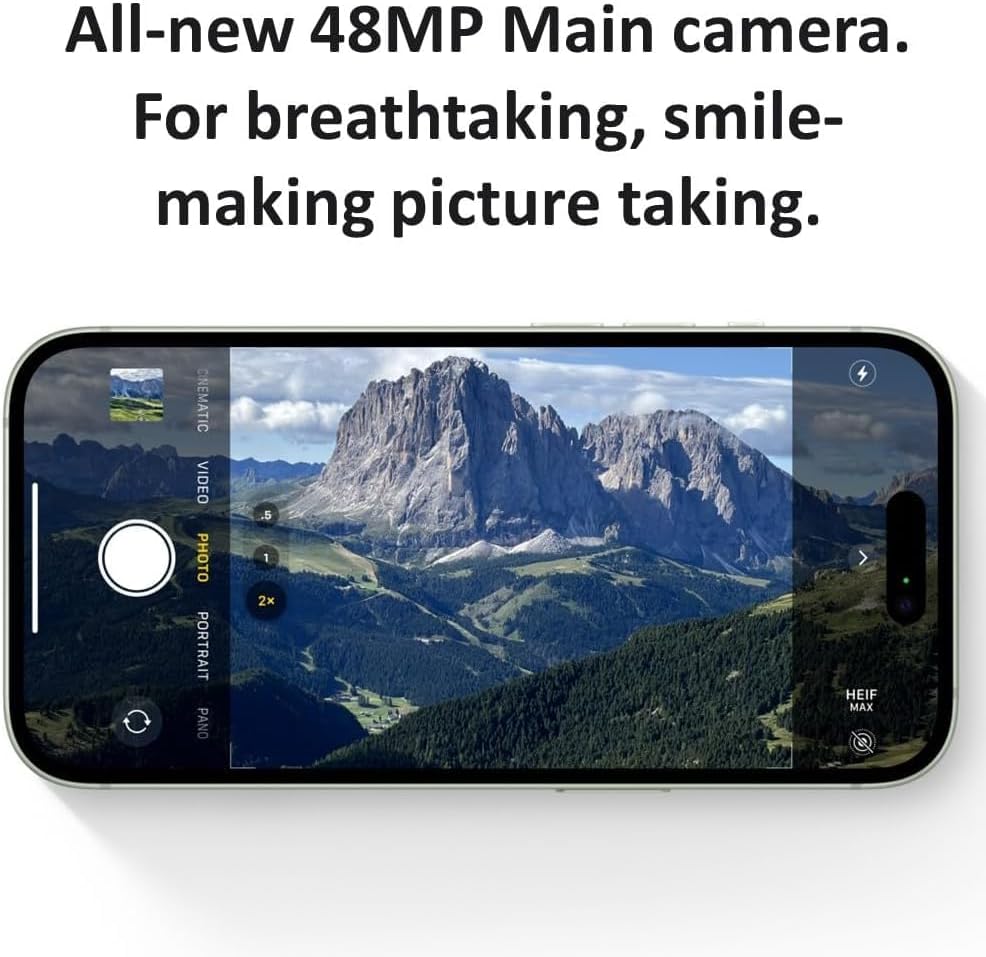
Image: The Dynamic Island displaying notifications and live activities.
2.2 Camera System
Your iPhone 15 features an advanced dual-camera system with a 48MP Main camera and an Ultra Wide lens. It supports super-high-resolution photos (24MP and 48MP) and next-generation portraits with Focus and Depth Control.
- Taking Photos: Open the Camera app and tap the Shutter button.
- Switching Modes: Swipe left or right on the screen to select modes like Photo, Portrait, Video, etc.
- Zoom: Use pinch gestures or the 0.5x, 1x, 2x options on screen for optical zoom.
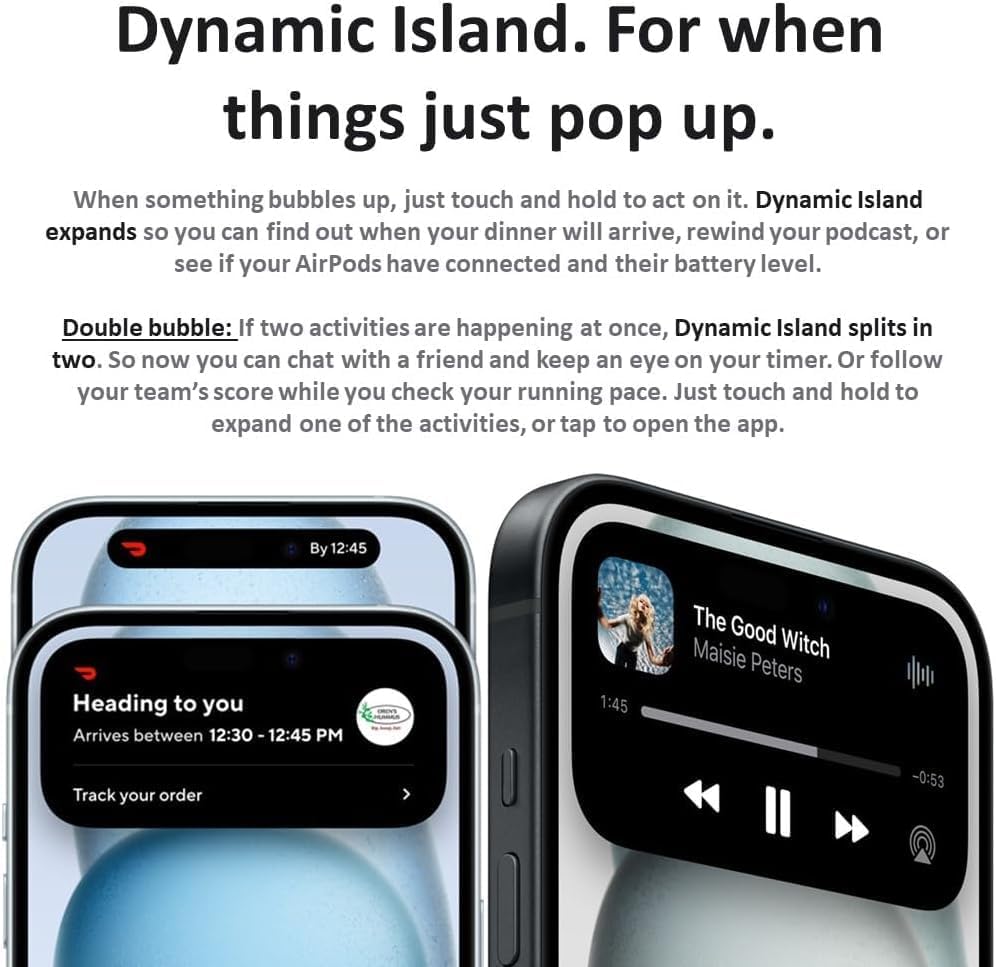
Image: The camera interface of the iPhone 15, showing various modes and zoom options.
2.3 Charging
The iPhone 15 uses a USB-C port for charging. Connect the provided USB-C cable to your iPhone and a compatible power adapter (sold separately) or computer.
- Wired Charging: Use the USB-C port at the bottom of the device.
- Wireless Charging: Place your iPhone face up on a compatible Qi-certified wireless charger.
2.4 Emergency Features
- Emergency SOS via Satellite: In areas without cellular or Wi-Fi coverage, your iPhone can connect to a satellite to text emergency services.
- Crash Detection: Your iPhone can detect a severe car crash and automatically call emergency services if you're unresponsive.
- Roadside Assistance via Satellite: Similar to Emergency SOS, this feature allows you to contact roadside assistance in remote areas.
3. Maintenance
3.1 Cleaning Your Device
To clean your iPhone, use a soft, lint-free cloth. Avoid abrasive materials, sprays, or harsh chemicals. Do not submerge your iPhone in cleaning solutions.
3.2 Software Updates
Keep your iPhone's software up to date to ensure optimal performance and security. Go to Settings > General > Software Update to check for and install available updates.
3.3 Battery Care
To prolong battery lifespan, avoid extreme temperatures. For long-term storage, charge the device to about 50% and power it off. Regular software updates often include battery optimizations.
3.4 Renewed Product Condition
Your renewed iPhone 15 has undergone a thorough inspection. While fully functional, it may exhibit minor cosmetic wear. For detailed information on renewed product conditions, please refer to the following image:
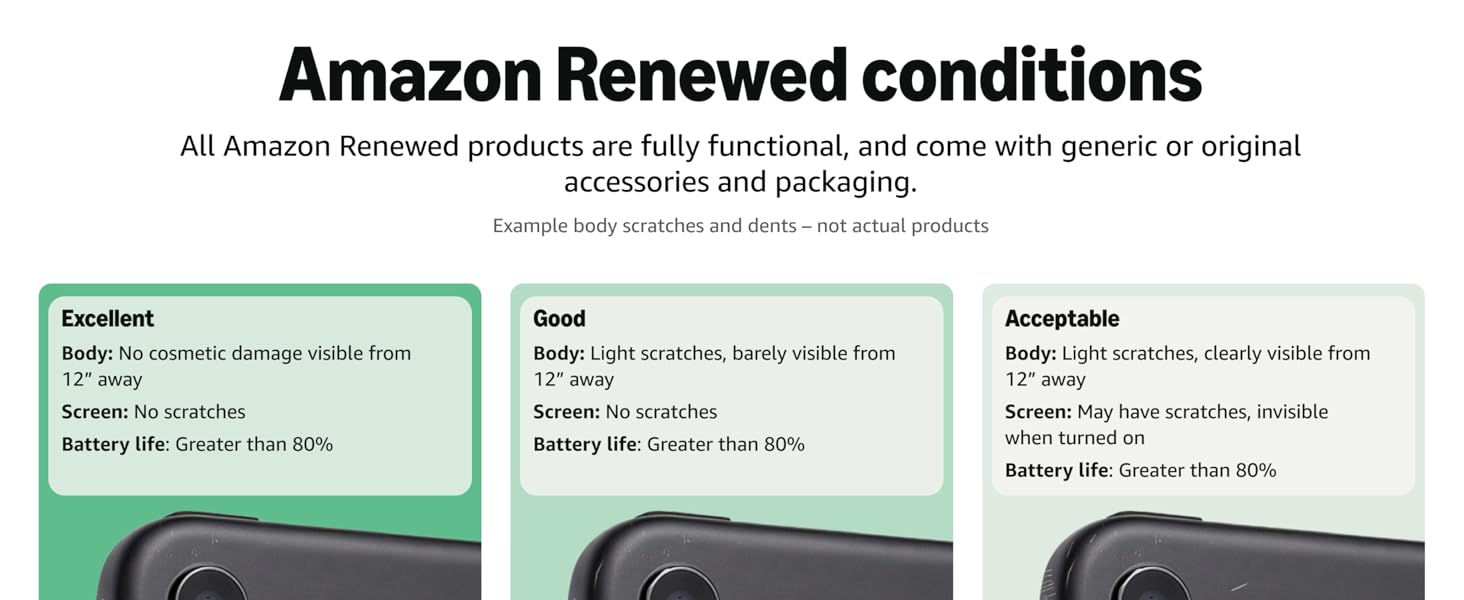
Image: Amazon Renewed conditions explaining 'Excellent', 'Good', and 'Acceptable' grades.
4. Troubleshooting
4.1 Device Not Responding
If your iPhone is unresponsive, perform a force restart:
- Press and quickly release the Volume Up button.
- Press and quickly release the Volume Down button.
- Press and hold the Side button until the Apple logo appears.
4.2 Network Connectivity Issues
- Toggle Airplane Mode on and off (Settings > Airplane Mode).
- Restart your iPhone.
- Check with your carrier to ensure your eSIM is properly provisioned.
- Reset Network Settings (Settings > General > Transfer or Reset iPhone > Reset > Reset Network Settings).
4.3 Factory Reset
As a last resort, you can erase all content and settings. This will return your iPhone to its factory state. Ensure you have backed up your data before proceeding.
Go to Settings > General > Transfer or Reset iPhone > Erase All Content and Settings.
5. Specifications
| Feature | Detail |
|---|---|
| Brand | Apple |
| Model Name | iPhone 15 |
| Operating System | iOS 17 |
| CPU Model | Apple A16 Bionic |
| RAM Memory | 8 GB |
| Storage Capacity | 128 GB |
| Screen Size | 6.1 inches |
| Resolution | 2556 x 1179 pixels |
| Rear Camera | 48 MP |
| Front Camera | 12 MP |
| Battery Capacity | 3349 mAh |
| Connector Type | USB Type C |
| Cellular Technology | 5G |
| Wireless Provider | Unlocked for All Carriers |
| Biometric Security | Face Recognition |
6. Warranty Information
Your Apple iPhone 15 (Renewed) is covered by a 90 Day Amazon Renewed Warranty. This warranty provides a replacement or refund within 90 days of receipt if the product does not work as expected. For more details or to initiate a claim, please refer to the Amazon Renewed program terms and conditions or contact Amazon customer service.
7. Support
For additional assistance, troubleshooting, or detailed product information, please visit the official Apple Support website or the Amazon Renewed support pages.
- Apple Support: support.apple.com/iphone
- Amazon Renewed Support: Refer to your Amazon order details for specific support contacts.


