1. Introduction
Thank you for choosing the Maxcom FW58 Vanad Pro Smartwatch. This manual provides essential information for setting up, operating, and maintaining your device. The FW58 Vanad Pro is designed to enhance your daily life by offering comprehensive health monitoring, seamless communication, and robust activity tracking capabilities. Its lightweight design and customizable features make it an ideal companion for both busy individuals and active sports enthusiasts.
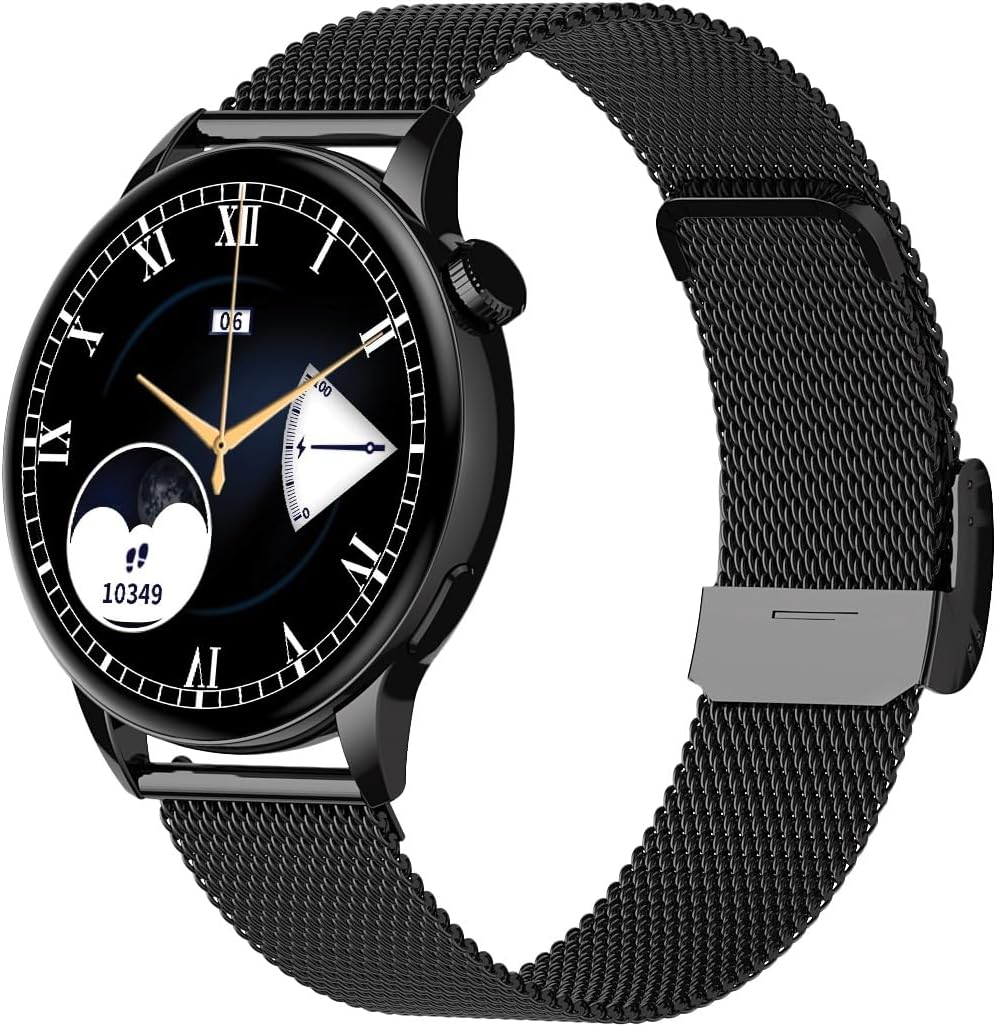
Image 1.1: Maxcom FW58 Vanad Pro Smartwatch, showcasing its elegant design with a black mesh strap and a classic watch face.
2. Setup
2.1. Package Contents
Before you begin, please ensure all items are present in your package:
- Maxcom FW58 Vanad Pro Smartwatch
- Magnetic Charging Cable
- Additional Silicone Strap
- User Manual (this document)
2.2. Charging the Smartwatch
For optimal performance, fully charge your smartwatch before first use.
- Connect the magnetic charging cable to the charging contacts on the back of the smartwatch. Ensure the pins align correctly.
- Plug the USB end of the cable into a standard USB power adapter (5V/1A recommended) or a computer's USB port.
- The watch display will indicate charging status. A full charge typically takes approximately 2 hours.

Image 2.1: Rear view of the Maxcom FW58 Smartwatch, highlighting the optical sensor for health monitoring and the magnetic charging contacts.
2.3. Pairing with Your Smartphone
To unlock all features, pair your smartwatch with the dedicated Maxcom smartwatch application on your smartphone.
- Download the official Maxcom smartwatch application from your smartphone's app store (e.g., Google Play Store or Apple App Store). Search for "Maxcom Smartwatch" or refer to the QR code in the quick start guide if provided.
- Ensure Bluetooth is enabled on your smartphone.
- Open the Maxcom app and follow the on-screen instructions to add a new device.
- Select "FW58" from the list of available devices. Confirm the pairing request on both your phone and the smartwatch.
3. Operating the Smartwatch
3.1. Basic Navigation
The Maxcom FW58 features a responsive touchscreen and a side button/crown for navigation.
- Touchscreen: Swipe left/right, up/down to navigate through menus and features. Tap to select.
- Side Button/Crown: Press to wake the screen, return to the home screen, or access the app menu. Rotate the crown (if applicable) to scroll through lists or adjust settings.

Image 3.1: Side profile of the Maxcom FW58 Smartwatch, illustrating the physical crown and button for intuitive control and navigation.
3.2. Communication Features
- Making/Receiving Calls: Once paired, you can answer incoming calls directly from your smartwatch. You can also initiate calls from your watch's call log or contacts (synced via the app).
- Notifications: Receive real-time notifications for SMS messages, app alerts, emails, social media updates, and news directly on your wrist. Manage notification settings through the Maxcom app.
3.3. Health Monitoring
The smartwatch provides various health metrics to help you monitor your well-being.
- Heart Rate: Continuous or on-demand heart rate monitoring.
- Blood Pressure: Measure your blood pressure (for reference only, not a medical device).
- Blood Oxygen (SpO2): Monitor your blood oxygen saturation levels.
- Sleep Tracking: Automatically monitors your sleep patterns, including deep sleep, light sleep, and awake times.
3.4. Activity Tracking & Sports Modes
Track your daily activity and specific workouts.
- Daily Activity: Records steps taken, calories burned, and distance traveled (mileage).
- Sports Modes: Select from various sports modes such as fitness, hiking, running, badminton, cycling, and football to track specific workout data.
3.5. Music Control
Control music playback on your connected smartphone directly from your smartwatch. Play, pause, skip tracks, and adjust volume without needing to access your phone.
3.6. Customization
Personalize your smartwatch experience.
- Watch Faces: Choose from over 100 pre-installed watch face models or download more via the Maxcom app to match your style or mood.
- Menu Style: Customize the layout and appearance of your smartwatch menu.
- Strap Replacement: Easily change between the included mesh and silicone straps to suit different occasions or activities.

Image 3.2: A digital watch face on the Maxcom FW58 Smartwatch, showing steps and heart rate data.

Image 3.3: The Maxcom FW58 Smartwatch showcasing a dynamic and colorful digital watch face option.
4. Maintenance
4.1. Cleaning the Smartwatch
Regular cleaning helps maintain the device's appearance and functionality.
- Wipe the screen and body with a soft, lint-free cloth.
- For stubborn smudges, slightly dampen the cloth with water. Avoid using harsh chemicals or abrasive materials.
- Clean the sensor area on the back of the watch regularly to ensure accurate readings.
4.2. Battery Care
To prolong battery life:
- Avoid extreme temperatures.
- Do not leave the watch fully discharged for extended periods.
- Charge the device using only the provided charging cable.
4.3. Water Resistance (IP67)
The Maxcom FW58 Vanad Pro Smartwatch is rated IP67, meaning it is protected against dust ingress and can withstand immersion in water up to 1 meter for up to 30 minutes. While it is suitable for daily use and splashes, it is not recommended for swimming, diving, or high-pressure water activities.
5. Troubleshooting
If you encounter issues with your smartwatch, try the following solutions:
| Problem | Solution |
|---|---|
| Watch does not turn on | Ensure the watch is fully charged. Press and hold the side button for 5-10 seconds. |
| Cannot pair with smartphone | Ensure Bluetooth is on. Restart both the watch and phone. Clear app cache/data. Try pairing again. |
| Inaccurate health readings | Ensure the watch is worn snugly on your wrist. Clean the sensor area. Remain still during measurements. |
| Notifications not received | Check app notification permissions on your phone. Ensure the watch is connected via Bluetooth. Verify notification settings within the Maxcom app. |
5.1. Factory Reset
If problems persist, you may need to perform a factory reset. This will erase all data on the smartwatch and restore it to its original settings. Navigate to 'Settings' on your smartwatch, then look for 'System' or 'Reset' options.
6. Specifications
| Feature | Detail |
|---|---|
| Model Number | FW58 |
| Display Size | 1.5 inches |
| Battery Life | 6-10 days (intensive use) |
| Weight | 46g |
| Case Dimensions | 44 x 38 x 10 mm |
| Strap Size | 255 x 20 mm |
| Water Resistance | IP67 (up to 1 meter for 30 minutes) |
| Connectivity | Bluetooth |
| Included Straps | Mesh and Silicone |
7. Warranty and Support
7.1. Warranty Information
Maxcom products are manufactured to the highest quality standards. For detailed warranty terms and conditions, please refer to the warranty card included with your purchase or visit the official Maxcom website. Keep your proof of purchase for warranty claims.
7.2. Customer Support
If you require further assistance or have questions not covered in this manual, please contact Maxcom customer support:
- Website: Visit the official Maxcom support website for FAQs, software updates, and contact forms.
- Email/Phone: Refer to the contact information provided on the Maxcom website or your product packaging.


