
1. Introduction
The SMSL D400 Pro is a high-fidelity Digital-to-Analog Converter (DAC) designed for discerning audio enthusiasts. It features advanced AK4499EX and AK4191EQ DAC chips, MQA full decoding capabilities, and a low-distortion design to deliver exceptional sound quality. This manual provides essential information for setting up, operating, and maintaining your D400 Pro.
2. Package Contents
Please check that all items are present in the package:
- 1 x SMSL D400 Pro Unit
- 1 x USB Cable
- 1 x Remote Control
- 1 x AC Power Cable
- 1 x User Manual (this document)
3. Product Overview
The SMSL D400 Pro is engineered for high-resolution audio playback, integrating advanced components and design principles.

Figure 3.1: Front view of the SMSL D400 Pro DAC, showcasing its sleek silver chassis, display screen, and control knob.
Key Features:
- Dual DAC Chips: Equipped with AK4499EX and AK4191EQ DAC chips for superior audio processing.
- High-Resolution Audio: Supports PCM up to 32bit/768kHz and DSD512.
- MQA Full Decoding: Provides full MQA decoding for master quality audio playback, including MQA-CD support.
- Ultra-Low Distortion: Achieves distortion as low as 0.00006% (-124dB) for clear and accurate sound.
- XMOS XU-316 USB Solution: Utilizes the latest 3rd generation XMOS USB solution for stable and efficient data transfer.
- High-End Components: Features 5 high-end dual op-amps and audiophile-grade components.
- Advanced Clock Processing: Incorporates a self-developed CK-03 clock processing circuit to reduce jitter.
- Bluetooth Connectivity: Supports Qualcomm's high-end Bluetooth chip with LDAC (24bit/96kHz), aptX/HD, SBC, and AAC codecs.
- Robust Power Supply: Multiple low-noise regulated power supplies ensure a stable and clean power system.
- Premium Build: Fully laminated tempered glass display panel and high-quality gold-plated input/output terminals.
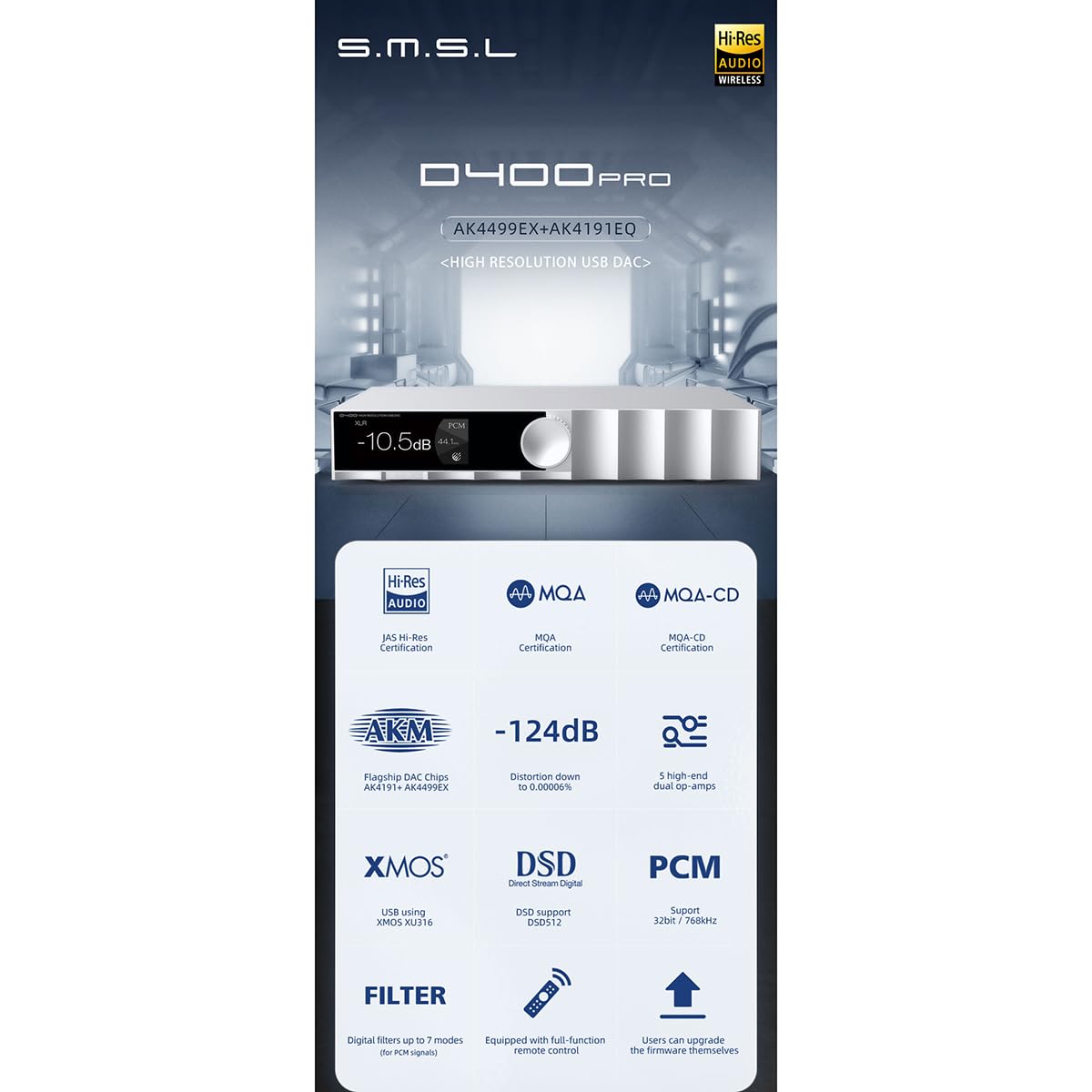
Figure 3.2: An infographic highlighting the key features of the D400 Pro, including DAC chips, MQA support, low distortion, XMOS USB, DSD, PCM, and remote control.

Figure 3.3: Illustration explaining MQA CD support, showing how a CD player's digital output can be fed to the D400 Pro for MQA decoding, restoring original high-resolution audio.
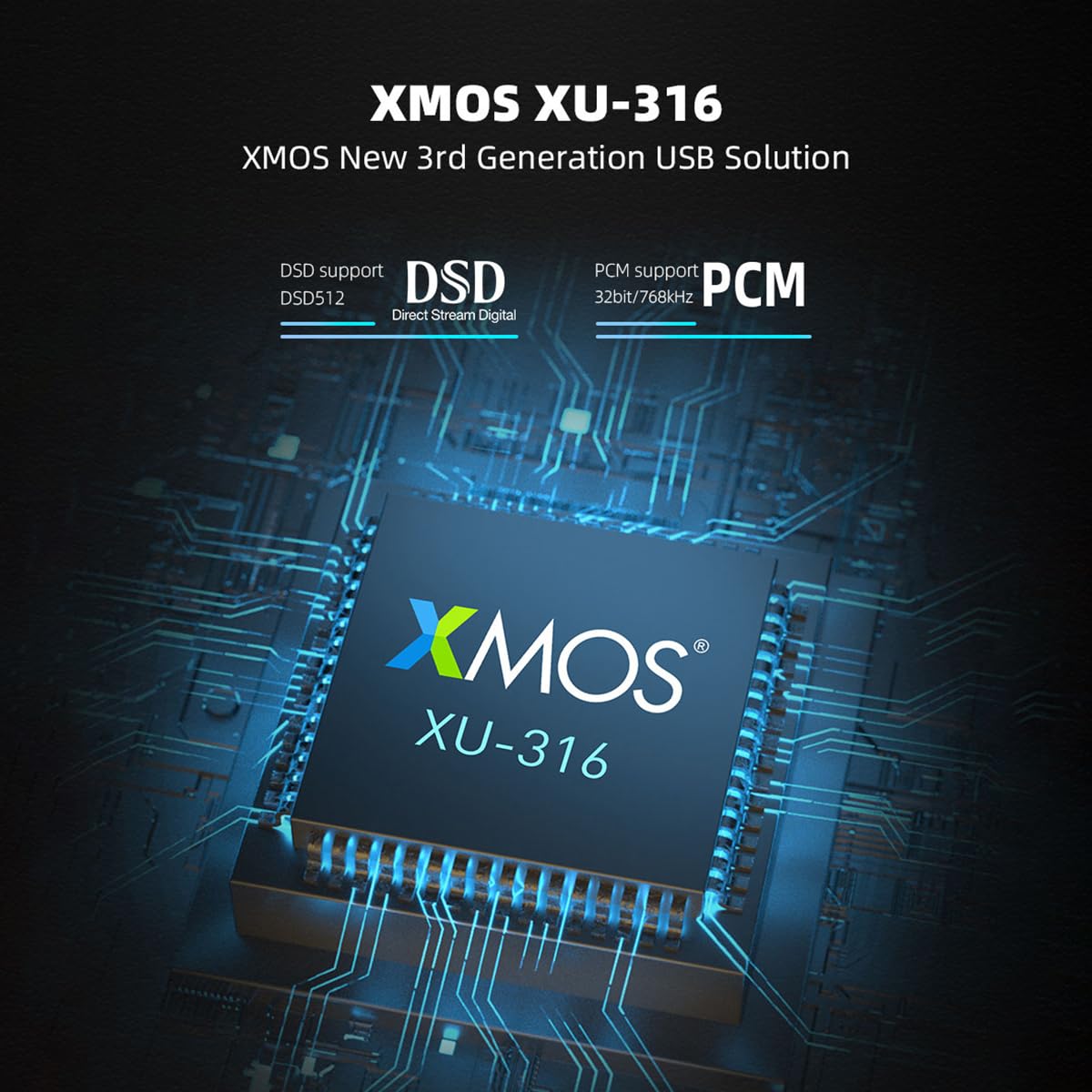
Figure 3.4: A detailed view of the XMOS XU-316 USB solution chip, emphasizing its support for DSD512 and PCM 32bit/768kHz.

Figure 3.5: Close-up of the AK4191 and AK4499EX flagship DAC chips, along with a graph illustrating the D400 Pro's low distortion performance at 0.00006% (-124dB).
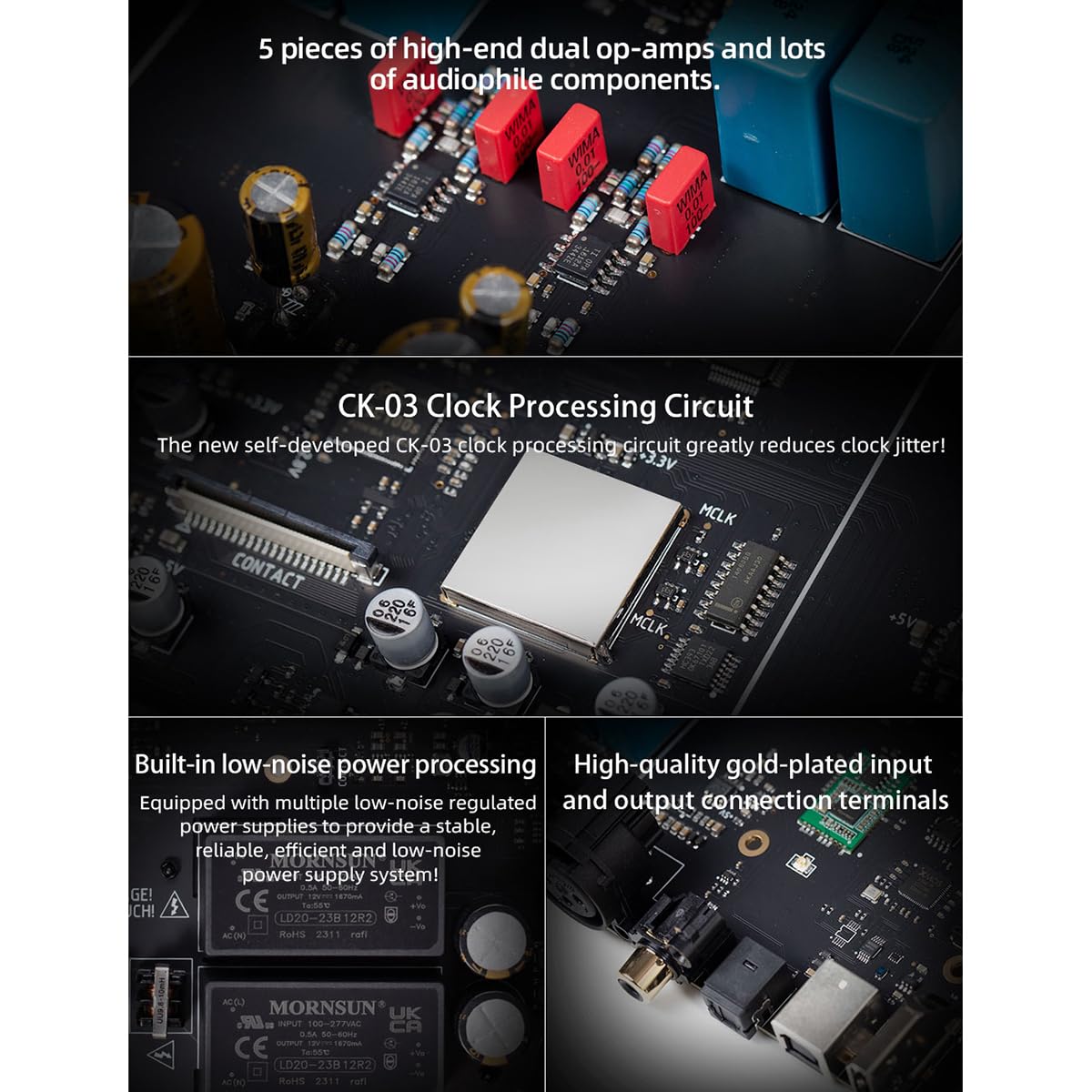
Figure 3.6: An internal view highlighting the 5 high-end dual op-amps, the CK-03 clock processing circuit, built-in low-noise power processing, and high-quality gold-plated input/output connection terminals.
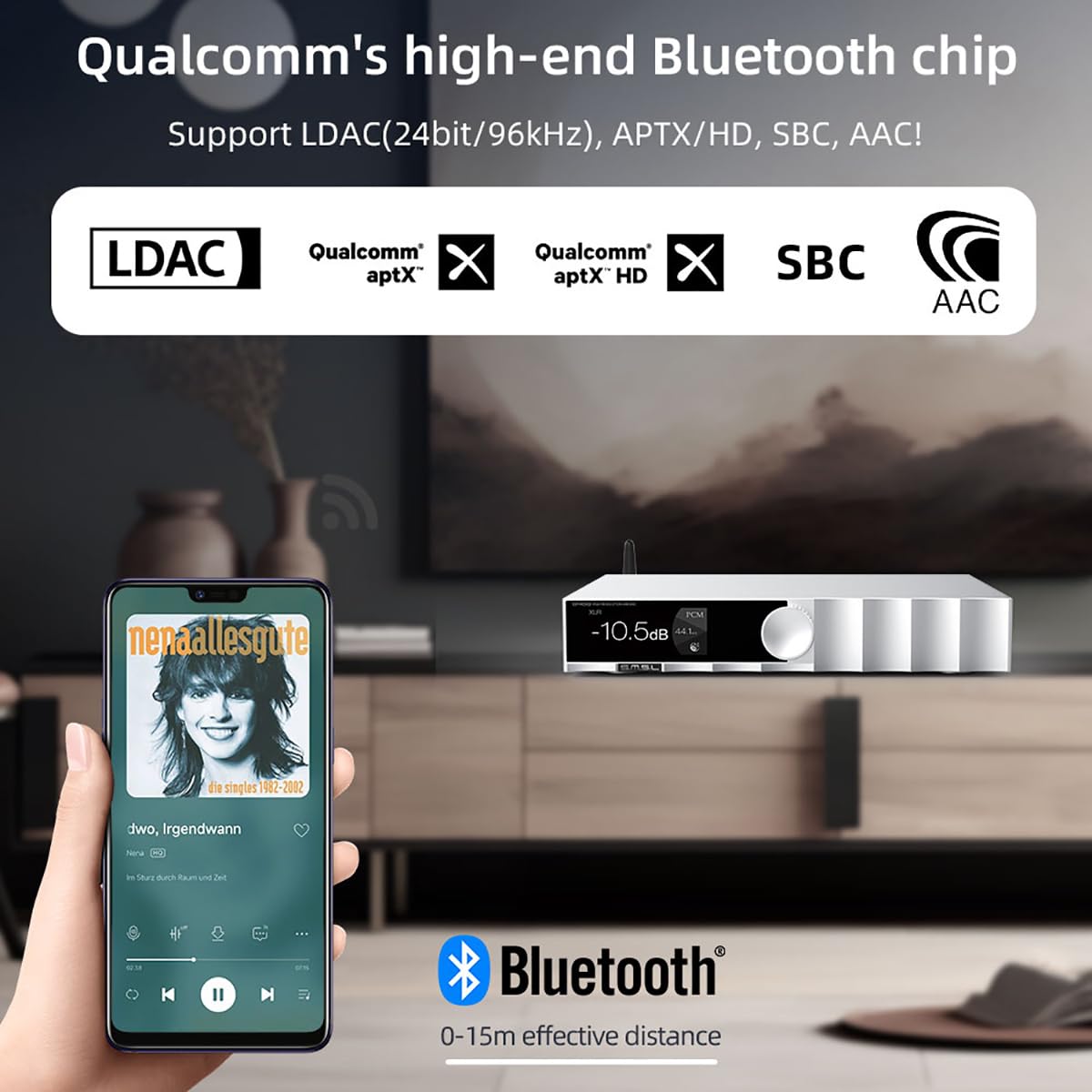
Figure 3.7: Depiction of the D400 Pro's Bluetooth functionality, showing a smartphone streaming audio wirelessly with support for LDAC, aptX/HD, SBC, and AAC codecs within a 0-15m effective distance.
4. Setup
Follow these steps to connect your SMSL D400 Pro to your audio system:
- Power Connection: Connect the supplied AC power cable to the D400 Pro's power input and then to a wall outlet.
- Input Source Connection: Choose your desired digital audio input:
- USB: Connect the USB cable from your computer (Windows 7/8/8.1/10/11 requires driver installation) or other USB audio source to the D400 Pro's USB input.
- Optical/Coaxial: Connect an optical or coaxial cable from your source device (e.g., CD player, TV) to the corresponding input on the D400 Pro.
- IIS/AES: For advanced users, connect compatible sources to the IIS or AES inputs.
- Bluetooth: Ensure the D400 Pro is powered on. On your source device (e.g., smartphone), enable Bluetooth and search for "SMSL D400 Pro" to pair.
- Output Connection: Connect the D400 Pro to your amplifier or active speakers:
- RCA Output: Use RCA cables to connect the D400 Pro's RCA outputs to the analog inputs of your amplifier.
- XLR Output: Use balanced XLR cables to connect the D400 Pro's XLR outputs to the balanced inputs of your amplifier for optimal performance.
- Power On: Press the power button on the front panel or remote control to turn on the D400 Pro.
5. Operating Instructions
The D400 Pro offers intuitive controls for seamless audio playback.
5.1 Front Panel Controls:
- Control Knob: Rotate to adjust volume. Press to access the menu or confirm selections.
- Display Screen: Shows current input, sampling rate, volume level, and other status information.
5.2 Remote Control:
The included remote control provides full functionality for convenient operation from a distance.
- Power Button: Turns the unit on/off.
- Input Selection: Dedicated buttons or a cycle button to switch between USB, Optical, Coaxial, IIS, AES, and Bluetooth inputs.
- Volume Up/Down: Adjusts the output volume.
- Mute: Mutes/unmutes the audio output.
- Menu/Settings: Accesses various settings such as digital filters, display brightness, and output modes.
5.3 Playback:
- Select the desired input source using the front panel knob or remote control.
- Start playback from your connected source device.
- Adjust the volume to your preferred listening level.
- The display will show the current sampling rate and MQA status (if applicable).
6. Specifications
| Feature | Specification |
|---|---|
| Input | USB / Optical / Coaxial / IIS / AES |
| Output | RCA / XLR |
| Output Level | XLR: 5Vrms, RCA: 2.5Vrms |
| Output Impedance | XLR: 200Ω, RCA: 100Ω |
| THD+N | XLR: 0.00006% (-124dB) (UN-WTD), RCA: 0.00008% (-121dB) (UN-WTD) |
| Dynamic Range | XLR: 132dB, RCA: 126dB |
| SNR | XLR: 132dB, RCA: 126dB |
| USB Transmission | Asynchronization |
| USB Compatibility | Windows 7/8/8.1/10/11 (needs driver), Mac OS, Linux |
| MQA Decoder | USB / Optical / Coaxial |
| MQA-CD Decoder | Optical / Coaxial |
| Sampling Rate (USB/I2S) | PCM: 44.1~768KHz, DSD: 2.8224~22.5792MHz (DSD512) |
| Sampling Rate (Optical/Coaxial) | PCM: 44.1~192kHz |
| Bluetooth Support | LDAC (24bit/96kHz), aptX/HD, SBC, AAC |
| Power Consumption | <10W |
| Standby Power | <0.5W |
| Dimensions (WxHxD) | 254 x 189 x 46mm (10 x 7.44 x 1.81 inches) |
| Weight | 1.5 kg (3.31 lbs) |
7. Troubleshooting
If you encounter issues with your D400 Pro, refer to the following common problems and solutions:
- No Power:
- Ensure the AC power cable is securely connected to both the D400 Pro and a working power outlet.
- Check if the power button on the front panel or remote control has been pressed.
- No Sound Output:
- Verify that the correct input source is selected on the D400 Pro.
- Check the volume level on the D400 Pro and your amplifier/active speakers. Ensure the D400 Pro is not muted.
- Confirm that the RCA or XLR cables are correctly connected between the D400 Pro and your amplifier.
- For USB input, ensure the necessary drivers are installed on your computer (for Windows).
- Check the source device for proper playback and output settings.
- Distorted Sound:
- Ensure all cables are securely connected and not damaged.
- Check the source audio file quality.
- Reduce the volume level if clipping occurs.
- Bluetooth Connection Issues:
- Ensure the D400 Pro is in Bluetooth input mode.
- Make sure the source device is within the effective Bluetooth range (0-15m).
- Try unpairing and re-pairing the D400 Pro from your source device's Bluetooth settings.
8. Maintenance
To ensure the longevity and optimal performance of your SMSL D400 Pro, follow these maintenance guidelines:
- Cleaning: Use a soft, dry cloth to clean the exterior of the unit. Avoid using abrasive cleaners, solvents, or chemical sprays, as they may damage the finish.
- Placement: Place the unit on a stable, flat surface with adequate ventilation. Avoid direct sunlight, heat sources, and areas with high humidity or dust.
- Power Off: When not in use for extended periods, it is recommended to power off the unit and disconnect it from the power outlet.
- Avoid Liquids: Do not expose the unit to water or other liquids. If liquid enters the unit, immediately disconnect power and seek professional service.
9. Warranty and Support
The SMSL D400 Pro is manufactured by SMSL and sold by AOSHIDA. For warranty information and technical support, please refer to the documentation provided at the time of purchase or contact your retailer. Keep your purchase receipt as proof of purchase for warranty claims.
For further assistance, you may visit the AOSHIDA store on Amazon or contact their customer service directly.


