
Introduction
The OBZ F2 Advanced 360° Omnidirectional QR Code and Barcode Scanner is a high-performance desktop device designed for efficient and accurate scanning of various barcode types. Featuring automatic detection and a high-precision CMOS image sensor, it is suitable for diverse business environments such as retail, POS systems, and inventory management. This manual provides essential information for setting up, operating, maintaining, and troubleshooting your scanner.
Setup Instructions
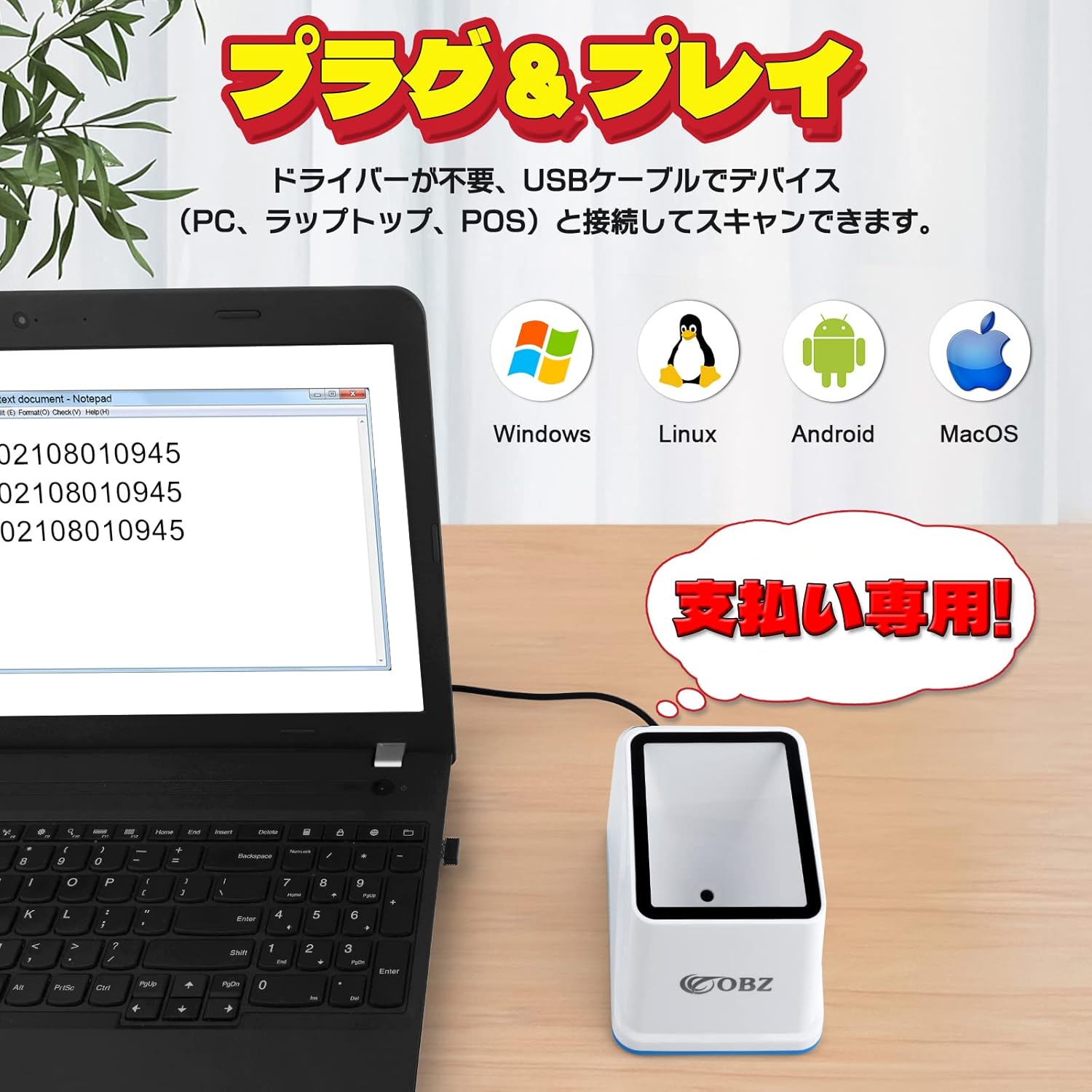
The OBZ F2 Advanced scanner features a plug-and-play design, requiring no driver installation for most operating systems. Follow these steps to set up your device:
- Unpack the Scanner: Carefully remove the scanner and its USB cable from the packaging.
- Connect to Power/Host Device: Connect the USB cable from the scanner to an available USB port on your PC, POS system, or cash register.
- System Recognition: Your operating system (Windows, macOS, Linux, Android) should automatically detect and configure the scanner. No additional software or drivers are typically required.
- Prepare for Use: Remove any protective film from the scanner's reading window before operation.

Operating Instructions
The scanner is designed for ease of use with its automatic detection and omnidirectional scanning capabilities.
Scanning Barcodes and QR Codes
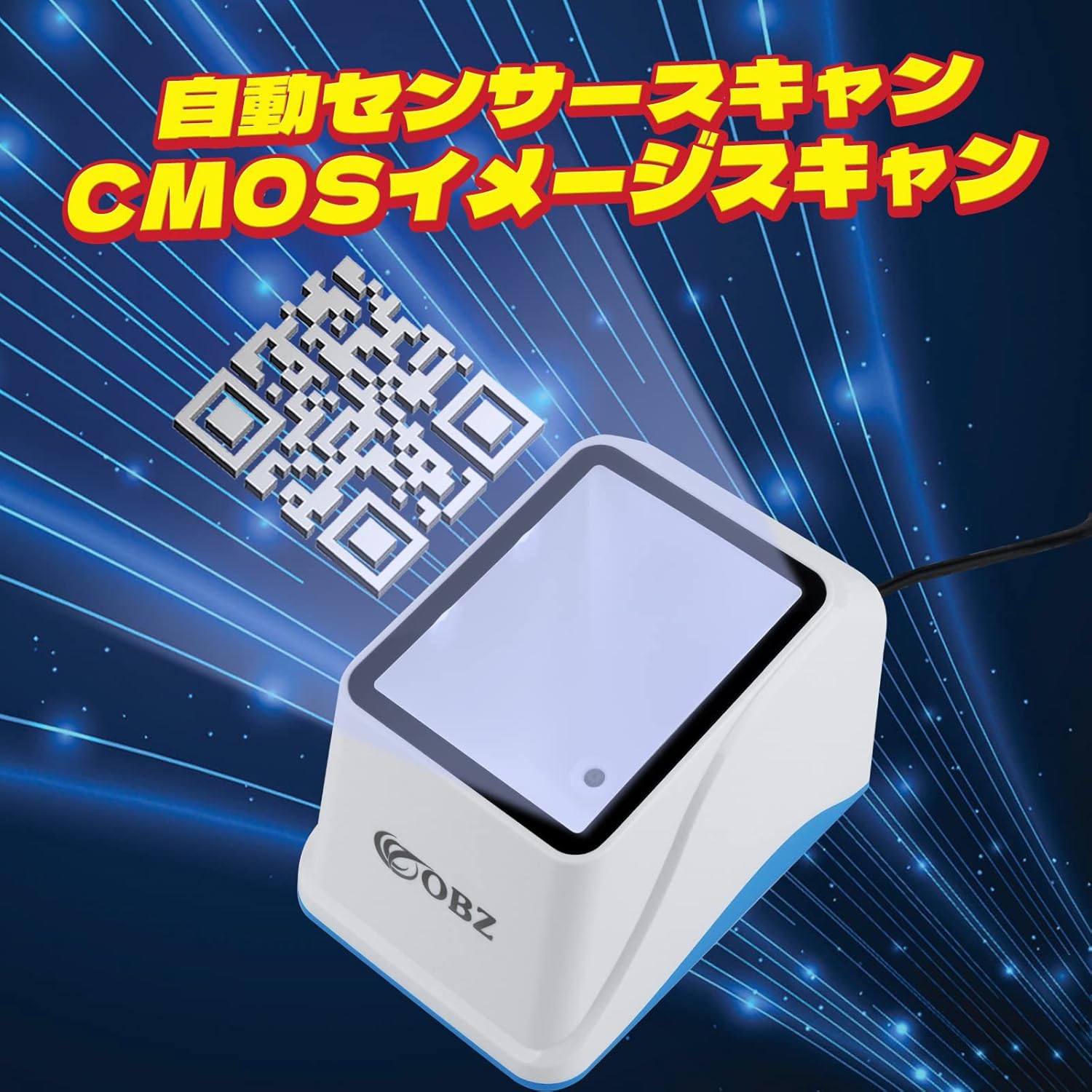
- Automatic Scanning: The scanner automatically detects and reads barcodes or QR codes when they are presented within its scanning area. There is no need to press a trigger button.
- Omnidirectional Reading: Position the barcode or QR code in any orientation above the scanner's window. The 360° scanning capability allows for quick and flexible reading without precise alignment.
- Supported Code Types: The scanner supports a wide range of 1D codes (e.g., Code128, Code39, UPC, EAN13) and 2D codes, including QR codes. It can accurately decode codes even if they are curved, damaged, or printed on LCD screens (smartphones, PC monitors).
- Mute Mode: For quiet environments like libraries or specific retail settings, the scanner features a mute mode to disable the reading sound. Refer to the included Japanese manual for instructions on activating this mode using configuration barcodes.

Payment Processing Example
The scanner is ideal for mobile payment systems:
- A customer presents their smartphone with a QR code for payment.
- Place the smartphone above the scanner's window.
- The scanner automatically reads the QR code.
- The payment is processed, and a confirmation appears on the screen.

Maintenance
To ensure optimal performance and longevity of your OBZ F2 Advanced scanner, follow these simple maintenance guidelines:
- Cleaning the Scan Window: Regularly wipe the scanning window with a soft, lint-free cloth. If necessary, slightly dampen the cloth with water or a mild, non-abrasive cleaner. Avoid harsh chemicals or abrasive materials that could scratch the surface.
- General Cleaning: Keep the exterior of the scanner clean by wiping it with a dry or slightly damp cloth.
- Avoid Obstructions: Ensure no dust, debris, or foreign objects accumulate in or around the scanning window, as this can affect reading accuracy.
- Storage: When not in use, store the scanner in a clean, dry environment away from direct sunlight and extreme temperatures.
Troubleshooting
If you encounter issues with your OBZ F2 Advanced scanner, refer to the following common problems and solutions:
- Scanner Not Reading Codes:
- Ensure the USB cable is securely connected to both the scanner and the host device.
- Verify that the scanner's window is clean and free from obstructions.
- Check the barcode or QR code for damage, poor print quality, or insufficient contrast.
- For codes on screens, ensure the screen brightness is adequate and there is no excessive glare.
- Double Scanning or Repeated Reads:
- This can occur if the scanner reads the same code multiple times in rapid succession. Refer to the included Japanese manual for configuration barcodes that can adjust the scanning sensitivity or add a delay between reads.
- Incorrect Data Output (e.g., Chinese characters, wrong format):
- If the scanner outputs unexpected characters or formats, it may be due to an incorrect language or output setting. Consult the included Japanese manual for configuration barcodes to reset the scanner to default settings or adjust language/output formats.
- No Sound or Unexpected Sound:
- If the scanner is not beeping or making an unexpected sound, check the mute mode setting. The Japanese manual contains configuration barcodes to enable/disable the beep sound or change sound settings.
For more detailed troubleshooting or advanced configuration, please refer to the comprehensive Japanese instruction manual included with your product. If the issue persists, contact OBZ customer support.
Specifications
The following table outlines the technical specifications for the OBZ F2 Advanced 360° Omnidirectional QR Code and Barcode Scanner:
| Feature | Specification |
|---|---|
| Model Number | F2N-JP |
| Brand | OBZ |
| Color | White |
| Connection Method | USB Cable |
| Image Sensor | CMOS |
| Image Sensor Resolution | 640 x 480 pixels |
| Minimum Element Resolution | ≥10 mil |
| Trigger Mode | Automatic Sensor Scan |
| Scanning Angle | 360° Omnidirectional |
| Supported OS | Windows, macOS, Linux, Android |
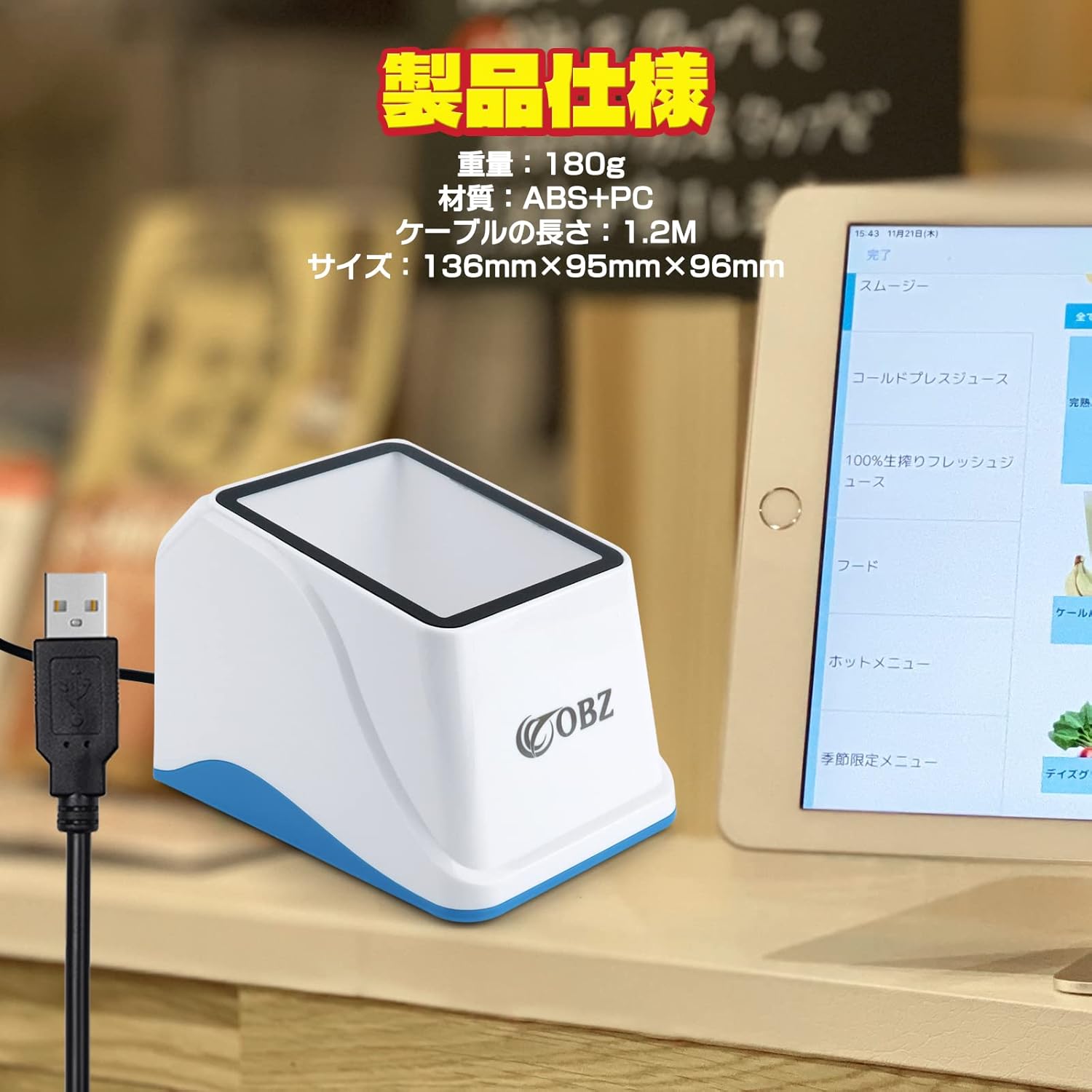
| Dimensions (L x W x H) | 136mm x 95mm x 96mm |
| Weight | 180g |
| Material | ABS + PC |
| Cable Length | 1.2 meters |
| Battery Use | No |

Warranty and Support
The OBZ F2 Advanced 360° Omnidirectional QR Code and Barcode Scanner comes with a 3-year manufacturer's warranty, ensuring product quality and reliability.
For any technical assistance, warranty claims, or further inquiries, please contact OBZ customer support through the retailer where you purchased the product or refer to the contact information provided in the included Japanese manual.


