
1. Introduction
Thank you for choosing the Pilotage Universal Remote Control. This remote is designed to simplify your home entertainment experience by consolidating control of multiple devices into a single unit. It is compatible with a wide range of television brands, offering convenient access to essential functions.
Please read this manual carefully before using the remote control to ensure proper setup and operation. Keep this manual for future reference.
2. Safety Information
- Do not mix old and new batteries, or different types of batteries.
- Ensure batteries are inserted with correct polarity (+/-).
- Remove batteries if the remote will not be used for an extended period to prevent leakage.
- Keep the remote control away from moisture, direct sunlight, and extreme temperatures.
- Do not attempt to disassemble or modify the remote control.
3. Package Contents
- 1 x Pilotage Universal Remote Control
- 1 x Instruction Manual (this document)
Note: 2 AAA batteries are required and are not included in the package.
4. Setup
4.1 Battery Installation
The remote control requires two AAA batteries for operation. To install:
- Open the battery compartment cover on the back of the remote control.
- Insert two AAA batteries, ensuring the correct polarity (+ and -) as indicated inside the compartment.
- Close the battery compartment cover securely.

Figure 1: Pilotage Universal Remote Control, front and back view.
4.2 Programming the Remote Control
There are two primary methods to program your universal remote control to your television:

Figure 2: Detailed operating instructions for the Pilotage Universal Remote Control, showing code setup and brand search methods.
Method A: Set Up by Code
This method uses a 3-digit code specific to your TV brand. Refer to the code list provided in the original packaging or the image above (Figure 2).
- Turn on your television manually.
- Press and hold the MUTE button and the POWER button simultaneously for approximately 3 seconds until the power button's LED indicator turns off.
- Enter the 3-digit TV code for your television brand using the number buttons on the remote.
- If the code is correct, the LED light on the power button will turn off.
- Test the remote's functions (e.g., Power, Volume, Channel). If it works, the setup is complete.
- If the remote does not respond or some functions do not work, repeat the process from Step 2, trying the next code for your brand from the list until you find one that works.
Method B: Brand Search
This method allows the remote to automatically search for the correct code for your TV brand.
- Turn on your television manually.
- Press and hold the specific Brand Button (e.g., VIZIO, Samsung, LG) on the remote control for approximately 5 seconds. The LED indicator on the power button will flash three times, indicating the search has begun.
- Release the button. The remote will now attempt to control your TV.
- Test the remote's functions. If it works, the setup is complete.
- If the remote does not respond, repeat the process. The remote will try different codes for that brand.
Default Mode
The remote may operate certain major brands (e.g., LG, Samsung, Sony, Philips, Panasonic, Sharp) without any programming. If your TV is one of these brands, try using the remote directly after battery installation.
Restoring to Initial Setting
To reset the remote to its factory default settings, press and hold the OK button and the 0 button simultaneously for 3 seconds. The LED light will blink four times, and the remote will be reset.
5. Operating the Remote Control
Once programmed, your Pilotage Universal Remote Control provides access to various television functions. Below are common button functions:
- Power (⑂): Turns the TV on or off.
- Input: Selects the input source (HDMI 1, AV, etc.).
- Volume (+/-): Adjusts the volume level.
- Mute (🔇): Mutes or unmutes the sound.
- Channel (CH ▲/▼): Changes channels up or down.
- Number Buttons (0-9): Direct channel selection.
- Navigation Buttons (▲/▼/◄/►): Navigates menus and on-screen guides.
- OK: Confirms selections in menus.
- Menu: Opens the TV's main menu.
- Exit: Exits current menu or function.
- Smart / Apps: Accesses Smart TV features or application menus.
- CC (Closed Caption): Toggles closed captions on/off.
- Playback Controls (Play, Pause, Stop, Rewind, Fast Forward): Controls media playback if supported by the TV.
- Colored Buttons (A, B, C, D): Functionality varies by TV model and application.
5.1 Compatibility
This universal remote control is designed to be compatible with a wide range of TV brands, including but not limited to:
- VIZIO, Samsung, LG, Sony, Philips, Hisense, Panasonic, TCL, Insignia, Toshiba, Hitachi, Sanyo, JVC, Vestel, Seiki, Magnavox, RCA, Haier, Westinghouse.
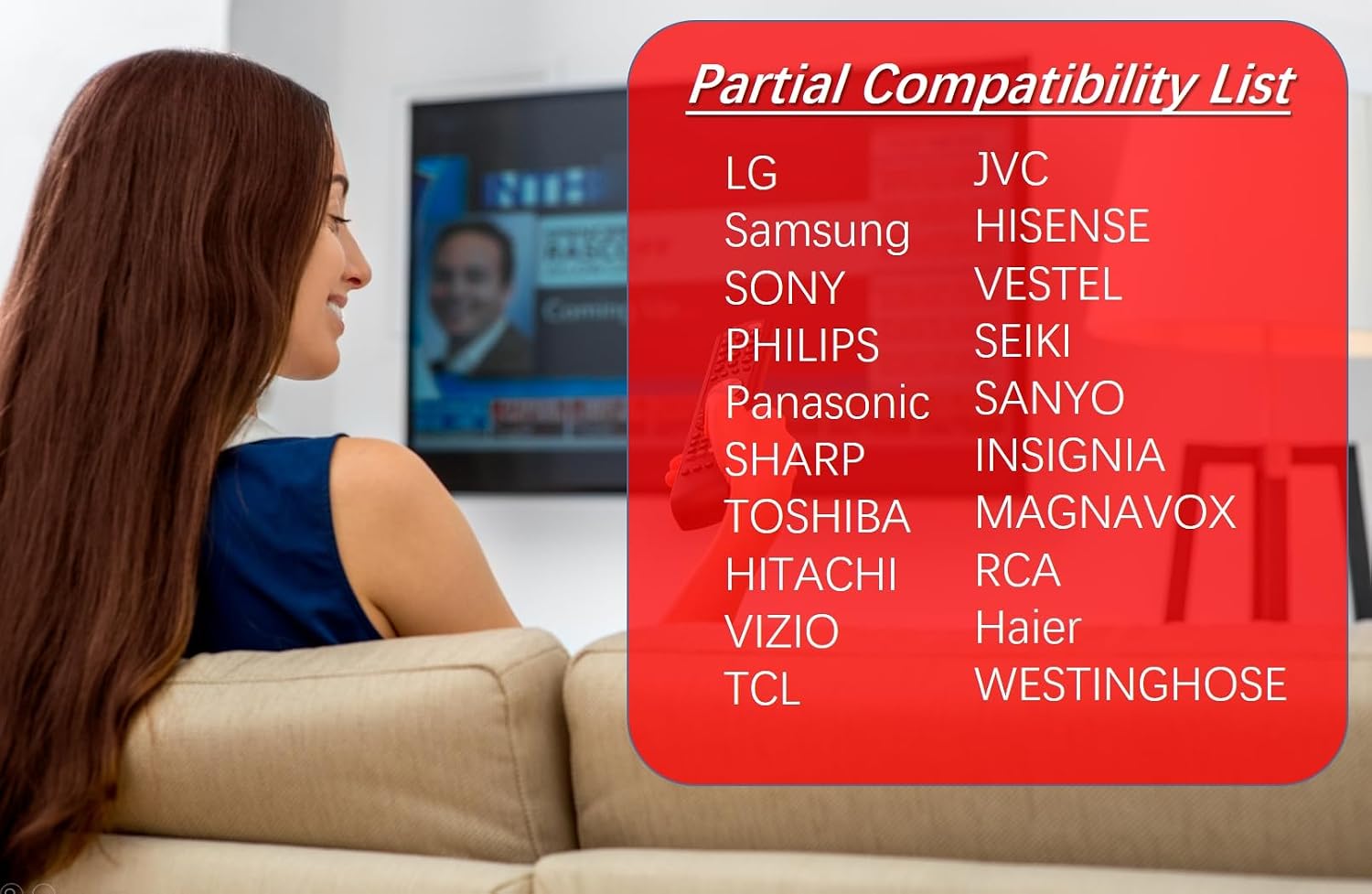
Figure 3: Partial compatibility list for the Pilotage Universal Remote Control.
5.2 Incompatible Devices
Please note that this remote control does not work with:
- Roku Streaming Sticks
- Fire TV Sticks
- Other RF (Radio Frequency) Streaming Devices

Figure 4: Examples of incompatible devices.
6. Maintenance
6.1 Cleaning
To clean the remote control, use a soft, dry cloth. Do not use abrasive cleaners, waxes, or solvents, as these may damage the finish or internal components.
6.2 Battery Replacement
When the remote control's performance degrades or the LED indicator does not light up during operation, it is time to replace the batteries. Follow the battery installation steps in Section 4.1.
7. Troubleshooting
If you encounter issues with your universal remote control, please refer to the following common problems and solutions:
- Remote is not working at all:
- Check if the batteries are inserted correctly with the right polarity.
- Replace old or weak batteries with new AAA batteries.
- Ensure there are no obstructions between the remote and the TV's infrared sensor.
- Verify that the remote has been programmed correctly using either Method A or Method B (Section 4.2). Try reprogramming if unsure.
- Some functions are not working:
- The current code might not fully support all functions of your specific TV model. Try reprogramming the remote with another code from the list for your TV brand (Method A).
- Ensure the function you are trying to use is supported by your TV and the universal remote.
- Remote does not control streaming devices (Roku, Fire TV):
- This remote is designed for infrared (IR) control of televisions and is not compatible with RF (Radio Frequency) streaming devices like Roku Streaming Sticks or Amazon Fire TV Sticks. Refer to Section 5.2 for incompatible devices.
8. Specifications
- Product Dimensions: 6.89 x 1.65 x 0.71 inches
- Item Weight: 1.06 ounces
- Batteries: 2 AAA batteries (not included)
- Max Number of Supported Devices: 1
- Compatible Devices: Television, Android Set-top box
- Special Feature: Easy to set up, Ergonomic, Multi-brand compatible, Universal
- Color: Infrared universal model
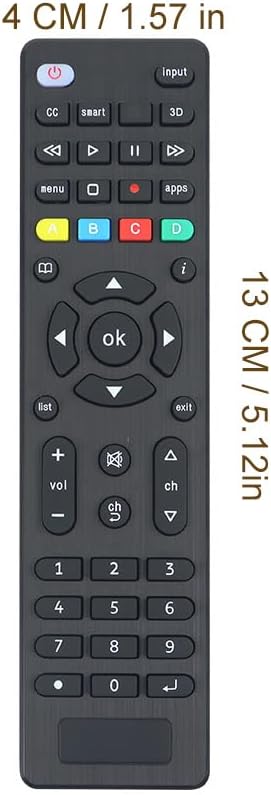
Figure 5: Pilotage Universal Remote Control with dimensions.
9. Warranty and Support
For warranty information or technical support, please refer to the contact details provided with your purchase or visit the official Pilotage website. Keep your proof of purchase for any warranty claims.
