
EJEAS Q8
EJEAS Q8 Motorcycle Helmet Bluetooth Intercom User Manual
Model: Q8 | Brand: EJEAS
Introduction
The EJEAS Q8 Motorcycle Helmet Bluetooth Intercom is an advanced communication system designed for motorcyclists. Featuring new Mesh 3.0 technology, it enables real-time group communication for up to 6 riders, music sharing, and channel switching for optimal audio quality. Its robust design includes CVC noise reduction for clear communication and IP67 waterproofing for reliable performance in various weather conditions. The Q8 also offers extended battery life and convenient features like voice assistant support and dual smartphone connectivity.

Figure 1: EJEAS Q8 Motorcycle Intercom Unit
Package Contents
Upon opening the package, please verify that all components are present:
- 1x Q8 Motorcycle Intercom Unit
- 1x Ear Speaker and Microphone Set
- 1x Accessory Post and Accessory Clip
- 1x Type-C Charging Cable
- 1x User Manual

Figure 2: Contents of the EJEAS Q8 package, including the intercom unit, speakers, microphone, mounting accessories, and charging cable.
Setup and Installation
1. Charging the Device
Before first use, fully charge the EJEAS Q8 unit. Connect the provided Type-C charging cable to the intercom unit and a suitable USB power source. The 1200mAh battery provides extended usage time.
2. Intercom Unit Installation on Helmet
The Q8 intercom unit can be installed on most helmets using one of two clip methods:
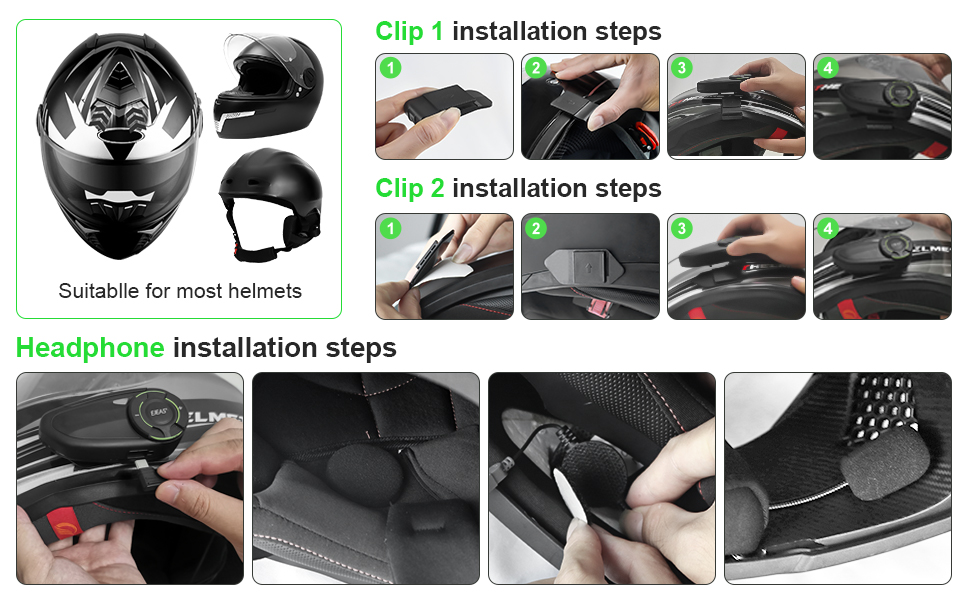
Figure 3: Step-by-step guide for installing the EJEAS Q8 unit and headphones onto a motorcycle helmet using clip methods.
Clip 1 Installation (Screw-on Design)
- Attach the accessory post to the intercom unit.
- Position the clip on the helmet's edge, ensuring a secure fit.
- Tighten the screws to firmly secure the intercom unit to the helmet.
Clip 2 Installation (Adhesive Design)
- Clean the desired helmet surface thoroughly.
- Peel off the protective film from the adhesive pad on the accessory clip.
- Firmly press the clip onto the helmet surface and hold for a few seconds to ensure adhesion.
- Slide the intercom unit onto the secured clip.
3. Headphone and Microphone Installation
Install the ear speakers inside the helmet's ear pockets and position the microphone near your mouth for optimal voice pickup. Ensure cables are neatly tucked away.
Operating Instructions
1. Power On/Off and Initial Pairing
Refer to the included user manual for specific button combinations to power on/off the device and enter pairing mode for initial setup with your smartphone or other Q8 units.
2. Mesh Intercom System (Mesh 3.0)
The EJEAS Q8 utilizes advanced Mesh 3.0 technology for group communication.
- 6-Rider Group Intercom: Supports real-time communication for up to 6 riders simultaneously.
- Automatic Reconnection: If a rider leaves the valid range, the system automatically disconnects and reconnects upon re-entry.
- Extended Range: The mesh intercom distance can reach approximately 600-1000 meters in open environments.
- Form Groups Freely: Within the effective distance, you can form a mesh group freely. Even if one Q8 unit disconnects, the group can automatically reconnect with other riders.

Figure 4: Diagram illustrating how EJEAS Q8 units form a mesh group, allowing flexible and automatic reconnection among riders.

Figure 5: Visual representation of the Q8's superior signal penetration and stability, even in challenging environments like tunnels or winding roads.
3. Bluetooth Connectivity
- Dual Smartphone Connection: The Q8 can connect to two mobile phones simultaneously, ensuring you don't miss important calls.
- Auto-Receiving Calls: Configure the device to automatically answer incoming calls.
- Voice Assistant: Supports waking up your smartphone's voice assistant (e.g., Siri, Google Assistant) for hands-free control.
4. Audio Features
- CVC Noise Reduction: Advanced CVC technology eliminates echo and ambient noise for clear communication.
- Music Sharing: Share music from one mobile phone between two Q8 devices, allowing you and a friend to enjoy the same audio while riding. This feature is specific to Q8-to-Q8 sharing and not standard Bluetooth intercom.
- FM Radio: Built-in FM radio for entertainment.
- Common Sound: Enjoy FM radio and music simultaneously while in mesh intercom mode.

Figure 6: Illustration of the music sharing capability between two EJEAS Q8 units, allowing riders to listen to the same audio source.
5. Controls and Settings
- Microphone Sensitivity Adjustment: There are 5 levels of microphone sensitivity settings to optimize communication based on riding speed and ambient noise. Level 5 is the most sensitive, and Level 1 is the least sensitive. The default setting is Level 3.
- Channel Switching: The Q8 offers 5 channels for improved sound quality. All members of a mesh group must be on the same channel to communicate. Refer to the user manual for specific button presses to switch channels (e.g., short press intercom key + Volume + key / Volume - key).
- Microphone Mute: The microphone can be muted for privacy or to prevent unwanted noise transmission.

Figure 7: Visual guide to the 5 levels of microphone sensitivity adjustment on the EJEAS Q8, indicating how to optimize voice pickup.

Figure 8: Image demonstrating the channel switching feature of the EJEAS Q8, allowing users to select from 5 channels for clearer communication.
Maintenance
1. Waterproofing
The EJEAS Q8 is designed with IP67 waterproof technology, allowing it to withstand rain and splashes. While it is waterproof, avoid submerging the device in water for extended periods.
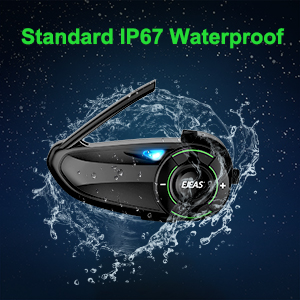
Figure 9: The EJEAS Q8 unit shown with water splashing, highlighting its IP67 waterproof capability.
2. Cleaning
Wipe the unit with a soft, damp cloth. Do not use harsh chemicals or abrasive cleaners.
3. Battery Care
To prolong battery life, avoid fully discharging the battery frequently. Store the device in a cool, dry place when not in use for extended periods.
Troubleshooting
| Problem | Possible Cause | Solution |
|---|---|---|
| No power/Unit won't turn on | Low battery; device malfunction. | Charge the unit fully. If problem persists, contact support. |
| Poor audio quality/Excessive noise | Incorrect microphone sensitivity; environmental noise; wrong channel. | Adjust microphone sensitivity (refer to Operating section). Ensure all group members are on the same channel. Check microphone placement. |
| Intercom range is short | Obstructions; environmental interference. | Move to a more open area. Signal strength can be affected by terrain and buildings. |
| Cannot connect to smartphone | Bluetooth not enabled; device not in pairing mode; interference. | Ensure Bluetooth is on your phone. Put Q8 in pairing mode. Restart both devices. |
| Music sharing not working | Incorrect pairing for music sharing; not using Q8-to-Q8 sharing. | Ensure both Q8 units are correctly paired for music sharing as per the manual. |
For more detailed troubleshooting and advanced settings, please refer to the official online user manual: EJEAS Q8 Online Manual.
Specifications
| Feature | Detail |
|---|---|
| Model Name | Q8 1PC |
| Connectivity Technology | Wireless (Bluetooth, Mesh 3.0) |
| Headphones Jack | Type-C |
| Battery Capacity | 1200mAh (Lithium Ion) |
| Water Resistance Level | IP67 Waterproof |
| Intercom Group Size | Up to 6 riders (Mesh 3.0) |
| Intercom Distance | 600-1000M (Mesh) |
| Noise Control | Adaptive Noise Cancellation (CVC) |
| Control Method | Voice, Buttons |
| Product Dimensions | 3.86 x 1.89 x 1.06 inches |
| Item Weight | 10.8 ounces (0.31 Kilograms) |
| Material | Plastic |
| Special Feature | Music Sharing, FM Radio, Voice Assistant |
Warranty and Support
For warranty information and customer support, please refer to the documentation included with your product or visit the official EJEAS website. EJEAS is committed to product upgrading and providing a favorable customer experience.
You can also visit the EJEAS Brand Store on Amazon for more information and contact options: EJEAS Brand Store.
Official Product Video
Video 1: Official EJEAS Q8 Product Overview. This video demonstrates the key features and functionalities of the EJEAS Q8 Motorcycle Helmet Bluetooth Intercom, including its mesh intercom capabilities and design.
Related documentsQ8


Ask a question about this manual
Ask about setup, troubleshooting, compatibility, parts, safety, or missing instructions. Manuals+ will review the question and use this page’s manual context to help answer it.