Introduction
This manual provides detailed instructions for the installation, operation, and maintenance of your Woibugee Double Din Android Auto Wireless CarPlay Radio. Please read this manual thoroughly before using the product to ensure proper functionality and safety.
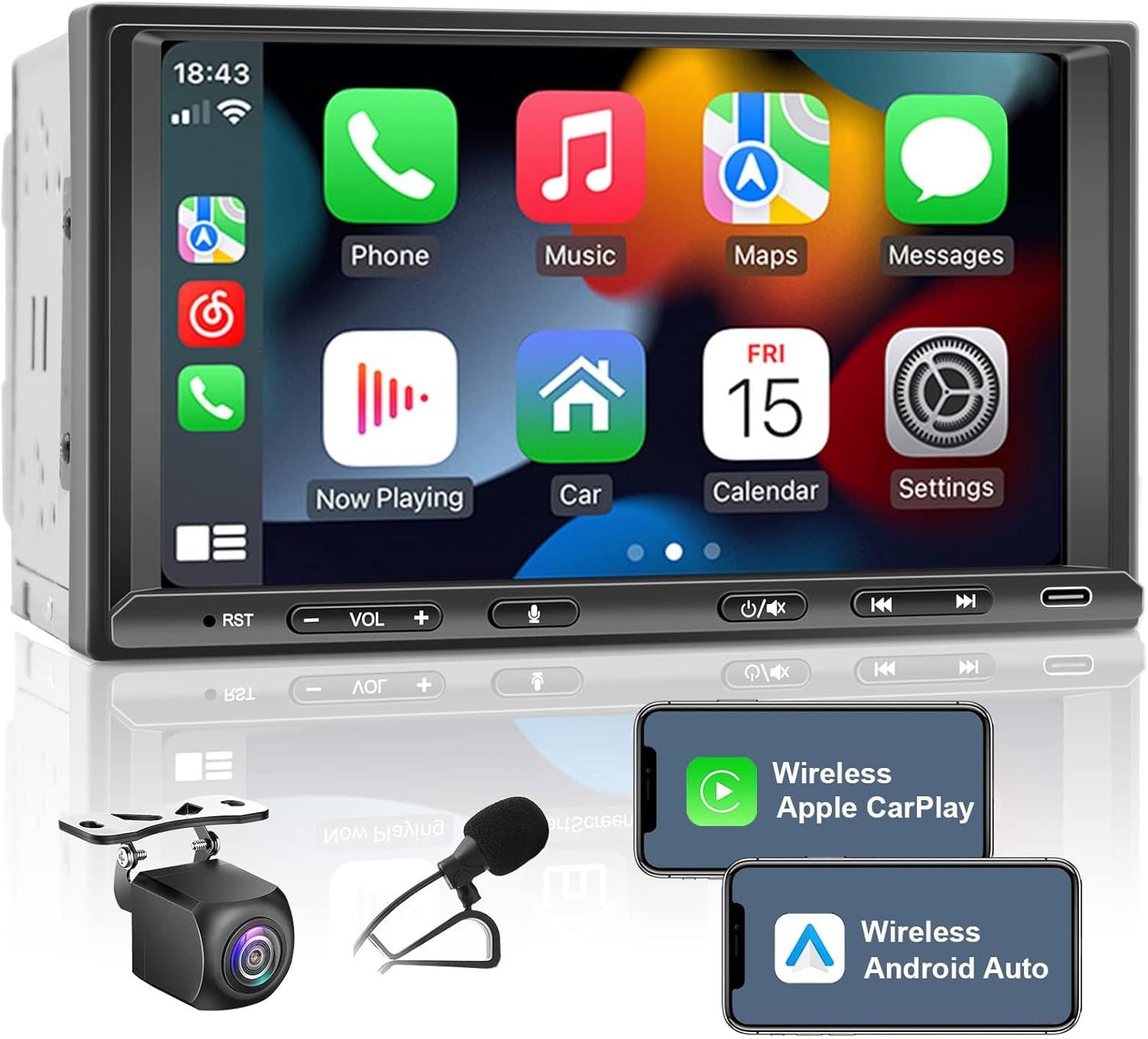
Figure 1: Woibugee Double Din Android Auto Wireless CarPlay Radio
The image shows the main unit of the Woibugee Double Din Car Radio, featuring a 7-inch touchscreen displaying the Apple CarPlay interface with various app icons like Phone, Music, Maps, and Messages. Below the screen are physical buttons for RST, Volume, Voice, Mute/Off Screen, and Type-C port. Also shown are smaller images of a rear view camera and a microphone, along with phone screens illustrating Wireless Apple CarPlay and Wireless Android Auto connectivity.
Setup and Installation
Proper installation is crucial for the optimal performance of your car radio. It is recommended to have this unit installed by a qualified professional.
Package Contents
- Woibugee Double Din Car Radio Unit
- Power Harness
- USB Cable
- GPS Antenna (if applicable)
- Rear View Camera (if included in package)
- External Microphone
- Mounting Brackets and Screws
- User Manual (this document)
Installation Steps
- Preparation: Disconnect the vehicle's negative battery terminal before starting installation to prevent electrical shorts.
- Remove Old Unit: Carefully remove the existing car stereo from the dashboard.
- Wiring Connections:
- Connect the power harness to the vehicle's wiring harness, matching colors and functions (e.g., constant power, accessory power, ground, illumination).
- Connect speaker wires to the corresponding outputs on the new radio.
- Connect the rear view camera input cable to the radio's "CAM IN" port and the camera's power/ground to the vehicle's reverse light circuit.
- Connect the external microphone to the dedicated microphone input.
- Connect the USB cable for wired CarPlay/Android Auto or media playback.
- Connect the radio antenna.
- Mounting: Secure the new radio into the dashboard opening using the provided mounting brackets. Ensure it is firmly in place.
- Test Functionality: Before fully reassembling the dashboard, reconnect the battery and test basic functions: power on/off, audio playback, radio, Bluetooth, CarPlay/Android Auto, and rear camera.
- Reassemble Dashboard: Once all functions are verified, carefully reassemble the dashboard components.
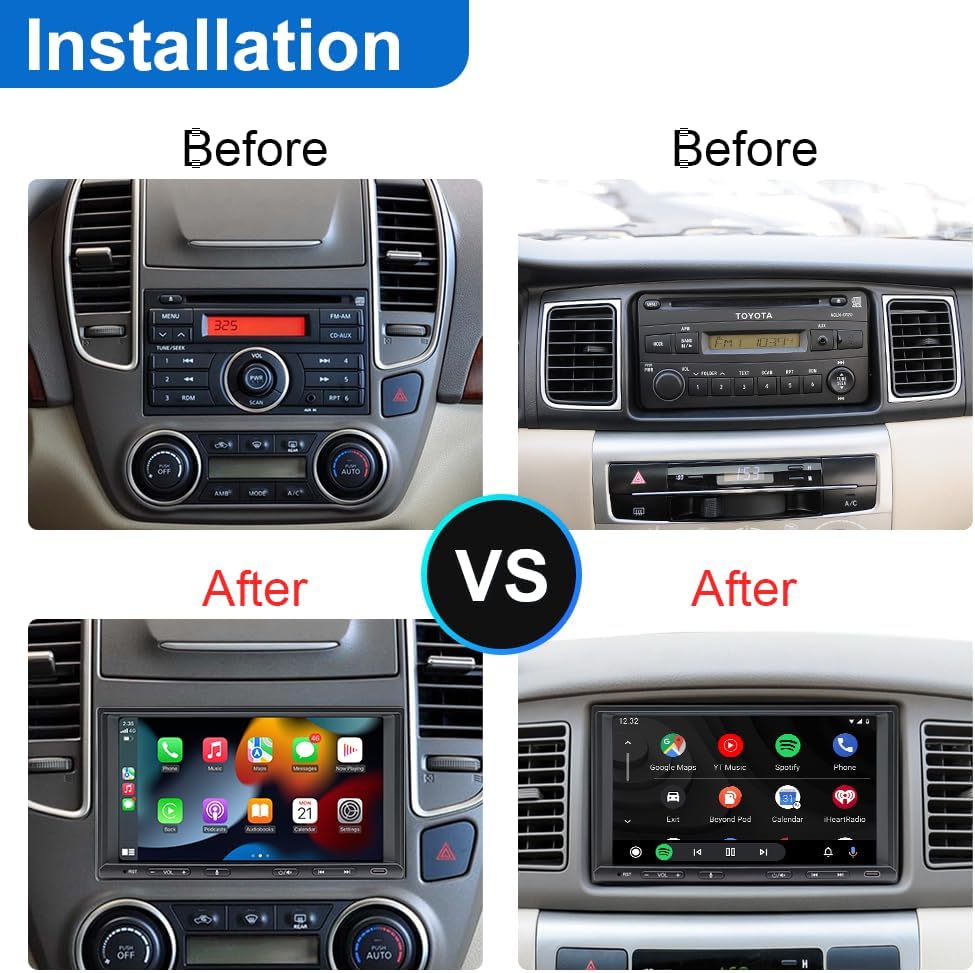
Figure 2: Installation Comparison
This image displays a "Before" and "After" comparison of a car dashboard with the original stereo replaced by the Woibugee Double Din Car Radio. The "Before" images show older, factory-installed car stereos, while the "After" images show the new 7-inch touchscreen unit seamlessly integrated into the dashboard, displaying the CarPlay/Android Auto interface.
Operating Instructions
This section details the various functions and features of your Woibugee car radio.
Interface Overview
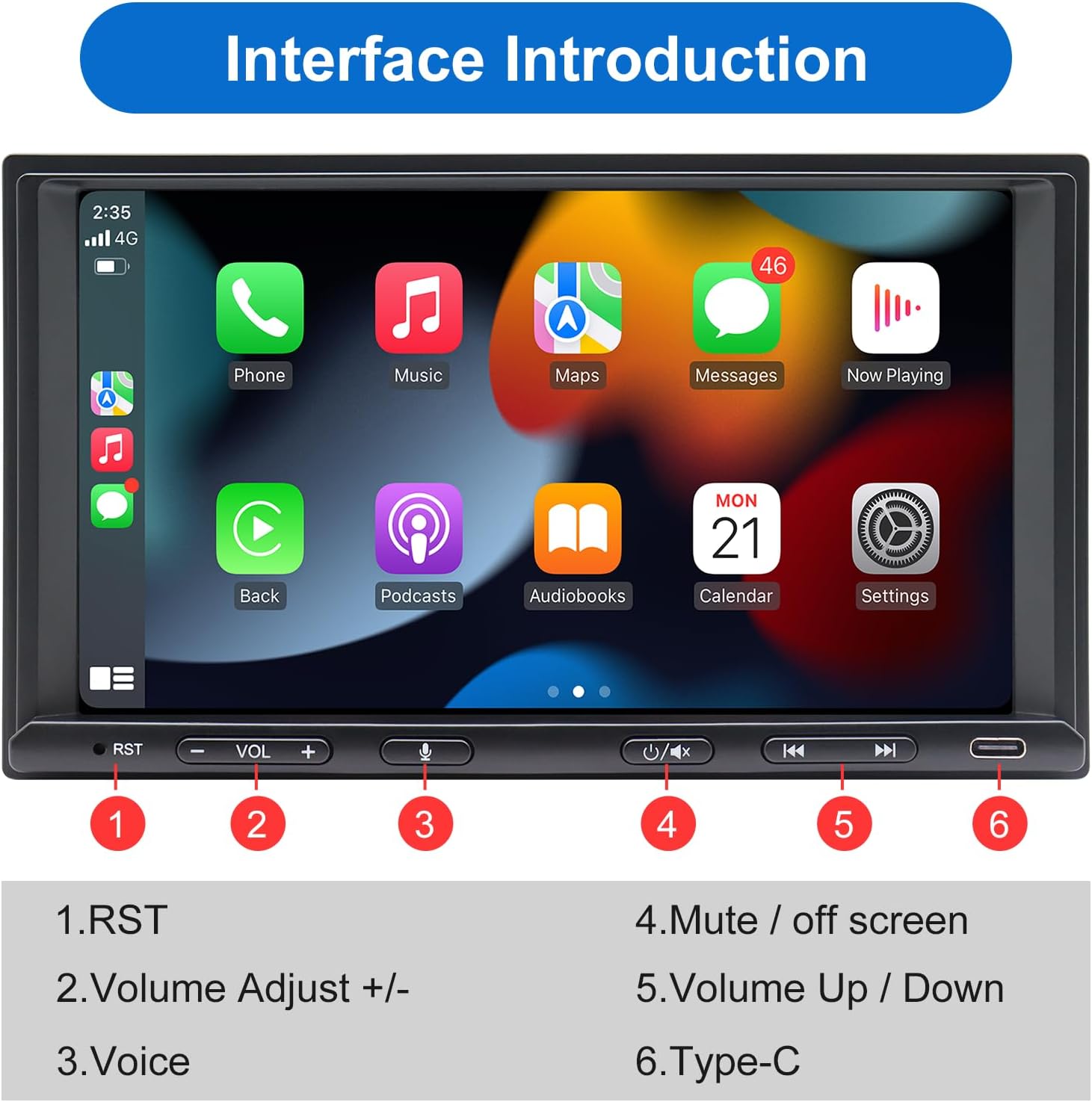
Figure 3: Front Panel Controls
The image highlights the physical controls on the front panel of the car radio. Numbered labels indicate: 1. RST (Reset button), 2. Volume Adjust +/- (physical buttons), 3. Voice (voice assistant activation), 4. Mute / Off Screen, 5. Volume Up / Down (touchscreen controls), and 6. Type-C (USB-C port).
- Power On/Off: Press the power button (often integrated with volume knob or a dedicated button) to turn the unit on or off.
- Volume Control: Use the physical volume buttons or the touchscreen controls to adjust audio output.
- Reset (RST): A small reset button (often recessed) is provided for system reboots if the unit becomes unresponsive. Use a thin object like a paperclip to press it.
Wireless Apple CarPlay & Android Auto
The unit supports both wireless and wired Apple CarPlay and Android Auto for seamless smartphone integration.
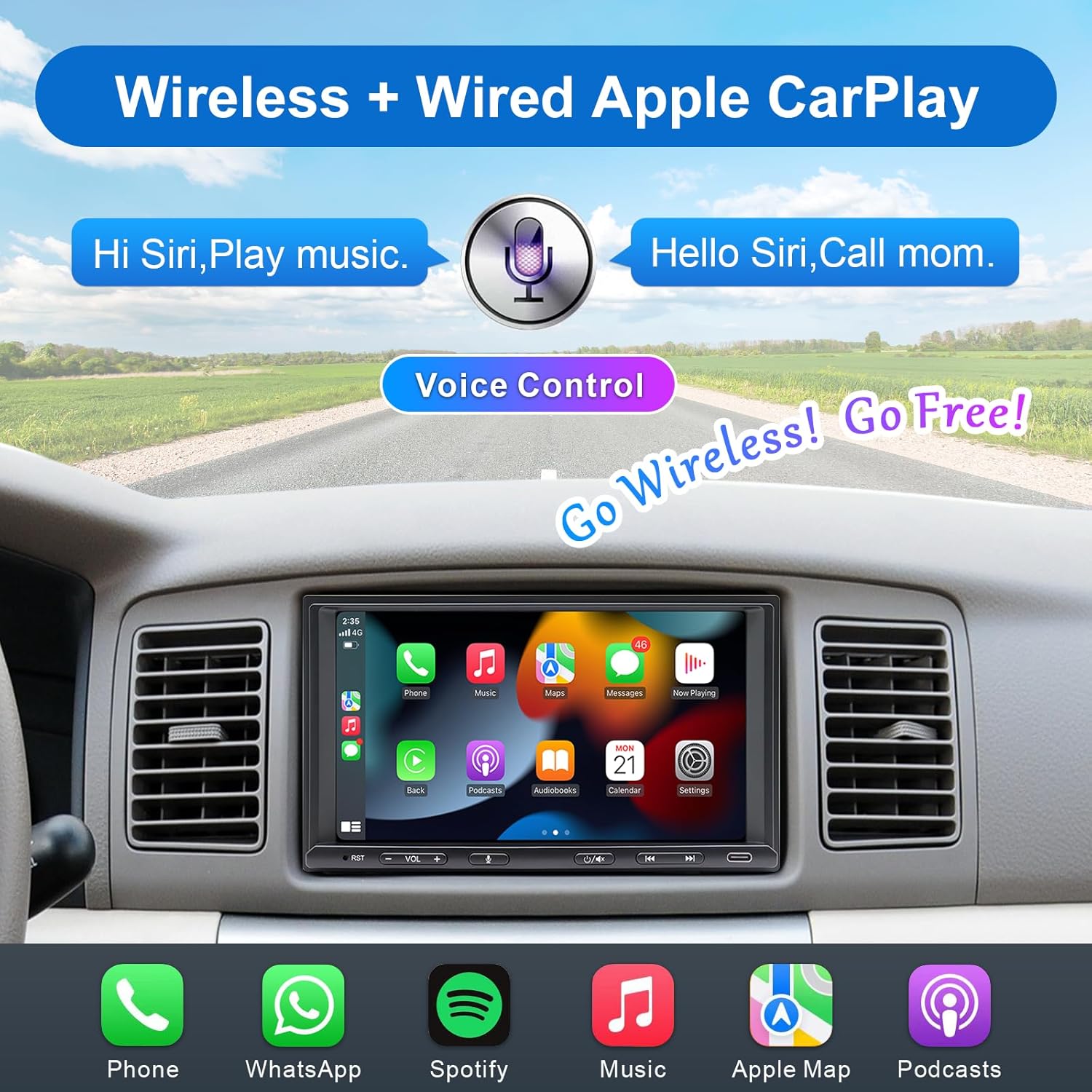
Figure 4: Wireless Apple CarPlay
This image illustrates the Wireless Apple CarPlay feature, showing the car radio screen displaying the CarPlay interface with app icons. It emphasizes voice control with speech bubbles like "Hi Siri, Play music." and "Hello Siri, Call mom.", indicating hands-free operation.

Figure 5: Wireless Android Auto
This image demonstrates the Wireless Android Auto functionality, showing the car radio screen with the Android Auto interface. Voice commands such as "Hello Google", "Navigate Home", "Call Jane", and "Play Music" are highlighted, showcasing the voice assistant capabilities.
- Wireless Connection:
- Ensure Bluetooth and Wi-Fi are enabled on your smartphone.
- On the car radio, navigate to the CarPlay or Android Auto section.
- Pair your phone via Bluetooth with the car radio. Once paired, the system will prompt you to enable wireless CarPlay/Android Auto.
- Wired Connection:
- Connect your smartphone to the radio's USB port using a high-quality USB cable.
- The system should automatically detect and launch CarPlay or Android Auto.
- Voice Control: Activate Siri (for CarPlay) or Google Assistant (for Android Auto) by pressing the dedicated voice button on the unit or using the voice command "Hey Siri" / "Hey Google" (if enabled on your phone).
MirrorLink Function
The MirrorLink function allows you to mirror your smartphone's screen directly onto the car radio display.

Figure 6: MirrorLink Feature
This image illustrates the MirrorLink function, demonstrating how an iPhone or Android phone screen can be mirrored onto the larger 7-inch display of the car radio. The car radio screen shows the same content as the smartphone, in this case, a scenic landscape.
- Navigate to the "MirrorLink" icon on the radio's main menu.
- Follow the on-screen instructions to connect your iOS or Android device. This typically involves connecting via USB and enabling USB debugging (for Android) or trusting the device (for iOS).
Rear View Camera & Live Rear View (LRV)
The unit supports HD rear view camera input with a live rear view function for enhanced safety.

Figure 7: Rear View Camera Features
The image details the HD 720P Rear View Camera Input features, including icons for Waterproof, 170° Viewing Angle, Night Vision, and HD Rear View. It shows two car radio screens: one displaying a "Live Rear View" of a car moving forward, and another showing "Reversing Guidelines" with a truck in reverse, indicating parking assistance.
- Automatic Display: When the vehicle is shifted into reverse, the rear view camera feed will automatically display on the screen.
- Live Rear View (LRV): This feature allows you to view the rear camera feed even when driving forward. Access this function through the radio's menu.
- Guidelines: Dynamic or static parking guidelines may be displayed on the screen to assist with parking maneuvers.
AM/FM Radio & Bluetooth 5.0
Enjoy traditional radio broadcasts and wireless audio streaming.
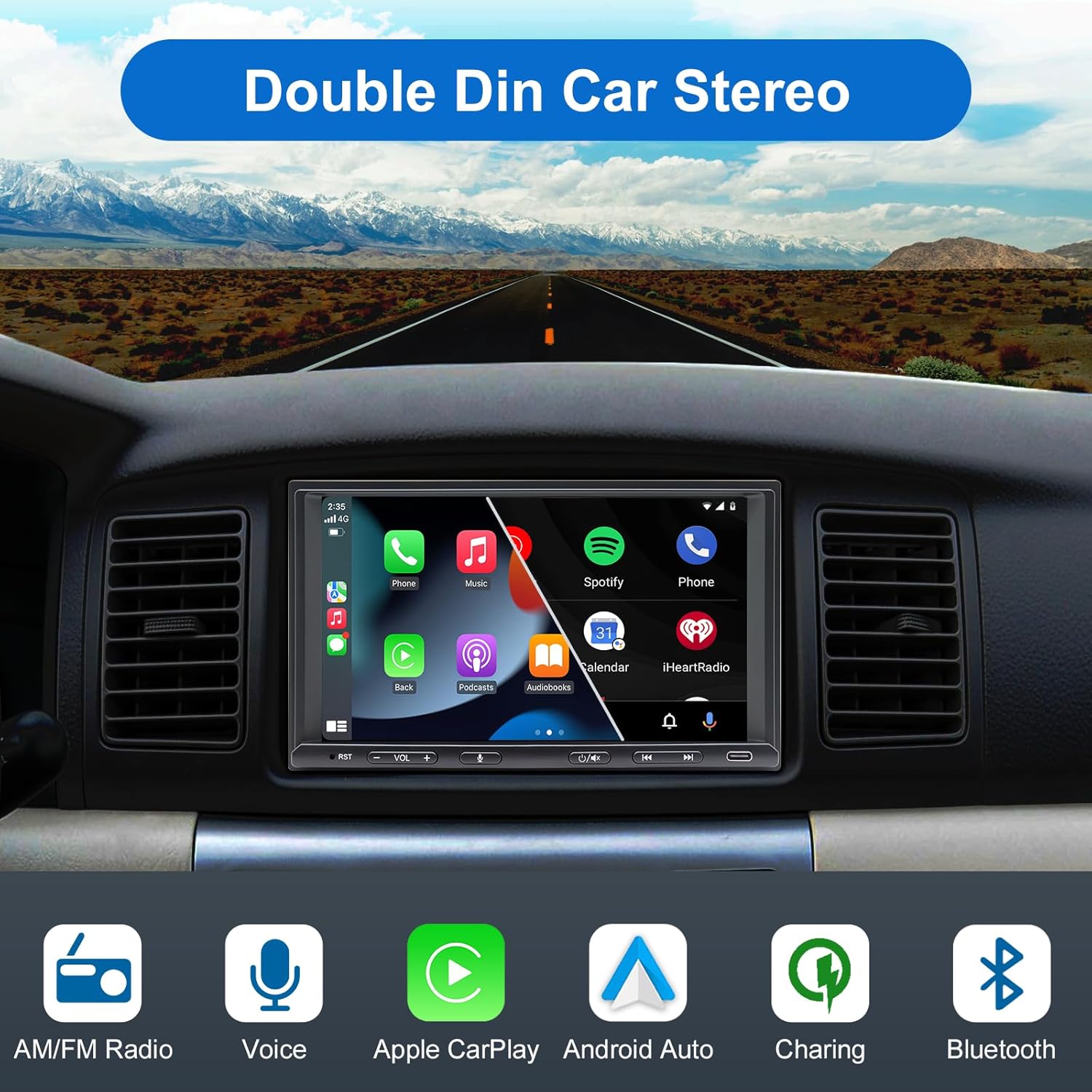
Figure 8: Core Features Overview
This image provides an overview of the Double Din Car Stereo's core features, represented by icons: AM/FM Radio, Voice control, Apple CarPlay, Android Auto, Charging capability, and Bluetooth connectivity. The main screen shows a typical car radio interface with various app icons.
- AM/FM Radio: Select the "Radio" application. Use the scan or tune functions to find desired stations. Save favorite stations as presets.
- Bluetooth Pairing:
- On your phone, search for Bluetooth devices and select "Woibugee Radio" (or similar name).
- Confirm the pairing code if prompted.
- Once paired, you can stream audio, make/receive calls, and access your phone's contact list.
- Audio Settings: Access the "Settings" menu to adjust equalizer (EQ) settings, subwoofer output, and other audio preferences. The unit supports 16-band custom EQ settings.
Maintenance
Regular maintenance ensures the longevity and optimal performance of your car radio.
- Screen Cleaning: Use a soft, lint-free cloth to gently wipe the touchscreen. For stubborn smudges, slightly dampen the cloth with water or a screen-safe cleaner. Avoid abrasive materials or harsh chemicals.
- Software Updates: Periodically check the manufacturer's website (if available) for firmware updates. Updates can improve performance, add features, or fix bugs. Follow update instructions carefully.
- Connection Checks: Ensure all cables (power, speaker, camera, USB) are securely connected and free from damage.
- Environmental Care: Avoid exposing the unit to extreme temperatures, direct sunlight for prolonged periods, or excessive moisture.
Troubleshooting
This section addresses common issues you might encounter and their solutions.
| Problem | Possible Cause | Solution |
|---|---|---|
| Unit does not power on. | Incorrect wiring; Blown fuse; Vehicle battery issue. | Check power and ground connections. Inspect vehicle's fuse box and the radio's inline fuse. Ensure battery is charged. |
| No sound from speakers. | Speaker wires disconnected; Volume too low; Mute activated; Incorrect audio source. | Verify speaker wire connections. Increase volume. Check if mute is on. Select correct audio source (e.g., Radio, Bluetooth, USB). |
| Bluetooth connection unstable or drops. | Interference; Phone too far; Outdated firmware; Bluetooth conflict. | Ensure phone is close to the unit. Restart both phone and radio. Unpair and re-pair the device. Check for firmware updates. |
| CarPlay/Android Auto not connecting. | Incorrect USB cable; Phone settings; App issues; Wireless connection problem. | Use a high-quality, data-enabled USB cable. Check phone settings for CarPlay/Android Auto permissions. Restart phone and radio. For wireless, ensure Wi-Fi is on and Bluetooth is paired. |
| Rear camera not displaying. | Camera not powered; Incorrect video input; Faulty camera. | Check camera power connection (usually to reverse light). Ensure video cable is securely connected to "CAM IN". Test camera with another display if possible. |
| Touchscreen unresponsive or lags. | System overload; Software glitch. | Perform a system reset using the RST button. If issue persists, check for firmware updates. |
Specifications
Key technical specifications of the Woibugee Double Din Car Radio.
- Display: 7-inch HD Touchscreen (1024 x 600 resolution), supports 1920 x 1080P video playback
- Operating System: Linux OS
- Connectivity: Wireless & Wired Apple CarPlay, Wireless & Wired Android Auto, Bluetooth 5.0, Wi-Fi, USB, AUX, SWC (Steering Wheel Control)
- Radio Tuner: AM/FM
- Audio Output: 16-band custom EQ settings, Subwoofer audio output
- Rear Camera Input: HD 720P, supports Live Rear View (LRV), 170° ultra-wide viewing angle, waterproof, HD night vision design
- MirrorLink: Supports iOS and Android phones
- Dimensions (Package): 22.1 x 20.6 x 15.9 cm
- Weight (Package): 1.49 kg
- Manufacturer: Woibugee
- ASIN: B0CLVPZNJY
Support and Contact
For technical assistance, troubleshooting beyond this manual, or any inquiries regarding your Woibugee product, please contact our professional after-sales service team.
We provide necessary solutions and technical support 24 hours a day. Please do not hesitate to contact us via customer service or message through your purchase platform.


