
Introduction
The OhO sunshine Livi A9 Wifi Camera Glasses integrate a high-definition camera into a stylish frame, offering both video recording and photo capture capabilities. Equipped with blue light blocking lenses, these glasses are designed for comfort and eye protection during various activities. The built-in Wi-Fi feature allows for live video streaming and direct transfer of media to your mobile device via a dedicated application.
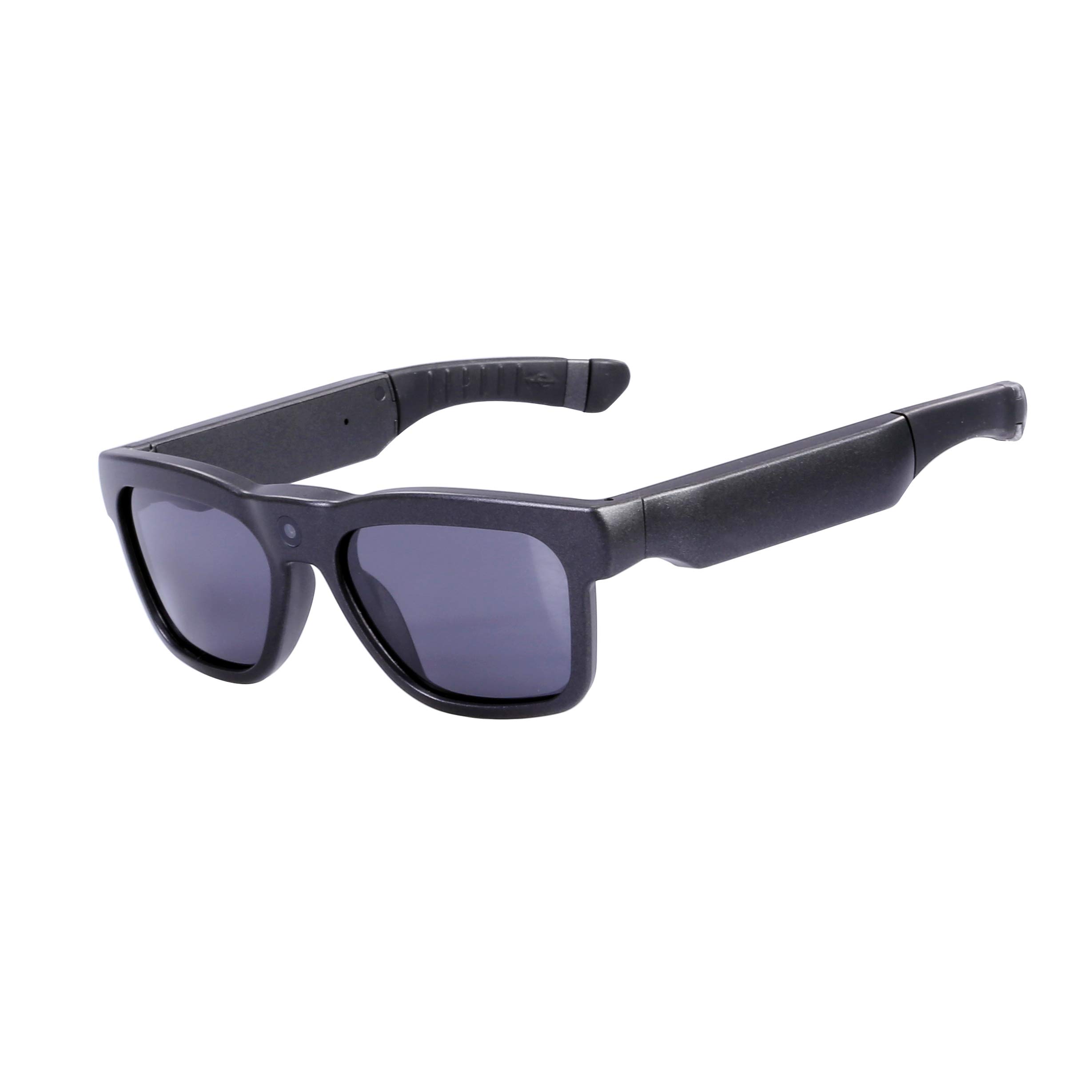
What's in the Box
Please ensure all items are present upon unboxing:
- OhO sunshine Livi A9 Wifi Camera Glasses
- USB Charging Cable
- User Manual (this document)
Setup
1. Charging the Device
Before initial use, fully charge the glasses. Connect the provided USB charging cable to the charging port on the glasses and to a standard USB power source (e.g., computer USB port, wall adapter). The battery provides approximately 60 to 80 minutes of recording time. The device supports recording while charging, allowing for extended use with a portable power bank.
2. App Installation
To utilize Wi-Fi features and manage recordings, download the "Vizen Cam" application. This app is available for both Android and iOS devices. Search for "Vizen Cam" in your device's respective app store and follow the installation instructions.
3. Wi-Fi Connection
- Activate Wi-Fi on Glasses: With the glasses powered on, quickly double-click the control button. A blue LED indicator will illuminate, signifying that Wi-Fi is active.
- Connect via Phone: On your mobile device, navigate to your Wi-Fi settings. Locate and connect to the network named "Sunglassesxxxx" (where xxxx represents a unique identifier for your device).
- Launch Vizen Cam App: Open the "Vizen Cam" app. You should now be able to view a live stream from the camera, manage settings, and access recorded media.

Operating Instructions
1. Power On/Off
Press the control button once to power on the glasses. A red LED indicator will light up, and the device will automatically begin recording video.
2. Capturing Photos
While the glasses are powered on and recording video, press the control button once again to capture a still photograph. The video recording will continue uninterrupted.
3. Video Recording
The glasses record video in Ultra Full HD 1080P resolution. Recording starts automatically upon power-on. The internal 128 GB memory can store approximately 20 hours of video footage.
4. Wi-Fi Live Streaming and Sharing
After connecting your phone to the glasses' Wi-Fi network and opening the "Vizen Cam" app, you can access a live video feed from the camera. The app also allows you to share photos and videos directly to social media platforms.
5. Data Transfer
- Via App: Use the "Vizen Cam" app to play back, delete, or download videos and photos directly to your mobile phone.
- Via USB Cable: Connect the glasses to a computer or TV using the included USB cable to transfer or view recorded content.

Maintenance
1. Cleaning
Use a soft, clean microfiber cloth to gently wipe the lenses and frame. Avoid abrasive materials or harsh chemical cleaners, which can damage the lenses or frame finish. For stubborn smudges, a small amount of lens cleaning solution designed for eyeglasses can be applied to the cloth, not directly to the lenses.
2. Storage
Store the glasses in their protective case when not in use to prevent scratches and damage. Keep them in a cool, dry place away from direct sunlight and extreme temperatures.
3. Water Resistance
The glasses have an IP22 international protection rating, meaning they are protected against solid objects over 12.5mm and vertically falling water drops when tilted up to 15 degrees. They are splash-resistant but not waterproof. Avoid submerging the glasses in water or exposing them to heavy rain.
Troubleshooting
- Wi-Fi Connection Issues: If you experience difficulty connecting to the "Sunglassesxxxx" Wi-Fi network, ensure the glasses' Wi-Fi is activated (blue LED). Try restarting both the glasses and your mobile device. Ensure you are within close proximity to the glasses.
- Recording Indicator Light Visibility: The recording indicator LED is located on the inside of the frame. It may not be easily visible while wearing the glasses. To confirm recording status, use the "Vizen Cam" app for live view or check the recorded files after transfer.
- PC Connection Problems: If the glasses are not recognized by your computer when connected via USB, try a different USB port or cable. Ensure the glasses are powered on when connecting. Some computers may require specific drivers, though typically they function as a standard mass storage device.
- Short Battery Life: The battery provides 60-80 minutes of continuous recording. For longer sessions, consider using a portable power bank connected via the USB charging cable, as the glasses support recording while charging.
Specifications
| Brand | OhO sunshine |
| Model Name | Livi |
| Model Number | A9 Wifi |
| Connectivity Technology | Wireless (Wi-Fi) |
| Power Source | Battery Powered (3.7 Volts, 500 mAh) |
| Control Type | Button |
| Material | TR90 |
| Video Capture Resolution | 1080p |
| Video Capture Format | MOV |
| Internal Memory | 128 GB |
| International Protection Rating | IP22 |
| Item Dimensions (L x W x H) | 15.3 x 14.5 x 4.8 cm |
| Item Weight | 46 Grams |
| Lens Features | Blue Light Blocking, Anti-scratch, Anti-smudge, 100% UV400 Protection, ANSI/ISEA Z87.1-2015 Impact Resistance, FDA Approved Drop Bell Lenses |

Warranty and Support
Warranty Information
For specific warranty terms and conditions, please refer to the documentation provided with your purchase or consult the retailer where the product was acquired. Extended warranty plans may be available for separate purchase.
Customer Support
If you encounter any issues not covered in this manual or require further assistance, please visit the official OhO sunshine website or contact their customer service department. Contact details can typically be found on the product packaging or the brand's website.


