1. Introduction
This manual provides detailed instructions for the installation, setup, operation, and maintenance of the FX Luminaire LUX-300-SS Luxor Series ZDC Transformer Controller. This device is designed to manage low-voltage landscape lighting systems, offering advanced control features including zone management, color adjustment, and astronomical timing.
2. Safety Information
Please read all safety instructions carefully before installing or operating the transformer. Failure to follow these instructions may result in electric shock, fire, or other hazards.
- Always disconnect power at the circuit breaker before installing or servicing the transformer.
- Installation must be performed by a qualified electrician in accordance with all local and national electrical codes.
- Do not operate the transformer with damaged wiring or if the casing is compromised.
- Ensure the transformer is mounted securely to a stable surface.
- This unit is designed for outdoor use and is rated for its intended environment.
3. Package Contents
Verify that all components are present in the package:
- FX Luminaire LUX-300-SS Luxor Series ZDC Transformer Controller
4. Product Overview
The LUX-300-SS is a 300-watt ZDC transformer controller housed in a durable stainless steel metal case. It provides comprehensive control over landscape lighting, integrating smart features for enhanced functionality.
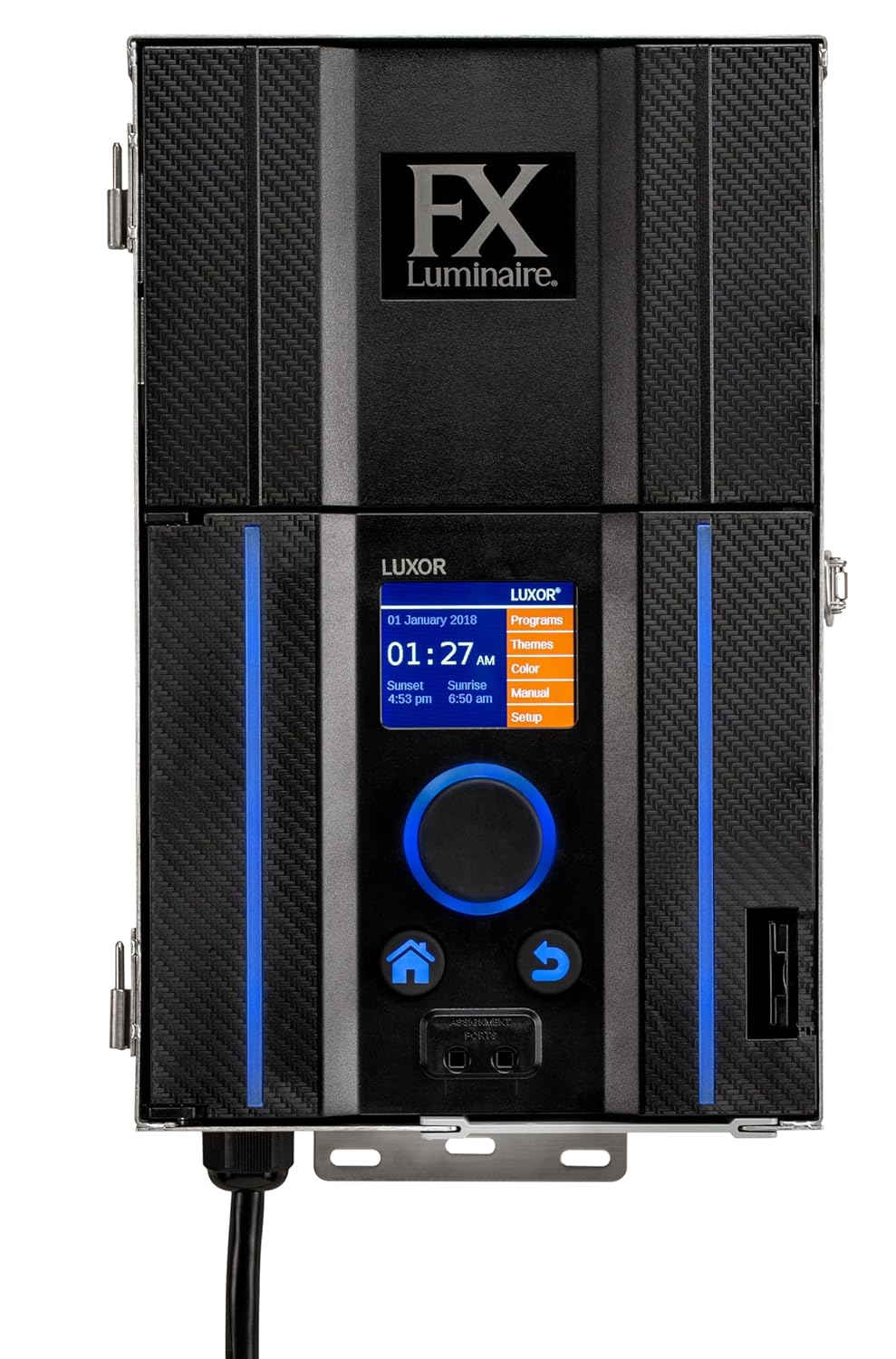
Image 1: Front view of the FX Luminaire LUX-300-SS Transformer Controller, showing the control panel and display.
Key Features:
- 300 Watt power rating with 120V primary voltage and 60Hz frequency.
- Internet connectivity via LAN port or optional Wi-Fi Module (P/N - WIFIMOD2).
- Wireless control via optional iOS and Android app.
- Dimming control from 0-100%.
- Astronomical timing for automatic dusk and dawn adjustments based on location.
- Event-based scheduling and calendar-based programming.
- Up to 250 individual lighting zones.
- Color control with up to 30,000 colors per zone.
- Scene/Theme creation with up to 40 custom lighting themes.
- UL-1838, UL-379 compliant.
5. Installation
5.1 Mounting
The LUX-300-SS is designed for wall mounting. Select a suitable location that is easily accessible, protected from direct impact, and allows for proper ventilation. Ensure the mounting surface is capable of supporting the unit's weight (approximately 23 pounds).
- Mark the desired mounting points on the wall using the transformer's mounting holes as a template.
- Drill pilot holes appropriate for your mounting hardware (not included).
- Securely fasten the transformer to the wall.

Image 2: The FX Luminaire LUX-300-SS Transformer Controller, illustrating its compact design suitable for wall mounting.
5.2 Electrical Connections
All electrical wiring must comply with local and national electrical codes. Ensure power is disconnected before making any connections.
- Connect the 120V AC input power to the designated terminals inside the transformer.
- Connect the low-voltage output wires from your landscape lighting fixtures to the appropriate output terminals on the transformer. Refer to the wiring diagram inside the unit for specific terminal assignments.
- Ensure all connections are tight and secure.
- Close and secure the transformer casing.
6. Setup and Configuration
6.1 Initial Power-Up
Once installation is complete, restore power to the transformer at the circuit breaker. The unit's display will illuminate, guiding you through the initial setup process, which typically includes setting the date, time, and location.
6.2 Network Connection
The transformer can be connected to the internet for remote control and updates:
- LAN Port: Connect an Ethernet cable from your network router to the LAN port on the transformer.
- Optional Wi-Fi Module: If using the optional Wi-Fi Module (P/N - WIFIMOD2), install it according to its instructions. For areas with limited Wi-Fi strength, consider the Luxor Wi-Fi Module Remote Mount (P/N - WIFIMOD2RMT). Follow the on-screen prompts to connect to your Wi-Fi network.
6.3 App Control (iOS/Android)
Download the official FX Luminaire control app from the Apple App Store or Google Play Store. Follow the in-app instructions to pair your smart device with the transformer, enabling wireless control.
6.4 Zone and Color Control
The Luxor system allows for the creation of up to 250 independent lighting zones. Within each zone, you can adjust colors (up to 30,000 options) and dimming levels (0-100%). Use the transformer's interface or the mobile app to assign fixtures to zones and customize their settings.
6.5 Scheduling
The transformer offers flexible scheduling options:
- Astronomical Timing: Automatically adjusts dusk and dawn times based on your geographical location and seasonal changes.
- Event-Based Scheduling: Program specific lighting events to occur at certain times or in response to triggers.
- Calendar-Based Programming: Create schedules for specific dates or recurring patterns throughout the year.
7. Operation
7.1 Basic Operation
Navigate the transformer's menu using the control buttons on the front panel or through the mobile application. The main display provides current status, time, and sunrise/sunset information.
7.2 Dimming Control
Adjust the intensity of your lighting fixtures from 0% to 100% using the dimming controls available on the unit or via the app. This allows for customized ambiance and energy saving.
7.3 Scene/Theme Creation
Create and save up to 40 custom lighting themes or scenes. A scene can combine specific zone settings, colors, and dimming levels to be activated with a single command, suitable for different occasions or moods.
8. Maintenance
Regular maintenance ensures optimal performance and longevity of your transformer.
- Keep the transformer casing clean and free from debris. Use a soft, dry cloth for cleaning.
- Periodically inspect all wiring connections for tightness and signs of wear or corrosion.
- Ensure proper ventilation around the unit to prevent overheating.
- Check for any firmware updates through the mobile app or the transformer's network connection to ensure you have the latest features and bug fixes.
9. Troubleshooting
Refer to the table below for common issues and their solutions.
| Problem | Possible Cause | Solution |
|---|---|---|
| Transformer not powering on | No power supply; tripped circuit breaker; faulty wiring | Check circuit breaker; verify power connections; consult an electrician. |
| Lights not turning on | Incorrect schedule; faulty fixture; loose wiring; dimming set to 0% | Check schedule settings; inspect fixture and wiring; adjust dimming level. |
| Cannot connect to Wi-Fi | Incorrect Wi-Fi password; out of range; Wi-Fi module not installed | Verify password; move closer to router or install remote module; ensure module is correctly installed. |
| App not controlling lights | App not paired; network issue; outdated app version | Re-pair app; check network connection; update app to latest version. |
10. Specifications
Detailed technical specifications for the LUX-300-SS Transformer Controller:
| Feature | Specification |
|---|---|
| Model Number | LUX300SS |
| Power Rating | 300 Watts |
| Primary Voltage | 120V |
| Frequency | 60Hz |
| Material | Stainless Steel |
| Dimensions (D x W x H) | 5 x 8 x 13 inches (12.7 x 20.3 x 33 cm) |
| Item Weight | 23 Pounds |
| Mounting Type | Wall Mount |
| Compliance | UL-1838, UL-379 |
| Connectivity | LAN, Optional Wi-Fi (P/N - WIFIMOD2) |
| Control | On-unit display, iOS/Android App |
| Lighting Zones | Up to 250 independent zones |
| Color Control | 30,000 colors per zone |
| Scene/Theme Creation | Up to 40 custom themes |
11. Warranty and Support
For warranty information and technical support, please refer to the official FX Luminaire website or contact their customer service. Keep your purchase receipt for warranty claims. Support resources may include online FAQs, troubleshooting guides, and direct contact options.


