
j Junsun JS-US-XT892CAVEO062
Junsun Car Radio Stereo for Chevrolet Aveo (2006-2012)
Model: JS-US-XT892CAVEO062
Introduction
This manual provides comprehensive instructions for the installation, operation, and maintenance of your Junsun Car Radio Stereo, Model JS-US-XT892CAVEO062, designed for Chevrolet Aveo models from 2006 to 2012. Please read this manual thoroughly before installation and use to ensure proper functionality and safety.

Image: The Junsun Car Radio Stereo displaying its CarPlay interface with various application icons.
Package Contents
Verify that all items listed below are present in your package:
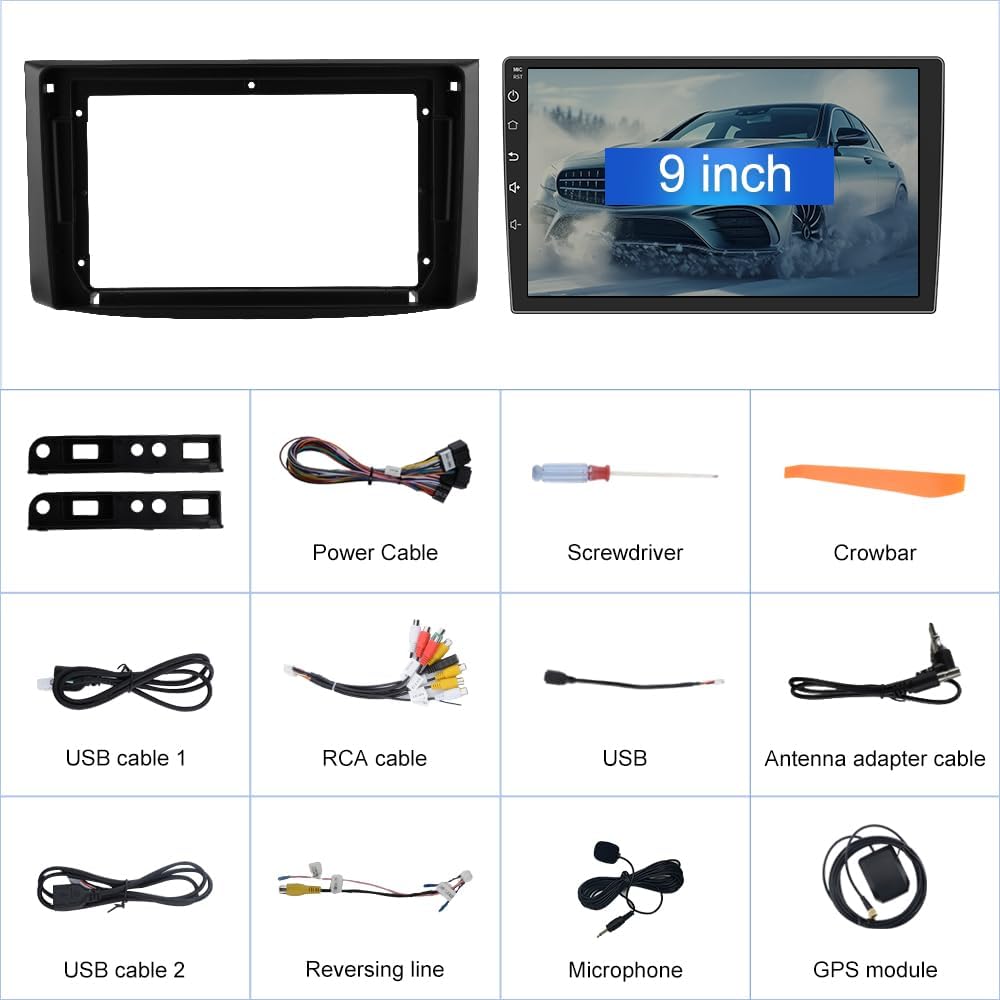
Image: A visual representation of all components included in the package, such as the head unit, mounting frame, various cables, installation tools, microphone, and GPS module.
- Junsun 9-inch Head Unit
- Custom Fit Frame for Chevrolet Aveo (2006-2012)
- Power Cable
- Screwdriver
- Crowbar (Pry Tool)
- USB Cable 1
- USB Cable 2
- RCA Cable
- USB Extension
- Antenna Adapter Cable
- Reversing Line
- Microphone
- GPS Module
Setup and Installation
This section outlines the general steps for installing the car radio stereo. Professional installation is recommended.
1. Compatibility Check
Ensure your vehicle is a Chevrolet Aveo manufactured between 2006 and 2012. The head unit is designed for a direct fit in these models.

Image: A visual guide demonstrating the compatibility and fit of the Junsun head unit within the dashboard of a Chevrolet Aveo (2006-2012), contrasting the original setup with the new installation.
2. Wiring Connections
Carefully connect all necessary cables. Refer to the detailed wiring diagram for specific connections.

Image: A comprehensive wiring diagram illustrating how to connect the various cables from the head unit to the vehicle's electrical system and peripherals.
3. Rear Camera Installation (Optional)
If installing a rear camera, connect it as shown in the diagram. Ensure the reversing line is correctly connected to trigger the camera view when reversing.

Image: A diagram detailing the proper connection of a rear camera to the head unit, including the reverse trigger wire.

Image: The head unit displaying the rear camera feed with parking assistance lines, alongside an illustration of how steering wheel controls are integrated.
4. Steering Wheel Control Integration
The unit supports retaining factory steering wheel controls. Follow the wiring instructions and configure the controls in the system settings.

Image: An on-screen interface demonstrating the process of mapping existing steering wheel buttons to various functions of the Junsun head unit.
Operating Instructions
1. Power On/Off
The unit powers on automatically with the vehicle's ignition. To manually power off or restart, use the designated power button on the unit or within the software interface.
2. Touchscreen Interface
The 9-inch capacitive touchscreen allows for intuitive control of all functions. Navigate through menus, select applications, and adjust settings by tapping and swiping.

Image: A display of the customizable user interface, highlighting the ability to add, delete, and rearrange application icons and widgets.

Image: The head unit demonstrating split-screen functionality, allowing two applications to run simultaneously, and showcasing various available user interface themes.
3. CarPlay and Android Auto
Connect your smartphone via USB or wirelessly to access Apple CarPlay or Android Auto. This allows for seamless integration of navigation, music, calls, and messages.

Image: The head unit displaying both wireless CarPlay and Android Auto interfaces, illustrating smartphone connectivity options.
4. GPS Navigation
The built-in GPS module provides accurate navigation. Utilize pre-installed maps or download your preferred navigation applications. Supports both online and offline navigation.

Image: The head unit showing a detailed GPS navigation map with turn-by-turn directions and real-time traffic information.

Image: A GPS navigation screen highlighting various points of interest icons, such as airports, gas stations, and parking areas.
5. Bluetooth Connectivity
Pair your phone via Bluetooth for hands-free calling and audio streaming. Access your phone's contacts and call history directly from the head unit.

Image: The head unit showing a Bluetooth call interface, allowing hands-free communication, and a separate image illustrating online video browsing capabilities.

Image: The Bluetooth interface for making phone calls and accessing various music streaming applications.
6. FM Radio
Tune into your favorite FM radio stations. The unit features a digital tuner for clear reception.

Image: The head unit's FM radio interface showing station frequencies and a visual representation of the Digital Signal Processing (DSP) equalizer settings.

Image: The FM radio function screen, showing available frequencies and preset station options.
7. Digital Signal Processing (DSP)
Utilize the built-in DSP to fine-tune your audio experience. Adjust equalizer settings, balance, and fader for optimal sound quality.

Image: The DSP function interface, providing a detailed graphic equalizer for precise audio customization.
8. Split Screen Functionality
Run two applications simultaneously on the screen, such as navigation and music playback, for enhanced multitasking.

Image: The split-screen display feature, showing FM radio on one side and a navigation map on the other, demonstrating simultaneous application usage.
9. Multimedia Playback
The unit supports various multimedia formats for video and audio playback. Connect USB devices or stream content via Wi-Fi.

Image: The head unit showcasing various entertainment options, including movie playback and popular social media applications.
10. DUDUAUTO Head Unit Operation (Video)
Video: A demonstration of the DUDUAUTO head unit's minimalist UI mode, showing how to switch between applications, resize windows, and customize the layout for various functions like navigation and music playback.
11. DUDU Series Product Overview (Video)
Video: An overview of the DUDU series product, highlighting key internal components such as the 8-core 2.7GHz 6NM UNISOC processor, customized motherboard, and cooling fan, demonstrating the hardware design.
Maintenance
1. Cleaning the Screen
Use a soft, lint-free cloth to gently wipe the touchscreen. For stubborn smudges, slightly dampen the cloth with water or a screen-safe cleaner. Avoid abrasive materials or harsh chemicals.
2. Software Updates
Periodically check for software updates to ensure optimal performance and access to new features. Updates can typically be found in the system settings menu under "About Device" or "System Update."
3. General Care
Avoid exposing the unit to extreme temperatures, direct sunlight for prolonged periods, or excessive moisture. Ensure all connections are secure to prevent intermittent issues.
Troubleshooting
| Problem | Possible Cause | Solution |
|---|---|---|
| Unit does not power on. | Incorrect power wiring, blown fuse, vehicle battery issue. | Check power cable connections. Inspect vehicle fuses. Verify vehicle battery voltage. |
| No sound from speakers. | Speaker wiring incorrect, volume too low, mute activated. | Verify speaker connections. Increase volume. Check if mute function is active. |
| GPS signal lost or inaccurate. | GPS antenna not properly installed or obstructed. | Ensure GPS antenna is securely connected and placed in an unobstructed location (e.g., dashboard). |
| CarPlay/Android Auto not connecting. | Incorrect USB cable, phone software issue, incorrect settings. | Use a high-quality USB cable. Restart your phone and the head unit. Check CarPlay/Android Auto settings on both devices. |
| Steering wheel controls not working. | Wiring issue, controls not configured in settings. | Verify SWC wiring. Access the unit's settings to configure or re-learn steering wheel buttons. |
Specifications
| Feature | Detail |
|---|---|
| Model Number | JS-US-XT892CAVEO062 |
| Brand | j Junsun |
| Compatible Vehicle | Chevrolet Aveo (2006-2012) |
| Screen Size | 9 Inches |
| Display Type | LCD, Capacitive Touchscreen |
| Operating System | Android |
| Memory Storage Capacity | 32 GB |
| Audio Output Mode | Stereo |
| Mounting Type | Dashboard Mount |
| Connectivity | Built-in CarPlay/Android Auto (Wireless/Wired), Bluetooth, GPS, FM, WiFi |
| Special Features | DSP (Digital Signal Processing), Split Screen, Steering Wheel Control Support, Rear Camera Input |
| Item Weight | 3.19 pounds |
| Package Dimensions | 11.57 x 7.6 x 5.04 inches |
Warranty and Support
Warranty Information
For warranty details, please refer to the warranty card included in your product packaging or contact Junsun customer service. Keep your proof of purchase for warranty claims.
Customer Support
If you encounter any issues not covered in this manual or require further assistance, please contact Junsun customer support through their official website or the contact information provided with your purchase.
You can visit the j Junsun Store on Amazon for more product information and support resources.
Ask a question about this manual
Ask about setup, troubleshooting, compatibility, parts, safety, or missing instructions. Manuals+ will review the question and use this page’s manual context to help answer it.