
TMEZON J24S
TMEZON Wireless Video Doorbell Camera User Manual
Model: J24S
1. Product Overview
The TMEZON Wireless Video Doorbell Camera (Model: J24S) provides comprehensive home security by allowing you to see, hear, and speak to visitors from anywhere using your mobile device. This 1080P HD doorbell camera features a wireless chime, two-way audio, PIR motion detection, and night vision capabilities. Its IP65 waterproof rating ensures durability for outdoor use, and it offers flexible storage options including cloud and local SD card storage.
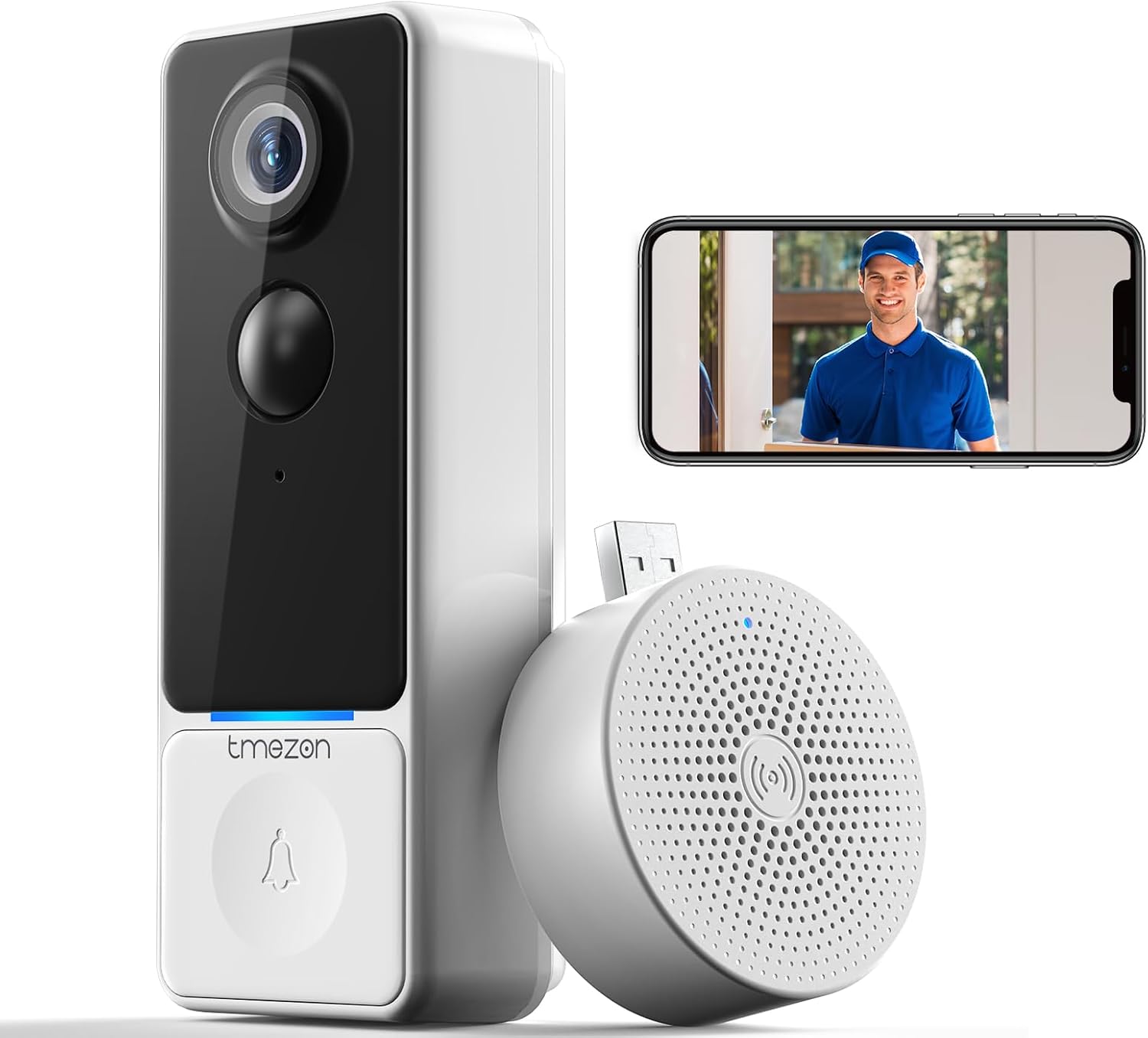
Image: The TMEZON Wireless Video Doorbell Camera, its accompanying wireless chime, and a smartphone displaying a live feed from the doorbell.
2. Key Features
- 100% Wireless & Easy Installation: Designed for quick setup without complex wiring or drilling. Replaces existing peepholes in minutes.
- 1080P HD Video & Infrared Night Vision: Provides clear, high-definition video day and night, allowing you to monitor your doorstep effectively.
- PIR Motion Detection & Alerts: Smart Passive Infrared (PIR) detection identifies human motion up to 16 feet, sending immediate and accurate alerts to your phone within approximately 3 seconds. Sensitivity is adjustable to minimize false alarms.
- Two-Way Audio & Pre-recorded Voice Messages: Engage in real-time conversations with visitors via the CloudEdge app. Supports up to three pre-recorded voice messages for quick responses when unavailable.
- Secure Cloud & Local Storage: Offers flexible storage options including encrypted cloud storage (7 days of video saved for ringing and PIR triggered events) and local storage via Micro SD card (up to 128GB, not included).
- IP65 Waterproof Rating: Ensures the doorbell camera is protected against dust and water splashes, suitable for outdoor installation.
- Long-lasting Battery Life: Equipped with a 5200mAh rechargeable battery.
- Alexa Compatibility: Supports voice control through Alexa-enabled devices.
3. Package Contents
Please verify that all items are present and in good condition upon opening the package.
- TMEZON Wireless Video Doorbell Camera
- Wireless Chime (with batteries included)
- Mounting Bracket
- Mounting Screws and Wall Anchors
- Adhesive Tapes for alternative mounting
- USB Charging Cable
- User Manual (this document)
4. Setup & Installation
4.1 Charging the Doorbell Camera
Before installation, ensure the doorbell camera is fully charged. Connect the provided USB charging cable to the doorbell and a compatible USB power adapter (not included). The charging indicator light will show the charging status.

Image: An internal view of the doorbell camera highlighting its 5200mAh rechargeable battery.
4.2 App Download and Account Creation
The TMEZON doorbell camera operates with the CloudEdge app. Download the app from:
Follow the in-app instructions to create a new account or log in if you already have one.
4.3 Pairing the Doorbell Camera and Chime
- Open the CloudEdge app and tap "Add Device" or the "+" icon.
- Select "Doorbell Camera" from the device list.
- Follow the on-screen prompts to connect the doorbell to your 2.4GHz Wi-Fi network. Ensure your Wi-Fi signal is strong at the installation location.
- To pair the wireless chime, plug it into a power outlet. Press the pairing button on the chime (refer to the chime's specific instructions if available).
- Press the doorbell button on the camera. The chime should ring, indicating successful pairing.

Image: The TMEZON doorbell camera installed on a wall, with the wireless chime visible in the background, indicating a connected system.
4.4 Mounting the Doorbell Camera
The doorbell can be mounted using screws or adhesive tapes.
- Screw Installation:
- Choose a suitable location near your door, ensuring good Wi-Fi coverage.
- Mark the drilling points using the mounting bracket as a template.
- Drill holes and insert wall anchors if necessary.
- Secure the mounting bracket to the wall with screws.
- Attach the doorbell camera to the mounting bracket.
- Adhesive Tape Installation:
- Clean the mounting surface thoroughly to ensure it is dry and free of dust or grease.
- Apply the adhesive tapes to the back of the mounting bracket or directly to the doorbell (if designed for direct adhesion).
- Press the doorbell firmly onto the desired surface for at least 30 seconds.

Image: Visual guide demonstrating two installation methods: securing the doorbell with screws into a wall and attaching it with adhesive tapes.
5. Operating Instructions
5.1 Live View and Two-Way Audio
Open the CloudEdge app to access the live view from your doorbell camera. When a visitor presses the doorbell button, your phone will receive a call notification via the app. Answer the call to initiate two-way communication.
- Speaking to Visitors: Tap the microphone icon in the app to speak.
- Listening to Visitors: Ensure the speaker icon is enabled to hear audio from the doorbell.
- Pre-recorded Voice Messages: The app allows you to pre-record up to three voice messages. These can be played back to visitors when you are unable to answer directly.

Image: A person speaking to a visitor through the doorbell camera, illustrating the two-way audio feature.

Image: A smartphone displaying options to send pre-recorded voice messages to a visitor at the door.
5.2 PIR Motion Detection
The doorbell camera is equipped with smart PIR motion detection to alert you to activity at your doorstep. It can differentiate between human motion and other movements (like pets or vehicles) to reduce false alarms.
- Sensitivity Adjustment: Adjust the motion detection sensitivity within the CloudEdge app settings to suit your environment.
- Alerts: Receive immediate notifications on your phone when motion is detected.

Image: A visual representation of PIR motion detection, showing a person entering the detection zone of the doorbell camera.

Image: A smartphone screen showing an "Alarm Message" notification from the CloudEdge app, indicating human detection by the doorbell camera.
5.3 Night Vision
The doorbell camera automatically switches to infrared night vision in low-light conditions, providing clear black-and-white video footage up to 33 feet.

Image: A split image demonstrating the 1080P HD clarity during the day and the clear infrared night vision capabilities of the doorbell camera.

Image: A screenshot of clear night vision footage captured by the doorbell camera, showing a well-lit outdoor area at night.
5.4 Storage Options (Cloud & Local)
The TMEZON doorbell offers two methods for video storage:
- Cloud Storage: Encrypted cloud storage is available. Video recordings triggered by doorbell rings or PIR motion detection are saved for the last 7 days on the CloudEdge app.
- Local Storage: Supports a Micro SD card up to 128GB (not included). The camera will automatically overwrite older files in a loop when the card is full.

Image: The doorbell camera with an inserted Micro SD card, alongside a smartphone displaying the CloudEdge app interface, illustrating both local and cloud storage options.
5.5 Alexa Integration
The TMEZON doorbell camera is compatible with Alexa. You can use voice commands to interact with your doorbell, such as asking Alexa to show you the front door feed on a compatible display device.

Image: An Alexa-enabled smart display showing the live video feed from the TMEZON doorbell camera, demonstrating hands-free voice control.
6. Maintenance
- Cleaning: Regularly wipe the camera lens and doorbell surface with a soft, damp cloth to ensure clear video quality and proper function. Do not use harsh chemicals.
- Battery Management: Monitor the battery level via the CloudEdge app. Recharge the doorbell promptly when the low battery alert is received.
- Firmware Updates: Check the CloudEdge app periodically for firmware updates to ensure optimal performance and access to new features.
- Wi-Fi Connection: Ensure your Wi-Fi router is functioning correctly and provides a stable signal to the doorbell camera.
7. Product Specifications
| Feature | Detail |
|---|---|
| Model Number | J24S |
| Video Resolution | 1080p HD |
| Connectivity | 2.4GHz Wi-Fi |
| Power Source | Battery Powered (5200mAh Lithium Ion) |
| Night Vision Range | Up to 33 feet |
| PIR Detection Range | Up to approximately 16 feet |
| Viewing Angle | 60 Degrees |
| Storage Options | Cloud Storage, Micro SD Card (up to 128GB, not included) |
| Waterproof Rating | IP65 |
| Compatible Devices | Alexa Assistant, iOS, Android |
| Material | Aluminum |
| Color | White |
| Item Weight | 1.08 pounds |
| Package Dimensions | 7.24 x 3.98 x 3.62 inches |

Image: A diagram illustrating the dimensions of the TMEZON Wireless Video Doorbell Camera (140mm x 52mm x 30mm) and its wireless chime (60mm diameter).
8. Troubleshooting
| Problem | Possible Cause / Solution |
|---|---|
| Doorbell not connecting to Wi-Fi |
|
| No motion detection alerts |
|
| Poor video quality / Night vision unclear |
|
| Two-way audio issues |
|
| Chime not ringing |
|
9. Safety Information
- Do not expose the device to extreme temperatures, direct sunlight, or excessive moisture.
- Use only the specified charging cable and power adapter.
- Do not attempt to disassemble or repair the device yourself. Refer to qualified service personnel.
- Keep the device out of reach of children and pets.
- Dispose of batteries according to local regulations. Do not incinerate.
10. Warranty & Customer Support
TMEZON is committed to providing high-quality security monitoring products and solutions. For any product-related inquiries, technical support, or warranty claims, please contact TMEZON customer service through the following channels:
- Online Support: Visit the official TMEZON website or the brand store on Amazon for FAQs and support resources.
- Email Support: Refer to your product packaging or the CloudEdge app for specific customer service email addresses.
Please have your product model number (J24S) and purchase information ready when contacting support.
Related documentsJ24S


Ask a question about this manual
Ask about setup, troubleshooting, compatibility, parts, safety, or missing instructions. Manuals+ will review the question and use this page’s manual context to help answer it.