
1. Introduction
This manual provides essential information for the proper setup, operation, and maintenance of your Gavigain 4G USB WiFi Dongle. Please read this manual thoroughly before using the device to ensure optimal performance and safety.
2. Package Contents
Verify that all items are present in the package:
- 1 x Gavigain 4G USB WiFi Dongle
- 1 x Instruction Manual
3. Product Overview
The Gavigain 4G USB WiFi Dongle is a portable device designed to provide internet access by converting a 4G cellular signal into a Wi-Fi hotspot. It supports multiple 4G networks and allows up to 10 devices to connect simultaneously.

Figure 3.1: Gavigain 4G USB WiFi Dongle, front view.
Key Features:
- Multi-User Support: Allows up to 10 users to share the internet connection.
- Plug-and-Play Functionality: Simple setup by inserting a SIM card and connecting to a USB power source.
- Multi-Device Connectivity: Supports simultaneous internet access for various devices including mobile phones, laptops, computers, and smart TVs.
- Fast and Stable Internet: Provides high-speed 4G network access with stable signal indicators.
- Secure Connection: Features WPA and WPA2 WiFi encryption for enhanced wireless network security.

Figure 3.2: Device supporting multiple 4G networks and user sharing.
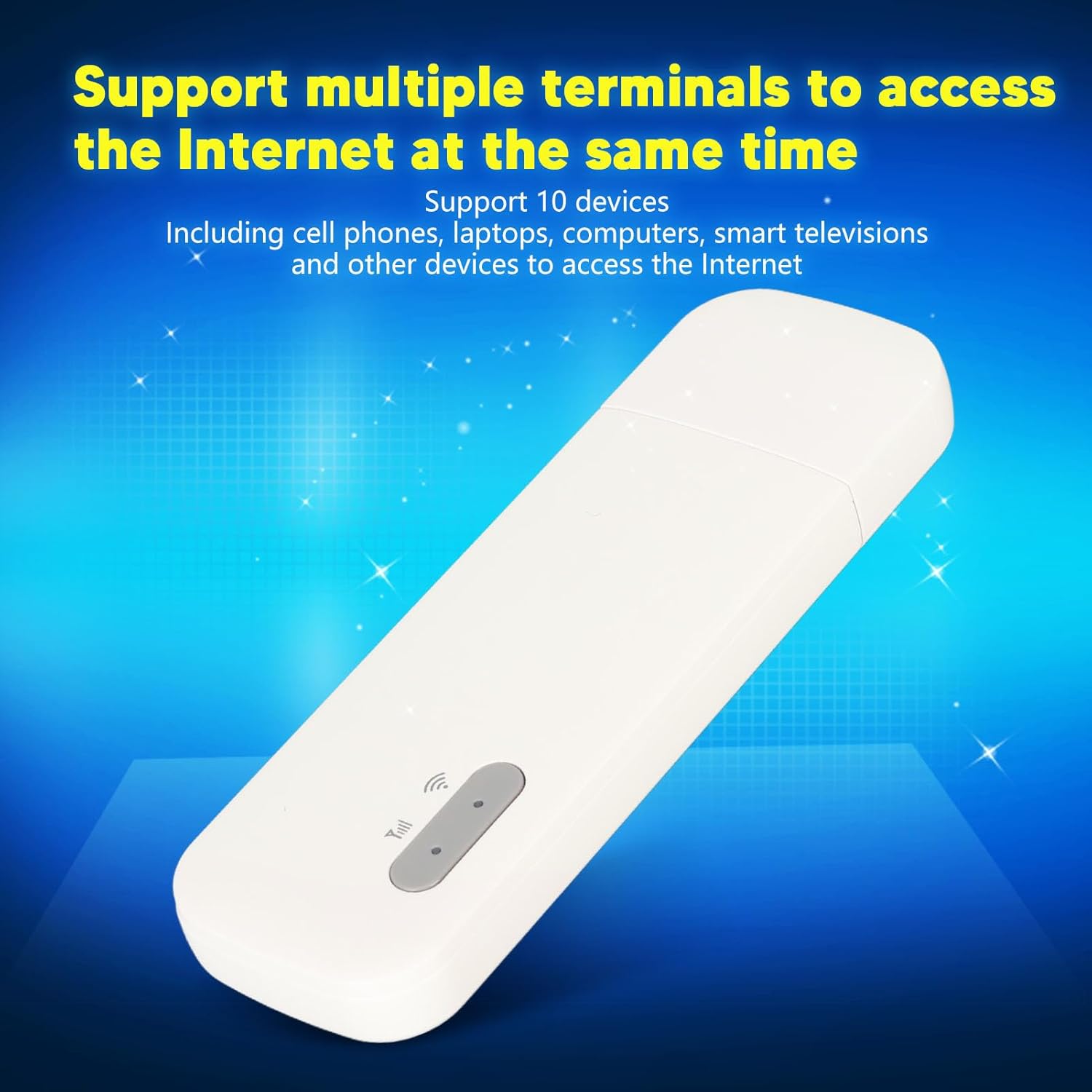
Figure 3.3: Device supporting simultaneous access for multiple terminals.

Figure 3.4: Device providing fast and stable high-speed internet access.
4. Setup
Follow these steps to set up your 4G USB WiFi Dongle:
- Insert Micro SIM Card: Locate the Micro SIM card slot on the device. Carefully insert your activated Micro SIM card into the slot until it clicks into place. Ensure the card is oriented correctly.
- Connect to Power: Plug the USB connector of the dongle into a compatible USB power source. This can be a mobile phone charger, car charger, power bank, or a USB port on a laptop/computer.

Figure 4.1: USB-A connector for power supply.
The device is designed for plug-and-play operation. Once powered, it will automatically detect the SIM card and establish a 4G network connection, broadcasting a Wi-Fi signal.
5. Operating Instructions
After successful setup, the device will begin broadcasting a Wi-Fi network. The indicator lights will provide status information.

Figure 5.1: Indicator lights for signal and Wi-Fi status.
Connecting Devices:
- On your Wi-Fi enabled device (e.g., smartphone, laptop), search for available Wi-Fi networks.
- Select the network name (SSID) corresponding to your Gavigain 4G USB WiFi Dongle. The SSID and password are typically found on a label on the device or in the packaging.
- Enter the Wi-Fi password when prompted.
- Once connected, your device will have internet access through the dongle's 4G connection.
The dongle supports up to 10 simultaneous connections. For security, the device utilizes WPA and WPA2 encryption protocols. It is recommended to change the default Wi-Fi password for enhanced security.
6. Maintenance
To ensure the longevity and proper functioning of your Gavigain 4G USB WiFi Dongle, follow these maintenance guidelines:
- Keep the device clean and free from dust. Use a soft, dry cloth for cleaning.
- Avoid exposing the device to extreme temperatures, direct sunlight, or high humidity.
- Do not drop or subject the device to strong impacts.
- Ensure the Micro SIM card slot is free from debris.
- Disconnect the device from the power source when not in use for extended periods.
7. Troubleshooting
If you encounter issues with your Gavigain 4G USB WiFi Dongle, refer to the following common troubleshooting steps:
| Problem | Possible Cause | Solution |
|---|---|---|
| No internet connection | SIM card not inserted correctly or not activated; no 4G signal; device not powered. | Ensure SIM card is properly inserted and active. Check for 4G network availability in your location. Verify the device is receiving power from the USB source. |
| Slow internet speed | Weak 4G signal; too many connected devices; network congestion. | Move to an area with better 4G signal. Disconnect unnecessary devices. Contact your service provider if issues persist. |
| Cannot connect to Wi-Fi | Incorrect Wi-Fi password; device not broadcasting Wi-Fi. | Double-check the Wi-Fi password. Ensure the dongle is powered on and its Wi-Fi indicator light is active. Restart the dongle and your connecting device. |
| Device is not recognized by computer | USB port issue; driver not installed (if applicable). | Try a different USB port. Ensure the device is designed for data transfer if you expect it to be recognized as a storage device or modem by a computer. |
8. Specifications
Technical specifications for the Gavigain 4G USB WiFi Dongle:
| Feature | Detail |
|---|---|
| Model | B0CLB2QDDY |
| Item Type | 4G USB WiFi |
| Material | ABS |
| Color | White |
| SIM Card Slot | Micro SIM Card |
| 4G LTE Bands | B1, B3, B5, B40 |
| Wi-Fi Support | 802.11 b, g, n |
| Max Users | Up to 10 |
| Item Weight | 1.41 ounces |
| Manufacturer | Gavigain |
9. Warranty and Support
For warranty information or technical support, please refer to the product packaging or contact Gavigain customer service through the retailer where the product was purchased. Keep your purchase receipt for warranty claims.