
WONLINK WL-AP7202-CAHS1-YAM
WONLINK Outdoor WiFi Extender User Manual
Model: WL-AP7202-CAHS1-YAM
1. Product Overview
The WONLINK Outdoor WiFi Extender (Model: WL-AP7202-CAHS1-YAM) is a high-performance, dual-band (2.4GHz and 5GHz) wireless device designed to extend your WiFi network coverage outdoors. It supports speeds up to 1200Mbps and features Power over Ethernet (PoE) for flexible installation. Its IP66 weatherproof and robust design ensures reliable operation in various outdoor environments.

Figure 1.1: Front view of the WONLINK Outdoor WiFi Extender, illustrating its wireless signal propagation.
Key Features
- Dual Band AC1200: Simultaneous 2.4GHz (300Mbps) and 5GHz (867Mbps) for high-speed connectivity.
- Power over Ethernet (PoE): Simplifies installation by delivering power and data over a single Ethernet cable.
- IP66 Weatherproof: Designed to withstand harsh outdoor conditions, including rain, dust, and extreme temperatures.
- Multiple Operating Modes: Supports Access Point (AP), Repeater, Bridge, and Router modes for versatile network deployment.
- High Power Amplifiers: Enhances signal strength and coverage for long-range outdoor applications.
- Gigabit Port: Ensures high-speed wired connections.
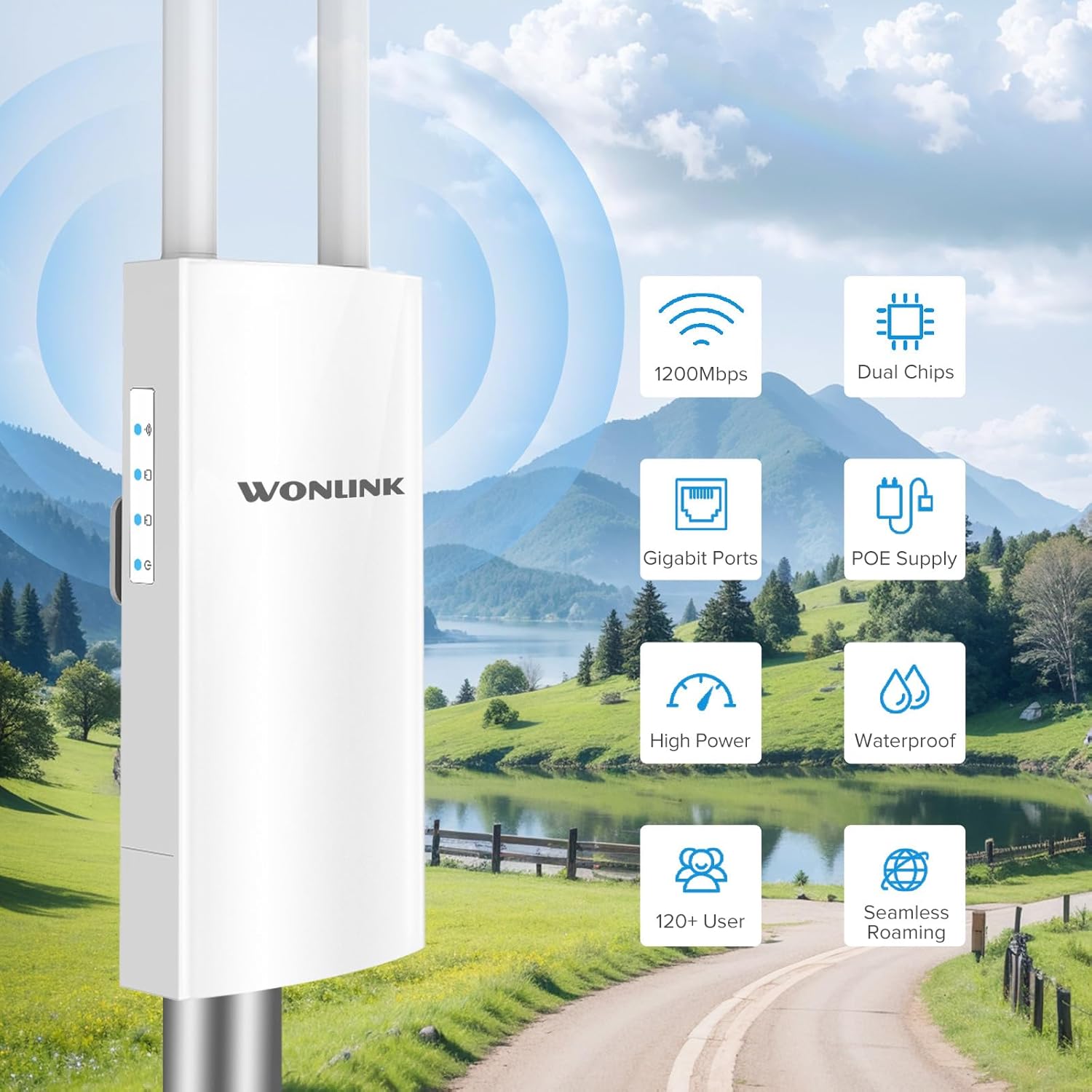
Figure 1.2: Overview of key features including 1200Mbps speed, dual chips, Gigabit ports, PoE supply, high power, waterproof design, support for 120+ users, and seamless roaming.

Figure 1.3: Breakdown of Dual Band AC1200 speeds, showing 5GHz (867Mbps) for less interference and faster speed, and 2.4GHz (300Mbps) for strong compatibility and better penetration.
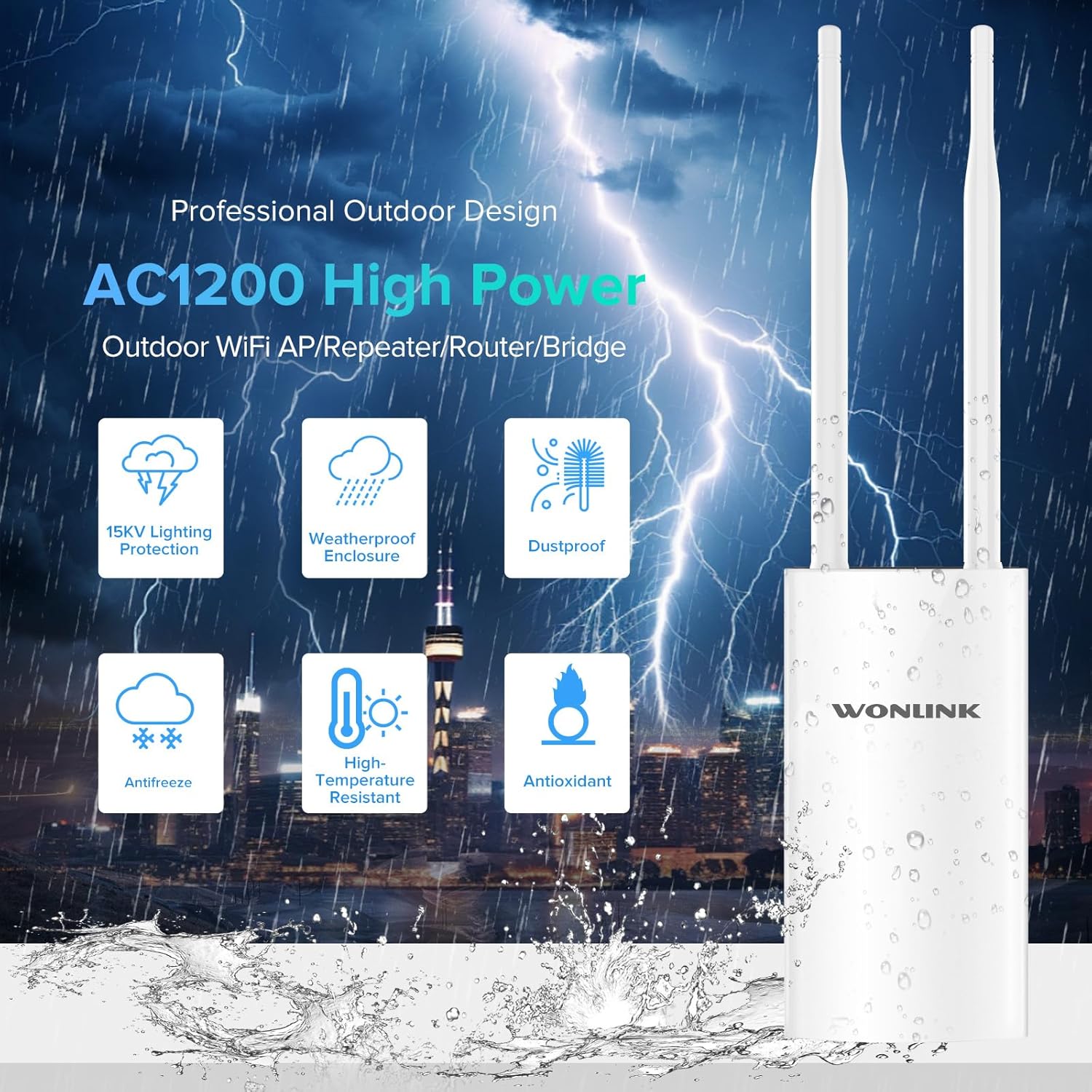
Figure 1.4: Features of the professional outdoor design, including 15KV lighting protection, weatherproof enclosure, dustproof, antifreeze, high-temperature resistance, and antioxidant properties.
2. Setup and Installation
This section guides you through the physical installation and initial configuration of your WONLINK Outdoor WiFi Extender.
2.1 Package Contents
Before starting, ensure all items are present in the package:
- 1 x Outdoor WiFi Extender
- 1 x 48V PoE Adapter
- 2 x Screws
- 1 x Quick Installation Guide
- 2 x Silicone Seals
- 2 x Stainless Ties
2.2 Physical Installation
The device can be mounted on a pole or wall using the provided accessories. Choose a location that offers optimal signal coverage and is within 80 meters of the PoE adapter.
- Attach the antennas to their respective ports on the device.
- Use the stainless ties to secure the device to a pole, or use screws with the bracket for wall mounting.
- Connect an Ethernet cable from the device's WAN/PoE port to the "PoE" port on the 48V PoE Adapter.
- Connect another Ethernet cable from the "LAN" port on the PoE Adapter to your router or network switch.
- Plug the power cord of the PoE Adapter into an electrical outlet.

Figure 2.1: Diagram illustrating the Power Over Ethernet (PoE) connection, showing the 48V PoE Adapter connecting the device to the network and power source.

Figure 2.2: Examples of multiple application scenarios, including yard, swimming pool area, park, and farm, demonstrating the versatility of the outdoor WiFi extender.
2.3 Initial Configuration
Refer to the Quick Installation Guide for detailed steps on accessing the web management interface and configuring the device for your desired operating mode (AP, Repeater, Bridge, or Router).

Figure 2.3: Visual representation of the four main operating modes: Access Point (AP) Mode, Repeater Mode, Bridge Mode, and Router Mode, showing how the device integrates into different network setups.
3. Operating Modes and Indicators
The WONLINK Outdoor WiFi Extender supports various operating modes to suit different network requirements.
3.1 Operating Modes
- Access Point (AP) Mode: Connects to a wired network and broadcasts a wireless signal, allowing wireless devices to connect.
- Repeater Mode: Extends the range of an existing wireless network by re-broadcasting its signal.
- Bridge Mode: Connects two wired networks wirelessly.
- Router Mode: Functions as a primary router, providing internet access to connected devices.
3.2 LED Indicators
The device features several LED indicators to show its status:
| Indicator | Status | Description |
|---|---|---|
| Power Indicator | Solid On | Device is powered on. |
| LAN Indicator | Solid On/Blinking | Indicates LAN port activity. |
| WAN Indicator | Solid On/Blinking | Indicates WAN port activity. |
| WiFi Signal Indicator | Solid On/Blinking | Indicates wireless signal activity. |

Figure 3.1: Detailed product overview showing the location of power, LAN, WAN, and WiFi signal indicators, antennas, bracket, LAN port, reset button, and WAN port.
4. Maintenance
Proper maintenance ensures the longevity and optimal performance of your outdoor WiFi extender.
- Cleaning: Periodically wipe the exterior of the device with a soft, damp cloth. Do not use harsh chemicals or abrasive cleaners. Ensure all ports are free from debris.
- Firmware Updates: Check the manufacturer's website (szwonlink.com) for available firmware updates. Keeping the firmware updated can improve performance and security.
- Environmental Protection: While the device is IP66 weatherproof, ensure proper installation to prevent water ingress into cable connections. Use the provided silicone seals for port protection.
5. Troubleshooting
If you encounter issues with your device, refer to the following common troubleshooting steps:
- No Power:
- Ensure the PoE adapter is properly connected to a power outlet and the device.
- Verify the power indicator LED is on.
- Check the Ethernet cable connecting the PoE adapter to the device.
- No Internet Access:
- Confirm your main router has internet access.
- Check the WAN/LAN indicator LEDs on the device and PoE adapter for activity.
- Ensure the device is configured correctly for its operating mode (AP, Repeater, Bridge, Router).
- Weak or Unstable WiFi Signal:
- Relocate the device to a more central position or higher elevation.
- Ensure antennas are securely attached and oriented correctly.
- Check for physical obstructions between the device and client devices.
- Cannot Access Web Management Interface:
- Verify your computer is connected to the device's network (either wirelessly or via Ethernet).
- Ensure you are using the correct IP address for the device (refer to the Quick Installation Guide).
- Temporarily disable any firewall or antivirus software on your computer.
- Factory Reset: If issues persist, you can perform a factory reset.
- With the device powered on, use a paperclip or pin to press and hold the Reset button (located near the ports) for approximately 5-10 seconds until the LEDs flash.
- The device will restart with factory default settings. You will need to reconfigure it.
6. Specifications
Detailed technical specifications for the WONLINK Outdoor WiFi Extender (WL-AP7202-CAHS1-YAM).
| Feature | Detail |
|---|---|
| Brand | WONLINK |
| Model | WL-AP7202-CAHS1-YAM |
| Data Transfer Rate | 1200 Megabits Per Second (Mbps) |
| Wireless Standard | 802.11n, 802.11ac |
| Frequency Band Class | Dual-Band (2.4GHz & 5GHz) |
| Frequency | 2412 MHz (2.4GHz band) |
| Number of Ports | 1 (Gigabit Ethernet) |
| Connectivity Technology | Wi-Fi (802.11ac, 802.11n), Ethernet |
| Compatible Devices | Laptop, Personal Computer, Smartphone |
| Security Protocol | WPA2, WPA3 |
| Ingress Protection (IP) Rating | IP66 Weatherproof |
| Power Supply | 48V PoE Adapter |
| Color | Beige White |
| Parcel Dimensions | 22.7 x 19.8 x 5.2 cm |
| Item Weight | 580 g |
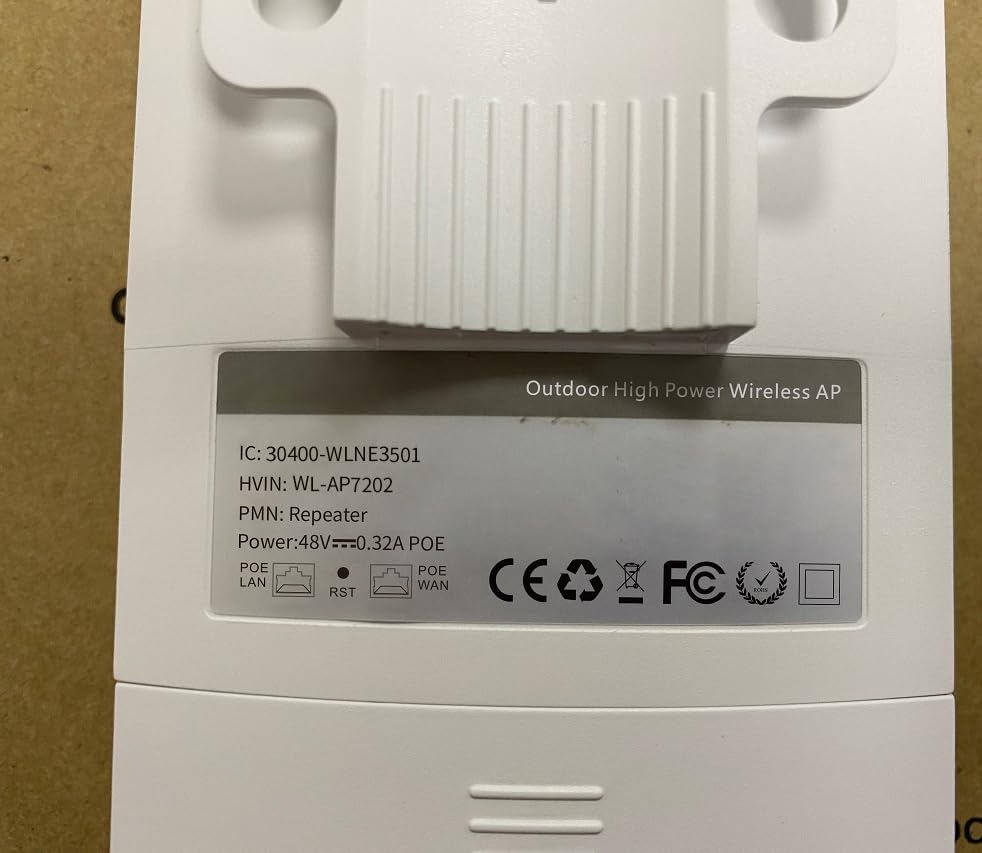
Figure 6.1: Back label of the device, displaying model number (WL-AP7202) and power specifications (48V PoE).
7. Warranty and Support
For warranty information, technical support, or further inquiries, please contact WONLINK customer service through their official website or the retailer from whom you purchased the product. Keep your purchase receipt for warranty claims.
Official Website: szwonlink.com
Related documentsWL-AP7202-CAHS1-YAM


Ask a question about this manual
Ask about setup, troubleshooting, compatibility, parts, safety, or missing instructions. Manuals+ will review the question and use this page’s manual context to help answer it.