
1. Introduction
This manual provides detailed instructions for the setup, operation, and maintenance of your Peplink MAX BR1 Pro 5G Router. The MAX BR1 Pro 5G is an all-in-one solution designed for robust and reliable internet connectivity, featuring an x62 5G module, Wi-Fi 6, and 2x2 MU-MIMO technology.
2. Package Contents
Verify that all items listed below are included in your package:
- 1x BR1 Pro 5G Router
- 1x 12V2A Power Supply
- 4x LTE/5G Antennas
- 2x Wi-Fi Dual Band Antennas
- 1x GPS Antenna

Image: Contents of the Peplink MAX BR1 Pro 5G package, including the router, power supply, LTE/5G antennas, Wi-Fi antennas, and GPS antenna.
3. Product Features
The Peplink MAX BR1 Pro 5G Router offers advanced features for reliable and high-speed connectivity:
- High-Speed 5G Connectivity: Equipped with the new x62 Qualcomm Snapdragon 5G Module, supporting downlink/uplink datarates of 3.4 Gbps / 900 Mbps.
- Multi-WAN Ports: Includes 2x 10/100/1000M LAN ports and 1x 10/100/1000/2500M WAN port. The WAN port can also function as a LAN port.
- Wi-Fi 6: Simultaneous Dual-Band 2.4GHz/5GHz Wi-Fi 6 with 2x2 MU-MIMO for efficient wireless communication.
- Redundant SIM Slot: Features 1x 5G Modem with a redundant SIM slot for continuous cellular connectivity.
- Robust Throughput: Achieves 1 Gbps router throughput.
- SpeedFusion Technology: Provides advanced features like failover and bonding for enhanced reliability and performance.
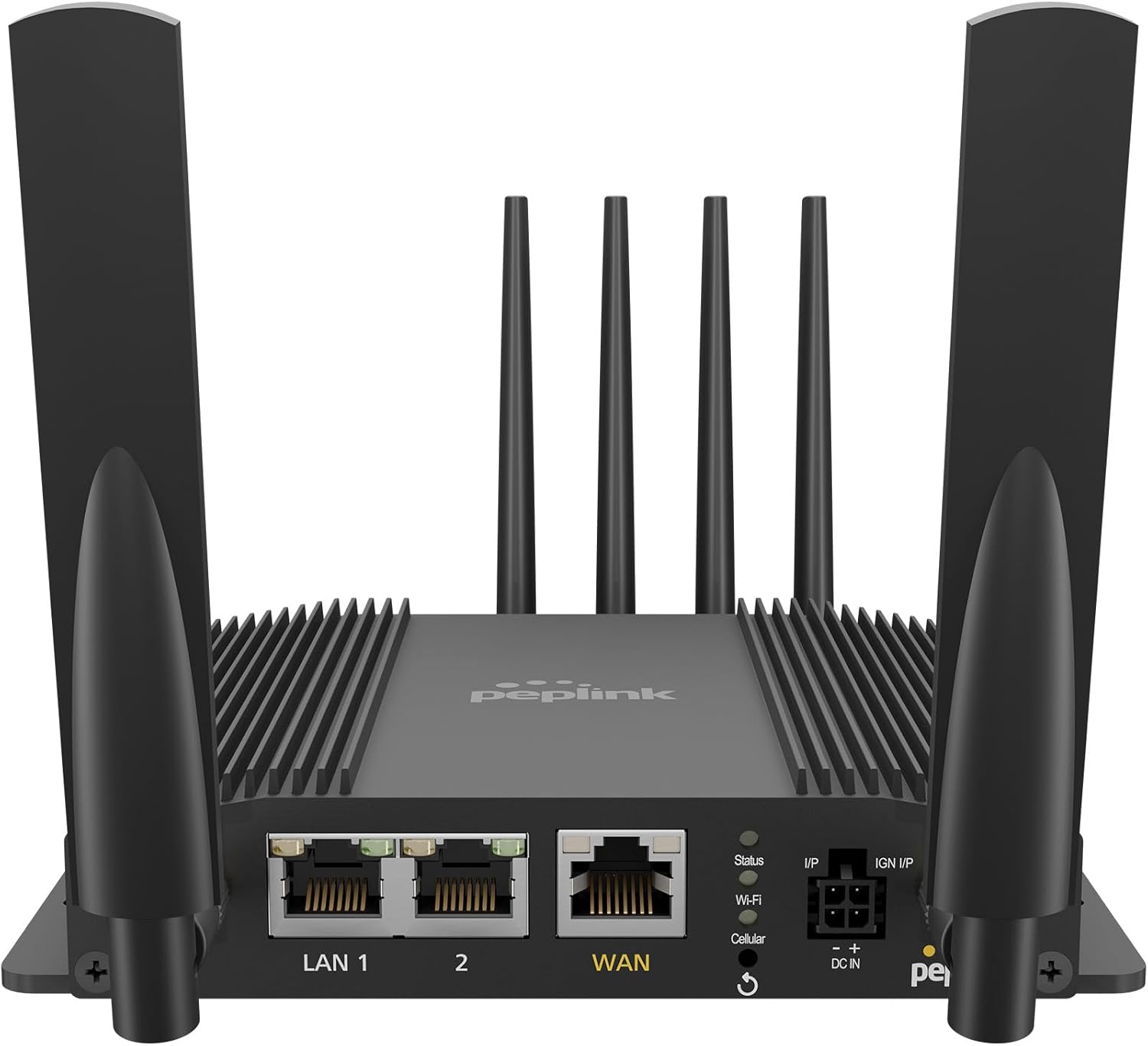
Image: Front view of the Peplink MAX BR1 Pro 5G Router, showing the Ethernet ports (LAN 1, LAN 2, WAN), status indicators, and antenna connections.
4. Setup Guide
4.1. Device Overview and Connections
Familiarize yourself with the router's ports and indicators:

Image: Detailed view of the Peplink MAX BR1 Pro 5G Router, showing the front panel with LAN/WAN ports, status LEDs, power input, and the rear panel with Cellular A-D and GPS antenna connectors, along with redundant SIM slots.
4.2. Antenna Installation
- Connect the four LTE/5G antennas to the Cellular A, B, C, and D ports on the rear of the router.
- Connect the two Wi-Fi antennas to the Wi-Fi A and Wi-Fi B ports.
- Connect the GPS antenna to the GPS port.
4.3. SIM Card Installation
The router supports redundant SIM slots. Insert your activated Nano-SIM card(s) into the designated SIM slots located on the side of the device. Ensure the SIM card is correctly oriented before insertion.
4.4. Powering On
- Connect the 12V2A power supply to the DC IN port on the router.
- Plug the power supply into a power outlet.
- The router will automatically power on. Observe the status indicator lights on the front panel.
4.5. Initial Configuration
Access the router's web administration interface by connecting a computer to one of the LAN ports or via Wi-Fi. Open a web browser and navigate to the default IP address (typically 192.168.50.1 or as specified in the quick start guide). Follow the on-screen instructions for initial setup, including setting up your Wi-Fi network and cellular connections.
5. Operating Instructions
5.1. Network Connectivity
The MAX BR1 Pro 5G can utilize multiple internet sources simultaneously, including 5G cellular, wired WAN, and Wi-Fi WAN. The router intelligently manages these connections to provide stable internet access.
- Cellular: The primary 5G modem provides high-speed cellular data. If multiple SIMs are installed, you can configure priority or failover in the web interface.
- Wired WAN: Connect an Ethernet cable from an external modem (e.g., Starlink, DSL, Cable) to the WAN port for an additional internet source.
- Wi-Fi WAN: The router can connect to an existing Wi-Fi network as a WAN source, extending its reach or providing another failover option.

Image: Network diagram illustrating the Peplink BR1 Pro 5G router integrating 5G/LTE cellular, Starlink via WAN, and Wi-Fi 6 for seamless internet connectivity and SpeedFusion VPN.
5.2. SpeedFusion Technology
The router incorporates Peplink's patented SpeedFusion technology, which allows for seamless failover between different internet connections and can bond multiple connections for increased bandwidth and reliability. Configure SpeedFusion settings via the web administration interface.
5.3. Wi-Fi Configuration
Manage your Wi-Fi networks (SSID, password, security settings) through the web interface. For optimal Wi-Fi performance, especially in congested environments, consider adjusting the regulatory domain setting. Some users have reported that setting the regulatory domain to "Canada" can unlock a wider range of legal Wi-Fi channels in the US, potentially improving signal quality and reducing interference.
6. Maintenance
6.1. Firmware Updates
Regularly check for and install firmware updates to ensure optimal performance, security, and access to new features. Firmware updates can be managed through the router's web administration interface.
6.2. Heat Management
The MAX BR1 Pro 5G is designed for passive cooling. Ensure the router is placed in a location with adequate airflow and is not obstructed. While the device is designed to operate within specified temperature ranges, prolonged exposure to high ambient temperatures or restricted airflow can affect its lifespan. If operating in consistently hot environments, consider additional cooling solutions.
6.3. Cleaning
Clean the exterior of the router with a soft, dry cloth. Do not use liquid cleaners or aerosols.
7. Troubleshooting
- No Internet Connection:
- Verify that all antennas are securely connected.
- Check SIM card insertion and activation status.
- Confirm WAN cable connections if using wired internet.
- Access the web interface to check the status of each WAN connection and review event logs.
- Slow Speeds:
- Ensure optimal antenna placement for cellular signal reception.
- Check for network congestion or data caps with your cellular provider.
- Review SpeedFusion settings if multiple WANs are configured.
- Wi-Fi Issues:
- Confirm Wi-Fi antennas are properly attached.
- Check Wi-Fi settings (SSID, password, channel) in the web interface.
- Consider changing Wi-Fi channels to avoid interference.
For more detailed troubleshooting or advanced diagnostics, refer to the comprehensive documentation available on the Peplink support website or contact Peplink technical support.
8. Technical Specifications
| Model Number | MAX-BR1-PRO-5GN-T-PRM |
| Dimensions | 6 x 5 x 2 inches (152.4 x 127 x 50.8 mm) |
| Item Weight | 3.21 pounds (1.46 kg) |
| Connectivity Technology | 5G, Wi-Fi 6 (2.4GHz/5GHz Dual-Band) |
| 5G Module | Qualcomm Snapdragon x62 |
| Downlink/Uplink Datarate (5G) | 3.4 Gbps / 900 Mbps |
| LAN Ports | 2x 10/100/1000M Ethernet |
| WAN Port | 1x 10/100/1000/2500M Ethernet (can act as LAN) |
| Router Throughput | 1 Gbps |
| Wi-Fi Standard | Wi-Fi 6 (802.11ax), 2x2 MU-MIMO |
| Transmit Power (2.4GHz/5GHz) | 21 dBm / 22 dBm |
| SIM Slots | Redundant SIM Slot (Nano-SIM) |
| Compatible Devices | Access Point, Personal Computer, Smartphone, Switch |
| Internet Service Providers | AT&T, T-Mobile, Verizon, FirstNet, US Cellular (compatibility may vary) |

Image: Side view of the Peplink MAX BR1 Pro 5G Router, showing its compact dimensions of 146.8 mm length, 129 mm width, and 29.3 mm height.
9. Warranty and Support
9.1. Warranty Information
For detailed warranty information, please refer to the warranty card included with your product or visit the official Peplink website. Keep your proof of purchase for warranty claims.
9.2. Technical Support
If you encounter issues that cannot be resolved using this manual or the troubleshooting section, please contact Peplink technical support. Support resources, including FAQs, knowledge base articles, and contact information, are available on the official Peplink website.
Official Peplink Website: www.peplink.com


