
1. Introduction
Thank you for choosing the TITAN ARMY 31.5 Inch 4K UHD Monitor P32H2U. This monitor is designed to provide a superior visual experience with its 3840x2160p resolution, USB-C connectivity, built-in speakers, HDR10 support, and eye care features. This manual provides essential information for setting up, operating, and maintaining your monitor.

Figure 1: Front view of the TITAN ARMY P32H2U Monitor.
2. Safety Information
Please read all instructions carefully before using this monitor. Keep this manual for future reference.
- Do not expose the monitor to rain or moisture to prevent fire or electric shock.
- Do not open the monitor casing. There are no user-serviceable parts inside. Refer all servicing to qualified personnel.
- Place the monitor on a stable, flat surface to prevent it from falling.
- Ensure proper ventilation around the monitor. Do not block ventilation openings.
- Use only the power adapter and cables provided or specified by the manufacturer.
- Unplug the monitor from the power outlet during lightning storms or when unused for long periods.
3. Package Contents
Verify that all items are present in your package:
- TITAN ARMY 31.5 Inch 4K UHD Monitor
- Monitor Stand (Base and Neck)
- Power Cable
- HDMI Cable
- USB-C Cable
- Screws for Stand Assembly
- User Manual
The following video demonstrates the unboxing and quick installation process:
Video 1: Unboxing and Quick Installation of the TITAN ARMY P32H2U Monitor. This video demonstrates how to unpack the monitor and quickly assemble its stand and connect the necessary cables.
4. Setup
4.1 Assembling the Stand
- Carefully remove the monitor and stand components from the packaging.
- Attach the stand neck to the monitor panel using the provided screws.
- Attach the stand base to the stand neck, securing it with the thumb screw or screws as indicated.
- Place the assembled monitor on a stable desk.
4.2 Connecting Cables
The monitor supports multiple input options. Connect the appropriate cable from your computer to the monitor.
- Power Connection: Connect the power cable to the monitor's power input and then to a power outlet.
- HDMI Connection: Connect one end of the HDMI cable to your computer's HDMI output and the other end to an HDMI port on the monitor.
- DisplayPort (DP) Connection: Connect one end of the DisplayPort cable to your computer's DP output and the other end to the DP port on the monitor.
- USB-C Connection: For devices supporting USB-C Alt Mode, connect a USB-C cable from your device to the monitor's USB-C port. This single connection can provide video, data, and power delivery (up to 65W).
- Audio Out: Connect external speakers or headphones to the 3.5mm audio out port if desired.

Figure 2: Rear view of the monitor displaying HDMI, DisplayPort, USB-C, and Audio Out ports, along with ergonomic adjustment capabilities.

Figure 3: A laptop connected to the monitor using a single USB-C cable for video, data, and power delivery.
4.3 VESA Mounting
The monitor supports 75x75mm VESA mounting. If you wish to mount the monitor on a wall or an alternative stand, remove the original stand and attach your VESA-compatible mount using appropriate screws (not always included).
5. Operating Instructions
5.1 Power On/Off
Press the power button located on the monitor to turn it on or off. The power indicator light will show the monitor's status.
5.2 On-Screen Display (OSD) Menu
The OSD menu allows you to adjust various monitor settings. Use the control buttons or joystick (location varies by model) on the monitor to navigate the menu.
- Input Source: Select between HDMI, DisplayPort, or USB-C inputs.
- Picture Settings: Adjust Brightness, Contrast, Color Temperature, Sharpness, and Gamma.
- Color Modes: Choose from various preset color modes or customize your own. The monitor covers 95% DCI-P3 color gamut for rich, expressive hues.
- HDR Mode: Enable or disable HDR10 for enhanced dynamic range.
- Audio Settings: Control the volume of the built-in dual 3W stereo speakers.
- PIP/PBP: Picture-in-Picture (PIP) and Picture-by-Picture (PBP) modes allow displaying multiple input sources simultaneously for enhanced multitasking.
- Adaptive Sync: Enable Adaptive Sync to reduce screen tearing and stuttering during gaming.
- Eye Care: Activate Low Blue Light mode and benefit from the Flicker-Free design to reduce eye strain during prolonged use.

Figure 4: Visual comparison demonstrating the superior detail of 4K Ultra High-resolution image quality.

Figure 5: Illustrates the difference between Standard Dynamic Range (SDR) and High Dynamic Range (HDR10) image display, showing richer colors with HDR10.
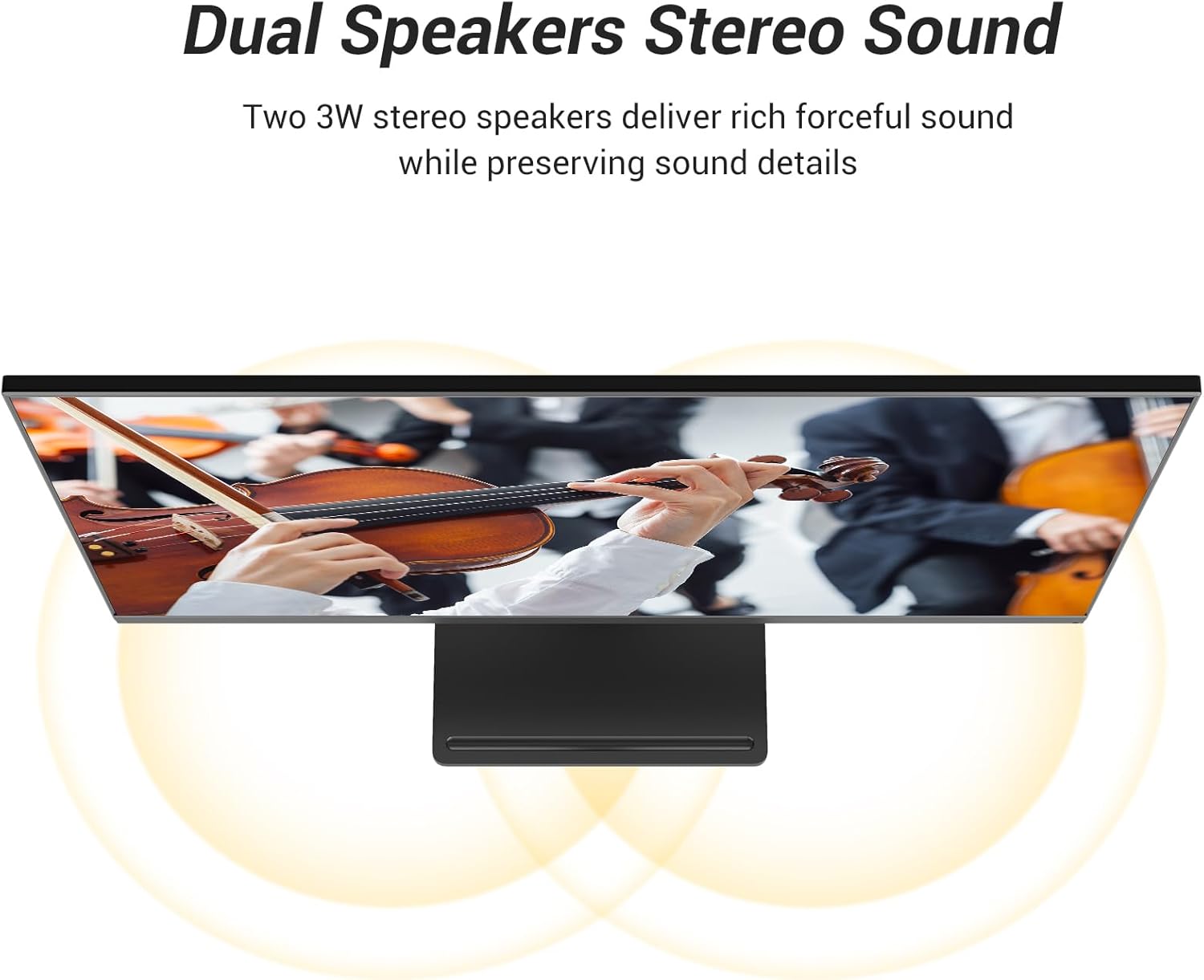
Figure 6: Diagram showing the dual 3W stereo speakers and their sound projection.
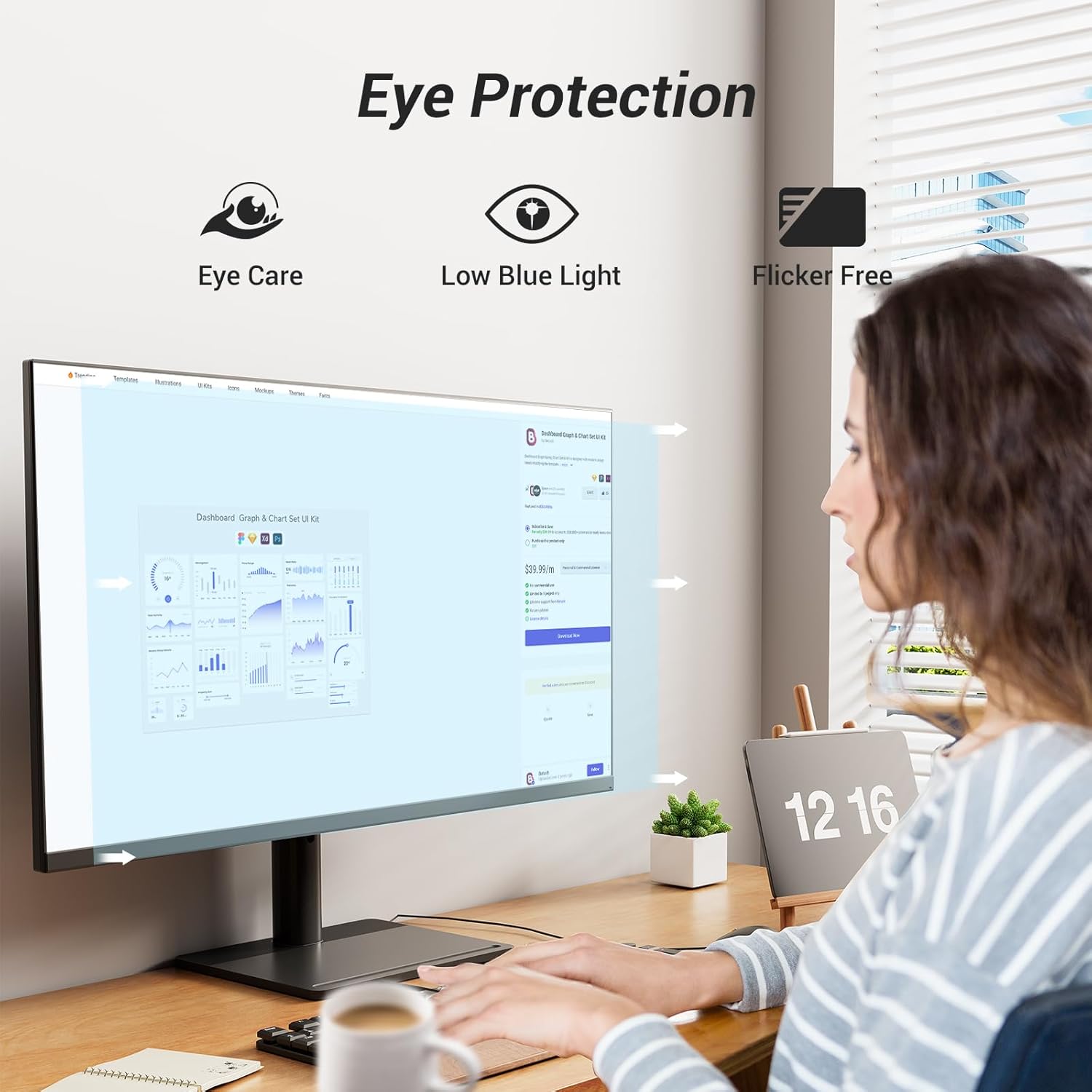
Figure 7: Visual representation of the monitor's Eye Care, Low Blue Light, and Flicker-Free technologies.
5.3 Ergonomic Adjustments
The monitor stand allows for various adjustments to optimize your viewing comfort:
- Height Adjustment: Adjust the monitor height by 105±5mm.
- Tilt Angle: Tilt the screen from -5° to 15° to find your preferred viewing angle.
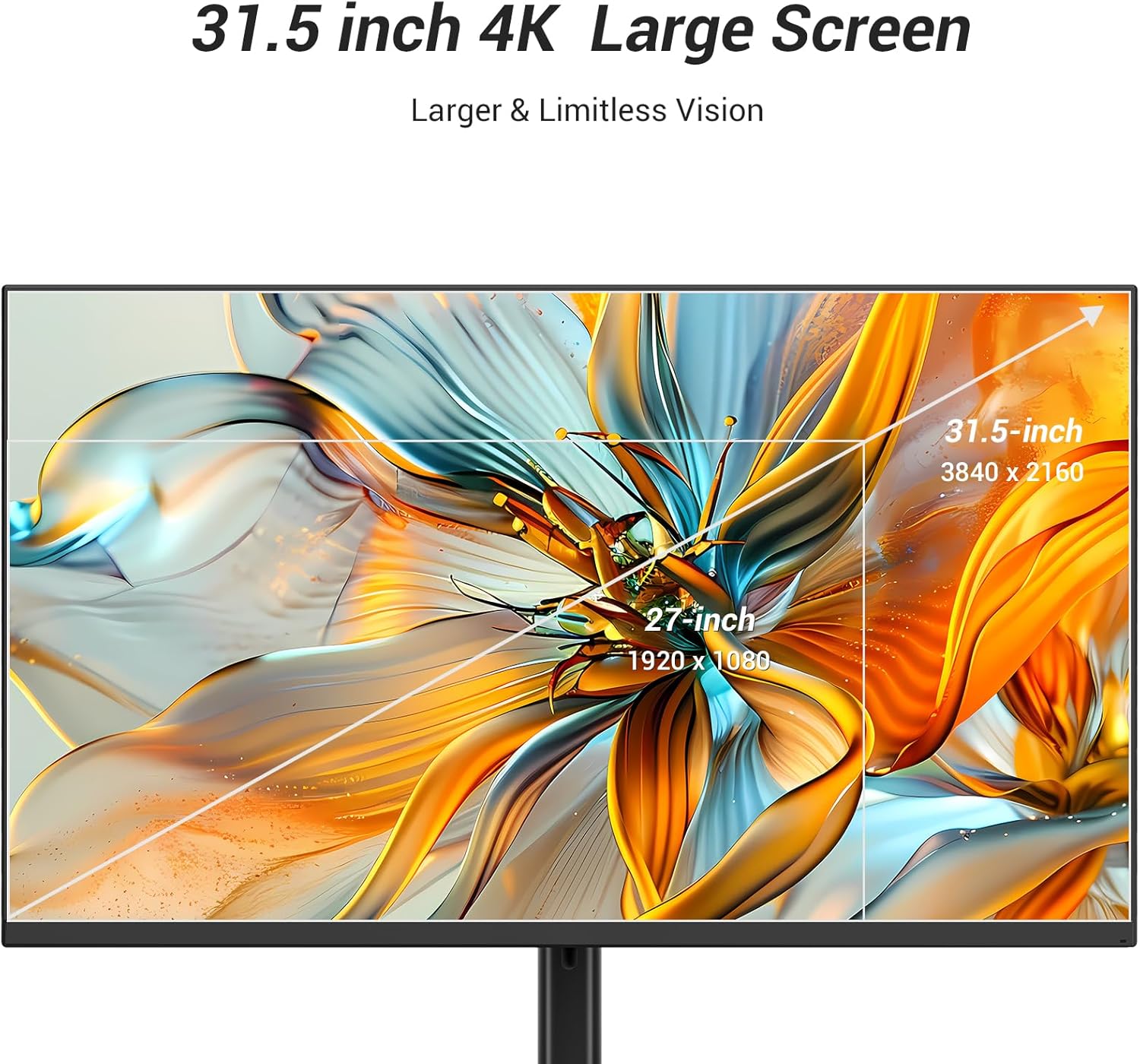
Figure 8: Illustrations of the monitor's height adjustment and tilt angle capabilities.
6. Maintenance
Proper care ensures the longevity of your monitor.
- Cleaning the Screen: Gently wipe the screen with a soft, lint-free cloth. For stubborn marks, dampen the cloth with a small amount of mild, non-abrasive screen cleaner. Never spray cleaner directly onto the screen.
- Cleaning the Casing: Use a soft, dry cloth to wipe the monitor casing. Avoid using strong detergents or abrasive cleaners.
- Ventilation: Ensure the ventilation openings on the monitor are clear of dust and obstructions to prevent overheating.
7. Troubleshooting
If you encounter issues with your monitor, refer to the following common problems and solutions:
| Problem | Possible Solution |
|---|---|
| No image on screen |
|
| Screen flickering |
|
| No sound from built-in speakers |
|
| Image is too dark/bright or colors are off |
|
8. Specifications
Key technical specifications for the TITAN ARMY P32H2U Monitor:
| Feature | Specification |
|---|---|
| Model Number | P32H2U |
| Screen Size | 31.5 inches |
| Resolution | 3840 x 2160 Pixels (4K UHD) |
| Aspect Ratio | 16:9 |
| Image Brightness | 280 nits |
| Color Gamut | 95% DCI-P3 |
| HDR Support | HDR10 |
| Connectivity | HDMI, DisplayPort, USB-C (65W Power Delivery), Audio Out |
| Built-in Speakers | Dual 3W Stereo Speakers |
| VESA Mounting | 75x75mm |
| Ergonomics | Height Adjustment (105±5mm), Tilt Angle (-5° to 15°) |
| Eye Care Features | Low Blue Light, Flicker-Free |
| Product Dimensions | 8.27 x 14.96 x 19.29 inches |
| Item Weight | 24.2 pounds |
9. Warranty and Support
For warranty information or technical support, please refer to the warranty card included with your product or visit the official TITAN ARMY website. You may also contact customer service through your retailer for assistance.