
1. Safety Information
Please read all instructions carefully before using the iZEEKER Projector. Keep this manual for future reference.
- Power Supply: Use only the specified power adapter. Ensure the voltage is compatible with your region.
- Ventilation: Do not block ventilation openings. Ensure adequate space around the projector for proper airflow to prevent overheating.
- Environment: Avoid exposing the projector to rain, moisture, direct sunlight, or extreme temperatures. Do not place it near heat sources.
- Cleaning: Unplug the projector before cleaning. Use a soft, dry cloth. Do not use liquid or aerosol cleaners.
- Eye Protection: Do not look directly into the projector lens when the lamp is on. The iZEEKER projector utilizes diffuse reflection technology to reduce blue light exposure and eye fatigue.
- Children: Keep the projector out of reach of small children. Supervise children when the projector is in use.
- Disassembly: Do not attempt to disassemble or repair the projector yourself. Refer all servicing to qualified personnel.

2. Package Contents
Verify that all items listed below are included in your package:
- iZEEKER Projector (Model: iPL320)
- Power Adapter
- Remote Control
- HDMI Cable
- AV Cable
- User Manual
- Customized Tripod

3. Product Overview
3.1 Key Features
- Bluetooth 5.2: For enhanced audio experience with external Bluetooth speakers or headphones. Note: Bluetooth is for audio output only, not for screen mirroring.
- High Brightness & Resolution: 12000 Lux brightness and native 1080P resolution with 100% NTSC color reproduction and 10000:1 contrast ratio for clear, realistic images.
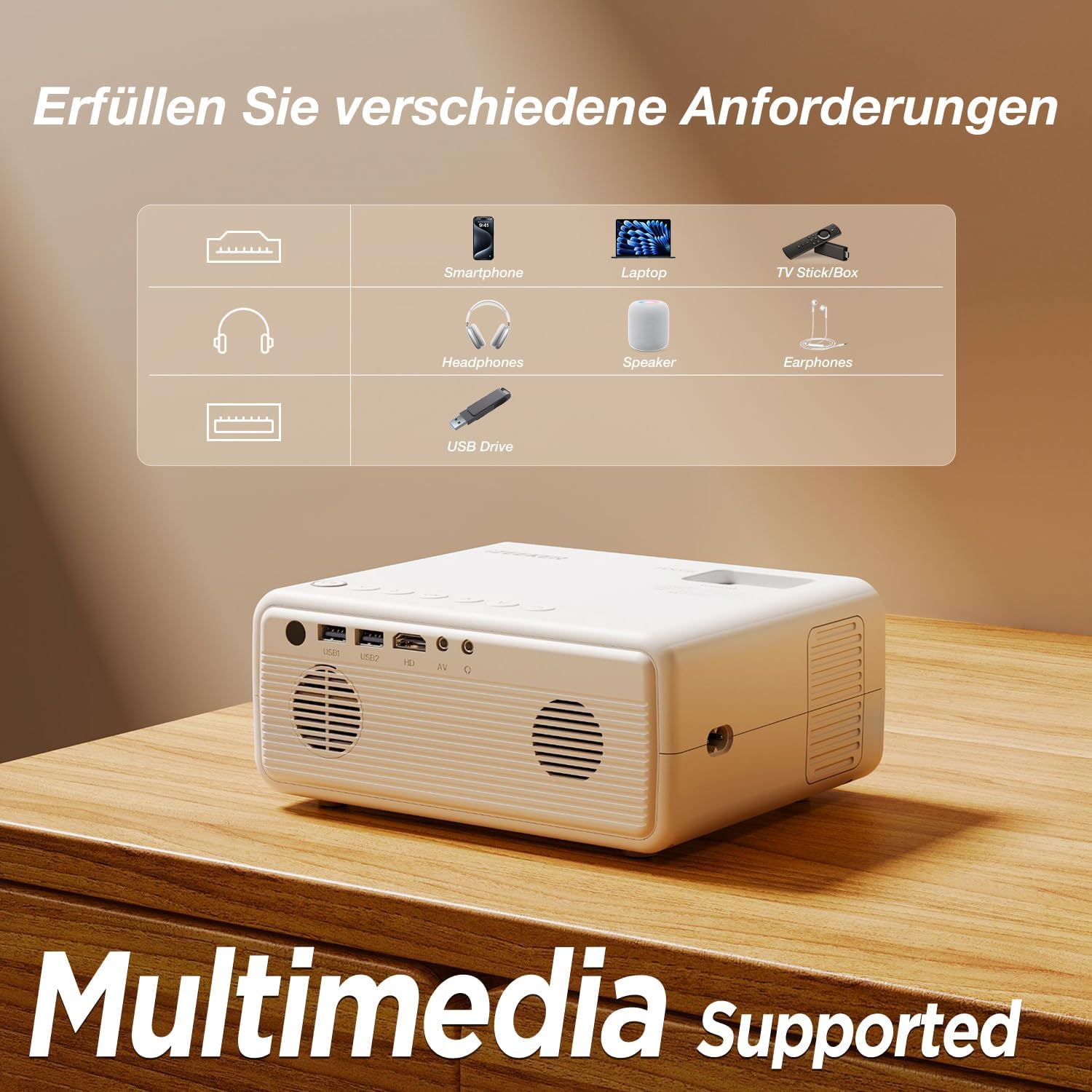
- Multi-Device Connectivity: Equipped with HDMI, AV, USB, and Aux ports for stable connections to smartphones, laptops, PS5, TV boxes, and DVD players.
- Large Screen Projection: Supports up to a 250-inch screen size with 75% zoom function for flexible screen adjustment without moving the projector.
- Eye Protection: High-refraction lenses and diffuse reflection technology reduce blue light and eye fatigue.


4. Setup
4.1 Placement
Choose a flat, stable surface for the projector. The projection distance affects the screen size. For optimal viewing, ensure the projector is perpendicular to the projection surface.
- The projector can be placed on a table, mounted on the included tripod, or ceiling-mounted.
- Adjust the distance to achieve your desired screen size, up to 250 inches.

4.2 Power Connection
Connect the power adapter to the projector's power input port, then plug the adapter into a power outlet.
4.3 Focus and Keystone Adjustment
After powering on, adjust the focus ring on the projector lens until the image is clear. Use the keystone correction dial to adjust the image shape if it appears trapezoidal.

4.4 Connecting Devices
The projector supports various wired connections for stable performance:
- HDMI: Connect laptops, gaming consoles (PS5), TV boxes, or DVD players using an HDMI cable.
- USB: Insert a USB drive to play media files directly.
- AV: Use the AV port for older devices.
- Smartphones (Wired):
- iOS Devices: Requires an Apple Lightning to HDMI adapter cable (not included).
- Android Devices: Requires a Micro USB/Type-C to HDMI cable (not included).


4.5 Bluetooth Audio Connection
To connect external Bluetooth speakers or headphones:
- Ensure your Bluetooth audio device is in pairing mode.
- On the projector, navigate to the Bluetooth settings menu.
- Select your device from the list of available devices to pair.
NOTE: The Bluetooth function is for audio output only and does not support screen mirroring from mobile devices.

5. Operating Instructions
5.1 Power On/Off
- Power On: Press the power button on the projector or remote control.
- Power Off: Press the power button again. Confirm shutdown if prompted.
5.2 Menu Navigation
Use the navigation buttons on the projector or remote control to browse the on-screen menu. The "OK" button confirms selections, and the "Back" button returns to the previous screen.
5.3 Input Source Selection
Press the "Source" button on the remote control or projector to select the desired input (e.g., HDMI1, USB, AV).
5.4 Zoom Function
The projector features a 75% zoom function. Access this setting in the projector's menu to adjust the screen size without physically moving the projector.


6. Maintenance
6.1 Cleaning the Lens
Use a professional lens cleaning cloth or air blower to clean the projector lens. Do not touch the lens directly with your hands or use abrasive cleaners.
6.2 Cleaning the Projector Body
Wipe the projector's exterior with a soft, dry cloth. Do not use liquid, abrasive, or corrosive cleaners.
6.3 Storage
When not in use for extended periods, store the projector in a cool, dry, dust-free environment. Use the original packaging or a protective case to prevent damage.
7. Troubleshooting
| Problem | Possible Cause | Solution |
|---|---|---|
| No image/No signal | Incorrect input source selected; Cable not connected properly; Device not powered on. | Select the correct input source (HDMI, USB, AV). Check all cable connections. Ensure the connected device is powered on. |
| Blurry image | Focus not adjusted; Projector too far/close; Lens dirty. | Adjust the focus ring. Adjust projection distance. Clean the projector lens. |
| Trapezoidal image | Projector not perpendicular to screen. | Adjust the keystone correction dial. Reposition the projector. |
| No sound | Volume too low; Muted; External audio device not connected/paired. | Increase volume. Unmute. Check Bluetooth connection for external speakers/headphones. |
| Cannot play Netflix/Prime Video | Copyright restrictions. | These services can only be played via a TV Stick (e.g., Amazon Fire Stick) connected to the projector's HDMI port. |
8. Specifications
| Brand | iZEEKER |
| Model Number | iPL320 |
| Product Type | Portable Projector |
| Brightness | 12000 Lux |
| Display Resolution | 1920 x 1080 (1080P Native) |
| Maximum Display Resolution | 1920 x 1080 |
| Contrast Ratio | Up to 10000:1 |
| Connectivity Technology | Bluetooth 5.2, HDMI, USB, AV, Aux |
| Screen Size (Max) | 250 Inches |
| Zoom Function | 75% |
| Product Dimensions | 19L x 15.8W x 8.6H centimeters |
| Mounting Type | Tripod Mount |
| Recommended Uses | Home Cinema |
9. Warranty & Support
iZEEKER is committed to providing excellent customer service.
- Manufacturer Warranty: The iZEEKER Projector comes with a free 2-year after-sales warranty.
- Technical Support: Professional lifetime technical support is available.
- Contact Us: If you have any questions, issues, or require assistance, please do not hesitate to contact iZEEKER customer support. Refer to the contact information provided in your product packaging or on the official iZEEKER website.


