
1. Introduction
This manual provides detailed instructions for the installation, operation, and maintenance of your Vtopek W19S 4K Dual Car Dashcam. Please read this manual thoroughly before using the product to ensure proper functionality and safety. This dashcam is designed to record high-quality video footage of your journeys, offering features such as 4K resolution, front and rear camera recording, WiFi connectivity, GPS tracking, night vision, and parking monitoring.

2. Product Features
- Ultra-HD 4K Recording: Records in 4K (front) and 1080P (rear) resolutions, capturing clear details like license plates and road signs.
- Dual Wide-Angle Lenses: Front camera with 170° wide angle and rear camera with 140° wide angle to minimize blind spots.
- Super Night Vision: Equipped with F1.6 large aperture, 6-layer optical lens, and HDR/WDR technology for enhanced clarity in low-light conditions.
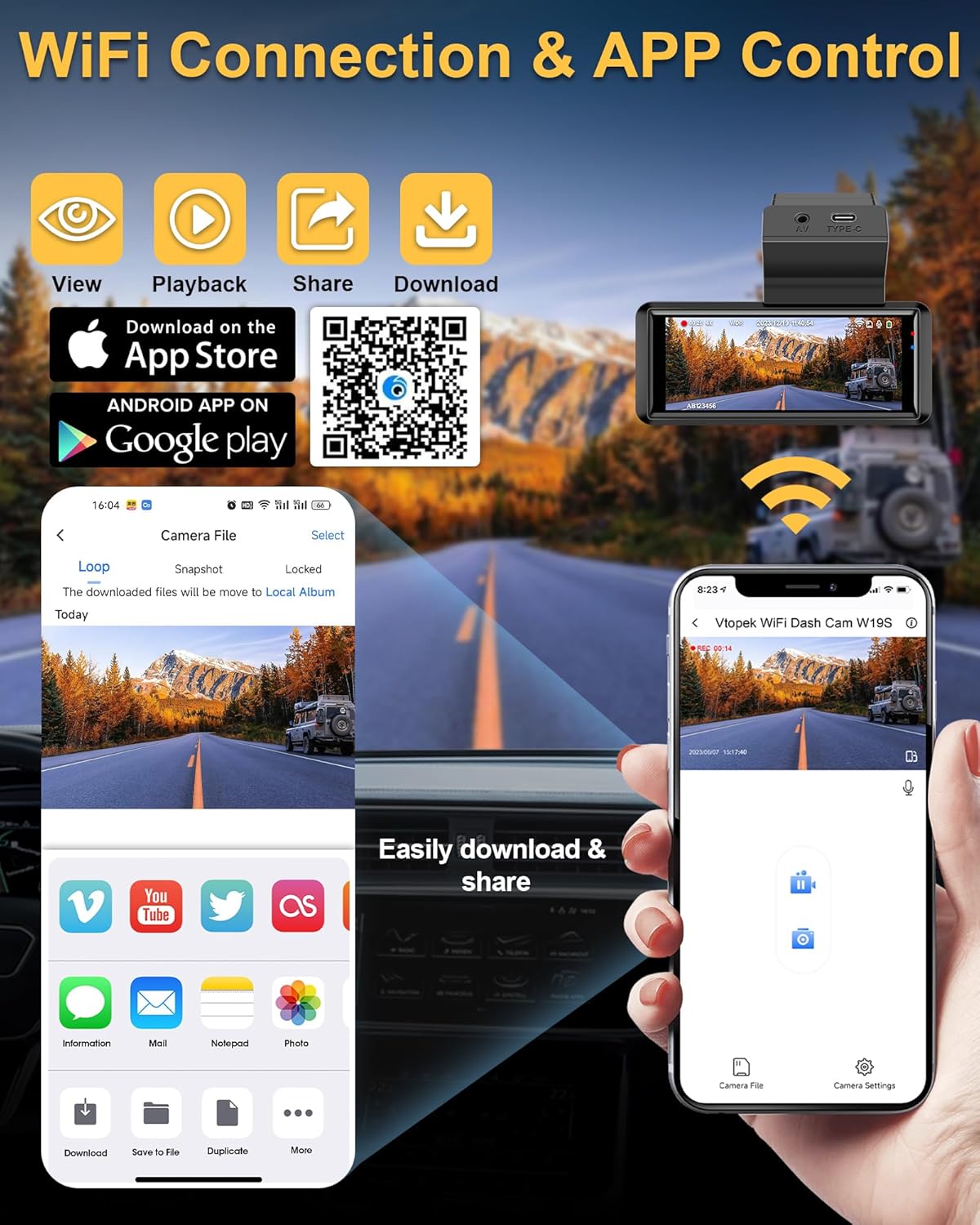
- Built-in WiFi: Connects to a mobile application for viewing, playback, downloading, and sharing videos.
- Integrated GPS: Records real-time driving speed, date, time, and location, viewable via the mobile app or PC player.
- 3.16-Inch IPS Touch Screen: Provides a clear interface for settings and video playback.
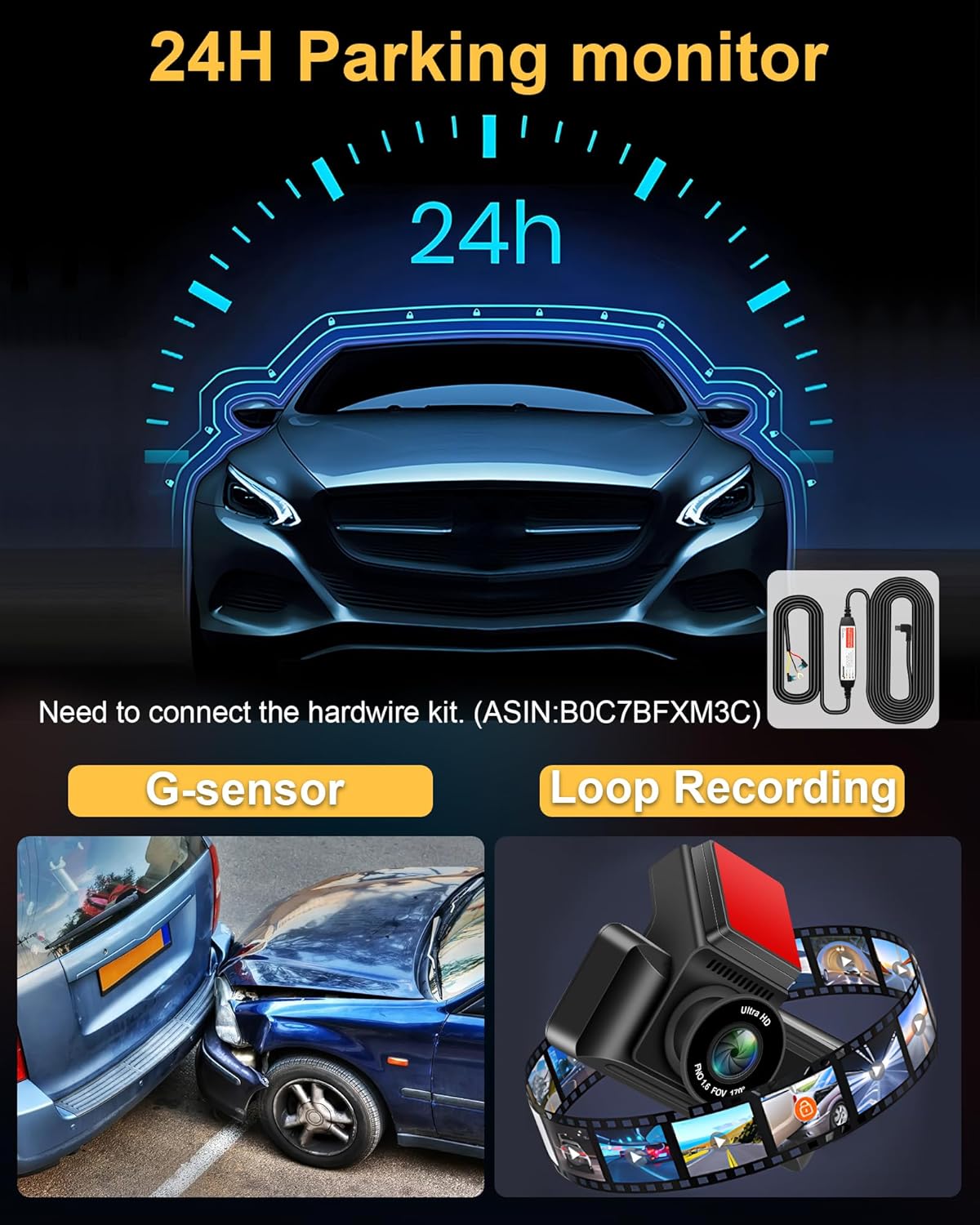
- 24-Hour Parking Monitor: Automatically records when motion is detected around the vehicle (requires optional hardwire kit, ASIN: B0C7BFXM3C).
- G-Sensor: Automatically locks and saves video footage upon sudden impact or collision.
- Loop Recording: Continuously records by overwriting the oldest unlocked files when the memory card is full.
- Type-C Interface: Enhanced port for faster data transmission and improved reliability compared to Mini USB.
- IP69 Waterproof Rear Camera: Durable and resistant to water and fog, suitable for external installation.


3. Package Contents
Please check the package to ensure all items are present:
- W19 Dash Camera x1
- Rear Camera x1
- 64GB Micro-SD card x1
- Packing Box x1
- Rear Camera Cable (10m/36ft) x1
- Camera Bracket x1
- USB Car Charger with GPS x1
- Screwdriver x1
- Strong Double Sided Tape x1
- Fixing Screw x9
- Cleaning Kit x1
- User Manual x1

4. Setup and Installation
4.1. Front Camera Installation
- Clean the area on your windshield where you intend to mount the dashcam. Ensure it does not obstruct your view.
- Attach the camera bracket to the dashcam.
- Remove the protective red film from the double-sided tape on the bracket.
- Firmly press the dashcam with the bracket onto the cleaned windshield area. Hold for a few seconds to ensure a secure attachment.
- Adjust the front camera lens angle as needed. The lens can be adjusted up and down.
4.2. Rear Camera Installation
The IP69 waterproof rear camera can be installed inside or outside the vehicle. The adjustable 180° bracket allows for flexible mounting without drilling.
- Choose a suitable location for the rear camera, typically above the license plate or inside the rear window.
- Secure the rear camera using the provided screws or double-sided tape.
- Route the rear camera cable to the front dashcam unit. Ensure the cable is neatly tucked away and does not interfere with vehicle operations.
- Connect the rear camera cable to the AV port on the main dashcam unit.
4.3. Power Connection and SD Card Insertion
- Insert the provided 64GB Micro-SD card into the dashcam's SD card slot. Ensure it is inserted correctly until it clicks into place.
- Connect the USB Car Charger (with GPS module) to your vehicle's cigarette lighter socket.
- Connect the Type-C end of the power cable to the Type-C port on the dashcam.
- Route the power cable neatly along the edges of your windshield and dashboard to avoid obstruction.

5. Operating Instructions
5.1. Basic Operation
- Power On/Off: The dashcam will automatically power on and begin recording when your vehicle starts. It will power off automatically when the vehicle is turned off.
- Screen Display: The 3.16-inch IPS touch screen displays live footage from the front and rear cameras. You can switch views or access settings via the touch interface.
5.2. WiFi and App Control
The dashcam features built-in WiFi for seamless connection to your smartphone via a dedicated app.
- Download the App: Scan the QR code provided in the manual or on the dashcam screen, or visit https://www.6zhentan.com/app/d0001/index.html to download the Vtopek dashcam app.
- Connect to WiFi: On your dashcam, enable WiFi. On your smartphone, go to WiFi settings and connect to the dashcam's WiFi network (SSID and password usually displayed on the dashcam screen).
- App Functions: Once connected, use the app to:
- View live video feed.
- Play back recorded videos.
- Download video files to your phone.
- Share recordings.
- Adjust dashcam settings.
5.3. GPS Functionality
The integrated GPS module records important driving data.
- Data Recording: The GPS records your vehicle's speed, date, time, and geographical location in real-time.
- Viewing Data: This information can be viewed when playing back videos through the mobile app or a compatible PC player, which will display your route on a map alongside the video.

5.4. Parking Monitor (24H)
For continuous surveillance when your vehicle is parked, the 24-hour parking monitor feature can be activated.
- Activation: This feature requires a separate hardwire kit (ASIN: B0C7BFXM3C) to provide continuous power to the dashcam when the vehicle is off.
- Functionality: Once activated, the dashcam will automatically start recording if it detects motion or impact while parked.
5.5. G-Sensor
The built-in G-sensor detects sudden movements or impacts.
- Automatic Locking: In the event of a collision or sudden braking, the G-sensor will automatically lock the current video segment, preventing it from being overwritten by loop recording.
- Sensitivity: The G-sensor sensitivity can usually be adjusted in the dashcam settings (e.g., Low, Medium, High). A 'Low' setting is often recommended to avoid unnecessary locking of files due to minor bumps.
5.6. Loop Recording
The dashcam records continuously in short segments.
- Continuous Recording: When the memory card is full, the dashcam will automatically overwrite the oldest unlocked video files to continue recording.
- Segment Length: Loop recording segments are typically 1, 3, or 5 minutes long, configurable in the settings. A 3-minute segment is often recommended.
6. Specifications
| Feature | Specification |
|---|---|
| Brand | Vtopek |
| Model Name | W19S |
| Screen Size | 3.16 Inches (IPS Touch Screen) |
| Connectivity Technology | Type-C, Wi-Fi |
| Special Features | App Control, Integrated GPS, Parking Monitor, Night Vision, Integrated Wi-Fi |
| Compatible Devices | Smartphone |
| Battery Composition | Lithium Polymer |
| Video Recording Resolution | Front: 2160p (4K), Rear: 1080p |
| Field of View | Front: 170°, Rear: 140° |
| Included Components | 64GB Memory Card, Smartphone App, GPS Module, Suction Cup Mount |
| Mounting Type | Windshield Mount |
| Control Method | Application |
| Product Dimensions | 2P x 5L x 3H centimeters |
7. Maintenance
- Cleaning: Use a soft, dry cloth to clean the dashcam lens and screen. Avoid using abrasive cleaners.
- SD Card Formatting: It is recommended to format the Micro-SD card regularly (e.g., once a month) to ensure optimal performance and prevent data corruption. This can usually be done through the dashcam's settings menu.
- Firmware Updates: Check the Vtopek website or app periodically for any available firmware updates to improve performance and add new features.
- Temperature: Avoid exposing the dashcam to extreme temperatures for extended periods, as this can affect battery life and device performance.
8. Troubleshooting
- Dashcam not powering on: Ensure the power cable is securely connected to both the dashcam and the car charger, and that the car charger is properly inserted into the cigarette lighter socket. Check if the vehicle's power outlet is functioning.
- Recording issues (e.g., stops recording, corrupted files): Format the SD card. Ensure the SD card is a high-speed Class 10 or U3 card. Replace the SD card if issues persist.
- GPS not working/no signal: Ensure the USB car charger with the integrated GPS module is used. Position the dashcam where it has a clear view of the sky.
- WiFi connection problems: Ensure WiFi is enabled on the dashcam and your smartphone. Double-check the WiFi password. Try restarting both the dashcam and your phone.
- Screen freezing/unresponsive: Use a thin object (like a paperclip) to press the reset button (if available) or disconnect and reconnect the power.
- Rear camera not displaying: Check the connection of the rear camera cable to the main unit. Ensure the cable is not damaged.
9. Warranty and Support
Vtopek offers comprehensive support for your dashcam.
- Warranty: The product comes with a 1-year manufacturer's warranty.
- Technical Support: Lifetime technical support is provided.
- Contact: For any questions or assistance, please contact professional customer service via email at jenny@jansite.cn.
