
ALFA Network R36AH
ALFA R36AH WPS Wireless Router User Manual
Model: R36AH
1. Introduction
This manual provides detailed instructions for the setup, operation, and maintenance of your ALFA R36AH WPS Wireless Router. Please read this manual thoroughly before using the device to ensure proper functionality and to prevent damage.
The ALFA R36AH is an enhanced WiFi USB & 4G Modem Extender Router designed for flexible internet sharing applications. It features high-speed data rates, a flexible USB port for specific Alfa WiFi USB adapters and 4G modems, and robust protection features.

Figure 1: ALFA R36AH WPS Wireless Router with antenna.
2. Package Contents
Verify that all items listed below are present in your package. If any item is missing or damaged, please contact your retailer.
- 1 x ALFA R36AH Wireless Router
- 1 x Detachable High Gain Antenna (ARS-N05)
- 1 x RJ45 Ethernet Cable
- 1 x DC12V Power Adapter
- 1 x Installation Guide (this manual)
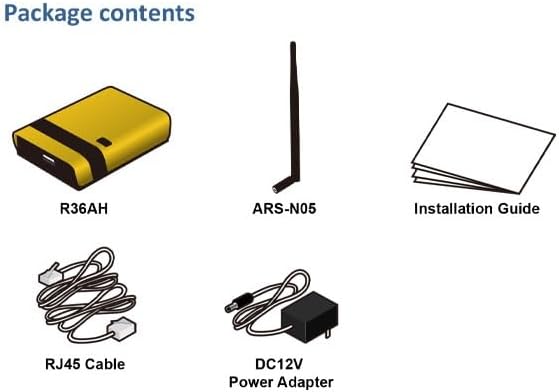
Figure 2: Diagram showing the ALFA R36AH router, antenna, RJ45 cable, DC12V power adapter, and installation guide.
3. Key Features
The ALFA R36AH router offers a range of features designed for enhanced connectivity and durability:
- Flexible USB Port: Supports specific Alfa WiFi USB adapters (AWUS036NHA, AWUS036NH, AWUS036NEH, AWUS036ACM, AWUS036ACHM, Tube-UNA, Tube-UN, Tube-UAC2) and 4G USB modems (Alfa Onyx4GU, Tube-U4G, Tube-U4Gv2).
- RWB Mobile Friendly: Supports a mobile user-friendly web setup interface.
- Automotive Cigarette Lighter Surge Protection: Protects against vehicle inrush current up to 36VDC.
- Enhanced ESD Protection: Safeguards Ethernet port, RF, and USB port from electrostatic discharge damage.
- Hardware Watchdog: Automatically recovers from faults to ensure continuous device operation.
- High Speed Data Rates: Provides faster data rates up to 300Mbps (802.11n) and is compatible with legacy 802.11b/g equipment.
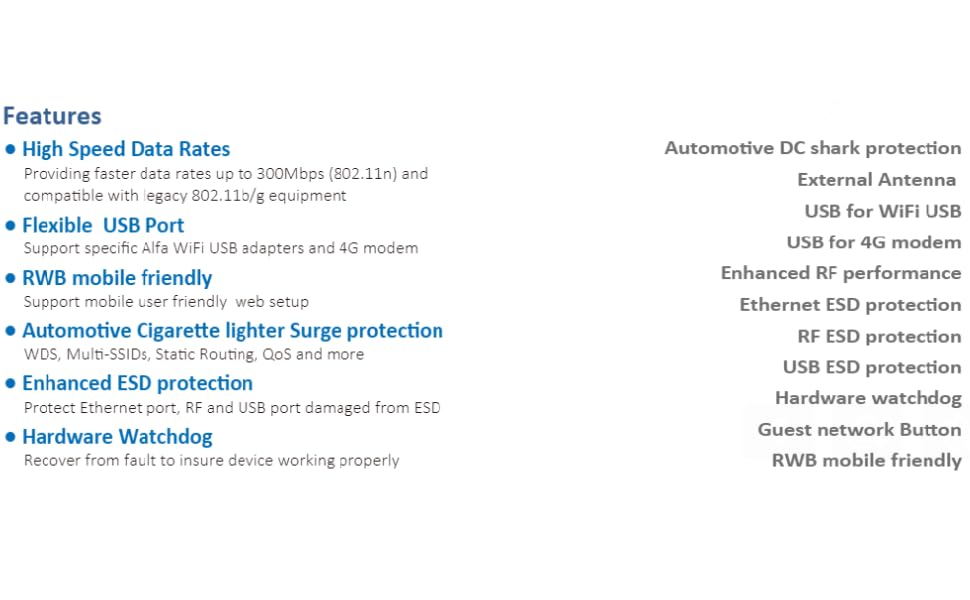
Figure 3: Overview of ALFA R36AH key features.
4. Setup and Installation
4.1. Physical Connection
- Attach the Antenna: Screw the provided detachable high-gain antenna onto the antenna connector at the rear of the R36AH router. Ensure it is securely fastened.
- Connect Power: Plug the DC12V power adapter into the power port on the router, then plug the adapter into a standard electrical outlet. The PWR LED on the router should illuminate.
- Connect to Computer (Optional for initial setup): Use the provided RJ45 Ethernet cable to connect one of the LAN ports on the R36AH to your computer's Ethernet port. Alternatively, you can connect wirelessly after initial setup.
- Connect USB Device (Optional): If using an Alfa WiFi USB adapter or 4G USB modem, plug it into the USB port on the front of the R36AH router.
4.2. Initial Configuration (Web Interface)
To configure the router, access its web-based management interface:
- Ensure your computer is connected to the R36AH router (either via Ethernet or its default Wi-Fi network).
- Open a web browser (e.g., Chrome, Firefox, Edge).
- In the address bar, type the default IP address of the router (usually
192.168.1.1or refer to the installation guide for the exact address) and press Enter. - You will be prompted for a username and password. The default credentials are often username:
adminand password:admin. Refer to your specific installation guide for exact default credentials. - Follow the on-screen setup wizard to configure your internet connection type (e.g., DHCP, Static IP, PPPoE), Wi-Fi network name (SSID), and password. It is highly recommended to change the default administrator password for security.
The RWB mobile friendly interface allows for easy setup via smartphone by scanning a QR code, simplifying the initial configuration process.
5. Operating the Router
5.1. Indicator Lights (LEDs)
| LED Name | Status | Description |
|---|---|---|
| PWR | Solid Green | The router is powered on. |
| SYS | Flashing Green | The system is operating normally. |
| LAN1/LAN2 | Solid Green | A device is connected to the corresponding LAN port. |
| LAN1/LAN2 | Flashing Green | Data is being transmitted or received through the corresponding LAN port. |
| USB | Solid Green | A USB device is connected and recognized. |
| USB | Flashing Green | Data is being transmitted or received via the USB port. |
5.2. Internet Sharing Applications
The ALFA R36AH is versatile for various internet sharing scenarios:
- 4G LTE/3G/2G Internet Sharing: Connect a compatible 4G USB modem to the R36AH to share mobile internet connectivity with multiple devices via Wi-Fi or Ethernet.
- WiFi Hotspot Extension: Extend an existing Wi-Fi signal by connecting an Alfa USB WiFi adapter to the R36AH, creating a stronger and broader Wi-Fi network.
- Mobile Applications: Ideal for use in mobile environments such as RVs, tour buses, or mobile coffee cars, providing internet access on the go.
- Home/Office Network Extension: Enhance Wi-Fi coverage and provide wired connections in larger homes or offices.
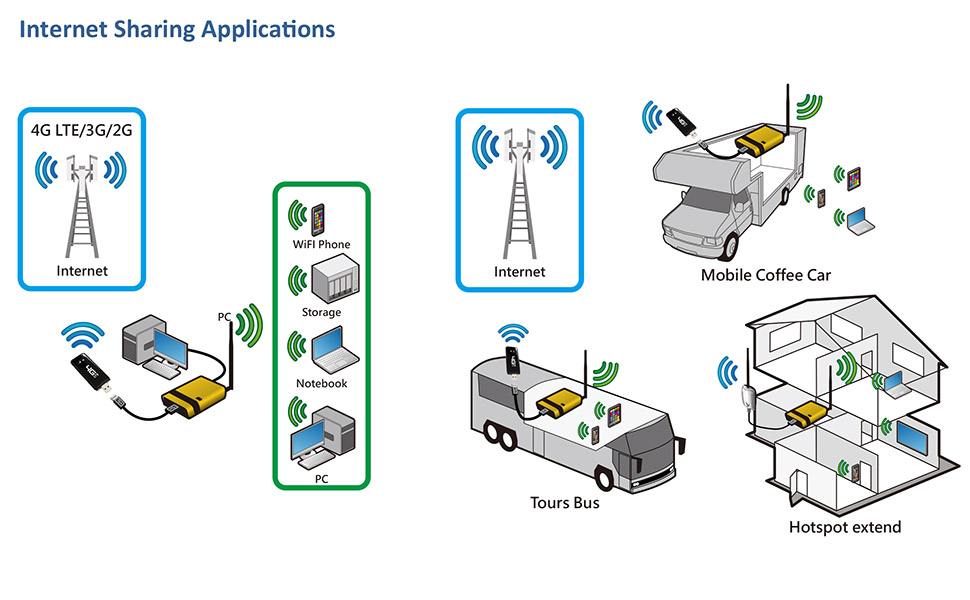
Figure 4: Examples of Internet Sharing Applications with the ALFA R36AH.
6. Maintenance
- Firmware Updates: Periodically check the ALFA Network official website for firmware updates. Updating the firmware can improve performance, add new features, and fix bugs. Follow the instructions provided with the firmware update carefully.
- Cleaning: Use a soft, dry cloth to clean the exterior of the router. Do not use liquid cleaners or aerosol sprays.
- Placement: Place the router in a well-ventilated area, away from direct sunlight, heat sources, and moisture. Avoid placing it near large metal objects or devices that emit strong electromagnetic interference, as this can affect Wi-Fi performance.
- Resetting the Router: If the router becomes unresponsive or you forget the login password, you can perform a factory reset. Locate the reset button (often a small pinhole) on the device. With the router powered on, use a paperclip to press and hold the reset button for about 10-15 seconds until the SYS LED blinks rapidly or the router reboots. This will restore all settings to their factory defaults.
7. Troubleshooting
| Problem | Possible Cause | Solution |
|---|---|---|
| No Power (PWR LED off) | Power adapter not connected or faulty. | Ensure the power adapter is securely connected to the router and a working power outlet. Try a different outlet. |
| Cannot access web interface | Incorrect IP address, network configuration issue, or router frozen. | Verify the router's IP address (default is often 192.168.1.1). Ensure your computer's IP settings are set to obtain automatically (DHCP). Reboot the router. Try a different browser. Perform a factory reset if necessary. |
| No Internet Connection | Incorrect WAN settings, issue with USB modem/adapter, or ISP problem. | Check WAN settings in the router's web interface. Ensure the USB modem/adapter is properly connected and recognized. Verify internet service with your ISP. Reboot both the router and the USB device. |
| Poor Wi-Fi Signal or Disconnections | Interference, distance, or router placement. | Relocate the router to a central location, away from obstructions and interference sources (e.g., cordless phones, microwaves). Adjust antenna direction. Consider changing Wi-Fi channel in settings. |
| USB device not recognized | Incompatible device or improper connection. | Ensure the USB device is on the supported list (refer to Section 3. Key Features). Re-insert the USB device. Reboot the router. |
8. Specifications
| Feature | Detail |
|---|---|
| Model Name | R36AH |
| Brand | ALFA Network |
| Wireless Standard | 802.11n (backward compatible with 802.11b/g) |
| Frequency Band | 2.4 GHz (Single-Band) |
| Data Rate | Up to 300 Mbps |
| Antenna | 1x Detachable High Gain Antenna |
| Ports | 1x USB Port, 2x LAN Ports, 1x WAN Port (often integrated with LAN1/LAN2 depending on configuration) |
| Special Features | WPS, OpenWrt support, RWB mobile friendly, Automotive Cigarette lighter surge protection, Enhanced ESD protection, Hardware Watchdog |
| Compatible Devices | Laptop, Desktop, Tablet, Specific Alfa WiFi USB adapters, Specific 4G USB modems |
| Power Input | DC12V (with automotive surge protection up to 36VDC) |
| Dimensions | 7.01 x 5.67 x 2.76 inches (Package Dimensions) |
| Weight | 11.3 ounces |
9. Warranty and Support
For warranty information, please refer to the warranty card included with your product or visit the official ALFA Network website. ALFA Network provides technical support for its products.
Online Resources:
- Official ALFA Network Website: www.alfa.com.tw (Please check for the most current support information and downloads)
- Firmware Downloads and FAQs may be available on the product support page.
If you require further assistance, please contact ALFA Network customer support through their official channels.
Related documentsR36AH


Ask a question about this manual
Ask about setup, troubleshooting, compatibility, parts, safety, or missing instructions. Manuals+ will review the question and use this page’s manual context to help answer it.