
iClever BK20 Clavier Bluetooth
iClever Bluetooth Keyboard User Manual
Model: BK20 Bluetooth Keyboard
1. Introduction
Thank you for choosing the iClever BK20 Bluetooth Keyboard. This manual provides detailed instructions on how to set up, operate, maintain, and troubleshoot your new keyboard. Please read this manual thoroughly before use to ensure optimal performance and longevity of your device.
2. Package Contents
Please check the package for the following items:
- iClever BK20 Bluetooth Keyboard
- USB-C Charging Cable
- User Manual
3. Product Overview
The iClever BK20 Bluetooth Keyboard is a versatile and compact wireless keyboard designed for multi-device use. It features a full-size layout with a numeric keypad, scissor-switch keys for comfortable and quiet typing, and a durable construction. Its slim profile and long-lasting rechargeable battery make it ideal for various computing environments.

Full layout of the iClever BK20 Bluetooth Keyboard, showcasing its compact design with a numeric keypad.

The keyboard's ability to connect to up to three devices simultaneously, indicated by the Bluetooth channel keys (1, 2, 3) and compatible devices like iMac, MacBook, and iPad.

Close-up view of the keyboard's USB-C charging port and power switch, highlighting its 300mAh battery and long operational time.
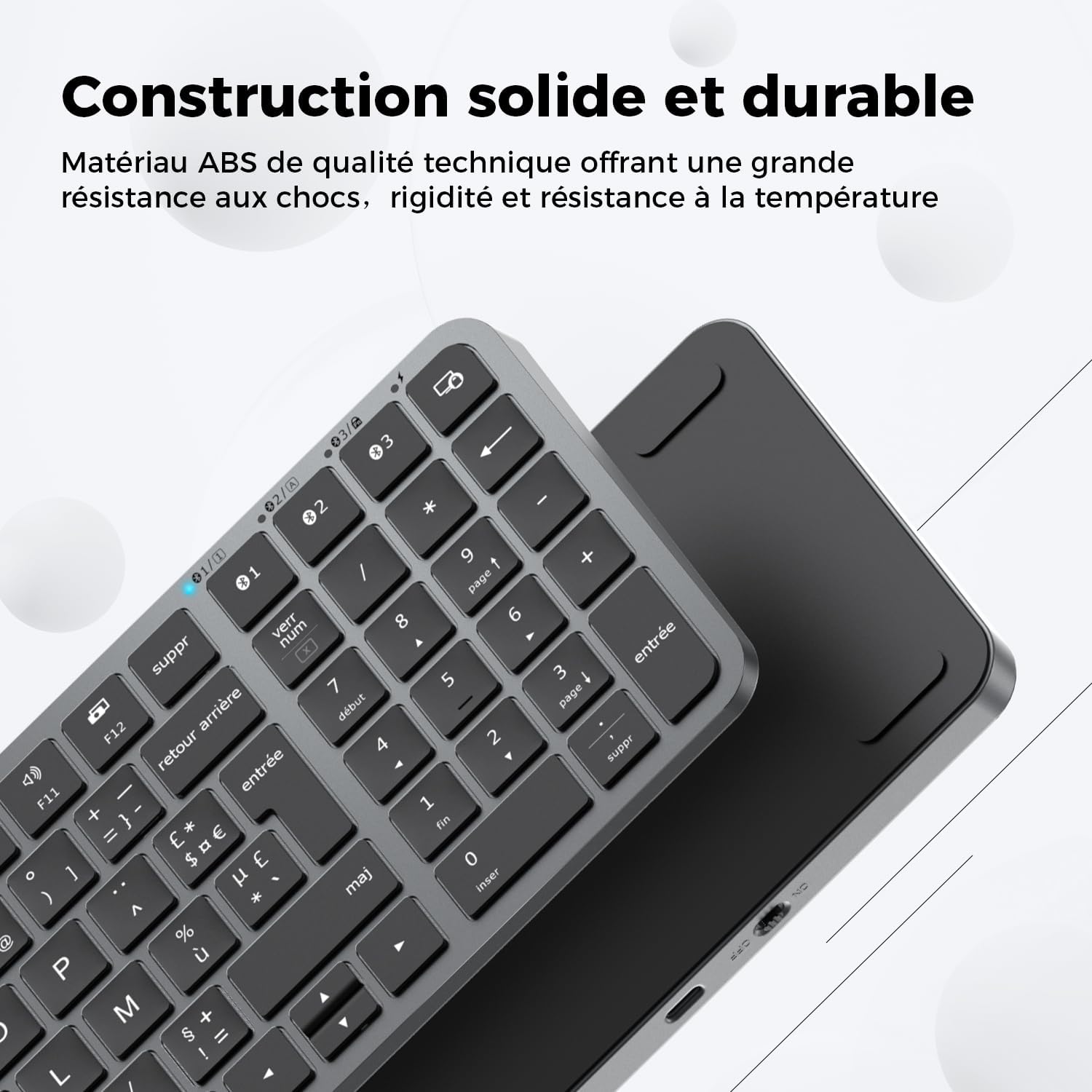
Image illustrating the solid and durable construction of the keyboard, made from quality ABS material for shock, rigidity, and temperature resistance.
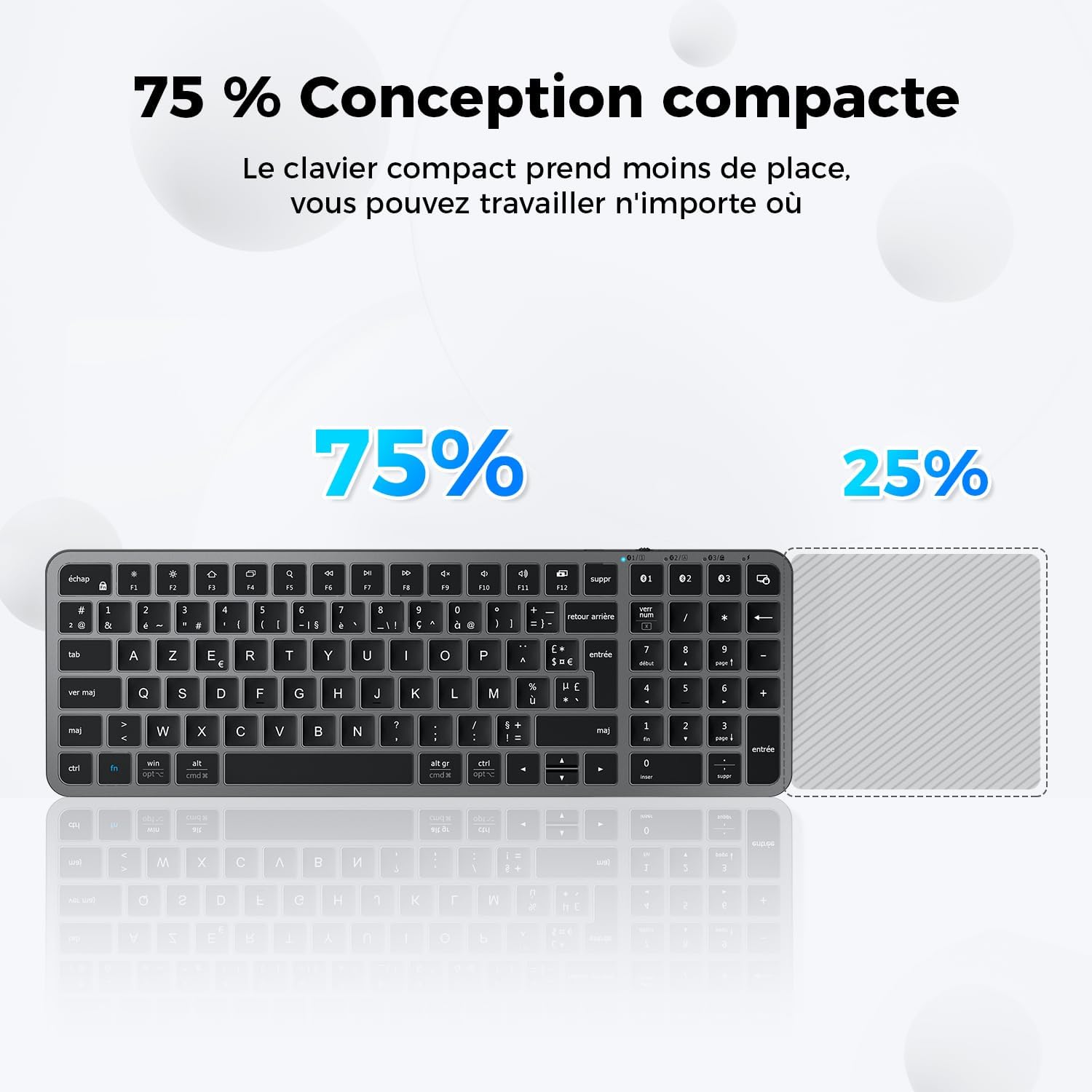
Visual representation of the keyboard's 75% compact design, showing how it saves desk space compared to a full-size keyboard.
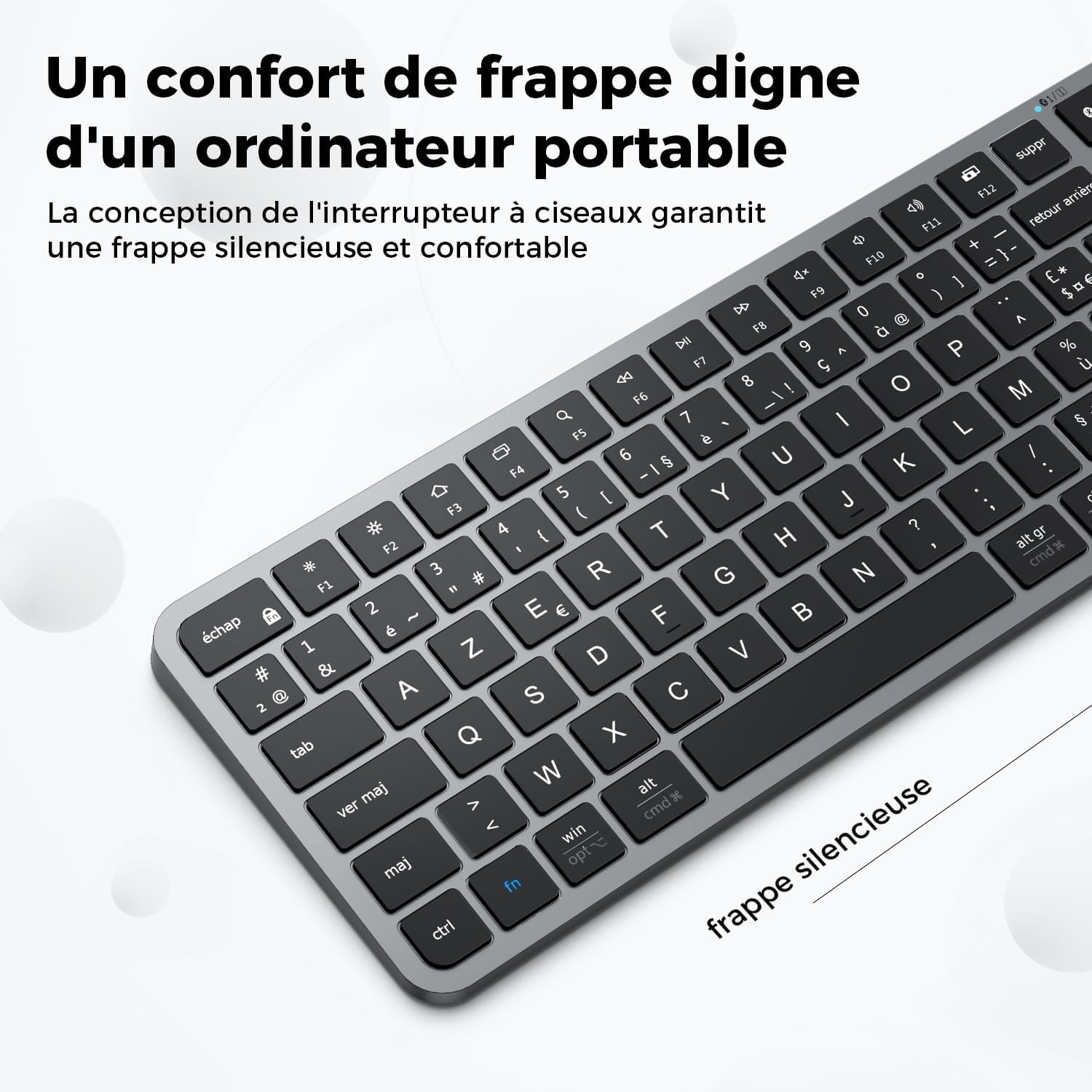
Close-up of the keyboard keys, emphasizing the silent and comfortable typing experience provided by the scissor-switch mechanism.

Diagram showing the slim and elegant dimensions of the keyboard: 366mm length, 122mm width, and 14mm height.
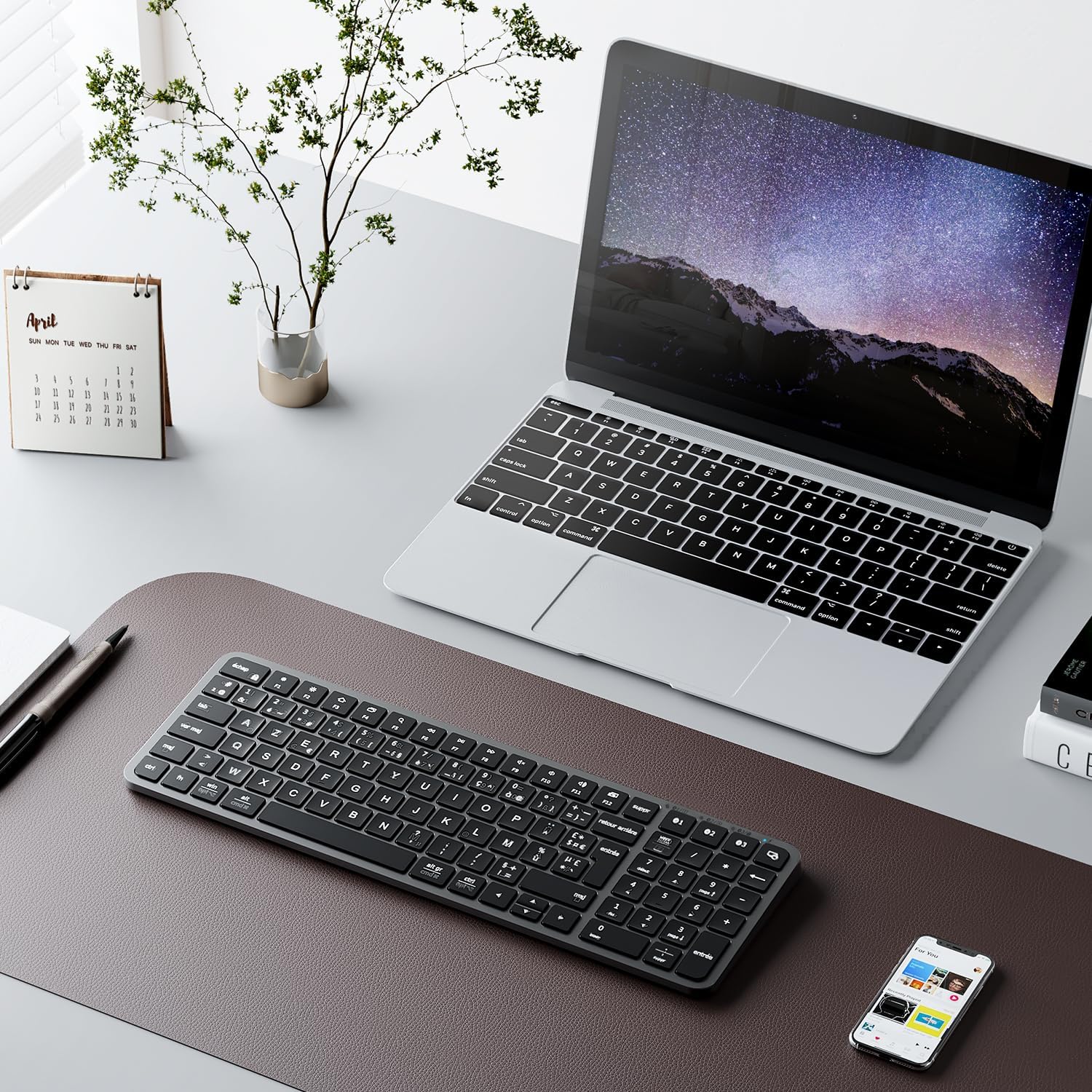
The iClever BK20 Bluetooth Keyboard placed in a modern workspace alongside a laptop and smartphone, demonstrating its seamless integration into a multi-device setup.
4. Setup
4.1 Charging the Keyboard
Before first use, fully charge the keyboard. Connect the supplied USB-C cable to the keyboard's charging port and the other end to a USB power source (e.g., computer USB port, USB wall adapter). The charging indicator light will show the charging status and turn off when fully charged. A full charge takes approximately 2.5 hours and provides up to 300 hours of operation.
4.2 Powering On/Off
Locate the power switch on the side of the keyboard. Slide it to the "ON" position to power on the keyboard. Slide it to the "OFF" position to power off the keyboard when not in use to conserve battery.
4.3 Bluetooth Pairing
The iClever BK20 keyboard can connect to up to three devices simultaneously.
- Turn on the keyboard by sliding the power switch to "ON".
- Press and hold the Fn key and one of the Bluetooth channel keys (1, 2, or 3) for 3-5 seconds until the corresponding indicator light above the key starts blinking rapidly. This indicates the keyboard is in pairing mode.
- On your device (computer, tablet, smartphone), enable Bluetooth and search for new devices.
- Select "iClever BK20" or a similar name from the list of available devices.
- Follow any on-screen prompts to complete the pairing process. You may be asked to type a code on the keyboard and press Enter.
- Once successfully paired, the indicator light will stop blinking and remain solid for a few seconds before turning off.
- Repeat these steps for other devices using different Bluetooth channel keys (2 or 3).
5. Operating Instructions
5.1 Switching Between Devices
To switch between paired devices, simply press the Fn key along with the corresponding Bluetooth channel key (1, 2, or 3) that your device is paired to. The keyboard will connect to the selected device within a few seconds.
5.2 Multimedia and Function Keys
The top row of keys (F1-F12) on the iClever BK20 keyboard serves dual purposes: standard function keys and multimedia shortcuts. By default, these keys operate as multimedia shortcuts. To use them as standard function keys (F1, F2, etc.), press the Fn key simultaneously with the desired F-key.
| Key | Function |
|---|---|
| Fn + F1 | Brightness Down |
| Fn + F2 | Brightness Up |
| Fn + F3 | Mission Control / Task View |
| Fn + F4 | Launchpad / Search |
| Fn + F5 | Keyboard Backlight Down (if applicable) |
| Fn + F6 | Keyboard Backlight Up (if applicable) |
| Fn + F7 | Previous Track |
| Fn + F8 | Play/Pause |
| Fn + F9 | Next Track |
| Fn + F10 | Mute Volume |
| Fn + F11 | Volume Down |
| Fn + F12 | Volume Up |
Note: Some function key behaviors may vary slightly depending on your operating system (macOS, Windows, iOS, Android).
5.3 Operating System Compatibility
The iClever BK20 keyboard is universally compatible with various operating systems. It supports:
- Apple macOS
- Apple iOS (iPad, iPhone)
- Windows 8/10/11
- Android
The keyboard features dual-labeled keys (e.g., Win/Alt and Cmd/Opt) to accommodate both Windows and macOS layouts. The keyboard automatically adapts to the connected OS, or you can manually switch layouts if needed (refer to your device's OS settings for keyboard layout adjustments).
6. Maintenance
To ensure the longevity and optimal performance of your iClever BK20 Bluetooth Keyboard, follow these maintenance guidelines:
- Cleaning: Use a soft, lint-free cloth slightly dampened with water or a mild cleaning solution to wipe the keyboard surface. Avoid excessive moisture. Do not use harsh chemicals, abrasives, or solvents.
- Dust Removal: Use compressed air to remove dust and debris from between the keys.
- Storage: When not in use for extended periods, store the keyboard in a cool, dry place away from direct sunlight and extreme temperatures.
- Avoid Spills: Keep liquids away from the keyboard to prevent damage to internal components. In case of a spill, immediately power off the keyboard and disconnect it, then allow it to dry completely before attempting to use it again.
- Handle with Care: Avoid dropping the keyboard or subjecting it to strong impacts.
7. Troubleshooting
If you encounter issues with your iClever BK20 Bluetooth Keyboard, please refer to the following common problems and solutions:
- Keyboard not connecting or frequently disconnecting:
- Ensure the keyboard is charged.
- Make sure Bluetooth is enabled on your device.
- Ensure the keyboard is within the effective range (up to 15 meters).
- Try re-pairing the keyboard with your device (refer to Section 4.3).
- Remove any previous pairings of the keyboard from your device's Bluetooth settings and try pairing again.
- Restart both the keyboard and your device.
- Keys not responding or typing incorrectly:
- Check if the keyboard is connected to the correct device channel (1, 2, or 3).
- Ensure the keyboard is fully charged.
- Clean any debris or dust from under the keys.
- If specific keys like the spacebar feel stiff or squeaky, gentle cleaning around the keycap might help.
- Verify your operating system's keyboard layout settings match the AZERTY layout.
- Keyboard slow to wake from sleep:
- This can sometimes occur due to power-saving features. Press any key and wait a few seconds for the keyboard to reconnect.
- Ensure your device's Bluetooth drivers are up to date.
- Numeric keypad point/comma issue:
- The behavior of the numeric keypad's decimal key (point or comma) is often determined by your operating system's regional settings. Adjust your OS language and region settings to match your preference for decimal separators.
- Short Shift key or unusual key placement:
- The compact design may result in some key placements differing from standard full-size keyboards. This is by design and requires user adaptation.
If the problem persists after trying these solutions, please contact iClever customer support for further assistance.
8. Specifications
| Feature | Description |
|---|---|
| Brand | iClever |
| Model Number | BK20 Clavier Bluetooth |
| Color | Gray |
| Keyboard Description | AZERTY French Bluetooth Keyboard, Scissor Switch, Compact Size |
| Power Source | Battery Powered (300mAh Lithium Battery) |
| Connectivity Technology | Bluetooth |
| Hand Orientation | Ambidextrous |
| Compatible Devices | Devices with Bluetooth capabilities (PC, Laptops, MacBook, iMac, iPad, iPhone, Tablets, Smartphones) |
| Dimensions (L x W x H) | 36 x 12 x 1.4 centimeters |
| Product Weight | 450 Grams |
| Special Features | Shortcut and multimedia keys, USB-C Charging, Multi-device, Laptop-like typing experience, Multi-OS, Rechargeable |
| Number of Keys | 101 |
| Recommended Uses | Multimedia, Office, Home, Business, Personal, Programming |
9. Warranty and Support
iClever products come with a standard warranty. For detailed warranty information, please refer to the warranty card included in your package or visit the official iClever website. If you require technical support, have questions about your product, or need to claim warranty service, please contact iClever customer support through their official channels. Please have your product model number and purchase details ready when contacting support.
For the latest information and support, please visit: www.iclever.com
Related documentsBK20 Clavier Bluetooth


Ask a question about this manual
Ask about setup, troubleshooting, compatibility, parts, safety, or missing instructions. Manuals+ will review the question and use this page’s manual context to help answer it.