
iClever BK23
iClever Bluetooth Keyboard and Mouse Combo User Manual
Model: BK23
Introduction
Thank you for choosing the iClever Bluetooth Keyboard and Mouse Combo. This manual provides detailed instructions on how to set up, operate, and maintain your new wireless peripherals. Please read this guide thoroughly to ensure optimal performance and longevity of your product.
Product Overview
The iClever Bluetooth Keyboard and Mouse Combo offers a seamless and efficient computing experience. Designed for multi-device compatibility, it allows you to switch between up to three devices effortlessly. The ultra-slim, full-size keyboard features a numeric keypad and multimedia keys, while the ergonomic mouse ensures comfortable and precise navigation.
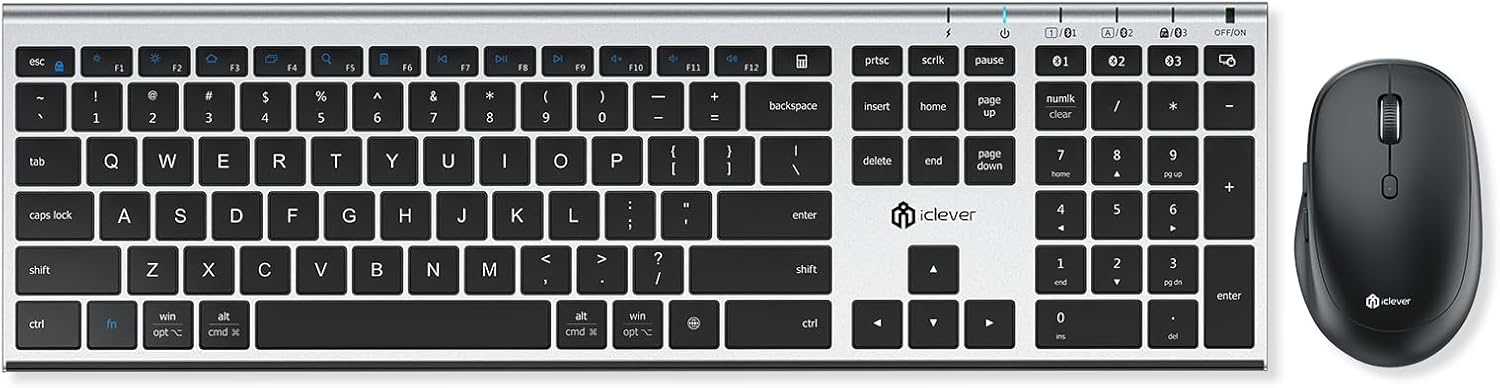
Figure 1: iClever Bluetooth Keyboard and Mouse Combo.

Figure 2: The keyboard supports multi-device and multi-OS pairing, allowing connection to iMac, MacBook, and iPad.
Key Features
- Multi-Device Bluetooth Connectivity: Pair and switch between up to 3 devices with ease.
- OS-Adaptive Technology: Automatically recognizes connected device systems for familiar key layouts.
- Ultra-Thin Full-Size Design: Includes a numeric keypad and 12 multi-media keys for enhanced productivity.
- USB-C Rechargeable: Built-in 300mAh lithium battery provides up to 300 hours of working time on a full charge.
- Enhanced Typing Experience: Scissor key mechanism offers improved feedback, stability, and quiet, precise typing.
- Universal Compatibility: Works with PC, laptop, MacBook, iMac, iPad, iPhone, tablet, and smartphone. Compatible with Mac OS, iOS, Android, Windows 8/10/11.

Figure 3: The keyboard and mouse are USB-C rechargeable, offering long battery life with 2 hours charging time for 90 days standby.

Figure 4: Designed with low profile and scissor-switch keys for whisper-quiet typing and a noiseless mouse for silent clicks.

Figure 5: The keyboard features a matte finished coating and best-in-class stainless steel construction.

Figure 6: Dimensions of the ultra-thin, full-size keyboard (16.85 x 4.92 x 0.62 inches) and mouse (4.13 x 2.36 x 1.5 inches).
Package Contents
- 1 x iClever Bluetooth Keyboard
- 1 x iClever Bluetooth Mouse
- 1 x USB-C Charge Cable
- 1 x User Manual
Setup Guide
1. Charging the Devices
Before first use, ensure both the keyboard and mouse are fully charged. Use the provided USB-C cable to connect them to a power source (e.g., computer USB port, USB wall adapter). The charging indicator light will show charging status and turn off when fully charged.
2. Bluetooth Pairing
The iClever combo supports pairing with up to three devices. Follow these steps for each device:
- Turn On: Slide the ON/OFF switch on the keyboard (top right) and mouse (bottom) to the 'ON' position.
- Select Channel: On the keyboard, press the Bluetooth channel key (B1, B2, or B3) you wish to pair with. The corresponding indicator light will flash rapidly, indicating it's in pairing mode.
- Activate Bluetooth on Your Device: Go to your device's Bluetooth settings (e.g., computer, tablet, smartphone) and turn on Bluetooth.
- Search for Devices: Your device will scan for available Bluetooth devices. Look for "iClever Keyboard" and "iClever Mouse" in the list.
- Connect: Select "iClever Keyboard" and "iClever Mouse" to connect. Follow any on-screen prompts, such as entering a pairing code if requested.
- Confirmation: Once successfully paired, the indicator light on the keyboard will stop flashing and remain solid for a few seconds, then turn off. The mouse will also indicate a successful connection.
To switch between paired devices, simply press the corresponding Bluetooth channel key (B1, B2, or B3) on the keyboard. The mouse will automatically switch to the active channel.

Figure 7: The mouse features a switch on its underside to select between three paired devices.
Operating Instructions
Keyboard Usage
- Typing: The full-size layout with numeric keypad provides a comfortable and efficient typing experience.
- Multimedia Keys: Use the F1-F12 keys in conjunction with the 'Fn' key for quick access to multimedia functions (e.g., volume control, playback).
- OS Adaptation: The keyboard automatically adapts to the operating system of the connected device (Mac OS, iOS, Android, Windows), mapping keys accordingly.
Mouse Usage
- Movement: The mouse offers precise tracking for smooth cursor movement.
- Clicks: Left and right clicks are responsive and quiet.
- Scroll Wheel: Use the scroll wheel for vertical scrolling in documents and web pages.
Maintenance
- Cleaning: Use a soft, dry cloth to clean the surfaces of the keyboard and mouse. For stubborn dirt, a slightly damp cloth can be used, but ensure no moisture enters the devices.
- Battery Care: To prolong battery life, avoid fully discharging the devices frequently. Recharge them when the low battery indicator appears. Store in a cool, dry place when not in use for extended periods.
- Storage: When storing, turn off both the keyboard and mouse to conserve battery life.
Troubleshooting
If you encounter issues with your iClever Bluetooth Keyboard and Mouse Combo, please refer to the following common solutions:
| Problem | Possible Solution |
|---|---|
| Devices not connecting/pairing |
|
| Keyboard/Mouse input delayed or unresponsive |
|
| Keys repeating characters or not registering |
|
For more detailed troubleshooting steps, please refer to the official Troubleshooting Guide (PDF).
Specifications
| Feature | Detail |
|---|---|
| Product Dimensions | 16.8 x 4.92 x 0.62 inches (Keyboard) |
| Item Weight | 1.56 pounds |
| Connectivity Technology | Bluetooth 1 + Bluetooth 2 + Bluetooth 3 |
| Battery | 300mAh Lithium (Rechargeable via USB-C) |
| Compatible Devices | PC, Laptop, iMac, MacBook, Tablet, Smartphone, iPhone, iPad |
| Operating Systems | Mac OS, iOS, Android, Windows 8/10/11 |
| Color | Silver Black |
| Manufacturer | iClever |
Warranty and Support
This iClever product comes with a 12-month warranty from the date of purchase. If you experience any issues or have questions regarding your product, please contact iClever customer support for assistance. Refer to the contact information provided in your product packaging or visit the official iClever website for support resources.
Related documentsBK23


Ask a question about this manual
Ask about setup, troubleshooting, compatibility, parts, safety, or missing instructions. Manuals+ will review the question and use this page’s manual context to help answer it.