1. Introduction
Thank you for choosing the Takstar V4 Wireless Video Microphone System. This system is designed to provide high-quality audio recording for various applications, including video production with DSLRs, smartphones, and cameras. It features 2.4GHz wireless transmission, real-time monitoring, noise reduction, and versatile compatibility. Please read this manual thoroughly before use to ensure proper operation and to maximize the performance of your device.
2. Package Contents
Please verify that all items listed below are included in your package. If any items are missing or damaged, contact your retailer.
- V4 Wireless Video Microphone (Transmitter and Receiver units)
- Charging Case
- Audio Cables (e.g., 3.5mm TRS for cameras, 3.5mm TRRS for smartphones, Lightning/USB-C adapters if included) - Note: Specific cable types may vary based on package version.
- USB Charging Cable
- Windscreen/Dead Cat (for outdoor use)
- User Manual (this document)
3. Product Overview
The Takstar V4 system consists of a transmitter, a receiver, and a portable charging case. Familiarize yourself with the components and their functions.
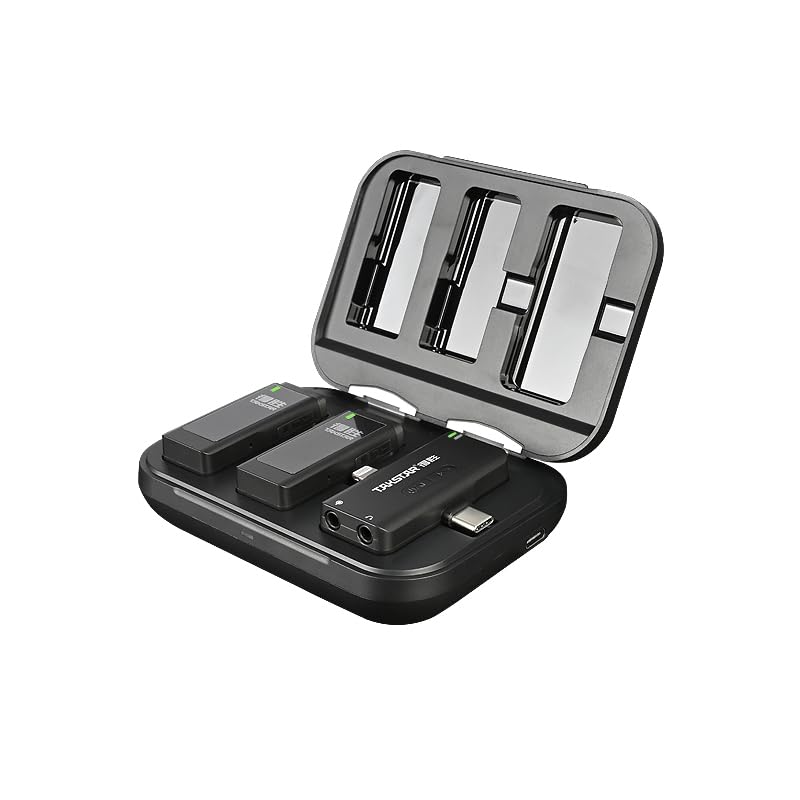
Figure 3.1: Takstar V4 Wireless Microphone System (Charging Case Open)
This image displays the Takstar V4 wireless microphone system with its charging case open. Inside the case, two transmitter units and one receiver unit are visible, indicating a dual-channel system. The units are compact and designed to fit securely within the case for charging and storage.
3.1 Transmitter (TX)
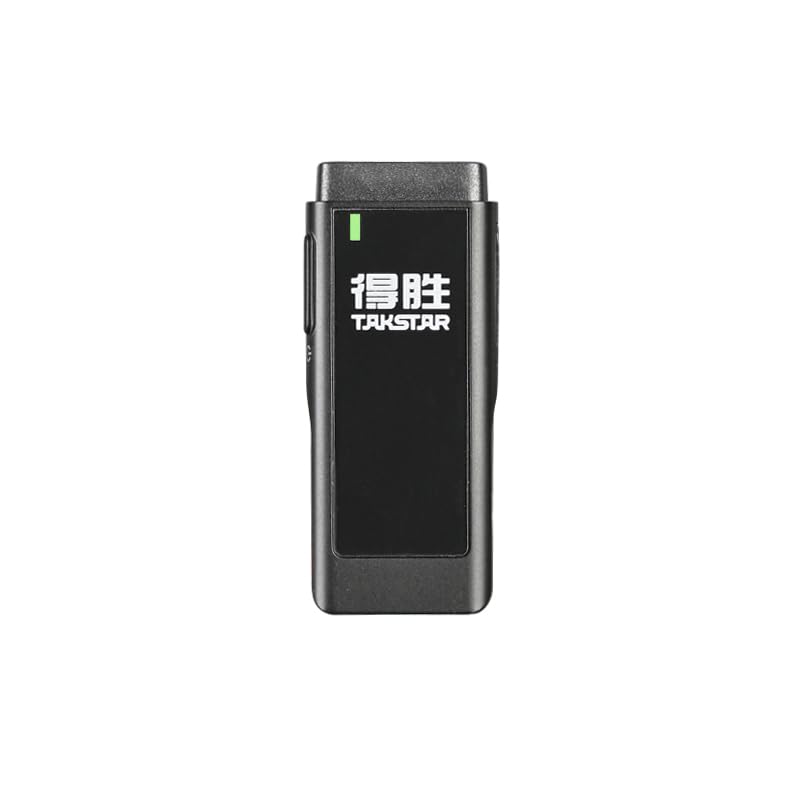
Figure 3.2: Transmitter Unit
The transmitter unit features an integrated microphone, a power indicator, and controls for various functions. It is designed to be clipped onto clothing for discreet audio capture.
- Integrated Microphone: Omnidirectional pickup.
- Power/Status Indicator: Displays power status and connection.
- Power Button: On/Off, pairing.
- Noise Reduction Button: Cycles through noise reduction modes.
- TF Card Slot: For local audio storage.
- USB-C Port: For charging and data transfer (if applicable).
3.2 Receiver (RX)
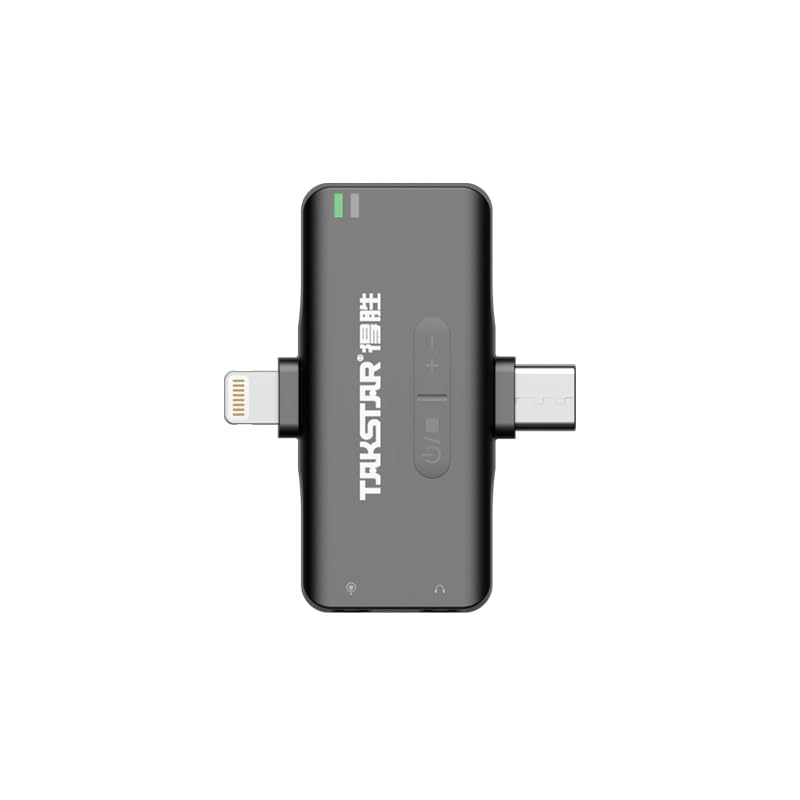
Figure 3.3: Receiver Unit
The receiver unit connects to your recording device (camera, smartphone). It features a connector for the device, volume controls, and a monitoring port.
- Device Connector: USB-C, Lightning, or 3.5mm TRS/TRRS for connection to recording devices.
- Volume Control Buttons: Adjust output volume.
- 3.5mm Monitoring Port: For real-time audio monitoring with headphones.
- Power/Status Indicator: Displays power status and connection.
3.3 Charging Case
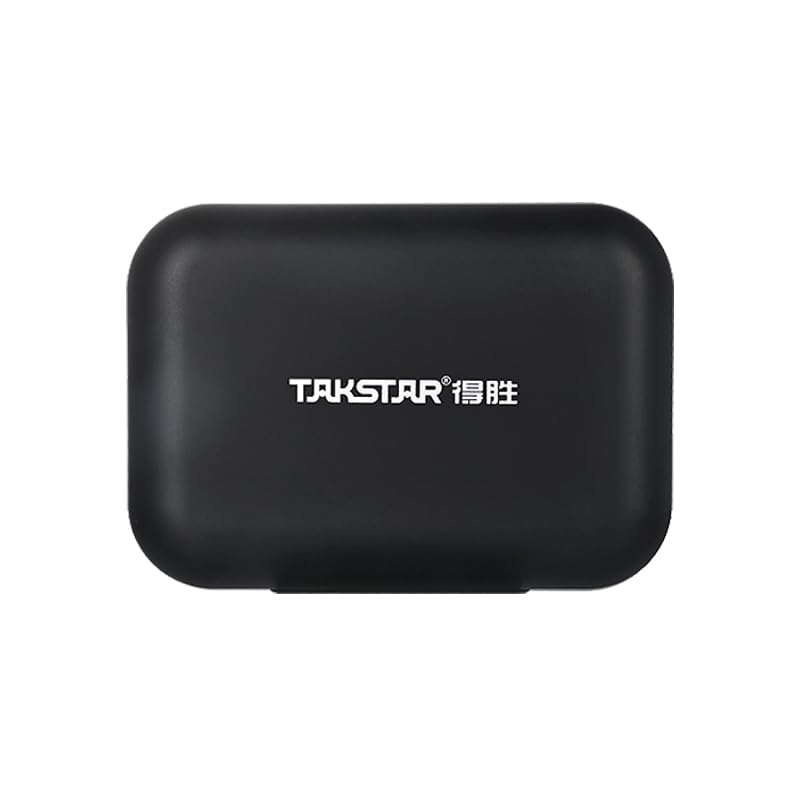
Figure 3.4: Charging Case
The portable charging case stores and recharges the transmitter and receiver units, providing extended battery life for on-the-go use.
- Charging Slots: Securely holds and charges TX and RX units.
- USB-C Charging Port: For recharging the case itself.
- Battery Indicator: Shows the charging case's battery level.
4. Setup Guide
4.1 Initial Charging
Before first use, fully charge the transmitter, receiver, and charging case.
- Place the transmitter(s) and receiver into the charging case.
- Connect the charging case to a USB power source using the provided USB charging cable.
- The indicators on the units and case will show charging status. Once fully charged, the indicators will change (e.g., turn solid green or off).

Figure 4.1: Charging the System
This image illustrates the portable charging case in use, with the microphone units placed inside. It highlights the convenience of charging the system while on the move, ideal for outdoor recording sessions or interviews.
4.2 Connecting to Recording Devices
The V4 system offers universal compatibility with cameras, iOS, and Android devices.
- For Cameras (DSLR/Mirrorless): Connect the receiver's 3.5mm output to your camera's microphone input using the appropriate 3.5mm TRS cable.
- For Smartphones (iOS/Android): Directly plug the receiver into your smartphone's Lightning port (for iOS) or USB-C port (for Android). Ensure your phone supports external microphones.

Figure 4.2: Versatile Application and Compatibility
This image demonstrates the Takstar V4's broad compatibility, showing its use in various scenarios such as live streaming, vlogging, general filming, and interviews. It highlights the system's ability to connect to cameras, DSLRs, Android, and Apple smartphones.
4.3 Pairing (Automatic)
The Takstar V4 system utilizes 2.4GHz wireless transmission, and units typically pair automatically upon powering on. If pairing does not occur:
- Ensure both the transmitter(s) and receiver are powered on.
- Refer to the specific pairing instructions in the quick start guide if manual pairing is required (usually involves pressing and holding a button on both units).
- A solid indicator light on both units typically signifies a successful connection.
5. Operating Instructions
5.1 Power On/Off
- Power On: Press and hold the power button on the transmitter and receiver until the indicator light illuminates.
- Power Off: Press and hold the power button again until the indicator light turns off.
- Automatic Shutdown: The receiver and transmitter feature a smart shutdown function, automatically powering off after 10 minutes without connection to conserve battery.
5.2 Volume Adjustment
Use the volume control buttons on the receiver to adjust the audio output level. There are typically 3 steps of adjustable volume.
5.3 Real-time Monitoring
Connect headphones to the 3.5mm monitoring port on the receiver to listen to the audio being recorded in real-time. This allows you to verify audio quality and levels during recording.
5.4 Noise Reduction Modes
The transmitter features selectable noise reduction modes to adapt to various recording environments. Press the noise reduction button on the transmitter to cycle through the available modes (e.g., Off, Low, High). The indicator light may change to reflect the active mode.
5.5 TF Card Audio Storage
The transmitter supports local TF card audio storage, providing a backup in case of wireless signal interruption or for standalone recording.
- Insert a TF card (not included) into the designated slot on the transmitter.
- When recording, the audio will automatically be saved to the TF card.
- To access recordings, connect the transmitter to a computer via USB-C or remove the TF card and use a card reader.
Figure 5.1: TF Card Storage
This image depicts a TF card being inserted into the side slot of the Takstar V4 transmitter unit. It visually explains the 'Auto Record To TF Storage' feature, where an inserted TF card allows for automatic local audio backup, indicated by an LED.
5.6 Standalone Voice Recorder
The microphone transmitter can function as a standalone voice recorder, allowing you to record audio directly to the inserted TF card without being connected to a receiver or recording device.
- Ensure a TF card is inserted into the transmitter.
- Power on the transmitter. Recording will typically begin automatically or can be initiated by a specific button press (refer to quick start guide for exact trigger).
- Power off the transmitter to stop and save the recording.
6. Maintenance
- Cleaning: Use a soft, dry cloth to clean the units and charging case. Avoid using harsh chemicals or abrasive materials.
- Storage: Store the system in a cool, dry place away from direct sunlight and extreme temperatures. Always store units in the charging case when not in use.
- Battery Care: To prolong battery life, avoid fully discharging the units frequently. Recharge regularly, even if not in constant use.
- Water Exposure: The units are not waterproof. Avoid exposure to water or high humidity.
7. Troubleshooting
7.1 No Audio Output
- Ensure both transmitter and receiver are powered on and successfully paired (indicator lights solid).
- Check the connection cable between the receiver and your recording device. Ensure it is fully inserted and the correct type (TRS for camera, TRRS for smartphone, or direct digital connection).
- Verify the volume level on the receiver and your recording device.
- Test with headphones connected to the receiver's monitoring port to isolate the issue.
- Ensure the recording app on your smartphone is configured to use an external microphone.
7.2 Poor Audio Quality / Interference
- Ensure the transmitter is within the effective operating range (up to 120m line-of-sight). Obstacles can reduce range.
- Check for strong Wi-Fi or other 2.4GHz devices nearby that might cause interference.
- Activate noise reduction modes on the transmitter to mitigate environmental noise.
- Ensure the microphone is positioned correctly and not rubbing against clothing. Use the included windscreen for outdoor recording.
7.3 Units Not Charging
- Ensure the USB charging cable is securely connected to both the charging case and a working power source.
- Verify that the units are correctly seated in their charging slots within the case.
- Check the charging case's battery level.
8. Specifications
| Feature | Detail |
|---|---|
| Brand | Takstar |
| Model | V4 |
| Connectivity Technology | Wireless (2.4GHz), Auxiliary |
| Connector Type | 3.5 mm Jack, USB-C, Lightning (depending on receiver variant) |
| Compatible Devices | Camera, iOS Devices, Android Devices |
| Microphone Form Factor | Lavalier |
| Polar Pattern | Omnidirectional |
| Special Features | Portable, Rechargeable, Wireless, Noise Reduction, Real-time Monitoring, TF Card Storage |
| Operating Range | Up to 120m (line-of-sight) |
| Battery Life (Transmitter) | Up to 10 hours (continuous playtime when connected to camera via 3.5mm interface) |
| Charging Case Battery | 2000mAh (rechargeable) |
| Signal-to-Noise Ratio | 64 dB |
| Frequency Response | 20 Hz - 20 kHz (typical, inferred) |
| Item Weight | 128 g (approximate) |
| Product Dimensions | 5.34 x 4.36 x 2.21 cm (approximate) |
| Country of Origin | China |
Note: Specifications are subject to change without notice.
9. Warranty and Support
For warranty information, technical support, or service inquiries, please contact your local Takstar distributor or visit the official Takstar website. Keep your proof of purchase for warranty claims.
Online Resources:
- Official Takstar Website: www.takstar.com


