Introduction
Thank you for choosing the Awei H25 Smart Watch. This manual provides essential information for setting up, operating, and maintaining your device. Please read it carefully to ensure optimal performance and longevity of your smartwatch.
Key Features
- 1.83-inch HD Display: Large and clear screen for easy navigation.
- Bluetooth Calling: Make and receive calls directly from your wrist.
- Comprehensive Health Monitoring: Real-time tracking of heart rate, blood pressure, and blood oxygen levels.
- 100+ Sports Modes: Track various activities with precision.
- Smart Voice Assistant: Control your watch and access information using voice commands.
- IP67 Water Resistance: Designed to withstand splashes and dust.
- Long Battery Life: Up to 10 days in typical usage mode.
- Customizable Dials: Choose from a wide variety of watch faces to match your style.
Package Contents
- Awei H25 Smart Watch
- Charging Cable
- User Manual
Setup
1. Charging the Smart Watch
Before first use, fully charge your Awei H25 Smart Watch. Connect the magnetic charging cable to the charging points on the back of the watch and plug the USB end into a standard USB power adapter (not included) or a computer USB port. The watch screen will indicate charging status. A full charge typically takes about 2 hours.
2. App Installation and Pairing
To unlock the full potential of your Awei H25, you need to download and install the companion app on your smartphone. Scan the QR code provided in the manual or search for the app name (usually mentioned in the quick start guide) in your phone's app store (Google Play Store for Android, Apple App Store for iOS).
- Download and install the app.
- Open the app and create an account or log in.
- Ensure Bluetooth is enabled on your smartphone.
- In the app, navigate to the device pairing section and search for your Awei H25.
- Select 'H25' from the list of available devices to initiate pairing. Confirm the pairing request on both your watch and smartphone if prompted.
Once paired, the watch will synchronize time and data with your phone.

Image: The Awei H25 Smart Watch, showcasing its sleek design and digital display with time and health tracking icons.
Operating Instructions
1. Navigating the Interface
The Awei H25 features a touch-sensitive 1.83-inch screen for easy interaction.
- Swipe Down: Access quick settings (e.g., brightness, DND mode).
- Swipe Up: View notifications.
- Swipe Left/Right: Cycle through main functions like activity tracking, heart rate, weather, music control, and more.
- Press Side Button: Wake up the screen, return to the home screen, or access the app menu.
2. Health Monitoring
Your Awei H25 continuously monitors key health metrics.
- Heart Rate: Swipe to the heart rate interface to view your current heart rate. For accurate readings, ensure the watch is snug on your wrist.
- Blood Pressure/Blood Oxygen: Similar to heart rate, navigate to the respective interfaces. Remain still during measurement for best results.
- Sleep Tracking: Wear the watch to bed to automatically track your sleep patterns. View detailed sleep analysis in the companion app.
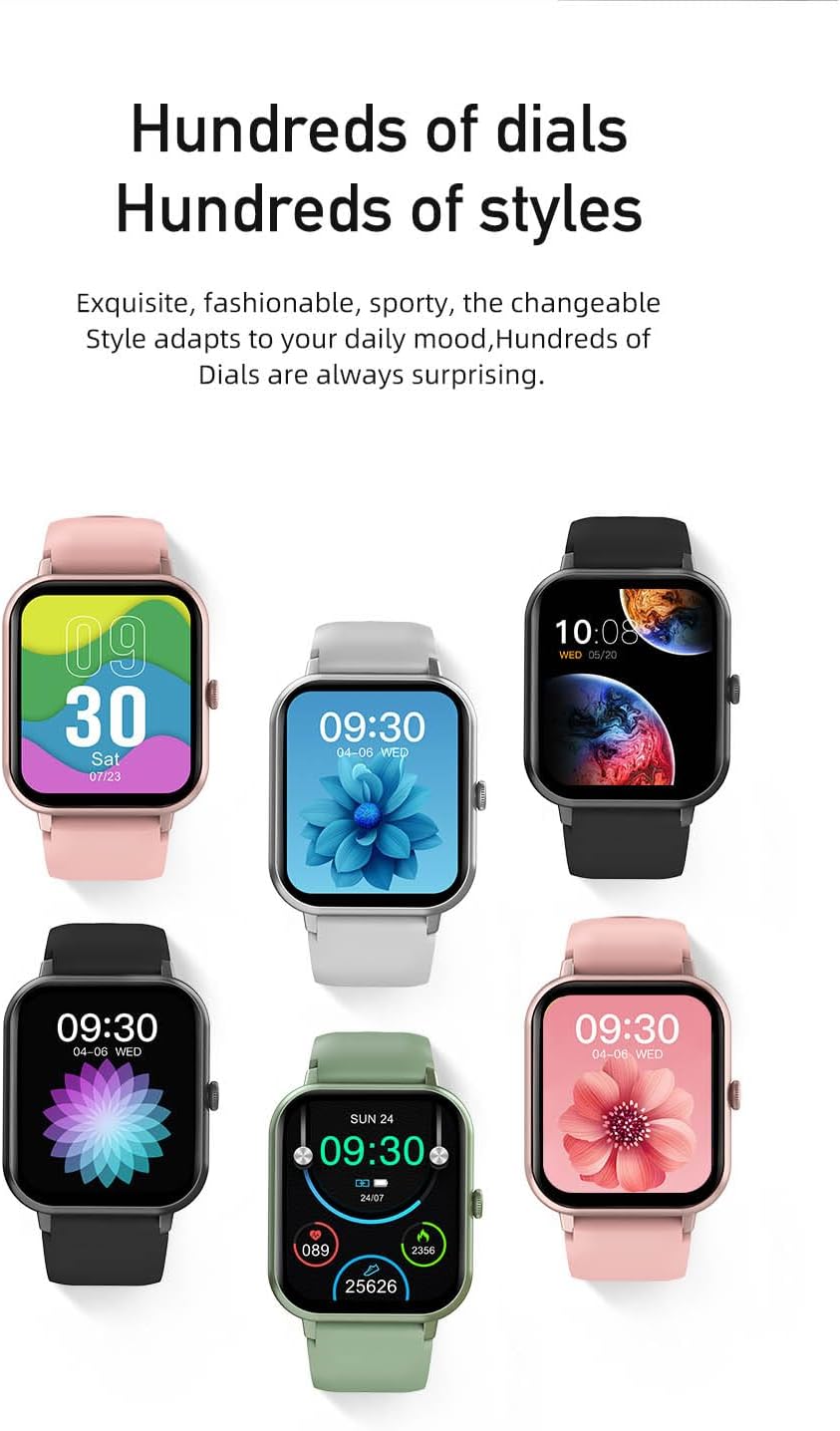
Image: An infographic highlighting the Awei H25's features, including its 1.83-inch screen, continuous health monitoring, extensive sports modes, and long battery life.
3. Sports Modes
The watch supports over 100 sports modes. To start a workout:
- From the main menu, select the 'Sports' icon.
- Browse and select your desired activity (e.g., Running, Walking, Cycling).
- Tap to start the activity. The watch will begin tracking duration, calories burned, and other relevant metrics.
- To pause or end a workout, swipe right or press the side button and follow the on-screen prompts.

Image: A woman engaged in outdoor running, illustrating the watch's application in fitness tracking with its 100+ sports modes.
4. Bluetooth Calling
Once paired with your phone, you can make and receive calls directly from your watch.
- Making a Call: Access the 'Dialer' or 'Contacts' feature on your watch. You can dial a number or select a contact to call.
- Receiving a Call: When a call comes in, the watch will display the caller ID. You can answer or reject the call directly from the watch screen.
5. Customizing Watch Faces
Personalize your watch with various watch faces.
- On the Watch: Long-press the home screen to enter the watch face selection mode. Swipe left/right to browse pre-installed faces and tap to select.
- Via App: Open the companion app, navigate to the 'Dial Market' or 'Watch Face' section. You can download and apply new watch faces from a wider selection.

Image: A display of six Awei H25 Smart Watches, each showcasing a different customizable watch face, highlighting the variety of styles available.
6. Smart Voice Assistant
Utilize the built-in smart voice assistant for hands-free control.
- Ensure your watch is connected to the app and your phone has an active internet connection.
- Access the voice assistant feature (usually by a specific swipe or button press, or through the app menu).
- Speak your commands clearly, such as "What's the weather today?" or "Call [Contact Name]".
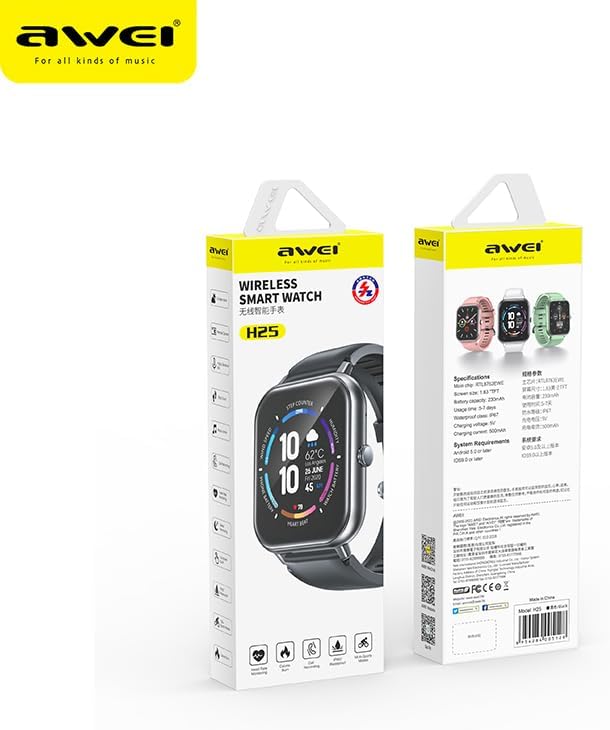
Image: The Awei H25 Smart Watch screen displaying the AI Voice feature, with example voice commands shown in speech bubbles.
Maintenance
1. Water and Dust Resistance (IP67)
The Awei H25 is rated IP67, meaning it is resistant to dust and can withstand immersion in water up to 1 meter for 30 minutes. However, it is not suitable for hot water baths, saunas, or diving. Avoid prolonged exposure to water and do not operate buttons underwater.
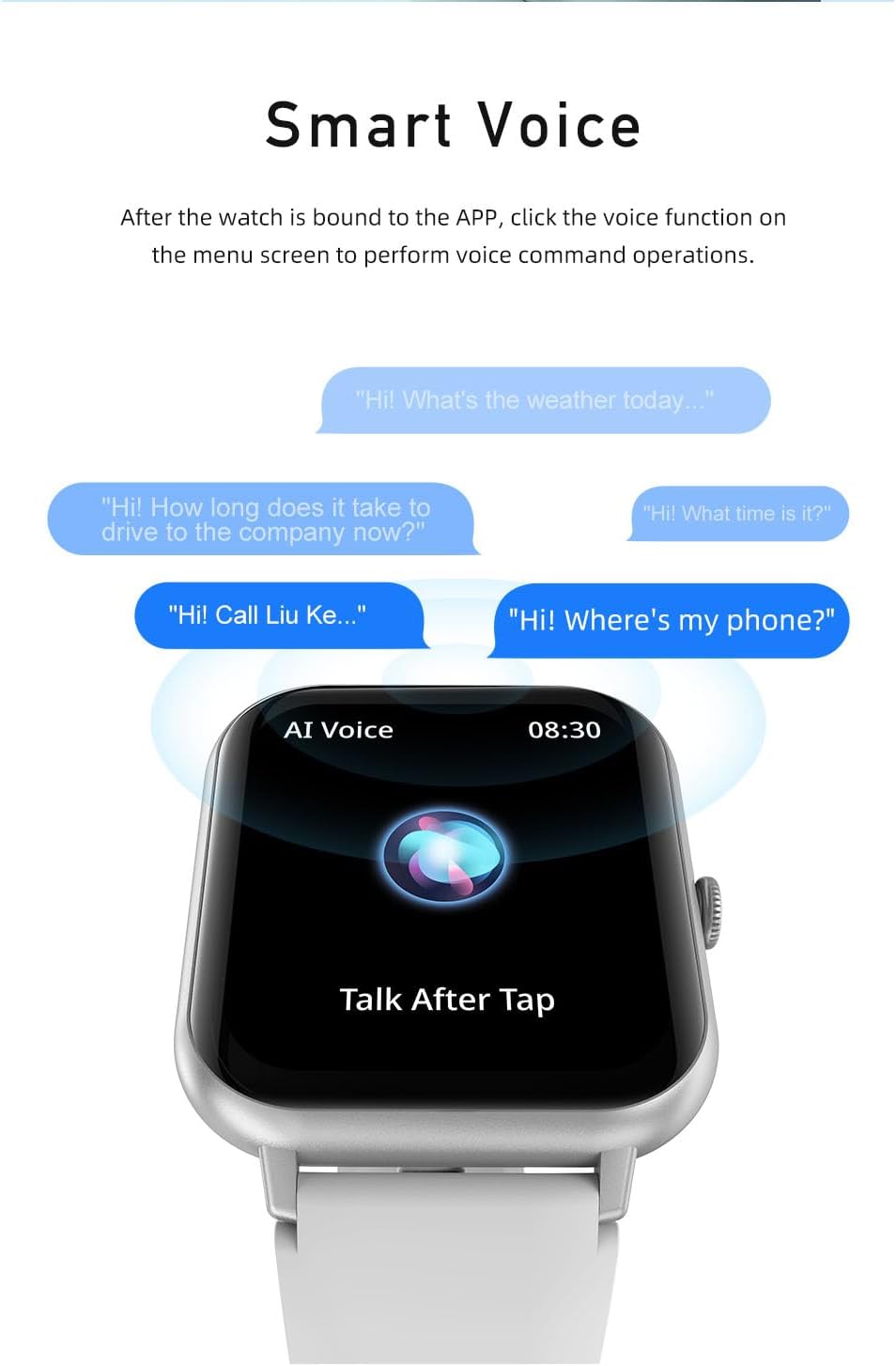
Image: An image illustrating the Awei H25's IP67 waterproof rating and its battery performance, showing typical and smart mode battery life.
2. Cleaning
Wipe the watch and strap regularly with a soft, dry cloth. If necessary, use a slightly damp cloth and then dry thoroughly. Avoid using harsh chemicals or abrasive materials.
3. Battery Care
To maximize battery life:
- Avoid extreme temperatures.
- Charge the watch before the battery is completely depleted.
- If storing for a long period, charge the watch to about 50% and turn it off.
Troubleshooting
| Problem | Possible Cause | Solution |
|---|---|---|
| Watch won't turn on | Low battery; System crash | Charge the watch for at least 30 minutes; Press and hold the side button for 10-15 seconds to force restart. |
| Cannot pair with phone | Bluetooth off; App issue; Watch not discoverable | Ensure Bluetooth is on; Restart phone and watch; Reinstall app; Reset watch to factory settings. |
| Inaccurate health data | Watch too loose/tight; Sensor dirty | Adjust watch fit; Clean the sensor on the back of the watch. |
| Notifications not received | App permissions; DND mode; Bluetooth disconnected | Check app notification permissions; Disable DND mode on watch/phone; Reconnect Bluetooth. |
Specifications
| Feature | Detail |
|---|---|
| Model Name | H25 |
| Brand | Awei |
| Screen Size | 1.83 inches |
| Shape | Rectangular |
| Wireless Communication Standard | Bluetooth |
| Connectivity Technology | USB |
| Battery Capacity | 230 mAh |
| Special Features | Activity Tracker |
| Operating System | Android Wear 2.0 |
| Water Resistance Rating | IP67 |
| Product Dimensions | 10 x 10 x 8 cm; 200 grams |
| First Available Date | September 24, 2023 |
Warranty and Support
Awei products are designed and manufactured to the highest quality standards. For warranty information, please refer to the warranty card included in your product packaging or visit the official Awei website. If you encounter any issues or have questions regarding your Awei H25 Smart Watch, please contact Awei customer support through their official channels.
Please retain your proof of purchase for warranty claims.


