
GoolRC S116
GoolRC S116 Drone User Manual
Model: S116
1. Introduction
Thank you for choosing the GoolRC S116 Drone. This advanced RC quadcopter is designed for adults, featuring a 4K dual camera, obstacle avoidance, optical flow positioning, trajectory flight, headless mode, gravity sensor, and a powerful brushless motor. This manual provides essential information for safe operation, setup, and maintenance of your drone. Please read it thoroughly before first use.
2. Safety Guidelines
Operating a drone requires responsibility. Adhere to the following safety guidelines to prevent injury or damage:
- Read the Manual: Fully understand all instructions and warnings before operation.
- Age Requirement: This product is recommended for users 16 years and older.
- Environmental Conditions: Fly in open, clear areas away from people, animals, buildings, and power lines. Avoid flying in strong winds, rain, or snow.
- Battery Safety: Use only original batteries. Do not overcharge or short-circuit batteries. Discontinue use if batteries swell or show signs of damage.
- Propeller Safety: Keep hands, face, and loose clothing away from rotating propellers. Ensure propellers are correctly installed before flight.
- Line of Sight: Always maintain visual line of sight with the drone during flight.
- Respect Privacy: Be mindful of privacy laws when using the camera.
- Pre-Flight Check: Before each flight, ensure the drone and remote control are fully charged, propellers are secure, and all functions are working correctly.
3. Package Contents
Verify that all items listed below are included in your package:

Image: Overview of the GoolRC S116 Drone package contents, showing the drone, remote control, two batteries, spare blades, charging cable, screwdriver, instructions, and storage bag.
- GoolRC S116 Drone (1)
- Remote Control (1)
- Drone Battery (2)
- Spare Blades (4)
- Charging Cable (1)
- Screwdriver (1)
- Instruction Manual (2)
- Storage Bag (1)
4. Setup
4.1. Charging the Battery
Before first use, fully charge both drone batteries. Connect the charging cable to the drone battery and a USB power adapter (not included). The charging indicator will show the charging status and turn off when fully charged. Charging time is approximately 90-120 minutes per battery.

Image: Close-up of the modular drone battery, indicating approximately 14 minutes flight time, 2000mAh capacity, and 3.7V voltage.
4.2. Installing the Drone Battery
Insert the fully charged battery into the battery compartment on the rear of the drone until it clicks into place. Ensure it is securely fastened.
4.3. Propeller Installation
The propellers are typically pre-installed. If replacement is needed, match the 'A' and 'B' markings on the propellers with the corresponding motor arms. Use the provided screwdriver to secure them firmly.
4.4. Remote Control Setup
Install 3x AAA batteries (not included) into the remote control. Extend the phone holder on the remote control and securely place your smartphone.
5. Operating Instructions
5.1. Power On and Pairing
- Press and hold the power button on the drone until the indicator lights flash.
- Turn on the remote control. The remote will automatically pair with the drone. A solid light on the drone indicates successful pairing.
- Calibration: After pairing, place the drone on a flat surface. Push both joysticks on the remote control to the bottom-left or bottom-right corners simultaneously for 2-3 seconds to calibrate the gyroscope. The drone lights will flash rapidly and then become solid, indicating successful calibration.
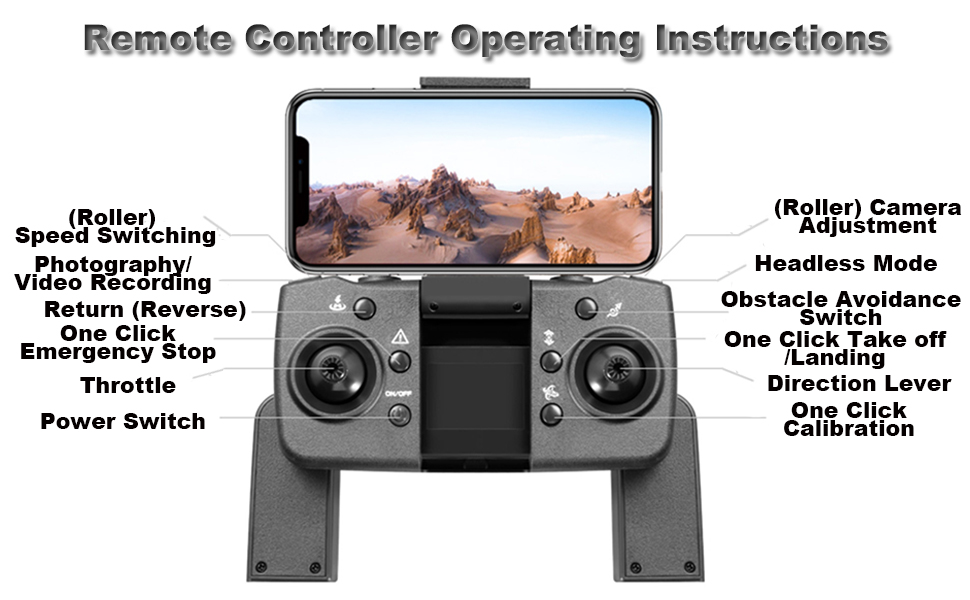
Image: Diagram illustrating the functions of the remote control, including speed switching, photography/video recording, return, emergency stop, throttle, power switch, camera adjustment, headless mode, obstacle avoidance switch, one-click takeoff/landing, direction lever, and one-click calibration.
5.2. Takeoff and Landing
- One-Key Takeoff: After calibration, press the One-Click Takeoff/Landing button. The drone will automatically ascend and hover at a certain altitude.
- Manual Takeoff: Push both joysticks outwards and downwards to start the propellers. Slowly push the left joystick (throttle) upwards to ascend.
- One-Key Landing: Press the One-Click Takeoff/Landing button again. The drone will automatically descend and land.
- Manual Landing: Slowly pull the left joystick (throttle) downwards until the drone lands. Once landed, push both joysticks outwards and downwards to stop the propellers.
5.3. Flight Controls
- Left Joystick (Throttle): Up/Down for altitude control.
- Left Joystick (Yaw): Left/Right for rotating the drone horizontally.
- Right Joystick (Direction): Up/Down for forward/backward movement. Left/Right for left/right sideward movement.
- Speed Switching: Use the speed switch button (roller) on the remote to cycle through different flight speeds (low, medium, high).
5.4. Camera Operation
The GoolRC S116 features a 4K dual camera system with electric adjustable camera angle.

Image: Detailed view of the drone's electric adjustable dual camera, highlighting its 4K resolution capabilities.
- Adjusting Camera Angle: Use the camera adjustment roller on the remote control to change the camera's vertical angle during flight.
- Taking Photos: Press the Photography/Video Recording button once to take a photo.
- Recording Video: Press and hold the Photography/Video Recording button to start recording video. Press again to stop.
- Real-time Transmission: Connect your smartphone to the drone's Wi-Fi network and open the dedicated app (refer to app instructions for download). This allows for real-time viewing of the camera feed and access to advanced features.

Image: A user holding the remote control with a smartphone attached, displaying the drone's real-time high-definition image transmission during flight over water.
5.5. Special Flight Features
- 360° Obstacle Avoidance: Activate the obstacle avoidance feature using the dedicated switch on the remote. The drone will automatically detect and avoid obstacles in its path, enhancing flight safety.
- Optical Flow Positioning: This feature helps the drone maintain a stable hover at a fixed altitude, especially useful for indoor flight or precise outdoor positioning in calm conditions.
- Trajectory Flight: In the app, draw a desired flight path on your smartphone screen. The drone will automatically follow this trajectory.
- Headless Mode: When activated, the drone's orientation becomes irrelevant to the control inputs. Forward on the joystick will always move the drone forward relative to the pilot, regardless of the drone's actual front.
- Gravity Sensor Control: Using the dedicated app, you can control the drone's flight direction by tilting your smartphone, leveraging its built-in gravity sensor.
- Gesture Control: The drone supports gesture-based photo and video capture. Refer to the app instructions for specific gestures.

Image: The GoolRC S116 drone in flight, illustrating its 360-degree obstacle avoidance capability with sensors detecting surrounding objects.

Image: The drone hovering, with an illustration of optical flow sensors on its underside detecting ground patterns for stable positioning.

Image: The drone flying along a pre-defined trajectory path indicated by red markers, demonstrating its intelligent flight capabilities.

Image: A user holding a smartphone, demonstrating how tilting the phone controls the drone's flight direction through gravity sensor technology.
6. Maintenance
- Cleaning: Use a soft, dry cloth to clean the drone and remote control. Do not use harsh chemicals or solvents.
- Propeller Inspection: Regularly check propellers for damage (cracks, bends). Replace damaged propellers immediately using the provided spare blades.
- Battery Care: Store batteries in a cool, dry place. If not used for an extended period, charge them to about 50% capacity every three months to prolong battery life.
- Storage: When not in use, store the drone and its accessories in the provided storage bag to protect them from dust and damage.
7. Troubleshooting
| Problem | Possible Cause | Solution |
|---|---|---|
| Drone does not respond to remote. | Not paired; low battery on drone or remote. | Ensure drone and remote are powered on and paired. Charge batteries. |
| Drone drifts during flight. | Gyroscope not calibrated; uneven surface during takeoff. | Recalibrate the gyroscope on a flat surface. |
| Propellers do not spin. | Propellers jammed; motor issue; low battery. | Check for obstructions. Ensure batteries are charged. Contact support if motors are faulty. |
| Poor camera image quality or no feed. | Weak Wi-Fi signal; app not connected; camera lens dirty. | Ensure strong Wi-Fi connection. Reconnect app. Clean camera lens. |
| Obstacle avoidance not working. | Feature not activated; sensors obstructed or dirty. | Activate obstacle avoidance. Clean sensors. |
8. Specifications
- Model: GoolRC S116
- Dimensions: 9.06 x 9.06 x 4.72 inches (23 x 23 x 12 cm)
- Weight: 1.21 pounds (approx. 549g)
- Camera: 4K Dual Camera, Electric Adjustable Angle
- Motor Type: Brushless Motor
- Battery: 3.7V 2000mAh (Modular)
- Flight Time: Approximately 14 minutes per battery
- Charging Time: Approximately 90-120 minutes
- Features: 360° Obstacle Avoidance, Optical Flow Positioning, Trajectory Flight, Headless Mode, Gravity Sensor, Gesture Control
- Recommended Age: 16 years and up

Image: The GoolRC S116 drone highlighting its brushless motor, emphasizing high efficiency, low noise, and long service life, along with improved wind resistance and performance.
9. Warranty and Support
GoolRC products are designed for quality and reliability. For warranty information, technical support, or service inquiries, please refer to the contact information provided in the separate warranty card included with your product or visit the official GoolRC website. Please retain your proof of purchase for warranty claims.
For further assistance, you may also visit the GoolRC Store on Amazon.
Ask a question about this manual
Ask about setup, troubleshooting, compatibility, parts, safety, or missing instructions. Manuals+ will review the question and use this page’s manual context to help answer it.