
Keychron K17P-A2
Keychron K17 Pro Wireless/Wired Custom Mechanical Keyboard User Manual
Model: K17P-A2 | Brand: Keychron
Introduction
Welcome to the user manual for your Keychron K17 Pro Wireless/Wired Custom Mechanical Keyboard. This ultra-slim 96% layout keyboard features QMK/VIA programmability, a versatile knob, RGB backlight, and hot-swappable low-profile Gateron switches. It is designed for seamless compatibility with macOS, Windows, and Linux operating systems. This manual provides essential information for setup, operation, maintenance, and troubleshooting to ensure optimal performance and longevity of your keyboard.

Image: Keychron K17 Pro keyboard, showcasing its compact 96% layout and sleek design.
What's in the Box
Upon unboxing your Keychron K17 Pro, please ensure all the following items are present:
- 1x Fully Assembled Keyboard (Keychron K17 Pro)
- 1x Type-A to Type-C USB Cable
- 1x Keycap Puller
- 1x Switch Puller (for Hot-Swappable Version only)
- Mac and Windows Keycaps (additional keycaps for OS specific layouts)

Image: Diagram illustrating the contents included with the Keychron K17 Pro keyboard.
Setup
1. Initial Connection
The Keychron K17 Pro supports both wireless (Bluetooth) and wired (USB-C) connections.
Wired Connection:
- Locate the USB-C port on the keyboard.
- Connect the provided USB-A to USB-C cable to the keyboard and then to your computer's USB port.
- Ensure the toggle switch on the side of the keyboard is set to "Cable" mode.
- The keyboard will be automatically recognized by your operating system.
Wireless (Bluetooth) Connection:
- Ensure the toggle switch on the side of the keyboard is set to "Bluetooth" mode.
- Press and hold the Fn + 1 (or Fn + 2 / Fn + 3) keys for 4 seconds until the '1' (or '2' / '3') key flashes rapidly. This indicates the keyboard is in pairing mode.
- On your computer or device, navigate to Bluetooth settings and search for "Keychron K17 Pro".
- Select the keyboard to pair. Once connected, the corresponding number key will stop flashing.
- The keyboard can connect to up to 3 devices wirelessly. Switch between paired devices by pressing Fn + 1, Fn + 2, or Fn + 3.

Image: Side view of the Keychron K17 Pro showing the toggle switches for connectivity (Bluetooth/OFF/Cable) and operating system (Windows/Android/Mac/iOS).
2. Operating System Compatibility
The K17 Pro is compatible with macOS, Windows, and Linux. Use the OS toggle switch located on the side of the keyboard to select the correct operating system mode for optimal key mapping and functionality.
- Mac/iOS Mode: For Apple devices.
- Win/Android Mode: For Windows and Android devices.

Image: The Keychron K17 Pro keyboard with icons representing macOS, Windows, and Linux, highlighting its broad compatibility.
Operating Instructions
QMK/VIA Programmability
The K17 Pro supports QMK/VIA, open-source software that allows you to remap keys, create macros, and customize the keyboard's layout.
- Download the VIA software from the official Keychron website.
- Connect the keyboard in wired mode to your computer. VIA only recognizes the keyboard in wired mode for remapping.
- Launch VIA and customize key assignments, macros, and lighting effects. Once changes are applied, they will function in both wired and wireless modes.

Image: Screenshot of the VIA software interface showing key remapping options for the Keychron K17 Pro.
Programmable Knob
The multi-function knob on the K17 Pro can be programmed via QMK/VIA to control various functions, such as volume, media playback, or custom commands.
- Default Functions:
- Rotate clockwise: Volume Up
- Rotate counter-clockwise: Volume Down
- Press: Play/Pause
- Customize these functions using the VIA software.
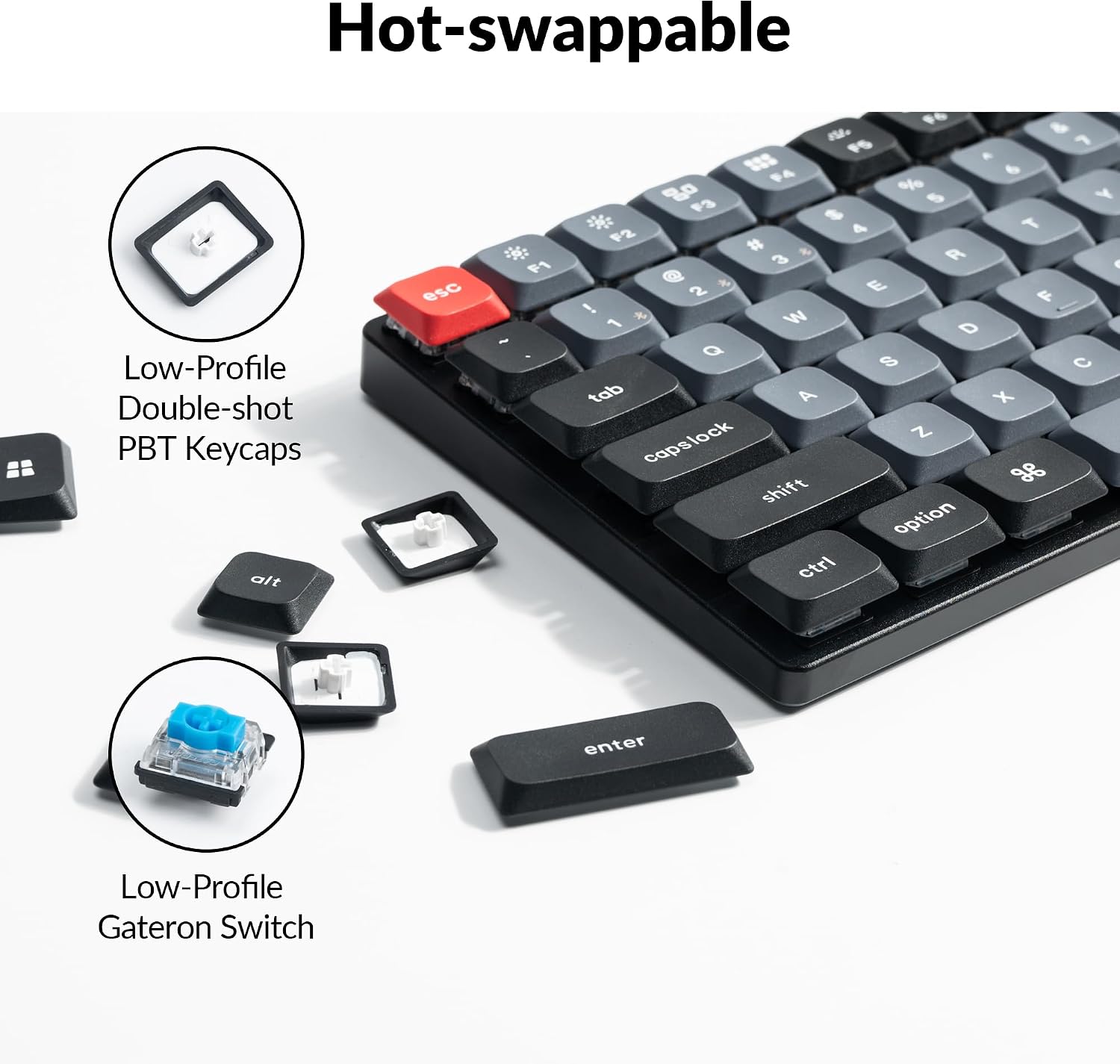
Image: Close-up of the programmable knob on the Keychron K17 Pro, illustrating its default functions for volume control and media playback.
RGB Backlight
The K17 Pro features 22 types of RGB backlight effects.
- Press Fn + Light key (usually F5 or a dedicated light key) to cycle through different backlight effects.
- Use Fn + Arrow keys to adjust backlight brightness and speed.
- Further customization of lighting patterns and colors can be done through the VIA software.
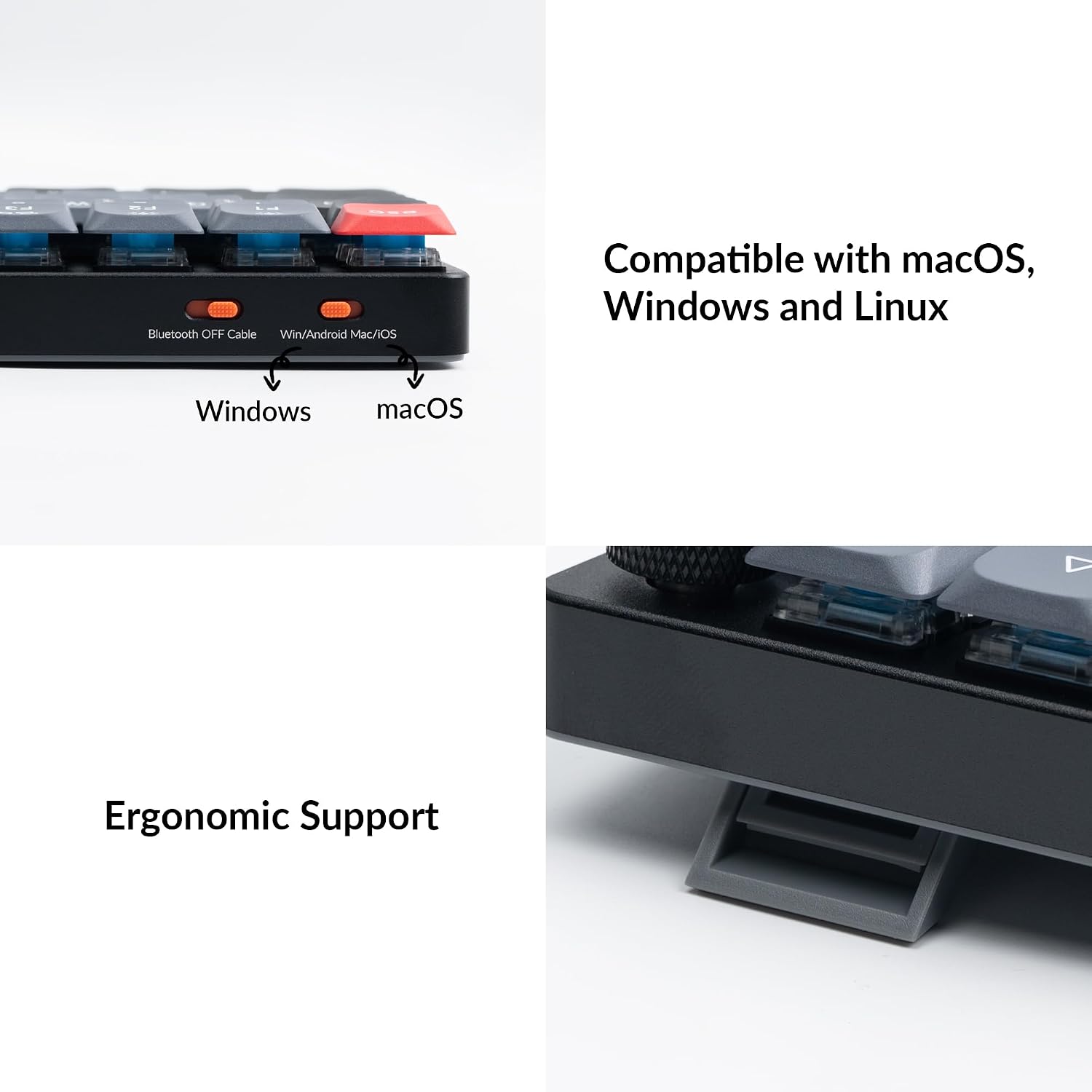
Image: Close-up of the Keychron K17 Pro keyboard showcasing its vibrant RGB backlighting beneath the keycaps.
Hot-Swappable Switches
The K17 Pro is equipped with hot-swappable sockets, allowing you to easily change mechanical switches without soldering. This enables customization of your typing experience.
- Use the provided switch puller to carefully remove a switch.
- Align the pins of the new low-profile Gateron mechanical switch with the holes on the PCB and gently press it into place until it clicks.
- Note: The K17 Pro is compatible only with Gateron/Keychron low-profile mechanical switches. QMK does not support low-profile optical switches.

Image: Illustration of the hot-swappable feature, showing a low-profile Gateron switch being removed and double-shot PBT keycaps.
Maintenance
Cleaning the Keyboard
- Disconnect the keyboard from your computer before cleaning.
- Use a soft, lint-free cloth slightly dampened with water or a mild cleaning solution to wipe down the keycaps and keyboard surface.
- For dust and debris between keycaps, use compressed air or a small brush.
- Avoid using harsh chemicals or abrasive materials that could damage the keyboard finish or keycap legends.
Keycap and Switch Replacement
The K17 Pro's hot-swappable design makes replacing keycaps and switches straightforward.
- Keycap Removal: Use the provided keycap puller. Gently hook the puller onto the keycap and pull straight up.
- Keycap Installation: Align the keycap with the switch stem and press down firmly until it seats properly.
- Switch Removal: Use the provided switch puller. Squeeze the tabs on the top and bottom of the switch and pull straight up.
- Switch Installation: Ensure the switch pins are straight. Align them with the holes on the PCB and press down until the switch clicks into place. Do not force the switch, as bent pins can damage the socket.

Image: The Keychron K17 Pro keyboard with some keycaps removed, revealing the underlying switches and PCB for maintenance or customization.
Troubleshooting
Connectivity Issues:
- Keyboard not connecting via Bluetooth:
- Ensure the keyboard is in Bluetooth mode and pairing mode (Fn + 1/2/3 for 4 seconds).
- Check your device's Bluetooth settings and ensure Bluetooth is enabled.
- Try forgetting the device on your computer and re-pairing.
- Ensure the keyboard battery is charged.
- Keyboard not recognized in wired mode:
- Ensure the toggle switch is set to "Cable" mode.
- Try a different USB-C cable or a different USB port on your computer.
- Restart your computer.
Key Functionality Issues:
- Keys not responding:
- Ensure the switch is properly seated in its socket. Gently press down on the keycap.
- If hot-swappable, try removing and reinserting the switch, or swap it with a known working switch to diagnose.
- Check if the key has been remapped using VIA.
- Backlight not working or inconsistent:
- Ensure the backlight is turned on (Fn + Light key).
- Adjust brightness using Fn + Arrow keys.
- If issues persist, try resetting the keyboard to factory settings (refer to advanced settings in the official user guide).
QMK/VIA Issues:
- VIA not detecting keyboard:
- Ensure the keyboard is connected in wired mode.
- Verify you have the correct VIA firmware loaded on the keyboard (if applicable, check Keychron's support page).
- Try using a different browser (VIA is web-based).
For more detailed troubleshooting steps or advanced configurations, please refer to the official Keychron K17 Pro User Guide PDF: Download User Guide (PDF).
Specifications
| Feature | Detail |
|---|---|
| Model Name | Keychron K17 Pro |
| Item Model Number | K17P-A2 |
| Layout | 96% Layout (103 Keys) |
| Connectivity | Bluetooth 5.1 (Wireless), USB-C (Wired) |
| Polling Rate | 1000 Hz (Wired), 90 Hz (Wireless) |
| Switches | Low-Profile Gateron Mechanical (Hot-Swappable) |
| Keycaps | Double-shot PBT Keycaps |
| Backlight | RGB (22 types) |
| Battery | 1 Lithium Polymer battery (included) |
| Compatible Devices | macOS, Windows, Linux |
| Dimensions | 17.63 x 6.38 x 1.81 inches |
| Item Weight | 2.42 pounds |
| Manufacturer | Keychron |
Gateron Low Profile 2.0 Mechanical Switch Characteristics

Image: Table detailing the specifications of Gateron Low Profile 2.0 Mechanical Switches (Red, Brown, Blue) including operation force, pre-travel, travel distance, behavior, pre-lubed status, sound level, and suitable uses.
| Switch Type | Operation Force | Pre-travel | Travel Distance | Behavior | Pre-lubed | Sound Level | Suitable For |
|---|---|---|---|---|---|---|---|
| Red Switch | 50 ±15gf | 1.7 ±0.4mm | 3.0 +0.2 mm | Linear | Yes | Low | Office/gaming |
| Brown Switch | 55 ±15gf | 1.7 ±0.4mm | 3.0 +0.2 mm | Tactile | Yes | Medium | Midway office/gaming |
| Blue Switch | 65 +15gf | 1.7 +0.4 /-0.3mm | 3.0 +0.2 mm | Clicky | - | Loud | Typist |
Warranty and Support
Keychron products are manufactured with high-quality standards. For information regarding warranty coverage, technical support, and service, please visit the official Keychron website or contact their customer support directly.
You can also refer to the comprehensive User Manual (PDF) for additional details and support: Download User Manual (PDF).
Related documentsK17P-A2

Ask a question about this manual
Ask about setup, troubleshooting, compatibility, parts, safety, or missing instructions. Manuals+ will review the question and use this page’s manual context to help answer it.