
1. Introduction
The AKIYO O2 Projector is a compact and versatile device designed for various entertainment and presentation needs. It features integrated applications, advanced wireless connectivity with Wi-Fi 6 and Bluetooth 5.4, and supports 4K video input for a high-quality viewing experience. Its unique 180-degree rotation and automatic keystone correction offer flexible projection options in diverse environments.
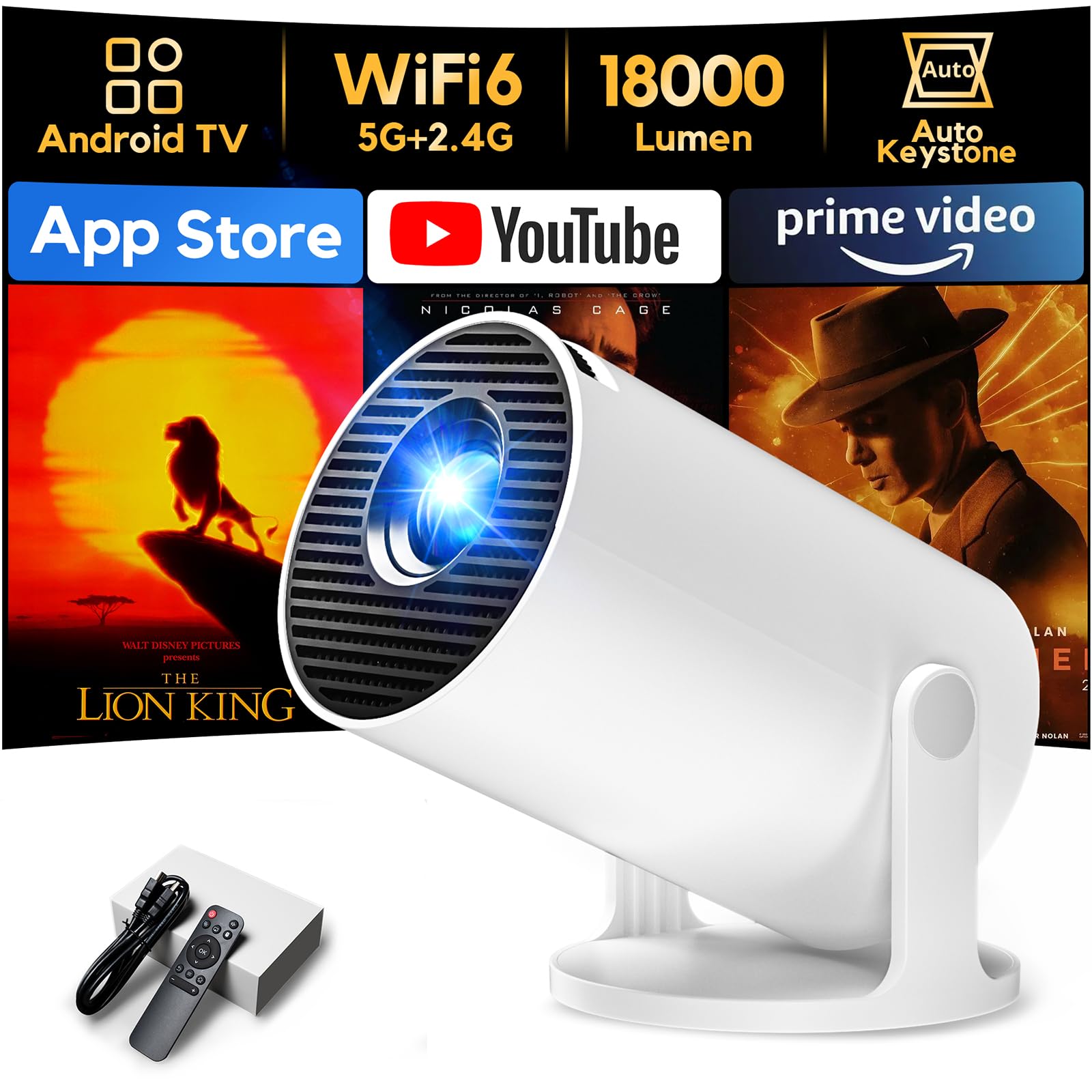
This manual provides detailed instructions for setting up, operating, and maintaining your AKIYO O2 Projector to ensure optimal performance and longevity.
2. What's in the Box
Please check the package contents upon unboxing. If any items are missing or damaged, contact AKIYO customer service.
- AKIYO O2 Mini Projector
- HDMI Cable
- Power Adapter
- Remote Control
- User Manual
- Tripod

3. Product Features
The AKIYO O2 Projector is equipped with several advanced features for an enhanced user experience:
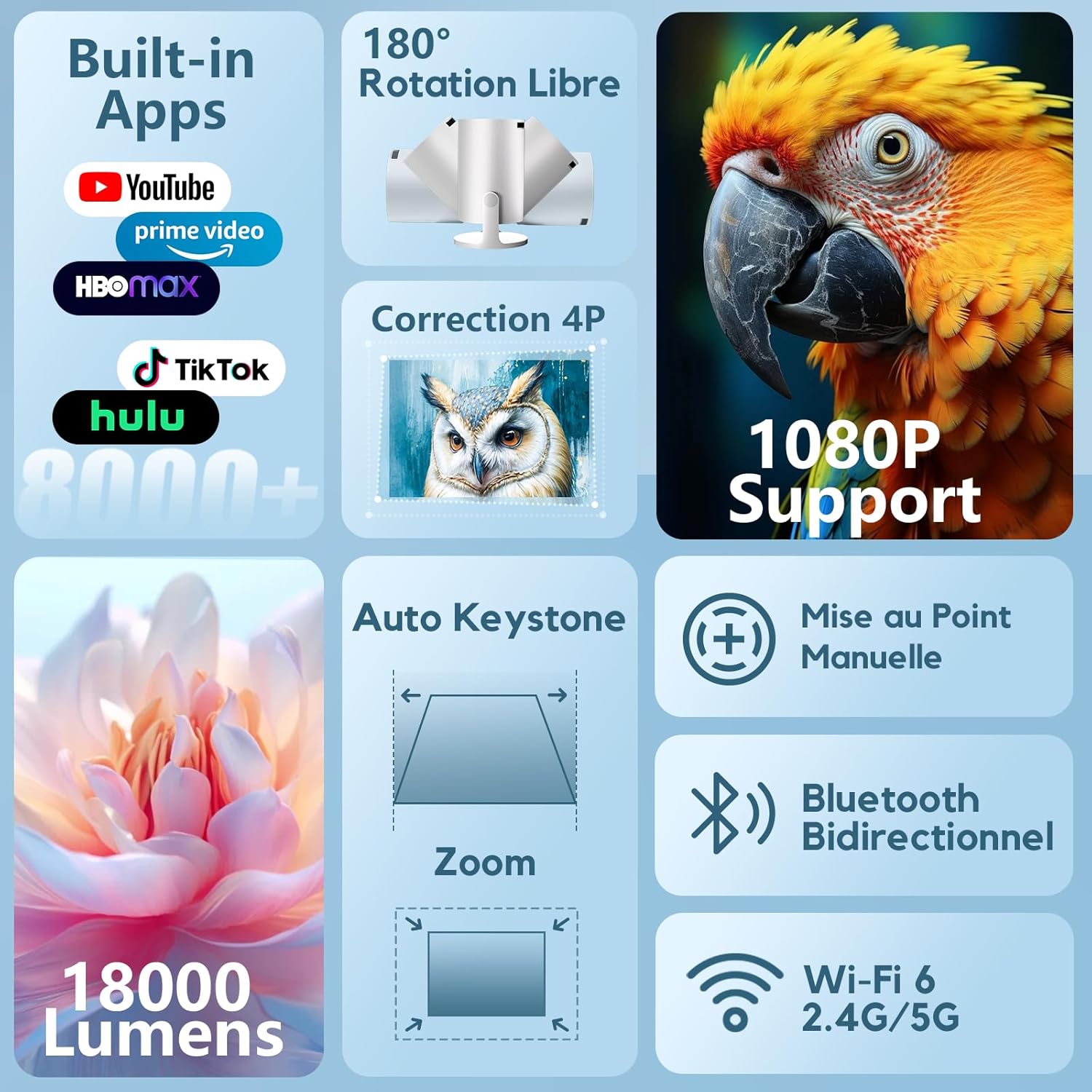
- Integrated Applications: Access over 8,000 applications including popular streaming services like YouTube, Prime Video, HBO Max, TikTok, and Hulu directly via Wi-Fi, eliminating the need for additional TV sticks.
- Short-Throw Projection (0.8:1 Ratio): Project large images (35 to 200 inches) from a short distance (0.6 to 3.5 meters), ideal for small spaces like RVs, bedrooms, or camping.
- Wi-Fi 6 Connectivity: Utilizes the latest Wi-Fi 6 technology, compatible with both 5 GHz and 2.4 GHz networks, for smoother online video streaming with minimal lag.
- Bidirectional Bluetooth 5.4: Connect to Bluetooth headphones for improved audio or use the projector as a Bluetooth speaker by pairing it with your smartphone.
- 180° Rotation: The projector features a 180-degree rotatable stand, allowing projection onto walls, ceilings, or even drawing boards, offering flexible viewing angles.
- Automatic Keystone Correction: Equipped with vertical automatic keystone correction to achieve a perfectly rectangular image in seconds.
- Multiple Control Modes: Control the projector using the included remote, a dedicated app (tranScreen), or an external mouse (available upon request from customer service).

4. Setup Instructions
4.1 Physical Placement
Place the projector on a stable, flat surface. The 180-degree rotatable stand allows for flexible positioning. You can project onto a wall, screen, or even the ceiling. Ensure there is adequate ventilation around the projector.
- Projection Distance: For optimal viewing, position the projector between 0.6 meters and 3.5 meters from the projection surface. This distance can produce an image size from 35 to 200 inches.

4.2 Power Connection
- Connect the power adapter to the projector's DC input port.
- Plug the power adapter into a suitable electrical outlet.
- Press the power button on the projector or remote control to turn on the device.
4.3 Initial Setup and Network Connection
- Upon first power-on, follow the on-screen prompts to select your preferred language.
- Navigate to the Wi-Fi settings and connect to your home or office Wi-Fi network (supports 2.4 GHz and 5 GHz).
4.4 Image Adjustment
- Automatic Keystone Correction: The projector automatically corrects vertical trapezoidal distortion. For manual adjustments, navigate to the image settings menu.
- Manual Focus: Use the focus wheel located on the projector to achieve a sharp image.
- Zoom Function: Adjust the screen size from 100% down to 50% without moving the projector, using the remote control or on-screen menu.

5. Operating Instructions
5.1 Power On/Off
Press the power button on the projector or the remote control to turn the device on or off.
5.2 Navigation and Control
The projector can be controlled using several methods:
- Remote Control: Use the included remote for navigating menus, adjusting settings, and controlling playback.
- App Control: Download the "tranScreen" app on your smartphone to control the projector.
- Mouse Control: An external mouse can be connected for navigation. Contact customer service if you require a mouse.
5.3 Using Built-in Applications
Once connected to Wi-Fi, you can access pre-installed applications or download new ones from the integrated Play Store. Navigate through the app interface using your preferred control method.

5.4 Connecting External Devices
- HDMI: Connect devices such as TV sticks, gaming consoles (PS5), or laptops using an HDMI cable. Select the HDMI input source from the projector's menu.
- USB: Insert a USB drive into the USB port to play media files directly.
- Wireless Screen Mirroring:
- Ensure your Android device has a "Screen Mirroring" function (names may vary, e.g., Smart View, Wireless Projection, Cast Screen).
- Activate the WLAN/Wi-Fi button on your Android device.
- Enable "Screen Mirroring" in your phone's settings.
- Select the projector's name (e.g., "O2-XXXX") from the search results to connect.

5.5 Bluetooth Audio
The bidirectional Bluetooth 5.4 allows for flexible audio management:
- Connect to External Speakers/Headphones: Pair the projector with your Bluetooth audio devices for a more immersive sound experience.
- Use as a Bluetooth Speaker: Pair your smartphone with the projector to use its built-in speaker for audio playback.

6. Maintenance
Regular maintenance ensures the longevity and optimal performance of your projector.
- Cleaning the Lens: Use a soft, lint-free cloth specifically designed for optical lenses. Avoid abrasive materials or harsh chemicals.
- Cleaning the Exterior: Wipe the projector's exterior with a soft, dry cloth. Do not use liquid cleaners directly on the device.
- Ventilation: Ensure the projector's ventilation ports are clear of dust and obstructions to prevent overheating.
- Storage: When not in use for extended periods, store the projector in a cool, dry place, away from direct sunlight and extreme temperatures.

7. Troubleshooting
If you encounter issues with your AKIYO O2 Projector, refer to the following common problems and solutions:
| Problem | Possible Cause | Solution |
|---|---|---|
| No image/Power not turning on | Power cable not connected, power outlet issue, projector off. | Check power connections, try a different outlet, press power button. |
| Image is blurry | Out of focus, projection distance incorrect. | Adjust the manual focus wheel. Ensure projector is within optimal projection distance (0.6-3.5m). |
| Distorted image (not rectangular) | Projector not aligned, auto keystone not activated. | Ensure projector is placed on a flat surface. Auto keystone should correct automatically; if not, check image settings. |
| No sound | Volume too low, external audio device connected, source device muted. | Increase projector volume. Disconnect external Bluetooth devices. Check audio settings on source device. |
| Wi-Fi/Bluetooth connectivity issues | Incorrect password, out of range, interference. | Verify password. Move closer to router/device. Reduce interference from other electronics. |
| Screen mirroring not working | Device incompatibility, network issues, incorrect steps. | Ensure your device supports screen mirroring. Follow the steps in Section 5.4. Check Wi-Fi connection. |
| Fan noise is noticeable | Normal operation, ventilation blocked. | Some fan noise is normal. Ensure ventilation ports are clear. Increase audio volume to mask noise. |
For further assistance, please contact AKIYO customer support.
8. Specifications
Below are the technical specifications for the AKIYO O2 Projector:
| Feature | Description |
|---|---|
| Brand | AKIYO |
| Model Number | O2 |
| Display Resolution | 1280 x 720 (Native) |
| Maximum Display Resolution | 1920 x 1080 (4K Support) |
| Connectivity Technology | Bluetooth 5.4, HDMI, USB, Wi-Fi 6 (2.4GHz/5GHz) |
| Special Features | 4K 1080P Support, Auto Keystone, Built-in Apps and Speaker, Portable, WiFi 6+Bluetooth 5.4, 180° Rotation |
| Product Dimensions (L x W x H) | 13.7 x 7.1 x 8.6 cm |
| Form Factor | Portable |
| Brightness | 100 ANSI Lumens |
| Contrast Ratio | 12000:1 |
| Light Source Life | 20000 Hours |
| Maximum Projection Distance | 3.5 Meters |
| Minimum Projection Distance | 60 Centimeters |
| Maximum Image Size | 300 Inches |
| Minimum Image Size | 30 Inches |
| Compatible Devices | TV Stick, Phone, PC, PS5, Laptops, Smartphones (with additional HDMI adapter) |
| Control Type | Remote Control |
| UPC | 850048421110 |
9. Warranty and Support
AKIYO is committed to providing excellent customer service and product support.
- Warranty: The AKIYO O2 Projector comes with a two-year warranty.
- Return Policy: You may return the product within 30 days without reason.
- Technical Support: Lifetime technical support is provided for your product.
- Contact: For any inquiries, technical assistance, or to request a mouse, please contact AKIYO official customer service.


