
1. Introduction
This manual provides detailed instructions for the safe and effective use of your TURN RAISE Triple Lens Sewer Inspection Camera. Please read this manual thoroughly before operating the device to ensure proper functionality and to prevent damage.

Image 1.1: The TURN RAISE Triple Lens Sewer Inspection Camera system, featuring the handheld monitor, coiled semi-rigid cable, and the triple-lens camera probe. Accessories like a hook and magnet are also visible.
2. Product Overview
2.1 Key Features
- Triple Lens System: Front, left, and right cameras for comprehensive viewing.
- 5-inch IPS Screen: Provides a wide viewing angle and clear display.
- 1080P HD Resolution: For high-definition image and video capture.
- 50ft Semi-Rigid Cable: Durable and flexible for navigating various pipes and spaces.
- IP67 Waterproof Probe: Suitable for wet and submerged environments.
- Adjustable LED Lights: Integrated on the camera probe for illumination in dark areas.
- 32GB Micro SD Card: Included for storing captured photos and videos.
- No External Devices Required: Operates independently without a phone, Wi-Fi, or Bluetooth connection.
2.2 Components
The package includes the following components:
- Main Monitor Unit
- Triple Lens Camera Probe with 50ft Semi-Rigid Cable
- USB Charging Cable
- 32GB Micro SD Card (pre-installed or separate)
- Hook Attachment
- Magnet Attachment
- Protective Carrying Case
- User Manual (this document)

Image 2.1: The complete product package, including the main unit, coiled cable, accessories, USB cable, and carrying case.
3. Setup
3.1 Charging the Device
- Connect the provided USB charging cable to the charging port on the main monitor unit.
- Connect the other end of the USB cable to a standard USB power adapter (not included) or a computer USB port.
- The charging indicator light will illuminate. Allow approximately 3-4 hours for a full charge.
- A fully charged battery (2800mAh) provides several hours of operation.

Image 3.1: Illustration of the internal 2800mAh battery, indicating its capacity for extended use.
3.2 Inserting the Micro SD Card
The device comes with a 32GB Micro SD card for storage. If it's not pre-installed:
- Locate the Micro SD card slot on the side of the monitor unit.
- Insert the Micro SD card with the gold contacts facing down until it clicks into place.
- To remove, gently push the card in until it springs out.

Image 3.2: The 32GB Micro SD card slot, used for storing inspection photos and videos.
3.3 Attaching Accessories
The hook and magnet attachments can be screwed onto the camera probe for retrieving objects or navigating difficult areas.

Image 3.3: The hook and magnet attachments, useful for retrieving small items during inspections.
4. Operation
4.1 Powering On/Off
- To power on, press and hold the power button until the screen illuminates.
- To power off, press and hold the power button until the screen shuts down.
4.2 Navigating the Interface
The device features a 5-inch IPS screen for clear viewing and intuitive controls.

Image 4.1: The large 5-inch IPS screen offers a wide viewing angle and high brightness for clear visibility during inspections.
4.3 Camera Control and Viewing Modes
The triple-lens system provides multiple viewing options:
- Front Camera: Primary view for forward inspection.
- Side Cameras: Left and right cameras for inspecting pipe walls or tight spaces.
- Split-Screen View: Allows simultaneous display of multiple camera feeds (e.g., front and side). Use the dedicated button on the monitor to cycle through viewing modes.

Image 4.2: Detailed diagram of the 1080P Triple-Lens CMOS Sensor Chip, illustrating the front (A), left (B), and right (C) lenses with their respective focal ranges.

Image 4.3: The split-screen view feature, demonstrating how the monitor can display multiple camera feeds simultaneously for enhanced inspection in confined spaces.
4.4 Adjusting LED Brightness
The camera probe is equipped with adjustable LED lights to illuminate dark inspection areas. Use the dedicated light adjustment button on the monitor to cycle through brightness levels.
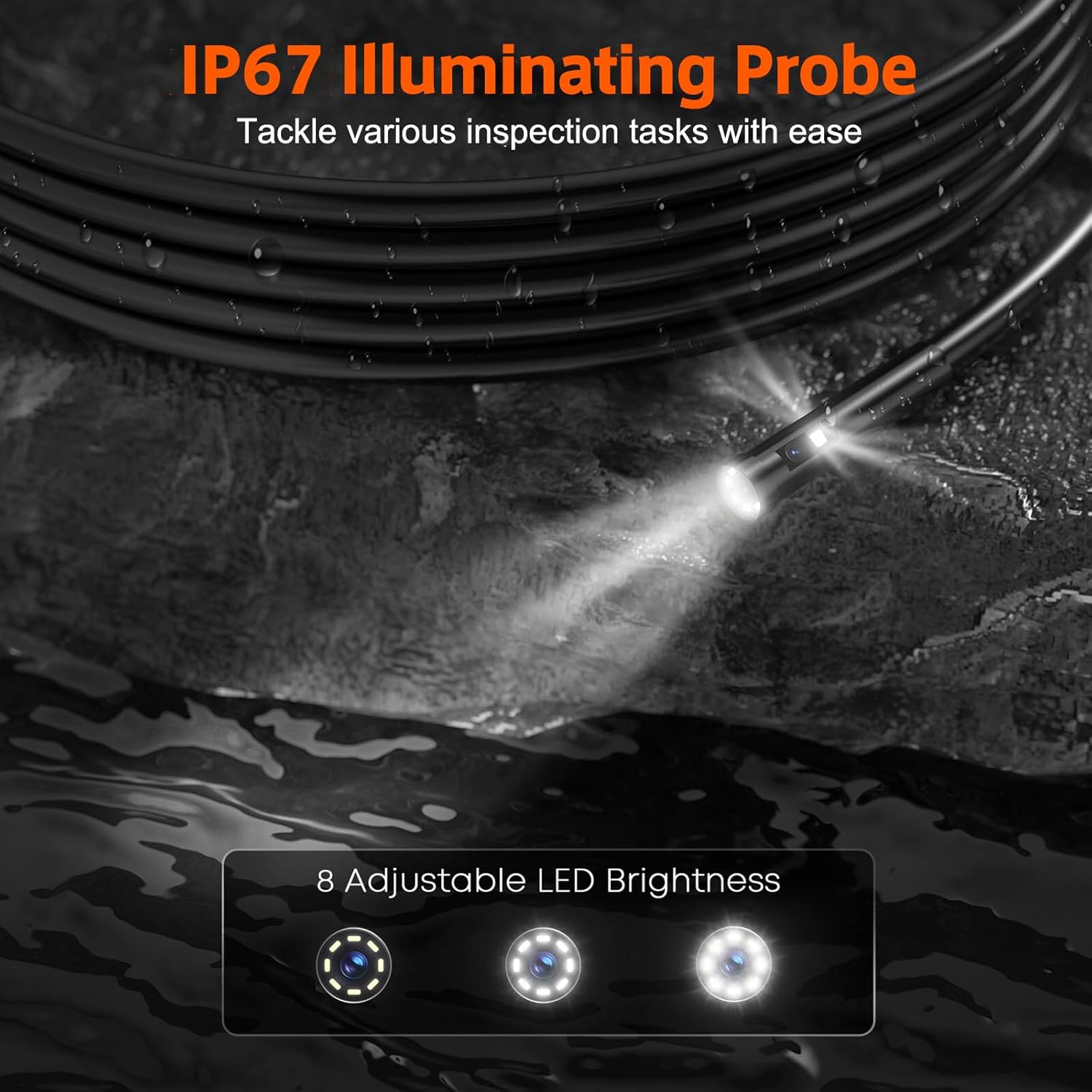
Image 4.4: The IP67 waterproof illuminating probe, showing its LED lights and demonstrating adjustable brightness settings for various inspection conditions.
4.5 Capturing Photos and Videos
- To take a photo, press the photo capture button. The image will be saved to the Micro SD card.
- To record video, press the video record button to start recording. Press it again to stop. Videos will be saved to the Micro SD card.
4.6 Navigating with the Semi-Rigid Cable
The 50ft semi-rigid cable is designed for flexibility and durability. For navigating long or complex pipes, consider these methods:
- Fish Tape: Tape the camera probe to a fish tape to provide additional rigidity and guidance through pipes.
- Drain Snake: Secure the camera probe to a drain snake for pushing through blockages or tight bends.
- Plastic Baseball/Guide: Attach the camera to a plastic baseball or similar guide to help center it in larger pipes and prevent snagging.

Image 4.5: Instructions on how to securely tape the camera probe to a fish tape, enhancing its ability to navigate further into pipes.

Image 4.6: Demonstrations of the 50ft semi-rigid cable being used with a drain snake, a plastic baseball for centering, and a fish tape for extended reach.
5. Maintenance
5.1 Cleaning
- After each use, especially in dirty or wet environments, clean the camera probe and cable.
- Wipe the probe and cable with a damp cloth. For stubborn dirt, a mild soap solution can be used, followed by a clean damp cloth.
- Ensure the camera lenses are clean and free of debris for optimal image clarity. A soft brush or cotton swab can be used for the lenses.
- Do not submerge the main monitor unit in water. Wipe it with a dry or slightly damp cloth.
5.2 Storage
- Store the device and its accessories in the provided protective carrying case.
- Keep the device in a cool, dry place, away from direct sunlight and extreme temperatures.
- Ensure the cable is neatly coiled to prevent kinks or damage.
5.3 Battery Care
- Charge the battery fully before long-term storage.
- If storing for extended periods, charge the battery every 3-6 months to maintain its health.
6. Troubleshooting
| Problem | Possible Cause | Solution |
|---|---|---|
| Device does not power on | Low battery; Power button not pressed correctly | Charge the device fully; Press and hold the power button for a few seconds |
| No image on screen | Cable not securely connected; Camera lens obstructed | Ensure the cable is firmly connected to the monitor unit; Clean the camera lens |
| Poor image quality | Dirty lens; Insufficient lighting; Out of focal range | Clean the camera lens; Adjust LED brightness; Move the camera closer or further from the object (refer to focal ranges in Image 4.2) |
| Cannot record/save files | Micro SD card full; Micro SD card not inserted or faulty | Delete old files or replace Micro SD card; Reinsert Micro SD card or try a different one |
| Cable difficult to push through pipes | Tight bends; Obstructions; Cable not rigid enough for application | Use a fish tape or drain snake to assist (refer to Image 4.5 and 4.6); Consider using a guide for larger pipes |
7. Specifications
- Model Number: TURN RAISE
- Screen Size: 5-inch IPS
- Video Capture Resolution: 1080p
- Camera Type: Triple Lens (Front, Left, Right)
- Cable Length: 50 feet (Semi-Rigid)
- Waterproof Rating: IP67 (Camera Probe)
- Illumination: Adjustable LED Lights
- Storage: Micro SD Card (32GB included)
- Battery: 2800mAh (rechargeable)
- Exposure Control Type: Automatic
- Zoom Type: Digital Zoom
- Package Dimensions: 9.65 x 7.95 x 4.37 inches
- Item Weight: 3.55 Pounds
8. Warranty and Support
For warranty information, technical support, or service inquiries, please refer to the contact information provided with your purchase or visit the official TURN RAISE website. Keep your purchase receipt as proof of purchase for warranty claims.
A digital version of the user manual may also be available for download from the manufacturer's website or via the provided link: User Manual (PDF).
