
Introduction
This manual provides essential information for setting up, operating, and maintaining your HP Essential 17t Laptop TPN-I139. Please read these instructions carefully to ensure proper use and to maximize the lifespan of your device.
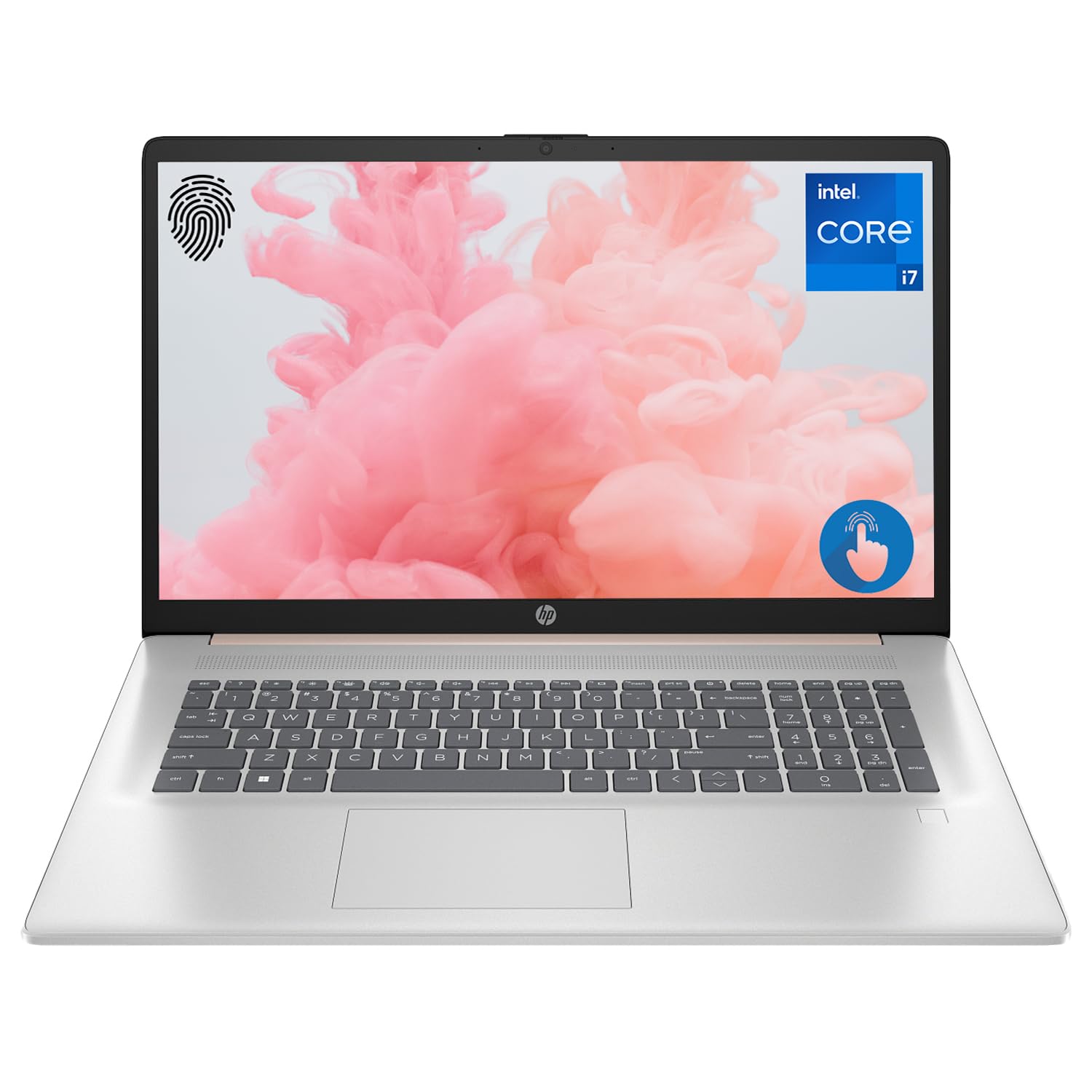
Figure 1: HP Essential 17t Laptop
The HP Essential 17t Laptop is designed for productivity and everyday use, featuring a 17.3-inch HD+ touchscreen, an Intel Core i7-1355U processor, 64GB of RAM, and a 2TB SSD. It comes pre-installed with Windows 11 Home.
Getting Started
1. What's in the Box
- HP Essential Touchscreen Laptop
- AC Power Adapter
- Quick Start Guide (if included)
2. Initial Power On and Setup
- Connect the AC power adapter to the laptop and a power outlet.
- Open the laptop lid and press the power button, typically located on the keyboard deck.
- Follow the on-screen instructions to complete the Windows 11 Home setup. This includes selecting your region, connecting to a Wi-Fi network, creating a user account, and accepting the license agreement.

Figure 2: Windows 11 Home Interface
Hardware Overview
Ports and Connectors
Familiarize yourself with the various ports on your laptop for connecting external devices.

Figure 3: Laptop Ports and Connectors
- SuperSpeed USB Type-A (5Gbps signaling rate): For connecting USB devices like mice, keyboards, or external drives.
- HDMI 1.4b: For connecting to external displays or projectors.
- SuperSpeed USB Type-C (5Gbps signaling rate): A versatile port for data transfer and connecting compatible devices.
- Headphone/Microphone Combo Jack (3.5mm): For connecting headphones, external speakers, or a headset with a microphone.
Keyboard and Touchpad
The laptop features a full-size backlit keyboard for comfortable typing in various lighting conditions and a responsive touchpad for navigation.
Display
Your HP Essential 17t Laptop is equipped with a 17.3-inch HD+ (1600 x 900) touchscreen display, offering intuitive interaction with Windows 11.

Figure 4: 17.3" HD+ Touchscreen Display
Operating Your Laptop
Power Management
- Power On/Off: Press the power button to turn the laptop on. To shut down, click the Start button, then Power > Shut down.
- Sleep Mode: Close the lid or click the Start button, then Power > Sleep to put the laptop into a low-power state.
- Battery Care: The laptop supports battery fast charge, reaching approximately 50% charge in 45 minutes. For optimal battery health, avoid consistently draining the battery to 0% or keeping it at 100% for extended periods.
Using the Touchscreen
Interact with your laptop directly on the screen using touch gestures. Common gestures include tapping to select, pinching to zoom, and swiping to scroll.
Using the Fingerprint Reader
The integrated fingerprint reader allows for secure and quick login. Set up your fingerprints through Windows Hello in the Windows Settings app (Accounts > Sign-in options).
Connecting to Wi-Fi
To connect to a wireless network, click the Wi-Fi icon in the taskbar, select your desired network, and enter the password if prompted. The laptop supports Wi-Fi 6 for fast and reliable wireless connectivity.
Productivity Features
This laptop integrates Copilot + AI capabilities to enhance productivity. These features can assist with scheduling, drafting emails, summarizing documents, and more, streamlining your workflow.

Figure 5: Copilot + AI for Enhanced Productivity
Maintenance and Care
Cleaning Your Laptop
- Use a soft, lint-free cloth slightly dampened with water or a screen cleaner to clean the display.
- For the keyboard and chassis, use a soft, dry cloth. Avoid harsh chemicals or abrasive materials.
- Ensure the laptop is powered off and unplugged before cleaning.
Software Updates
Regularly check for and install Windows updates to ensure your system has the latest security patches and performance improvements. Go to Settings > Windows Update.
Troubleshooting
If you encounter issues with your laptop, try the following basic troubleshooting steps:
- No Power: Ensure the AC adapter is securely connected to both the laptop and a working power outlet. Try a different outlet.
- Display Issues: If the screen is blank, try connecting an external monitor to check if the issue is with the laptop's display.
- Wi-Fi Connectivity: Restart your router and modem. Ensure Wi-Fi is enabled on your laptop.
- Slow Performance: Close unnecessary applications. Check for available Windows updates.
For more complex issues, refer to the HP support website or contact HP customer service.
Specifications
Below are the key technical specifications for the HP Essential 17t Laptop TPN-I139:

Figure 6: Intel Core i7-1355U Processor
| Feature | Specification |
|---|---|
| Model Name | TPN-I139 |
| Processor | 13th Gen Intel Core i7-1355U (10 Cores, 12 Threads, up to 5.0 GHz) |
| RAM | 64 GB DDR4 SDRAM (3200 MHz) |
| Storage | 2 TB PCIe NVMe M.2 SSD |
| Display | 17.3" HD+ (1600 x 900) Touchscreen, BrightView, 250 nits |
| Graphics | Intel Iris Xe Graphics |
| Operating System | Windows 11 Home |
| Wireless Connectivity | Wi-Fi 6 (802.11ax) |
| Ports | 1x SuperSpeed USB Type-C (5Gbps), 2x SuperSpeed USB Type-A (5Gbps), 1x HDMI 1.4b, 1x Headphone/Microphone Combo |
| Special Features | Backlit Keyboard, Fingerprint Reader |
| Dimensions (LxWxH) | 15.78 x 10.15 x 0.78 inches |
| Weight | 5.25 pounds |

Figure 7: Intel Iris Xe Graphics
Warranty and Support
Your HP Essential 17t Laptop comes with a standard manufacturer's warranty. For detailed warranty terms and conditions, please refer to the documentation included with your product or visit the official HP support website. For technical assistance, driver downloads, or service requests, please contact HP customer support directly.
Product Overview Video
Watch this video for a visual overview of the HP Essential 17t Laptop's features and capabilities.
Video 1: HP Essential 17 Touchscreen 13th Gen i7 Laptop Overview by PCOnline US. This video highlights key features and design aspects of the laptop.


