
1. Getting Started
1.1. Package Contents
Verify that all items are present in your OnePlus Pad Go package:
- OnePlus Pad Go Tablet
- USB Cable
- Quick Start Guide
1.2. Device Overview
Familiarize yourself with the physical components of your tablet.

Figure 1: Front view of the OnePlus Pad Go tablet.
1.3. Initial Setup
- Power On: Press and hold the power button located on the side of the tablet until the OnePlus logo appears.
- Language Selection: Follow the on-screen prompts to select your preferred language.
- Wi-Fi Connection: Connect to a Wi-Fi network to access the internet and complete the setup process.
- Google Account: Sign in with your Google account or create a new one to access Google services and the Play Store.
- SIM Card Insertion (LTE Models): For models with 4G LTE connectivity, carefully insert your Nano-SIM card into the designated tray using the provided SIM ejector tool. Ensure the tablet is powered off before inserting or removing the SIM card.
2. Operating Your OnePlus Pad Go
2.1. Display Features
The OnePlus Pad Go features an 11.35-inch (28.85cm) 2.4K (2408x1720 pixels) LCD display with a 7:5 ReadFit ratio and 400 nits brightness. It incorporates eye care technologies such as Low Blue Light (TÜV Rheinland Certified), intelligent brightness adjustment, DC Dimming, and Bedtime Mode to reduce eye strain.
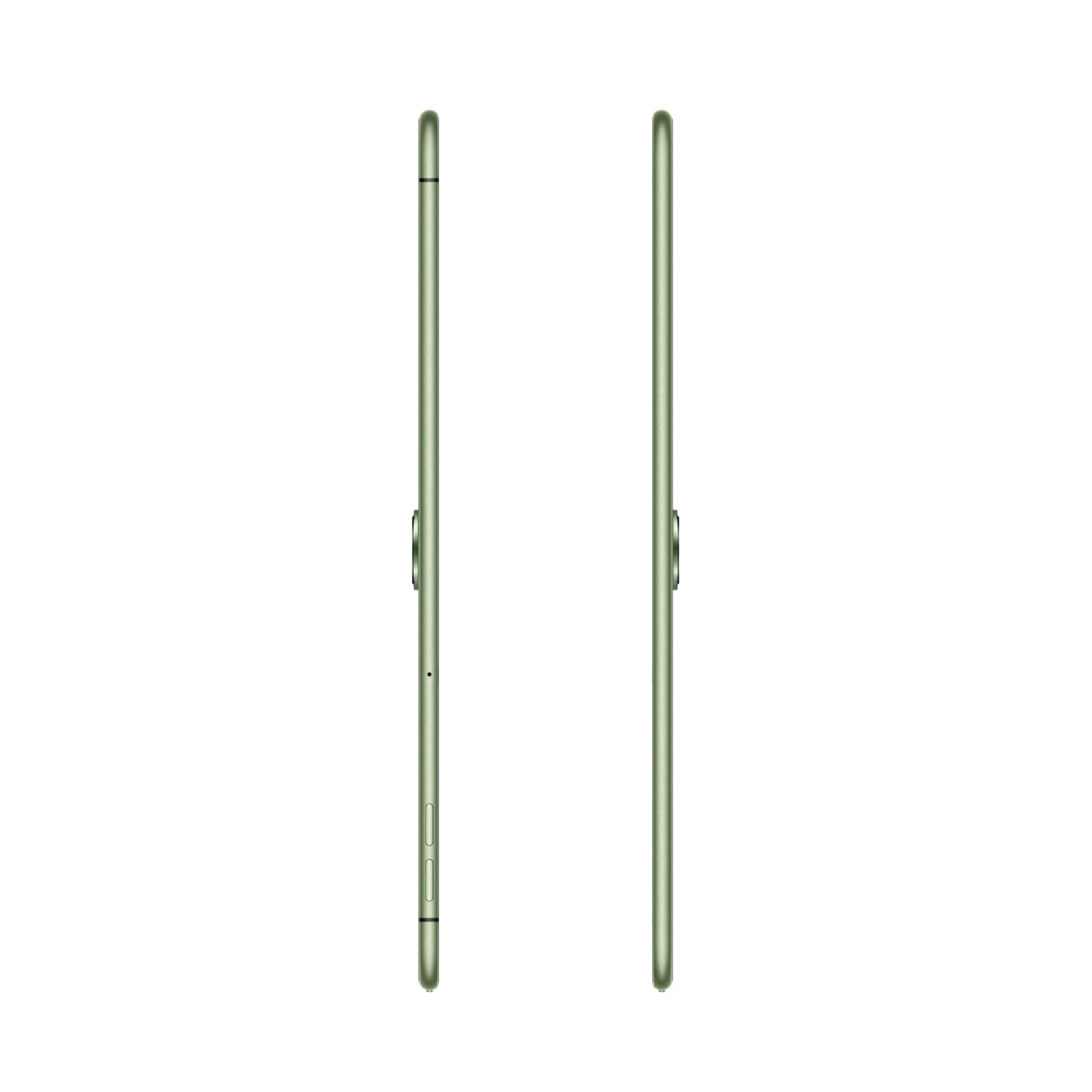
Figure 2: The 2.4K ReadFit Eye Care LCD Display in use.
Video 1: Overview of OnePlus Pad Go features, including display quality, portability, and audio capabilities.
2.2. Audio Experience
Experience immersive sound with the OnePlus Pad Go's Dolby Atmos Quad Speakers. The omnibearing sound field delivers rich and clear audio for all your media consumption.
Video 2: Detailed look at the OnePlus Pad Go's specifications, including RAM, storage, display, audio, and connectivity options.
2.3. Connectivity
The tablet supports both Wi-Fi (802.11ac) and 4G LTE connectivity, including calling functionality. Features like Auto Connect, Cross-screen Connection, and Screen Mirroring allow for seamless interaction with other devices.

Figure 3: Demonstrating cross-screen connection between the tablet and a smartphone.
2.4. Performance and Storage
Powered by the MediaTek Helio G99 processor and running OxygenOS 13.2, the tablet offers smooth performance. It comes with 8GB of RAM and 256GB of internal storage, expandable up to 1TB via a microSD card.

Figure 4: Visual representation of the tablet's RAM and expandable storage capacity.
2.5. Camera
The OnePlus Pad Go is equipped with an 8MP primary camera and an 8MP front-facing camera. It supports video capture resolutions of 1080p and 720p.

Figure 5: Side profile of the tablet, indicating the camera placement.
2.6. Battery and Charging
The tablet features an 8000 mAh battery, providing extended usage times. It supports 33W SUPERVOOC fast charging, allowing for quick recharges. Expect up to 514 hours of standby time, 14 hours of video playback, and 40 hours of music playback.

Figure 6: The tablet connected to a charger, emphasizing battery capacity and charging speed.
3. Care and Maintenance
3.1. Cleaning Your Tablet
To clean your OnePlus Pad Go, use a soft, lint-free cloth. For stubborn smudges, slightly dampen the cloth with water or a screen cleaner specifically designed for electronics. Avoid using harsh chemicals, abrasive materials, or aerosol sprays directly on the tablet.
3.2. Battery Longevity
To maximize battery life, consider the following:
- Adjust screen brightness to a comfortable level.
- Close unused applications running in the background.
- Disable Wi-Fi, Bluetooth, or LTE when not in use.
- Avoid extreme temperatures.
4. Troubleshooting Common Issues
This section addresses common issues you might encounter with your OnePlus Pad Go.
4.1. Tablet Not Powering On
- Ensure the battery is charged. Connect the tablet to the 33W SUPERVOOC charger and wait a few minutes before attempting to power it on again.
- Press and hold the power button for at least 10-15 seconds to force a restart.
4.2. Display Issues
- If the screen is unresponsive, try restarting the tablet.
- Check for system updates, as software glitches can sometimes affect display performance.
4.3. Connectivity Problems (Wi-Fi/LTE)
- Wi-Fi: Restart your Wi-Fi router. On the tablet, forget the network and reconnect.
- LTE: Ensure your SIM card is correctly inserted and activated. Check your mobile data plan. Restart the tablet.
4.4. Performance Lags
- Close unnecessary background applications.
- Clear cache for apps that are frequently used or causing issues.
- Ensure sufficient storage space is available.
- Consider a factory reset as a last resort (back up your data first).
5. Technical Specifications
| Feature | Specification |
|---|---|
| Brand | OnePlus |
| Model Name | OnePlus Pad GO |
| Model Number | OPD2304 |
| Display Size | 28.85 Centimetres (11.35 inches) |
| Display Type | LCD |
| Screen Resolution | 2408 x 1720 Pixels (2.4K) |
| RAM Size | 8 GB |
| Memory Storage Capacity | 256 GB (Expandable up to 1TB) |
| Operating System | OxygenOS 13.2 |
| Processor Brand | MediaTek |
| Processor Model Number | Helio G99 |
| Cellular Technology | 4G |
| Wireless Type | 801.11ac |
| Battery Capacity | 8000 mAh |
| Special Features | Fast Charging |
| Item Weight | 532 g |
| Product Dimensions | 6.6 x 22.2 x 33.2 cm |
6. Warranty and Support
6.1. Manufacturer Warranty
The OnePlus Pad Go is covered by a manufacturer's warranty. Please refer to the warranty card included in your product packaging for specific terms, conditions, and duration.
6.2. Extended Protection Plans
Additional protection plans may be available for purchase:
- 1 Year Extended warranty by Acko
- 1 year Total Protection Plan by Acko
For details on these plans, please consult the respective providers or your retailer.
6.3. Customer Support
For further assistance, technical support, or service inquiries, please visit the official OnePlus support website or contact their customer service. Contact information can typically be found on the OnePlus website or in your product documentation.


