
1. Introduction
Thank you for choosing the Vikye Dual Mode Wireless Gaming Mouse. This manual provides detailed instructions for setting up, operating, and maintaining your new mouse. This device offers versatile connectivity with both wired and 2.4G wireless modes, adjustable sensitivity up to 10000 DPI, and a lightweight, ergonomic design for extended use.

Image: The Vikye Dual Mode Wireless Gaming Mouse positioned next to a laptop, demonstrating its use in a typical setup.
2. Product Overview
Familiarize yourself with the components and functions of your Vikye Dual Mode Wireless Gaming Mouse.
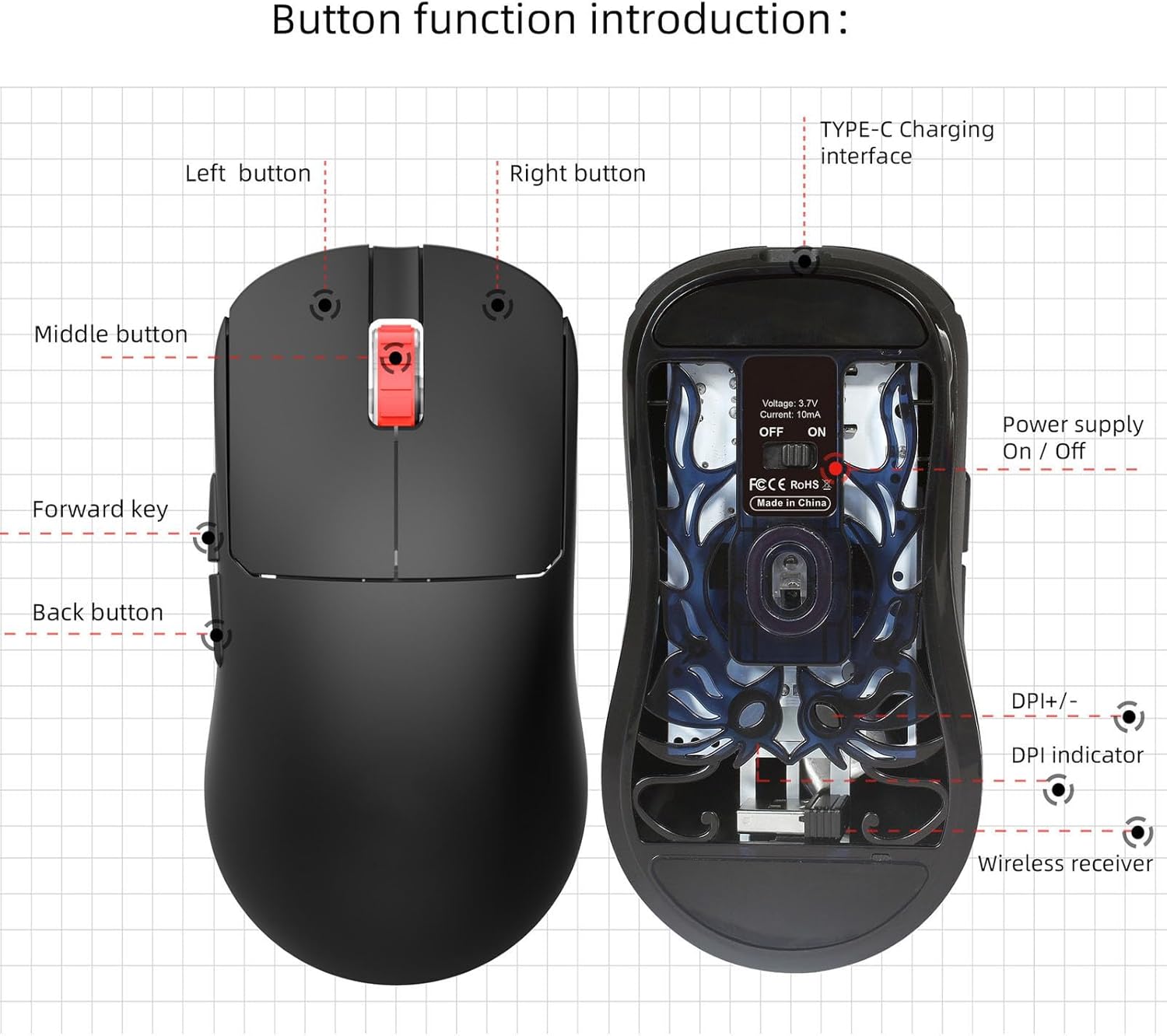
Image: A detailed diagram illustrating the various buttons and components of the mouse, including the left button, right button, middle button (scroll wheel), forward key, back button, Type-C charging interface, power supply switch (On/Off), DPI indicator, DPI+/- buttons, and wireless receiver storage slot.
- Left Button: Standard left-click function.
- Right Button: Standard right-click function.
- Middle Button (Scroll Wheel): Scroll up/down, and middle-click function.
- Forward Key: Navigates forward in web browsers or applications.
- Back Button: Navigates backward in web browsers or applications.
- DPI +/- Buttons: Adjusts the mouse sensitivity (DPI) through multiple levels.
- Type-C Charging Interface: Used for charging the internal lithium battery.
- Power Supply On/Off Switch: Controls the mouse's power.
- Wireless Receiver: A small USB dongle for 2.4G wireless connectivity, stored within the mouse.
3. Setup
3.1 Charging the Mouse
Before first use, or when the battery is low, connect the mouse to a USB power source using the provided Type-C data cable. The mouse features a built-in 300mAh rechargeable lithium battery.
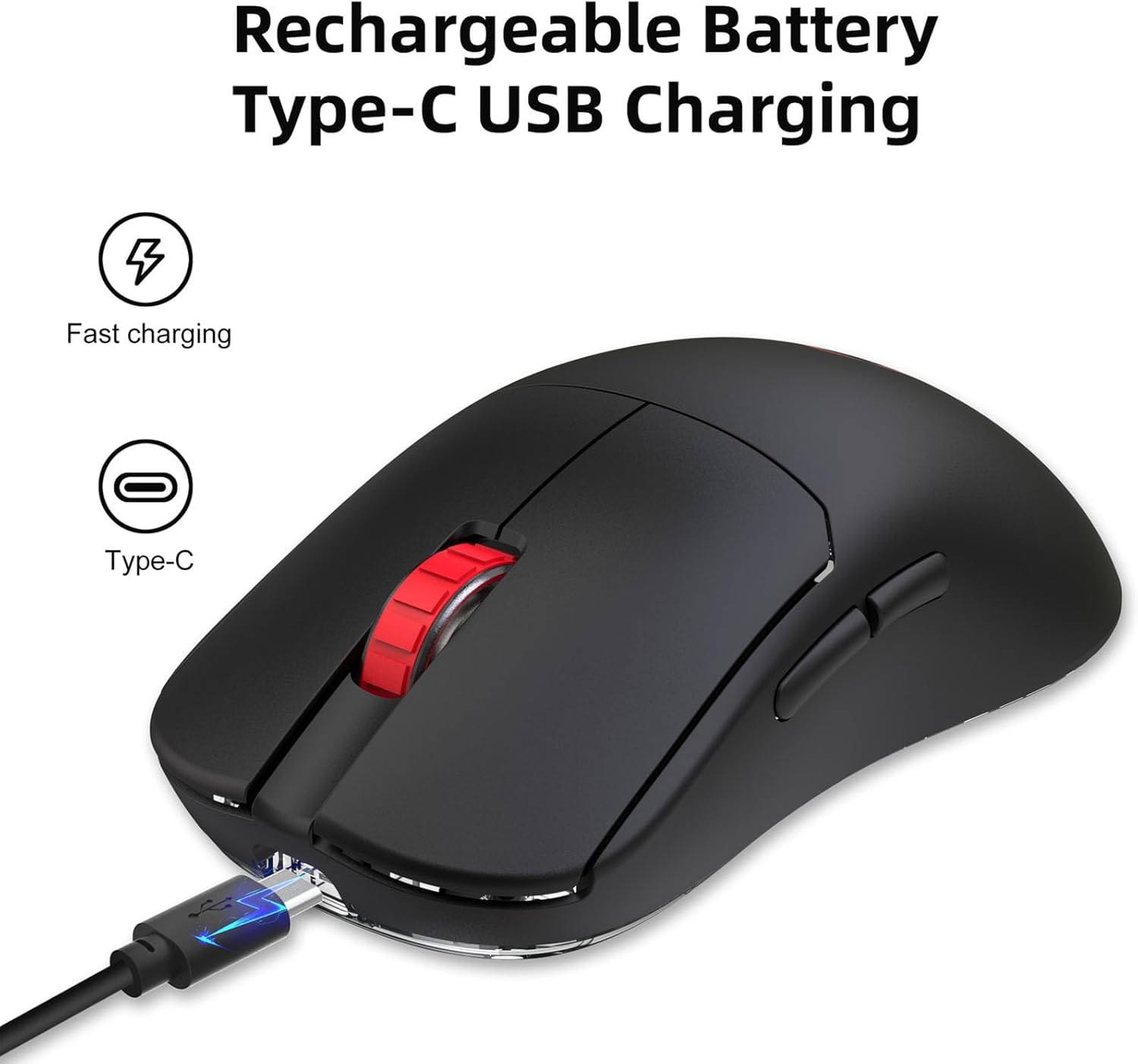
Image: The Vikye mouse being charged via its Type-C USB port, indicating its rechargeable battery feature.
3.2 Wired Mode Connection
- Ensure the mouse is charged or connected to a power source.
- Connect the mouse to your computer using the provided USB data cable.
- The mouse is plug-and-play and should be recognized automatically by your operating system.
3.3 2.4G Wireless Mode Connection
- Locate the 2.4G wireless receiver stored in the compartment on the underside of the mouse.
- Plug the wireless receiver into an available USB port on your computer.
- Turn on the mouse using the power switch located on the underside.
- The mouse should automatically connect to the receiver. If not, ensure the receiver is securely plugged in and the mouse is powered on.

Image: The Vikye mouse connected wirelessly to a laptop via its 2.4G USB receiver, highlighting its dual-mode capability and lightweight design.
4. Operating Instructions
4.1 Adjusting DPI Sensitivity
The mouse features six adjustable DPI levels to suit various tasks and gaming preferences. Use the DPI +/- buttons on the mouse to cycle through the sensitivity settings.

Image: A visual representation of the mouse's 6-level adjustable DPI settings, ranging from 1200 to 10000 DPI, allowing users to customize sensitivity for different applications.
Available DPI settings: 1200 / 2400 / 3200 / 6400 / 8200 / 10000 DPI.
4.2 Refreshing Rate
The mouse operates with a default refreshing rate of 500Hz, ensuring smooth and responsive cursor movement.
4.3 Power Saving
To conserve battery life, the mouse is designed with an automatic sleep function. It will enter a low-power state after a period of inactivity. Move the mouse or click any button to wake it up.
5. Maintenance
- Cleaning: Use a soft, dry cloth to clean the mouse. Avoid using harsh chemicals or abrasive materials.
- Storage: When not in use for extended periods, turn off the mouse to preserve battery life. Store in a cool, dry place.
- Battery Care: Avoid fully discharging the battery frequently. Charge the mouse when the battery indicator suggests low power.
6. Troubleshooting
- Mouse not responding:
- Ensure the mouse is powered on.
- Check battery level and charge if necessary.
- For wireless mode, ensure the 2.4G receiver is securely plugged into a USB port.
- For wired mode, ensure the USB cable is securely connected to both the mouse and the computer.
- Try plugging the receiver/cable into a different USB port.
- Lagging or erratic movement:
- Ensure there are no obstructions between the wireless mouse and its receiver.
- Avoid using the mouse on highly reflective or transparent surfaces. A mouse pad is recommended.
- Check for other wireless devices that might be causing interference.
- Mouse not charging:
- Ensure the Type-C cable is properly connected to both the mouse and the power source.
- Try a different USB port or charging adapter.
- Verify the charging cable is not damaged.
7. Specifications
| Feature | Description |
|---|---|
| Operating Mode | 2.4G Wireless, Wired Dual Mode |
| Echoing Rate | 500Hz (Default) |
| Movement Speed | 100 IPS |
| Refreshing Rate | 8000FPS |
| Acceleration | 20G |
| Resolution (DPI) | 1200 / 2400 / 3200 / 6400 / 8200 / 10000 DPI |
| Battery Type | Li-Ion Battery |
| Battery Capacity | 300mAh |
| Interface | USB (Type-C for charging) |
| Number of Keys | 6 Keys |
| Switch Life | 10 Million Times |
| Wire Length | Approx. 1.7 meters / 5.6 ft |
| Weight | 56 grams |
| Dimensions | 127.3 x 66.6 x 38.3 mm |

Image: A diagram illustrating the precise dimensions of the Vikye mouse: 127.3mm length, 66.6mm width, and 38.3mm height.

Image: The Vikye mouse with visual cues emphasizing its 56-gram lightweight design, promoting comfortable and agile handling.
8. Warranty and Support
This product comes with a standard manufacturer's warranty. For specific warranty details, please refer to the warranty card included in your package or contact Vikye customer support directly. If you encounter any issues not covered in this manual, please reach out to our support team for assistance.