
1. Introduction
This manual provides instructions for the setup, operation, maintenance, and troubleshooting of your Fnatic STREAK80 LP White TKL Mechanical Low Profile Gaming Keyboard. Please read this manual thoroughly before using the product to ensure proper functionality and longevity.

Image 1.1: Top-down view of the Fnatic STREAK80 LP keyboard with RGB lighting enabled.
The STREAK80 LP is a tenkeyless (TKL) mechanical keyboard designed for gaming, featuring low-profile speed switches, PBT keycaps, and RGB lighting. It includes a sturdy aluminum top case and a dedicated volume wheel.
2. Package Contents
Verify that all items are present in the package:
- Fnatic STREAK80 LP Keyboard
- USB Cable
3. Setup
- Connect the USB Cable: Insert the USB-C end of the provided cable into the port on the keyboard. Connect the USB-A end to an available USB port on your computer (PC or Laptop).
- Driver Installation: The keyboard is plug-and-play. Your operating system (Windows, macOS) will automatically detect and install the necessary drivers.
- Software Installation (Optional): For advanced customization of RGB lighting and key assignments, download and install the Fnatic software from the official Fnatic website.

Image 3.1: A hand typing on the Fnatic STREAK80 LP keyboard, demonstrating typical usage.
4. Operating Instructions
4.1 Keyboard Layout and Design
The STREAK80 LP features a tenkeyless (TKL) design, which omits the numeric keypad to save desk space. This compact form factor is beneficial for users who require more mouse movement area.
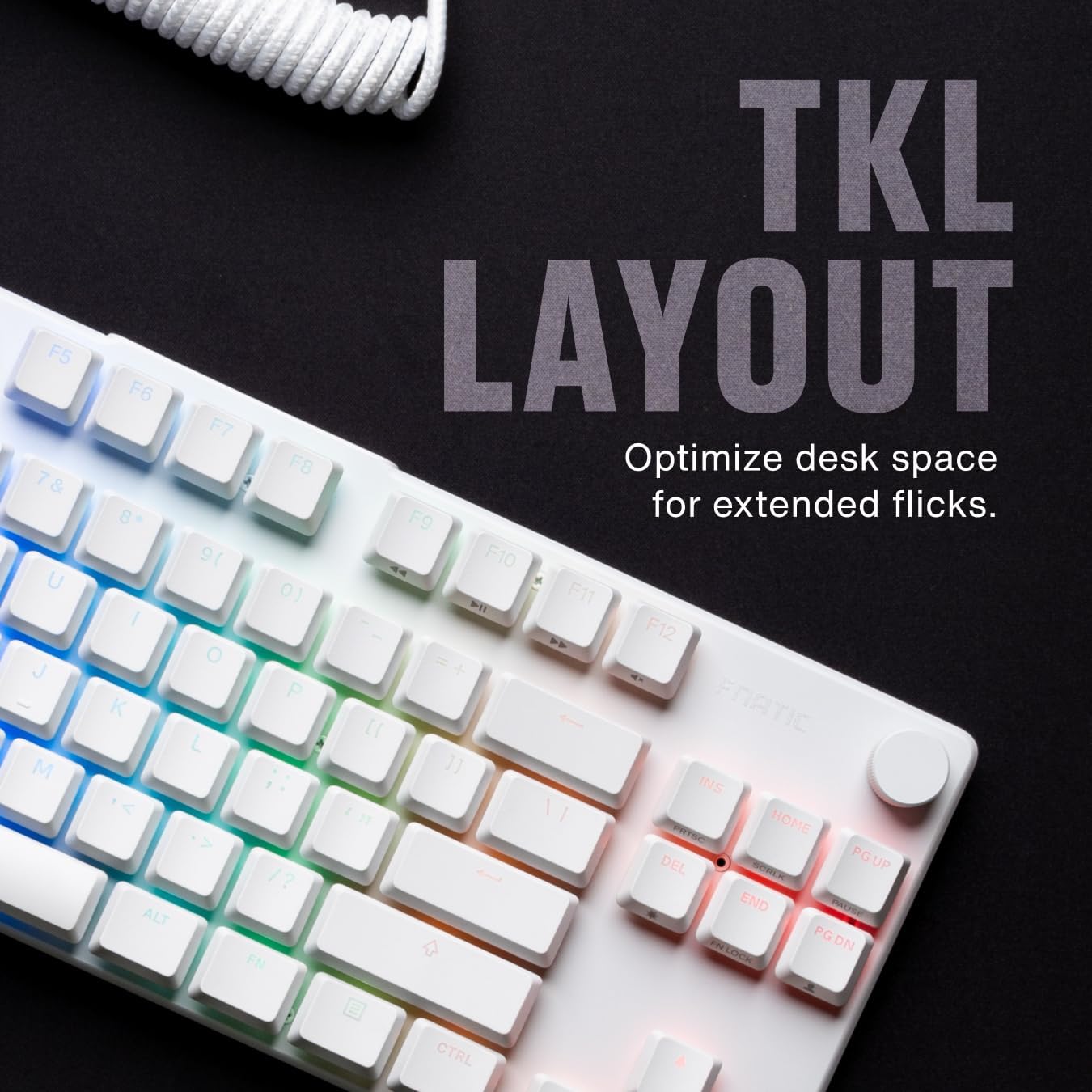
Image 4.1.1: Overview of the Fnatic STREAK80 LP's tenkeyless layout.
The keyboard is designed with a low profile, contributing to an ergonomic typing and gaming experience without requiring a separate wrist rest.
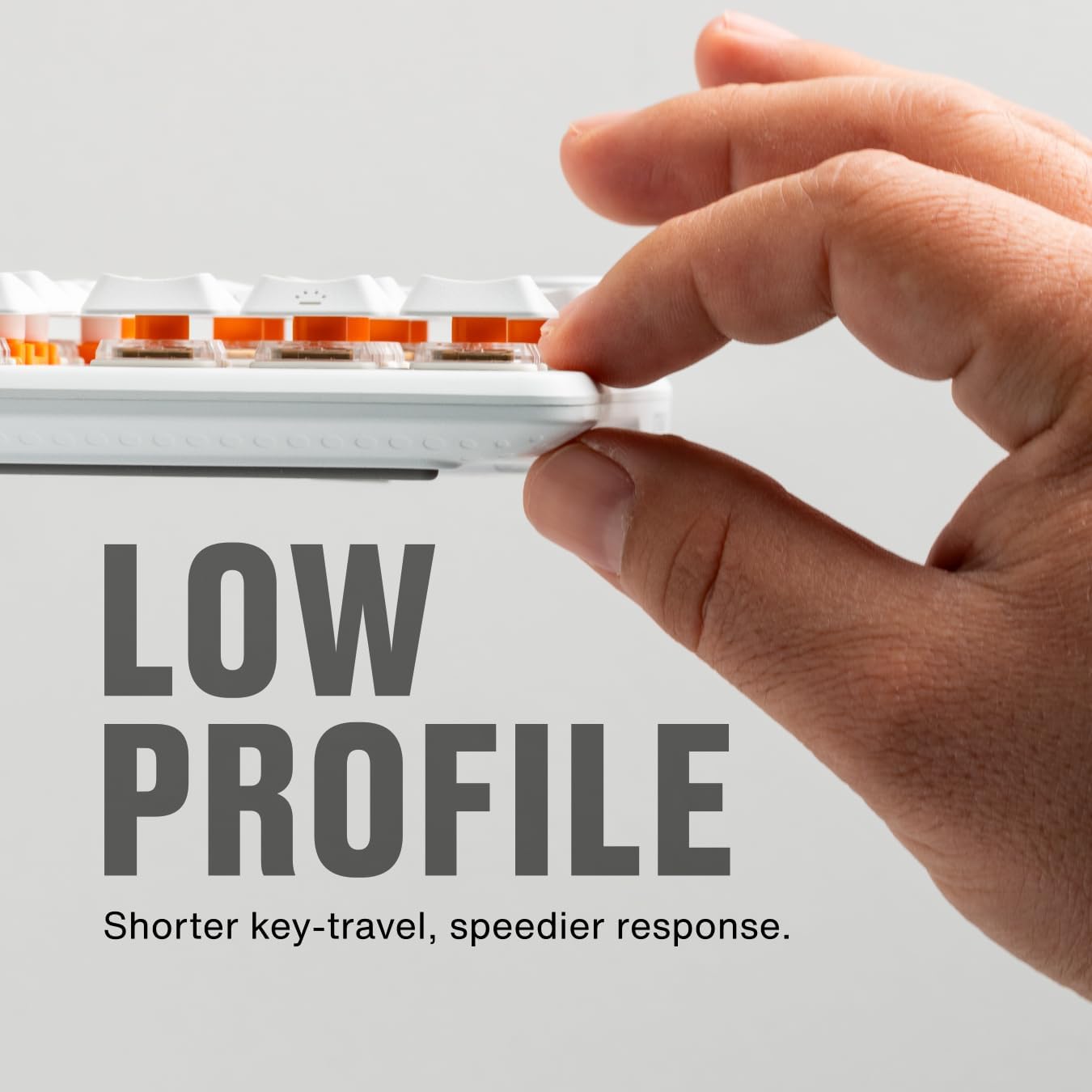
Image 4.1.2: A hand demonstrating the slim, low-profile design of the keyboard.
4.2 Switches and Keycaps
The keyboard is equipped with custom low-profile speed switches, featuring a 1.0mm actuation distance for rapid response. The keycaps are made from premium Doubleshot PBT material, designed to resist oils and shine over time.

Image 4.2.1: Detail of a pre-lubricated stabilizer and switch on the keyboard.

Image 4.2.2: Individual PBT keycaps, highlighting their textured surface.
4.3 RGB Lighting
The STREAK80 LP features customizable RGB backlighting. The low-profile keycap design enhances the visibility of the vibrant lighting emanating from the switches.

Image 4.3.1: Close-up of the keyboard showcasing its vibrant RGB lighting.
Lighting effects can be adjusted using the Fnatic software or via onboard shortcuts (refer to the software manual for detailed key combinations).
4.4 Volume Control
A dedicated volume wheel is located on the top right of the keyboard, providing instant control over audio levels. Rotate the wheel to adjust volume up or down, and press it to mute or unmute audio.

Image 4.4.1: A hand operating the volume control wheel on the keyboard.
4.5 Acoustic Optimization
The keyboard incorporates genuine PORON foam to reduce internal case ping and other unwanted acoustic resonances, contributing to a quieter typing experience.
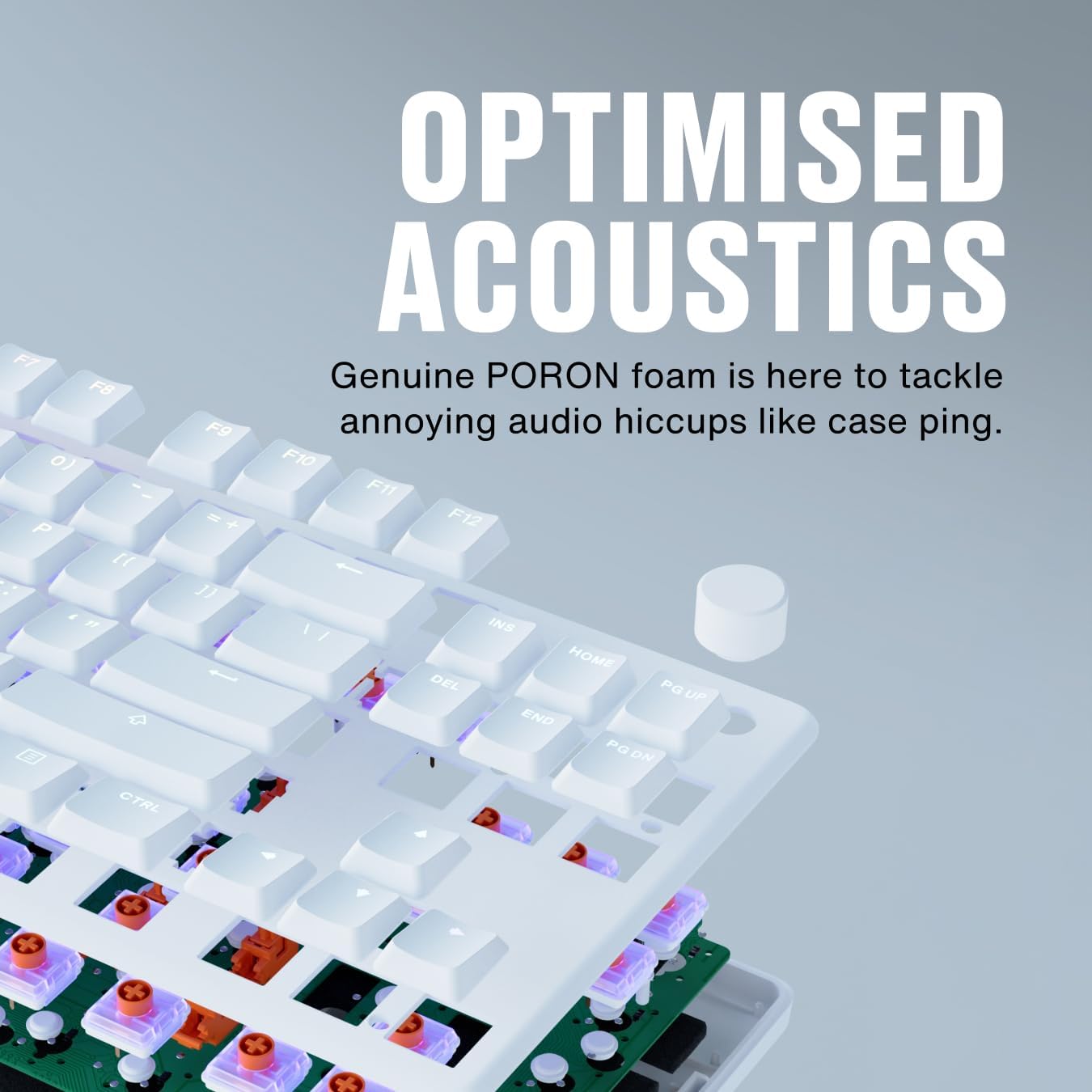
Image 4.5.1: An exploded diagram illustrating the internal components, including the PORON foam for acoustic optimization.
5. Maintenance
- Cleaning Keycaps: Use a soft, damp cloth to wipe down keycaps. For deeper cleaning, keycaps can be carefully removed using a keycap puller (not included) and cleaned with mild soap and water. Ensure they are completely dry before reattaching.
- Cleaning the Keyboard Body: Use a microfiber cloth to wipe the aluminum top case and plastic base. Avoid abrasive cleaners.
- Removing Dust and Debris: Use compressed air to clear dust and debris from between the keycaps and switches.
- Cable Care: Avoid sharp bends or excessive pulling on the USB cable to prevent damage.
6. Troubleshooting
- Keyboard Not Responding:
- Ensure the USB cable is securely connected to both the keyboard and the computer.
- Try connecting the keyboard to a different USB port on your computer.
- Test the keyboard on another computer to rule out a system-specific issue.
- RGB Lighting Not Working:
- Check the Fnatic software for lighting settings and ensure they are enabled.
- Verify that no onboard lighting shortcuts have inadvertently turned off the lighting.
- Keys Not Registering:
- Ensure no debris is lodged under the affected keycap.
- If using the Fnatic software, check for any remapping that might affect key functionality.
For further assistance, refer to the official Fnatic support resources online.
7. Specifications
| Feature | Detail |
|---|---|
| Brand | Fnatic |
| Model | STREAK80 LP (KB0007-001) |
| Layout | Tenkeyless (TKL), US ANSI |
| Switch Type | Low-Profile Speed Switches |
| Actuation Distance | 1.0 mm |
| Keycaps | Doubleshot PBT |
| Backlighting | RGB |
| Acoustic Dampening | PORON Foam |
| Connectivity | USB-A (wired) |
| Dimensions (LxWxH) | 13.98 x 5.08 x 1.1 inches (35.5 x 12.9 x 2.8 cm) |
| Weight | 1.29 pounds (0.58 kg) |
| Compatible Devices | Laptop, PC, Mac |
8. Warranty and Support
Fnatic products are covered by a manufacturer's warranty. For detailed warranty information, terms, and conditions, please visit the official Fnatic website or contact their customer support.
For technical support, driver downloads, and frequently asked questions, please visit: Fnatic Support