
1. Introduction
This manual provides detailed instructions for the installation and use of the Deal4GO NFA765A QCNFA765 Wi-Fi 6E M.2 Wireless Adapter. This adapter is designed to enhance your system's wireless capabilities, offering high-speed Wi-Fi 6E connectivity across 2.4GHz, 5GHz, and 6GHz bands, along with Bluetooth 5.3 functionality.
The NFA765A QCNFA765 Wi-Fi card is compatible with a range of laptop and mini desktop PCs from brands such as Dell, Samsung, Sony, Acer, ASUS, MSi, Clevo, Terransforce, Gigabyte, and Hasee. It requires an M.2 2230 slot with a standard Key A or Key E socket. Please note that this adapter is not compatible with IBM/Thinkpad/Lenovo/HP laptops, Windows 8.1/8/7, Linux, or M@COS operating systems. Optimal performance, especially utilizing the 6GHz band, is achieved with Windows 11.
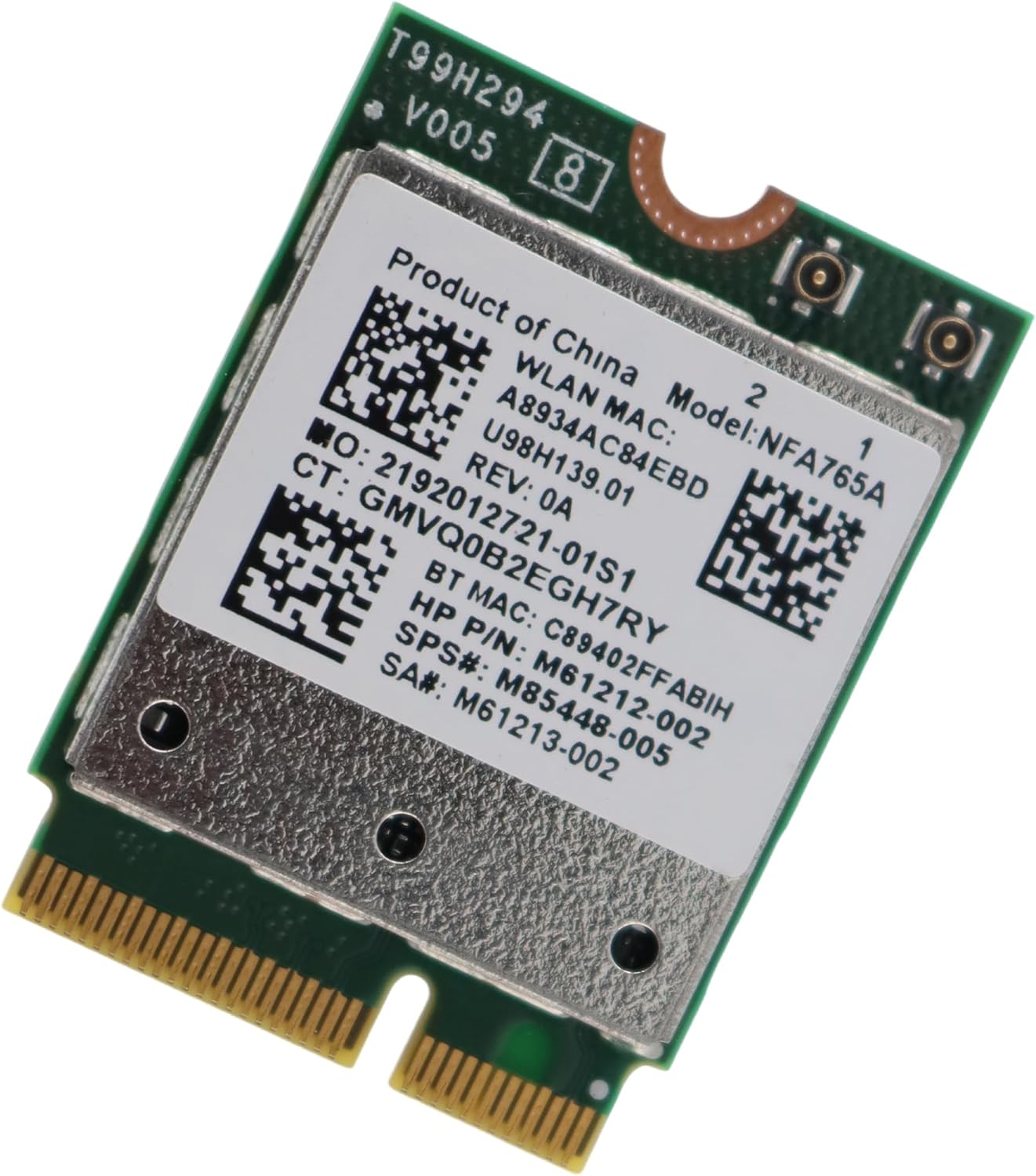
Figure 1: Deal4GO NFA765A QCNFA765 Wi-Fi 6E M.2 Wireless Adapter
2. Specifications
| Feature | Detail |
|---|---|
| Model | NFA765A / NFA765 / QCNFA765 |
| FCC ID | J9C-QCNFA765 |
| Connector Interface | NGFF M.2 A and E Key M.2 Form Factor |
| System Interface Type | PCIe, USB |
| Antenna Connector | IPEX 4 / iPX 4 connector |
| Wireless Data Rate (6GHz) | Up to 2400Mbps |
| Wireless Data Rate (5GHz) | Up to 2400Mbps |
| Wireless Data Rate (2.4GHz) | Up to 574Mbps |
| Streams | 2 x 2 |
| Bluetooth | Bluetooth 5.3 |
| Frequency | Dual Band 2.4GHz / 5GHz / 6GHz |
| MU-MIMO | Yes |
| IEEE Standard | IEEE 802.11 A/B/G/N/AC/AX |
| Supported Operating Systems | Windows 11/10 (32/64-bit) |
| Product Dimensions | 0.9 x 1.2 x 0.1 inches |
| Item Weight | 0.352 ounces |
| UPC | 659459623768 |
3. Setup and Installation
Installing the Deal4GO NFA765A QCNFA765 Wi-Fi card requires opening your laptop or mini desktop PC. It is recommended to consult your device's manual for specific instructions on how to safely open it and locate the M.2 slot.
3.1. Preparation
- Power Off: Ensure your laptop or mini PC is completely powered off and disconnected from any power source.
- Gather Tools: You will typically need a small Phillips head screwdriver.
- Static Precautions: Take necessary precautions against static electricity, such as using an anti-static wrist strap or touching a grounded metal object.
3.2. Hardware Installation
- Open Device: Carefully remove the back panel of your laptop or mini PC.
- Locate M.2 Slot: Identify the M.2 slot, which is typically labeled or clearly visible on the motherboard. If an old Wi-Fi card is present, it will be in this slot.
- Remove Old Card (if applicable): If replacing an existing Wi-Fi card, gently disconnect the antenna cables (usually two, black and white/gray) from the old card. Unscrew the small retaining screw and carefully slide the old card out of the M.2 slot.
- Install New Card: Insert the Deal4GO NFA765A QCNFA765 card into the M.2 slot at an angle (usually 30 degrees) and then press it down. Secure it with the retaining screw.
- Connect Antennas: Carefully reattach the antenna cables to the corresponding connectors on the new Wi-Fi card. These are small, delicate connectors, so apply gentle, even pressure until they click into place.
- Close Device: Reassemble the back panel of your laptop or mini PC, ensuring all screws are tightened appropriately.

Figure 2: Close-up of the NFA765A card showing connectors
3.3. Driver Installation
After hardware installation, you will need to install the appropriate drivers for the Wi-Fi and Bluetooth functions to work correctly. If your system does not automatically detect and install the drivers, follow these steps:
- Download Drivers: Visit the official Deal4GO or Qualcomm support website to download the latest drivers for the NFA765A or QCNFA765 model for your specific operating system (Windows 10 or Windows 11).
- Install Drivers: Run the downloaded driver executable files. Follow the on-screen prompts to complete the installation for both Wi-Fi and Bluetooth.
- Restart System: After successful driver installation, restart your computer to ensure all changes take effect.
4. Operating Instructions
4.1. Connecting to Wi-Fi
- Access Wi-Fi Settings: In Windows, click on the Wi-Fi icon in the system tray (bottom right corner of the screen).
- Select Network: A list of available Wi-Fi networks will appear. Select your desired network.
- Enter Password: If prompted, enter the network security key (password) and click 'Connect'.
- Wi-Fi 6E (6GHz) Band: To utilize the 6GHz band for Wi-Fi 6E, ensure your router supports Wi-Fi 6E (802.11AX) and is configured for 160MHz channel width. Your operating system should be Windows 11 for full 6GHz band support.
4.2. Pairing Bluetooth Devices
- Access Bluetooth Settings: In Windows, go to 'Settings' > 'Bluetooth & devices' (or 'Devices' > 'Bluetooth & other devices' in Windows 10).
- Turn On Bluetooth: Ensure Bluetooth is turned on.
- Add Device: Click 'Add device' or 'Add Bluetooth or other device' and select 'Bluetooth'.
- Pair: Put your Bluetooth device into pairing mode. Select it from the list of discovered devices and follow any on-screen prompts to complete the pairing process.
5. Maintenance
- Driver Updates: Regularly check the manufacturer's website for updated Wi-Fi and Bluetooth drivers to ensure optimal performance and security.
- Cleanliness: Keep your laptop or mini PC's internal components free from dust to prevent overheating, which can affect performance.
- Software Updates: Keep your operating system updated to benefit from the latest wireless features and security patches.
6. Troubleshooting
- Wi-Fi Not Detected:
- Verify the card is correctly seated in the M.2 slot.
- Ensure antenna cables are securely connected.
- Check Device Manager in Windows to see if the device is recognized and drivers are installed without errors. Reinstall drivers if necessary.
- Slow Wi-Fi Speeds:
- Ensure your router supports Wi-Fi 6E (802.11AX) and is configured for 160MHz channel width.
- Confirm your system is running Windows 11 for optimal 6GHz band performance.
- Check for interference from other devices or networks.
- Update Wi-Fi drivers to the latest version.
- Bluetooth Not Working:
- Ensure Bluetooth is enabled in Windows settings.
- Check Device Manager for Bluetooth driver status. Reinstall drivers if needed.
- Ensure the Bluetooth device is in pairing mode and within range.
- Compatibility Issues:
- Double-check that your laptop/mini PC model and M.2 slot type (Key A or E) are compatible as specified in Section 1.
- Ensure your operating system is Windows 10 or 11 (64-bit).
7. Warranty and Support
For warranty information, technical support, or further assistance, please refer to the documentation provided with your purchase or contact the seller/manufacturer directly. Keep your proof of purchase for any warranty claims.