
1. Introduction and Overview
The AWOW Mini PC N100-16+512GB is a compact and efficient desktop computer designed for a variety of applications, including office work, home entertainment, and light productivity tasks. It features an Intel N100 12th Generation processor, 16GB of DDR4 RAM, and a 512GB M.2 Solid State Drive, providing responsive performance in a small form factor. This Mini PC supports dual 4K displays via HDMI 2.0 and DisplayPort 1.4, offers reliable network connectivity with Gigabit Ethernet and WiFi5, and includes multiple USB ports for peripherals.

Image 1.1: Intel N100 Gen12 Processor Overview. This image illustrates the Intel N100 processor, highlighting its quad-core architecture, 3.40 GHz frequency, 16GB DDR4 memory, and UHD Graphics with 4K@60Hz support. A benchmark comparison shows its performance relative to other Intel Celeron processors.
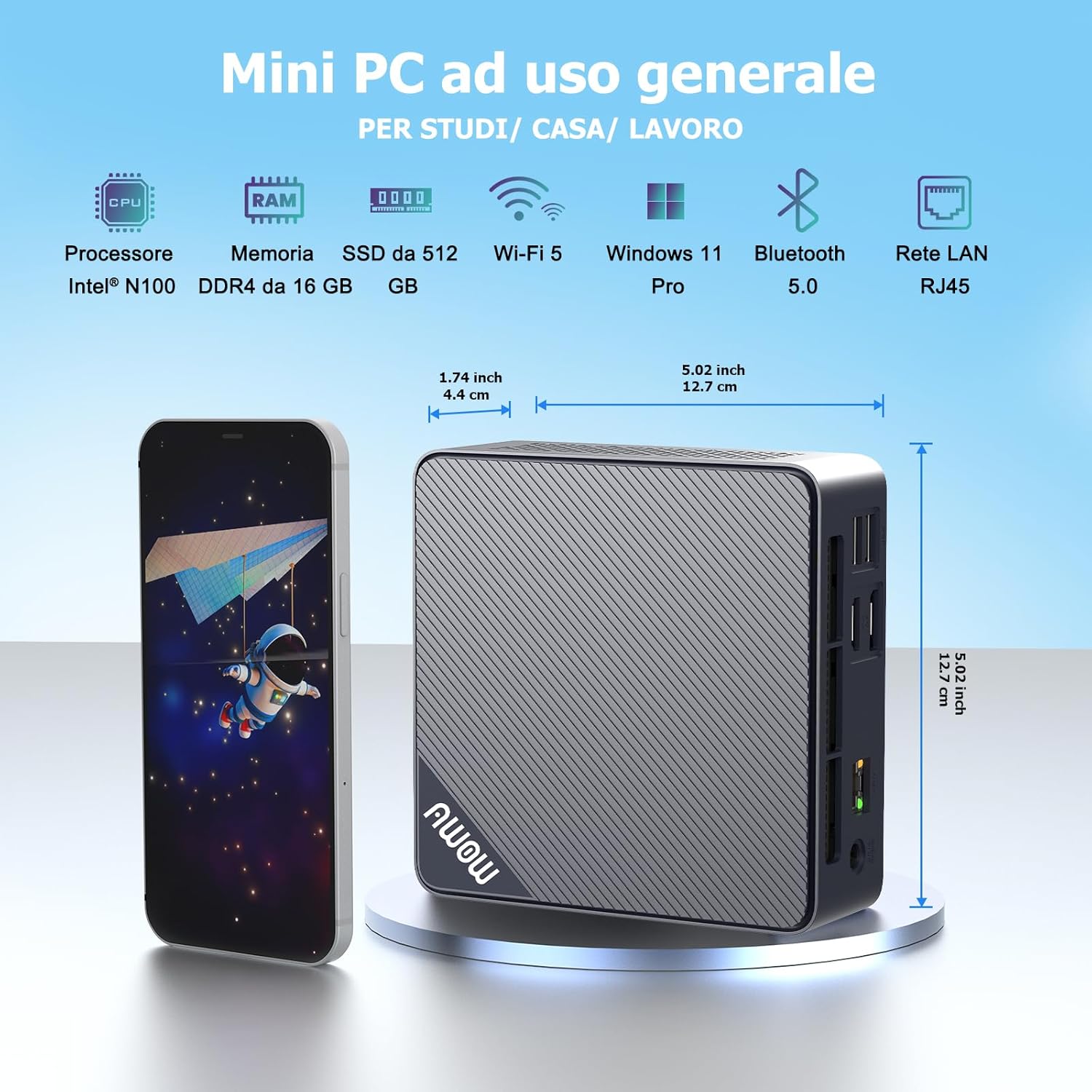
Image 1.2: Compact Design of the AWOW Mini PC. This image displays the AWOW Mini PC alongside a smartphone, emphasizing its small dimensions (approximately 4.4 cm width and 12.7 cm length), making it suitable for various environments.
2. What's in the Box
Please check the package contents upon unboxing to ensure all components are present:
- AWOW Mini PC (N100-16+512GB)
- Mounting Bracket
- HDMI Cable
- SATA Cable
- Power Adapter
- User Manual (this document)

Image 2.1: Package Contents and Connectivity. This image illustrates the Mini PC, HDMI cable, SATA cable, power adapter, screw set, and quick guide, along with a diagram of how various devices like monitors, projectors, and NAS can connect to the Mini PC.
3. Setup Instructions
Follow these steps to set up your AWOW Mini PC:
- Connect Peripherals: Connect your monitor(s) to the HDMI and/or DisplayPort (DP) outputs. Connect your keyboard and mouse to the available USB ports.
- Power Connection: Connect the power adapter to the DC IN port on the Mini PC, then plug the adapter into a power outlet.
- Network Connection: For a wired connection, connect an Ethernet cable to the RJ45 Gigabit Ethernet port. For wireless, the device supports WiFi5 and will prompt for network setup during initial Windows configuration.
- Initial Boot-up: Press the power button on the front of the Mini PC. The system will boot into Windows 11 Pro. Follow the on-screen instructions to complete the initial Windows setup, including language, region, and user account creation.
- Dual Display Setup: The Mini PC supports dual 4K@60Hz displays via HDMI 2.0 and DisplayPort 1.4. Once both monitors are connected, Windows will automatically detect them. You can configure display settings (extend, duplicate) in Windows Display Settings.
- Storage Expansion: The Mini PC supports storage expansion up to 2TB. Refer to the included SATA cable for connecting an additional 2.5-inch HDD/SSD internally if desired.
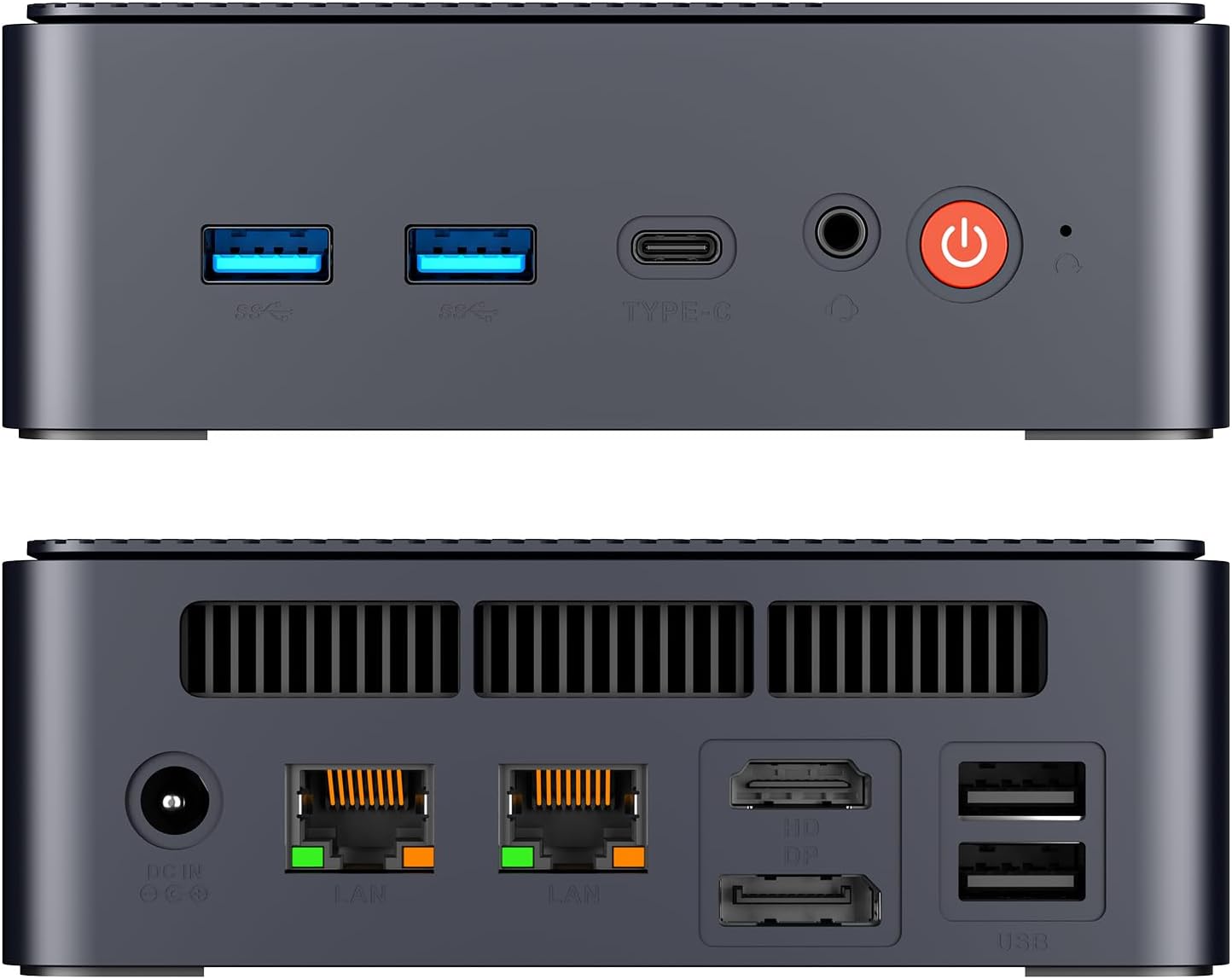
Image 3.1: AWOW Mini PC Front and Rear Ports. This image details the front ports (2x USB 3.2, Type-C, Audio 2-in-1, Power Button, CMOS Reset) and rear ports (DC IN, 2x LAN, HDMI, DP, 2x USB 2.0).
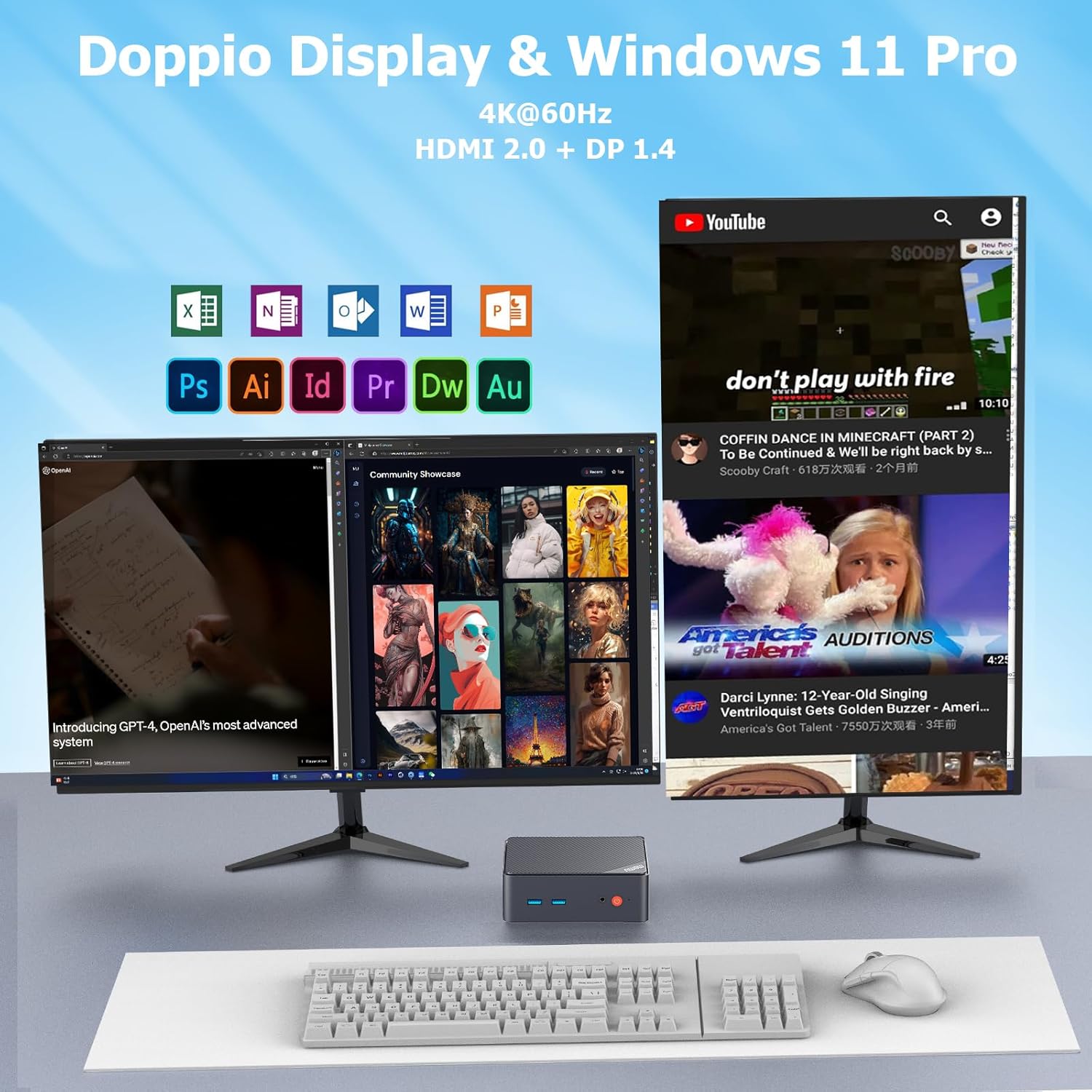
Image 3.2: Dual Display Setup with Windows 11 Pro. This image shows the Mini PC driving two monitors simultaneously, demonstrating its dual display capability for enhanced productivity with various applications.
4. Operating Instructions
Your AWOW Mini PC is ready for use after initial setup. Here are some operational guidelines:
- Power On/Off: Press the power button once to turn on the PC. To shut down, use the standard Windows shutdown procedure (Start > Power > Shut down). A quick press of the power button can also put the PC to sleep.
- Everyday Use: The Mini PC is suitable for general computing tasks such as web browsing, email, document editing (Office suite), video conferencing (Zoom/Skype), and streaming 4K content. It can also handle applications like CAD, PS, PR, and AI.
- Connecting Devices: Utilize the various USB ports (USB 3.2 and USB 2.0) for connecting external hard drives, USB drives, printers, and other peripherals. The 2-in-1 audio jack supports headphones or microphones.
- Automatic Power On: The device may support an 'Auto Power On' feature, which can be configured in the BIOS settings for specific use cases like home servers or kiosks.
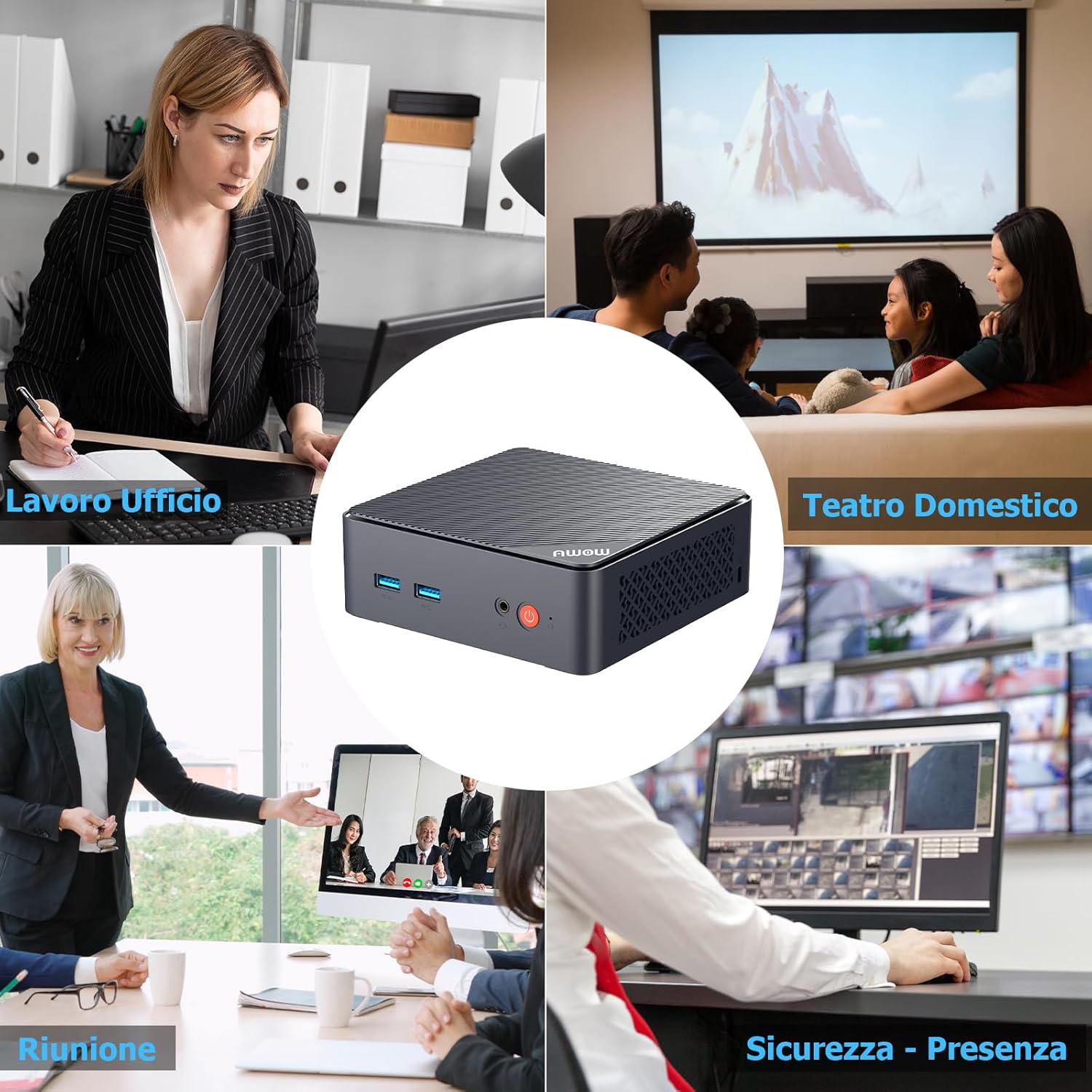
Image 4.1: Versatile Usage Scenarios. This image demonstrates the Mini PC's adaptability for various environments, including office work, home theater setups, business meetings, and security monitoring applications.

Image 4.2: Enjoy 4K Streaming. This image shows a family enjoying high-definition content on a large screen, illustrating the Mini PC's capability to deliver a premium 4K streaming experience.
5. Maintenance
Proper maintenance ensures the longevity and optimal performance of your Mini PC:
- Cleaning: Regularly clean the exterior of the Mini PC with a soft, dry cloth. Use compressed air to gently clear dust from ventilation grilles to prevent overheating.
- Ventilation: Ensure the Mini PC is placed in a well-ventilated area, away from direct sunlight or heat sources. Do not block the ventilation openings.
- Software Updates: Keep your Windows 11 Pro operating system and drivers updated. Regular updates improve security and performance. Be aware that initial updates after setup can be extensive and may require the PC to remain powered on for an extended period.

Image 5.1: Internal Components and Cooling System. This exploded view reveals the internal layout of the Mini PC, including the motherboard, processor, and the cooling fan designed for efficient heat dissipation.

Image 5.2: Cooling Fan Airflow. This diagram highlights the active cooling system, showing how air is drawn in and expelled to maintain optimal operating temperatures for the internal components.
6. Troubleshooting
If you encounter issues with your AWOW Mini PC, refer to the following common solutions:
- No Power: Ensure the power adapter is securely connected to both the Mini PC and a working power outlet. Try a different outlet if necessary.
- No Display: Verify that the HDMI/DP cable is firmly connected to both the Mini PC and the monitor. Ensure the monitor is powered on and set to the correct input source. Try connecting to a different monitor or using a different cable.
- Network Connectivity Issues: For wired connections, check the Ethernet cable and router status. For Wi-Fi, ensure the Wi-Fi adapter is enabled in Windows settings and that you are connected to the correct network with the correct password.
- Slow Performance: Close unnecessary applications. Check for background processes consuming high CPU or RAM. Ensure the system has enough free storage space. Consider running a disk cleanup.
- System Updates Taking Too Long: It is normal for Windows updates, especially initial ones, to take a significant amount of time. Ensure the PC remains powered on and connected to the internet until all updates are complete. Do not interrupt the update process.
- Other Issues: If problems persist, consult the AWOW support team for further assistance.
7. Specifications
| Processor | Intel N100 (12th Gen), Quad-Core, up to 3.4 GHz |
| RAM | 16 GB DDR4 |
| Storage | 512 GB M.2 SSD (Expandable up to 2 TB) |
| Graphics | Intel UHD Graphics, 4K@60Hz support |
| Video Output | 1x HDMI 2.0, 1x DisplayPort 1.4 (Dual Display Support) |
| USB Ports | 2x USB 3.2, 2x USB 2.0 |
| Network | RJ45 Gigabit Ethernet, WiFi5 (802.11ac) |
| Bluetooth | Bluetooth 5.0 |
| Audio | 1x 2-in-1 Audio Jack |
| Operating System | Windows 11 Pro |
| Dimensions | Approx. 12.7 x 12.7 x 4.4 cm (5.02 x 5.02 x 1.74 inches) |
| Weight | 700 g |
8. Warranty and Support
AWOW is committed to providing excellent customer service and product support.
- Warranty: Your AWOW Mini PC comes with a 12-month replacement warranty.
- Technical Support: AWOW offers 24/7 worldwide technical support. Our team of experienced IT experts is available to assist with technical issues and provide pre-sales support.
Contact Information:
Email: support@awowtech.com
Phone: +49-9122 9835682 (Monday-Friday, 9am-5pm UTC)

Image 8.1: AWOW Support Information. This image provides the email address and phone number for AWOW customer support, along with operating hours.


