
Introduction
This manual provides essential instructions for setting up, operating, maintaining, and troubleshooting your COOPERS Android 15 Tablet CP20PRO. Please read this manual thoroughly before using your tablet to ensure proper function and longevity.
What's in the Box
Verify that all items are present in the package:
- COOPERS Android 15 Tablet CP20PRO
- Wireless Keyboard
- Wireless Mouse
- Protective Case
- Stylus
- Type-C Cable
- User Manual (this document)

Image: The COOPERS Android 15 Tablet CP20PRO displayed with its full set of accessories, including a pink wireless keyboard, mouse, stylus, protective case, and charging cable.
Setup
1. Charging the Tablet
Before first use, fully charge the tablet using the provided Type-C cable and a compatible power adapter (not included). The charging port is typically located on the side of the tablet.
2. Powering On/Off
- To Power On: Press and hold the Power button (usually on the side) until the screen lights up.
- To Power Off: Press and hold the Power button, then select "Power off" from the options on the screen.
- To Restart: Press and hold the Power button, then select "Restart" from the options.
3. Initial Setup
Upon first power-on, follow the on-screen prompts to:
- Select your language.
- Connect to a Wi-Fi network (2.4G or 5G supported).
- Sign in with your Google account or create a new one. This is necessary to download apps from the Google Play Store.
- Set up screen lock (PIN, pattern, or password).
4. Connecting Accessories
The COOPERS CP20PRO tablet comes with a wireless keyboard, mouse, and stylus for enhanced productivity and interaction.
Wireless Keyboard & Mouse:
- Ensure the keyboard and mouse are charged or have fresh batteries.
- Turn on the keyboard and mouse (usually a switch on the device).
- On your tablet, go to Settings > Connected devices > Bluetooth.
- Turn on Bluetooth and scan for available devices.
- Select the keyboard and mouse from the list to pair them. Follow any on-screen prompts.
Stylus:
The included stylus is typically a passive stylus and does not require pairing. Simply use it to interact with the touch screen as you would with your finger.
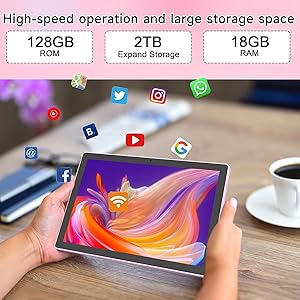
Image: A user interacting with the COOPERS Android 15 Tablet CP20PRO using the included wireless keyboard and mouse, demonstrating its 2-in-1 functionality.
Operating the Tablet
1. Navigation and Gestures
The Android 15 operating system uses intuitive touch gestures:
- Tap: Select an item or open an app.
- Tap & Hold: Access contextual menus or move icons.
- Swipe: Scroll through pages, navigate between home screens, or dismiss notifications.
- Pinch-to-Zoom: Enlarge or shrink content like photos and web pages.
2. Display Settings
Adjust screen brightness, font size, and eye protection mode for optimal viewing comfort. Access these settings via Settings > Display.

Image: The tablet's 10.1-inch IPS display showcasing its 1280x800 resolution and Widevine L1 support for streaming services.
3. Connecting to Wi-Fi
To connect to the internet, go to Settings > Network & internet > Wi-Fi. Select your desired network and enter the password if required. The tablet supports both 2.4GHz and 5GHz Wi-Fi bands.
4. Installing Applications
Your tablet is Google GMS certified, allowing full access to the Google Play Store. Open the Play Store app, search for desired applications, and tap "Install" to download them.

Image: The tablet's interface displaying the Google Play Store, indicating access to a wide range of applications.
5. Camera Usage
The tablet features a 2MP front camera and an 8MP rear camera. Open the Camera app to take photos or record videos. Tap the screen to focus and press the shutter button to capture.

Image: Detail of the tablet's 8MP rear camera and an example of a photo taken with the tablet, showing its ability to capture moments.
6. Storage Management
The tablet comes with 128GB of internal storage, expandable up to 2TB via a microSD card (not included). To manage storage, go to Settings > Storage. You can view used space and free up storage by uninstalling apps or deleting files.

Image: The tablet highlighting its 128GB ROM, 18GB RAM, and expandable storage, suitable for various applications.
Maintenance
1. Cleaning
Use a soft, lint-free cloth to clean the screen and body of the tablet. Avoid abrasive materials or harsh chemicals. For stubborn smudges, slightly dampen the cloth with water or a screen cleaner designed for electronics.
2. Software Updates
Regularly check for and install software updates to ensure optimal performance, security, and access to new features. Go to Settings > System > System update.
3. Battery Care
- Avoid extreme temperatures, as they can degrade battery life.
- Do not let the battery completely drain frequently.
- Use the provided Type-C cable for charging.
Troubleshooting
Tablet Not Turning On
- Ensure the tablet is sufficiently charged. Connect it to a charger for at least 30 minutes.
- Press and hold the Power button for 10-15 seconds to force a restart.
Wi-Fi Connection Issues
- Toggle Wi-Fi off and on in Settings.
- Restart your Wi-Fi router.
- Forget the network and reconnect.
- Ensure you are within range of the Wi-Fi signal.
Apps Crashing or Freezing
- Close and reopen the app.
- Clear the app's cache: Settings > Apps > [App Name] > Storage & cache > Clear cache.
- Update the app from the Google Play Store.
- Restart the tablet.
Slow Performance
- Close unnecessary background apps.
- Clear cached data regularly.
- Ensure sufficient free storage space.
- Restart the tablet periodically.
Specifications
| Feature | Detail |
|---|---|
| Model | CP20PRO |
| Operating System | Android 15 |
| Screen Size | 10.1 Inches IPS Touch Screen |
| Screen Resolution | 1280 x 800 Pixels |
| Processor | 2.0 GHz Quad-core |
| RAM | 18GB (4GB fixed, 14GB virtual) |
| Internal Storage (ROM) | 128GB |
| Expandable Storage | Up to 2TB via microSD card |
| Wireless Connectivity | 2.4G/5G WiFi (802.11ac), Bluetooth |
| Cameras | Front: 2MP, Rear: 8MP |
| Battery | 6000mAh (Average 8 hours life) |
| Dimensions (LxWxH) | 9.5 x 0.3 x 6.5 inches |
| Weight | 2.66 pounds |

Image: The rear view of the COOPERS Android 15 Tablet CP20PRO, displaying its model number and camera design.
Warranty and Support
For warranty information and technical support, please refer to the documentation provided with your purchase or contact COOPERS customer service directly. Details are typically available on the manufacturer's official website or through your retailer.
Keep your purchase receipt as proof of purchase for warranty claims.


