
1. Product Overview
This manual provides instructions for the HP TPN-Q287 Touchscreen Laptop. This device is designed for performance and daily work, featuring a 15.6-inch HD touchscreen display and an AMD Ryzen 7 7730U processor for multitasking. It comes equipped with 32GB RAM, a 1TB SSD, and runs on Windows 11 Home.

Image 1.1: Overview of the HP TPN-Q287 Laptop's main features and specifications.
Key features include:
- Processor: AMD Ryzen 7 7730U (8 Cores, 16 Threads, up to 4.5 GHz Max Turbo Frequency).
- Memory: 32GB DDR4 RAM (expandable up to 64GB).
- Storage: 1TB Solid State Drive (SSD).
- Display: 15.6-inch Full HD (1920x1080) Touchscreen with 60Hz refresh rate.
- Operating System: Windows 11 Home.
- Connectivity: Wi-Fi 6 and Bluetooth 5.0.
- Ports: 1x USB Type-C, 2x USB Type-A, 1x HDMI, 1x Headphone/Microphone Combo, 1x AC Smart Pin.
- Integrated: Webcam.
2. Initial Setup
2.1 Unpacking and Inspection
Carefully remove the laptop and all accessories from the packaging. Verify that all components are present:
- HP TPN-Q287 Laptop
- AC Power Adapter and Power Cord
- Documentation (Quick Start Guide, Warranty Information)
Inspect the laptop for any physical damage. If any damage is found or components are missing, contact your retailer or HP support immediately.
2.2 Connecting to Power
- Connect the AC power adapter to the power connector on the side of the laptop.
- Plug the power cord into a wall outlet.
- Allow the battery to charge for a few minutes before initial power-on, especially if the laptop has been stored for an extended period.
2.3 Initial Power-On and Windows Setup
- Open the laptop lid. The laptop may power on automatically. If not, press the power button located on the keyboard deck.
- Follow the on-screen instructions to complete the Windows 11 Home setup process. This includes selecting your region, language, connecting to a Wi-Fi network, and creating a user account.
- Ensure you have an active internet connection during setup for updates and account synchronization.
3. Operating Your Laptop
3.1 Using the Touchscreen Display
The 15.6-inch HD touchscreen allows for intuitive interaction with Windows 11. Use gestures such as tapping, swiping, and pinching to navigate applications and content.
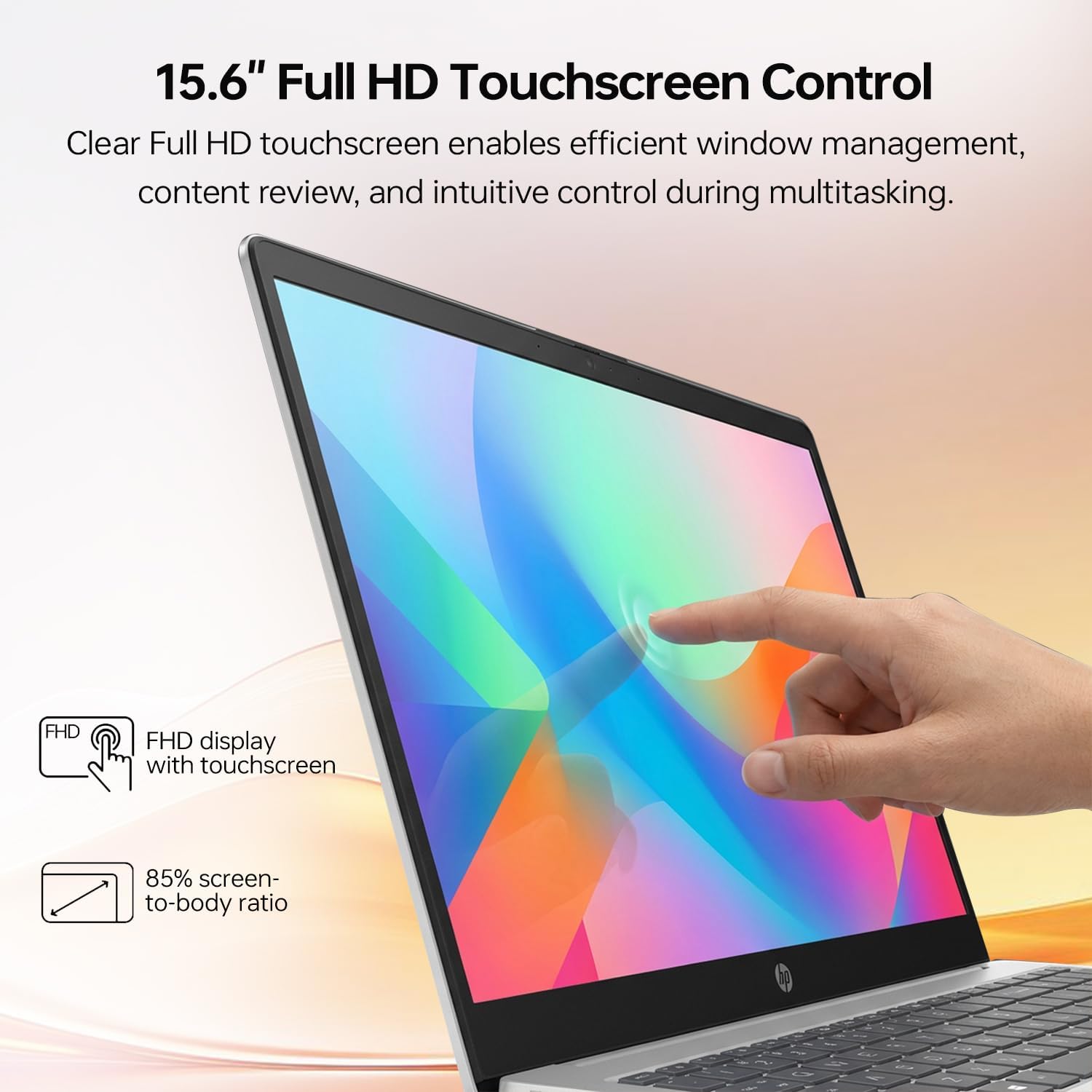
Image 3.1: Demonstrating touchscreen interaction on the HP TPN-Q287.
- Tap: Equivalent to a mouse click.
- Tap and Hold: Equivalent to a right-click.
- Swipe: Scroll through content or navigate between screens.
- Pinch/Stretch: Zoom in or out on images and documents.
3.2 Keyboard and Touchpad
The laptop features an ergonomic QWERTY keyboard with a numeric keypad for efficient data entry. The integrated touchpad provides precise cursor control.
- Touchpad Gestures: Refer to Windows settings for customizable touchpad gestures (e.g., two-finger scroll, three-finger swipe).
- Function Keys: Use the Fn key in combination with the F1-F12 keys for quick access to system functions like volume control, screen brightness, and Wi-Fi toggle.
3.3 Connecting Peripherals and External Displays
The HP TPN-Q287 offers various ports for connecting external devices:

Image 3.2: Port layout of the HP TPN-Q287 laptop.
- USB Type-C (1x): Connect modern peripherals, external storage, or compatible docking stations.
- USB Type-A (2x): For standard USB devices like mice, keyboards, and flash drives.
- HDMI (1x): Connect to external monitors, projectors, or TVs for extended display.
- Headphone/Microphone Combo (1x): For audio output to headphones or input from a headset microphone.
To connect an external display via HDMI, plug the HDMI cable into both the laptop and the display. Windows will typically detect the display automatically. You can configure display settings (duplicate, extend, second screen only) via the Display Settings in Windows.
3.4 Wireless Connectivity (Wi-Fi and Bluetooth)
The laptop supports Wi-Fi 6 for fast wireless internet and Bluetooth 5.0 for connecting wireless accessories.
- Wi-Fi: Access Wi-Fi settings through the Windows taskbar network icon. Select your desired network and enter the password if required.
- Bluetooth: Enable Bluetooth in Windows Settings > Bluetooth & devices. Pair with compatible devices such as headphones, speakers, or mice.
4. Maintenance and Care
4.1 Cleaning Your Laptop
- Screen: Use a soft, lint-free cloth slightly dampened with water or a screen-cleaning solution. Avoid harsh chemicals.
- Keyboard and Chassis: Use a soft, dry cloth. For stubborn dirt, a slightly damp cloth with mild soap solution can be used, ensuring no liquid enters openings. Compressed air can remove dust from between keys.
- Ports: Use compressed air to gently clear dust from ports. Avoid inserting objects into ports.
4.2 Battery Care
- Avoid extreme temperatures, which can degrade battery life.
- For optimal battery longevity, avoid consistently discharging the battery completely or keeping it at 100% charge for extended periods.
- If storing the laptop for a long time, charge the battery to approximately 50-70%.
4.3 Software Updates
Regularly update Windows and drivers to ensure optimal performance, security, and compatibility. Access Windows Update via Settings > Windows Update.
5. Troubleshooting Common Issues
5.1 Laptop Not Powering On
- Ensure the AC adapter is securely connected to both the laptop and a working power outlet.
- Verify the power outlet is functional by plugging in another device.
- If the battery is completely drained, it may take a few minutes of charging before the laptop can power on.
5.2 Wi-Fi Connectivity Problems
- Check if Wi-Fi is enabled in Windows settings or via the function keys.
- Restart your router and modem.
- Forget the Wi-Fi network in Windows settings and reconnect.
- Ensure your Wi-Fi drivers are up to date.
5.3 Touchscreen Unresponsive
- Restart the laptop.
- Ensure the screen is clean and free of debris.
- Check Device Manager in Windows for any issues with touchscreen drivers. Update or reinstall if necessary.
5.4 External Display Not Detected
- Verify the HDMI cable is securely connected to both the laptop and the external display.
- Ensure the external display is powered on and set to the correct input source (e.g., HDMI 1).
- Press Windows key + P to open the Project menu and select the desired display mode (Duplicate, Extend, Second screen only).
6. Technical Specifications
| Feature | Specification |
|---|---|
| Brand | HP |
| Model Name | TPN-Q287 |
| Screen Size | 15.6 Inches |
| Display Resolution | 1920x1080 Pixels (Full HD) |
| Refresh Rate | 60 Hz |
| Touch Screen Type | Capacitive |
| CPU Model | AMD Ryzen 7 7730U |
| Processor Speed | 2 GHz (Base), 4.5 GHz (Max Turbo) |
| RAM Memory Installed Size | 32 GB DDR4 |
| RAM Memory Maximum Size | 64 GB |
| Hard Disk Size | 1 TB SSD |
| Operating System | Windows 11 Home |
| Graphics Coprocessor | AMD Radeon Graphics (Integrated) |
| USB Ports | 1x USB Type-C, 2x USB Type-A |
| HDMI Ports | 1 |
| Audio Output | Headphone/Microphone Combo Jack, Speakers |
| Wireless Connectivity | Wi-Fi 6 (802.11ax), Bluetooth 5.0 |
| Webcam Capability | Yes (Front) |
| Item Weight | 3.52 Pounds |
| Dimensions (L x W x Th) | 14.17" x 9.29" x 0.73" |
7. Warranty and Support
7.1 Product Warranty
This HP TPN-Q287 laptop comes with a 1 Year Limited Warranty from the manufacturer. For specific terms and conditions, please refer to the warranty documentation included with your product.
Note: If the laptop was purchased with an upgrade, a 1-year warranty on the upgraded RAM/SSD is provided by PCOnline US, while the remaining components retain the original 1-year manufacturer's warranty.
7.2 Technical Support
For technical assistance, driver downloads, or further information, please visit the official HP support website. You can also find additional resources and contact information at the HP Store on Amazon.
When contacting support, please have your laptop's model number (TPN-Q287) and serial number ready. The serial number is typically located on a sticker on the bottom of the laptop.


